Reservations (main menu) has all your WeSpeak Payments reservations: the ones the assistant closes by chat or by phone, the ones from payment links your team generates with the $ quoter, and also the links the guest hasn't completed yet. The Administrator and Supervisor roles see it; the User role has no access (see Permissions and Roles). The statistics for your payments are in Dashboard → Payments (see Booking statistics).
ℹ️ If Reservations appears grayed out in the menu, with the "New Feature!" notice, WeSpeak Payments isn't active on your account (see Activate WeSpeak Payments). It's also disabled if your reservations balance reaches zero.
ℹ️ This guide is part of WeSpeak Payments, which has the list of what has to be ready before you start.
In this article
- The list
- Search, filter and sort
- Download the reservations
- The reservation details
- Record a payment: Add Payment and Mark as paid
- Card guarantee: view the details and mark it as charged
- Cancel or change a reservation
- Reservation and payment statuses
- Sync with your PMS
- Frequently asked questions
The list
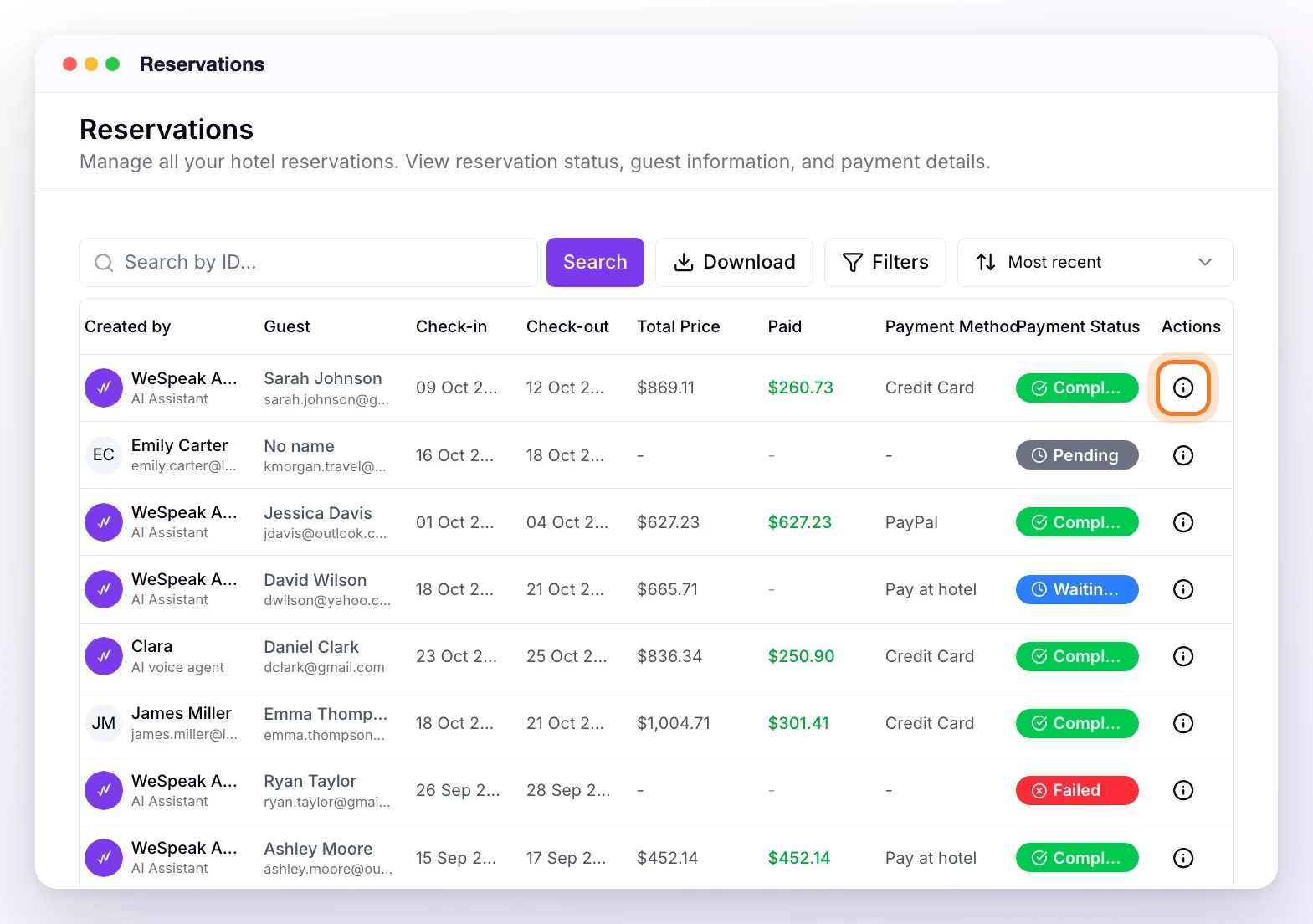
Reservations appear from the most recent to the oldest, 10 per page. Each row shows when it was created (Created), who created it (Created by: the assistant —AI Assistant or, for phone reservations, AI voice agent— or the team member who generated the link), the Guest, Check-in and Check-out, Total Price, Paid, Payment Method and the Payment Status. Until the guest completes the checkout, price, paid and method show "-".
Search, filter and sort
- Search by ID... finds a reservation by its WeSpeak ID (the one in the details; part of it is enough). It doesn't search by your PMS number.
- Filters opens Search Filters: Complex (if you have several properties), Guest Name (first or last name), Payment Status, Reservation Status, PMS Sync Status (Unsynchronized, Synchronized or Pending), Payment Method, Created by (the assistant, the voice assistant or each team member), Creation Date, Check-in Date, Check-out Date and Total Price Range. When you click Apply Filters, the Active filters: stay above the list, each with its ✕, and Clear all to remove them.
- Sort by...: Most recent (the usual order), Oldest, Highest price, Lowest price, Check-in soon and Check-in far (these two show only reservations with check-in from today onwards).
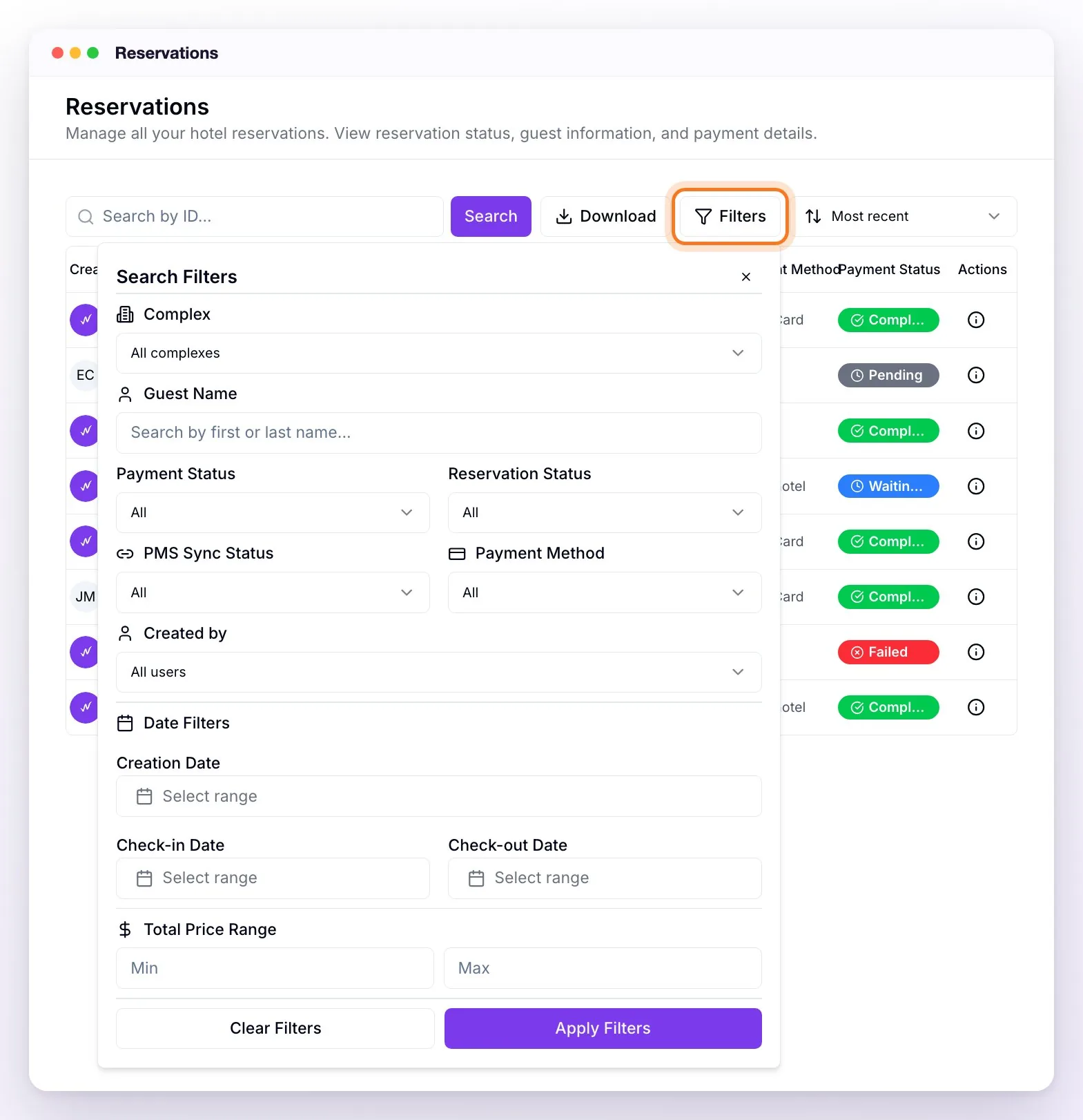
💡 In the status filters, reservations waiting for payment show as Processing; in the list and in the details, as Waiting for payment.
Download the reservations
Download generates an Excel file with all the reservations that match the search, filters and sort order you chose (not just the ones on the page you're viewing). It has one row per reservation with its ID, the creation date and time, who created it, the status (it's the Payment Status), the channel, the guest's details (first name, last name, email, phone and country), check-in, check-out and nights, rooms and rates, adults and children, the currency, Total Price, Deposit, Amount Paid and To Pay, the payment method, the reservation number in your PMS (Channel ID) and the conversation ID.
The reservation details
Click ⓘ (View reservation details), at the end of the row, to open Reservation Details. At the top is the reservation's WeSpeak ID: clicking it opens the payment or confirmation page the guest sees.
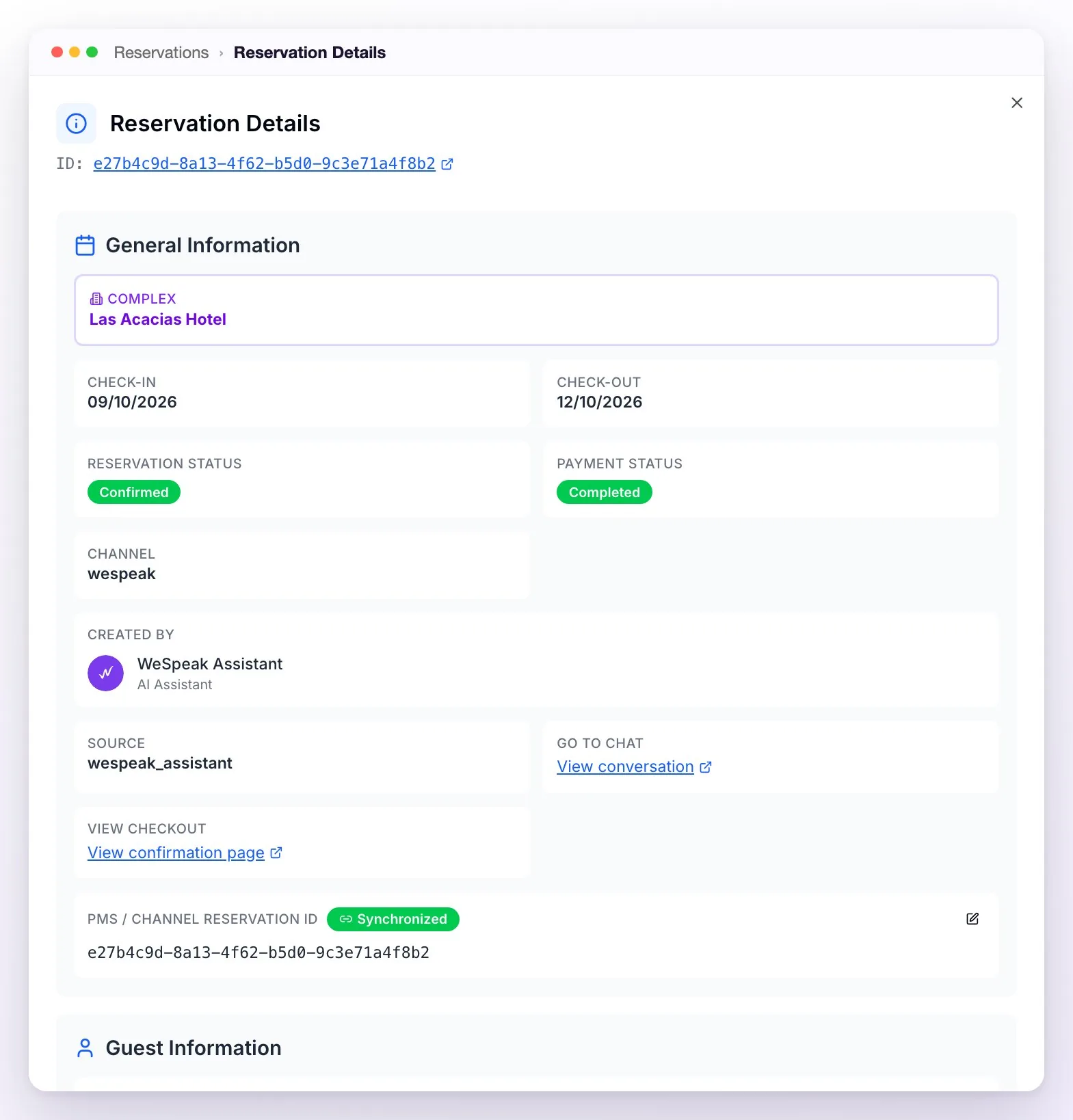
- General Information: the property (Complex, if you have several), Check-in and Check-out, the Reservation Status and the Payment Status (see Reservation and payment statuses), the Channel (the integration it was loaded into) and Created by. Plus two shortcuts:
- GO TO CHAT → View conversation: opens the conversation where the reservation was generated. It doesn't appear for reservations that didn't start in a chat.
- VIEW CHECKOUT → View confirmation page: the confirmation the guest sees. It appears when the Payment Status is Completed.
- PMS / CHANNEL RESERVATION ID: the reservation number in your PMS or Channel Manager and its status (see Sync with your PMS).
- Guest Information: name, email, phone, country and, if the checkout asked for it, the document type and number.
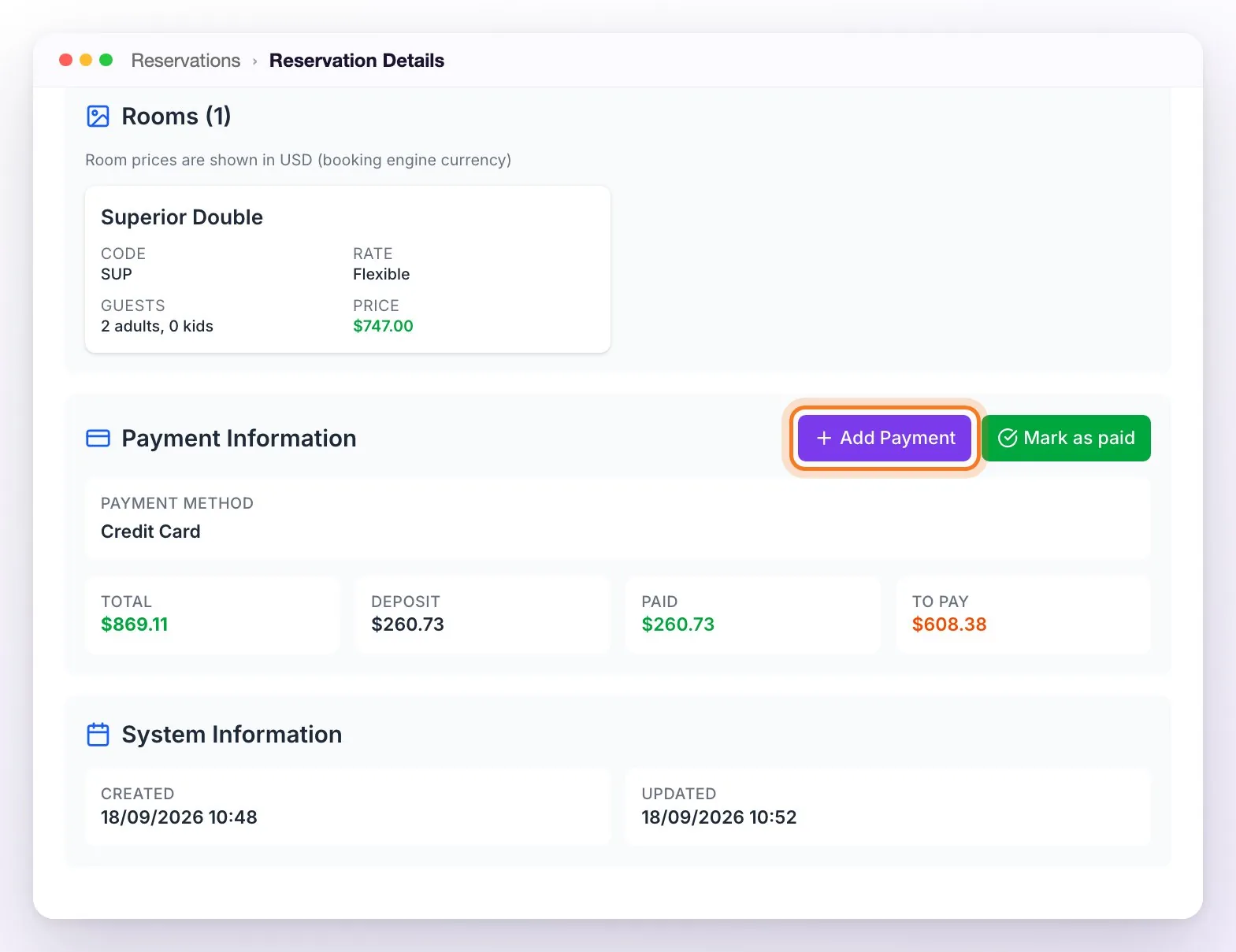
- Rooms: each room with its code, rate, guests and price, in your booking engine's currency.
- Payment Information: the Payment Method and four amounts: Total, Deposit (what was requested at booking), Paid and To Pay. If the guest paid in another currency, you'll see Currency Conversion Applied and the amounts in both currencies (see Currencies and conversion).
- System Information: when the reservation was created and when it last changed. If something failed, Errors appears at the end with the details.
Record a payment: Add Payment and Mark as paid
WeSpeak records by itself, on each reservation, what's charged online. What's collected outside —a bank transfer that arrived, the balance the guest pays at the front desk, a guarantee card you charged— you record from Payment Information:
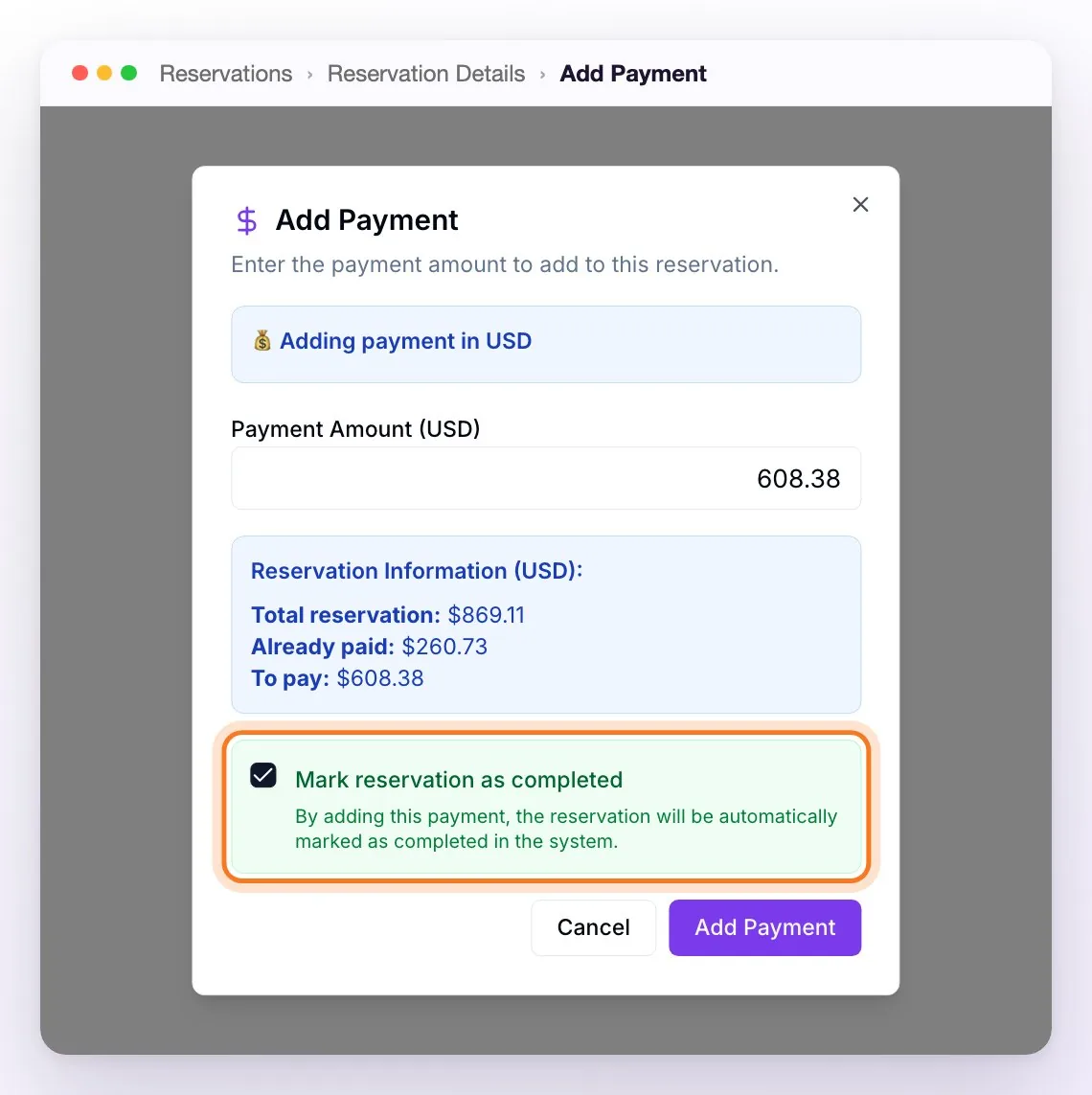
Open the reservation details (ⓘ) and, in Payment Information, click Add Payment.
Type the Payment Amount, in the currency the guest pays in. Below you see the Total reservation, what's already paid and what's left.
Check Mark reservation as completed: it comes checked and, if you leave it that way, the Payment Status changes to Completed even if there's a balance left to pay. Uncheck it if you're only recording a partial payment and the reservation is still waiting for the rest.
Click Add Payment. If the amount is more than what's left, WeSpeak asks you to confirm it (Payment Exceeds Remaining Amount).
Mark as paid does it all at once: it sets Paid equal to the Total, To Pay to 0 and the reservation as completed (the button is disabled once the reservation is paid).
ℹ️ Add Payment and Mark as paid only record the payment in WeSpeak: they don't charge anything, don't notify the guest and don't change anything in your PMS.
Card guarantee: view the details and mark it as charged
When the guest leaves their card as a guarantee, WeSpeak saves it but doesn't charge anything. The reservation is Confirmed and its Payment Status Completed, but Paid stays at 0: in the list its method shows as Card authorization and the details show the Credit card authorization on file notice.
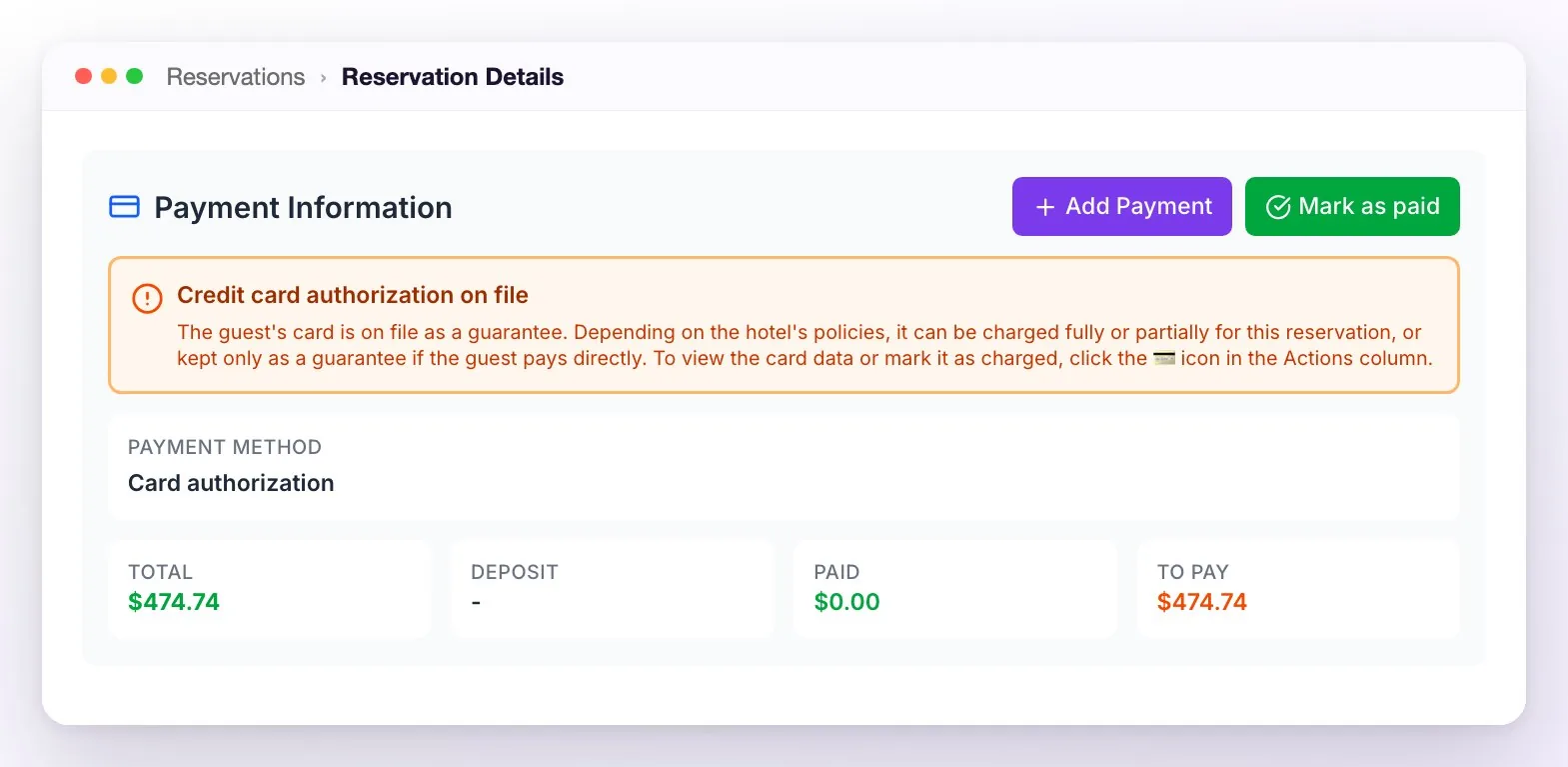
To charge it:
- In the list, click the reservation's 💳 icon (Actions column). Only an Administrator user sees the details: a Supervisor sees "Restricted Access".
- Click View Data. The first time, all the details are shown (number, expiration date, cardholder and CVV); after that, the CVV no longer appears, because of card security rules (see How many times can I see a guarantee card's details?). Open them when you're about to charge, with your card terminal ready.
- Charge it with your card terminal or your gateway, according to the rate's policy.
- Click Mark as Viewed and Charged. WeSpeak records the reservation's deposit as paid (or the total, if it had no deposit) and the icon turns into a green ✓ ("Card viewed and charged").
⚠️ Mark as Viewed and Charged doesn't charge the card: it only leaves a record in WeSpeak. If you charged a different amount, record it with Add Payment, which also marks it as charged.
Cancel or change a reservation
You can't cancel or change a WeSpeak Payments reservation from your panel. Do it in your PMS or Channel Manager and, if there was a charge, refund the money from your gateway's dashboard. If you also need the reservation to show as cancelled or changed in WeSpeak, ask the support team. A cancelled reservation doesn't go back to your reservations balance.
Reservation and payment statuses
Each reservation has two statuses: the Reservation Status tells you whether the reservation exists and is confirmed; the Payment Status, where the payment stands. The list shows only the Payment Status; the details, both. That's why a reservation can be Confirmed with its payment Waiting for payment: it's normal with bank transfer, pay at the hotel or an external payment link until you record the payment.
| Payment Status | What it means | What you do |
|---|---|---|
| Pending | The link was generated, but the guest hasn't confirmed the reservation on the payment page yet. | Nothing: if the guest doesn't continue, it stays like that. |
| Waiting for payment | The guest confirmed the reservation on the payment page. With a gateway, they're paying (or left the payment unfinished and can pick it up again from the same link). With bank transfer, pay at the hotel or an external payment link, the reservation is already confirmed and you still have to record the payment. | When the money arrives, record it with Add Payment or Mark as paid. |
| Completed | The payment was approved by the gateway or you recorded it. With a card guarantee, it means the card was saved: Paid stays at 0 until you charge it. | With a card guarantee, charge it and mark it as charged. |
| Failed | It couldn't be completed: either availability or price changed when the guest tried to confirm (nothing was charged), or the payment was charged, but your PMS or Channel Manager didn't accept the reservation. | If price or availability changed, send them a new link. If you got the "⚠️ Reservation not registered in…" email, load it into your PMS by hand (see Sync with your PMS); the technical details are in Errors. |
| Requires retry | Your PMS or Channel Manager didn't accept a reservation made with bank transfer, pay at the hotel or an external payment link, or there was a connection error when the guest tried to confirm. | The guest can try again from their link. If you got the reservation-not-registered email, load it by hand. |
| Cancelled | The reservation was cancelled in WeSpeak. | If there was a charge, the refund is done from your gateway: cancelling doesn't return the money. |
| Reservation Status | What it means |
|---|---|
| Pending | The link was generated and the guest hasn't confirmed the reservation yet. |
| Waiting for payment | The guest is paying with a gateway (or left the payment unfinished). In the filter it's called Processing. |
| Confirmed | The reservation exists: the payment was approved or the guarantee card was registered, or the guest confirmed it with bank transfer, pay at the hotel or an external payment link. It's the one that counts against your reservations balance, even if the payment is still waiting for your confirmation. |
| Failed | It couldn't go through (see above). |
| Requires retry | Loading it into your system failed and the reservation can be tried again (see above). |
| Cancelled | The reservation was cancelled. |
Sync with your PMS
If your reservations are loaded into a PMS or Channel Manager, each one keeps the number your system assigned to it. You see it in the details, in PMS / CHANNEL RESERVATION ID:
- Synchronized: the reservation has its number in your PMS (if it's a link, it opens with one click).
- Unsynchronized: the payment is Completed, but the reservation has no number in your PMS. While there are any, above the list you'll see "You have N unsynchronized reservations" with the View reservations button, and those rows are marked in orange. Resolve them as soon as possible to avoid overbooking.
- Pending: the reservation doesn't have a number yet and its payment isn't completed (for example, a link the guest didn't finish).
ℹ️ With WeSpeak Engine (WeSpeak Rates without a PMS), the reservation lives in WeSpeak: the field shows the WeSpeak ID itself as Synchronized, and there's nothing to load by hand.
If your system doesn't accept a reservation. WeSpeak loads it into your PMS or Channel Manager as soon as it's confirmed; if the guest paid with a gateway or left a card guarantee and your system doesn't accept it, it retries up to 3 times. If it doesn't succeed, the reservation stays Failed (with a gateway or card guarantee) or Requires retry (bank transfer, pay at the hotel or external payment link) and an email goes out with the subject "⚠️ Reservation not registered in…" and all the guest and reservation details, to the emails that have the Reservations notice in Settings → Notifications (see Notifications), with a copy to WeSpeak support. The guest sees it on their confirmation page: if they already paid, they're asked to contact the hotel; if not, to try again.
To resolve it:
Load it into your PMS by hand (the details are in the email and in the reservation details).
In Reservations, click the orange icon on its row ("Reservation completed! Sync with PMS", on unsynchronized reservations) or, in the details, the pencil of PMS / CHANNEL RESERVATION ID.
In PMS Reservation ID or URL, type the reservation number in your PMS (or the link to the reservation) and click Sync. The reservation becomes Synchronized and stops counting in the notice.
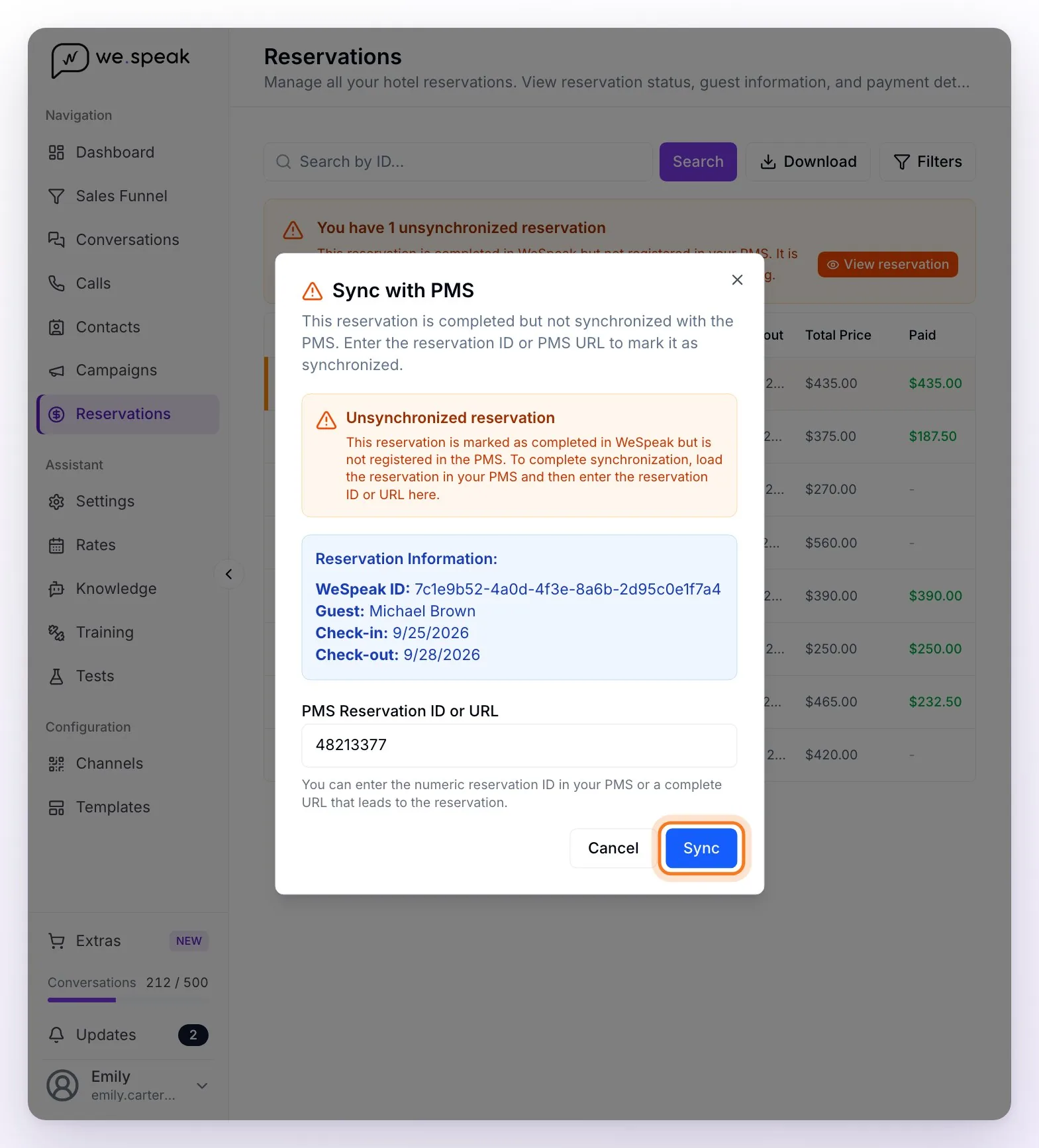
⚠️ Sync with PMS doesn't resend the reservation to your system: it only records in WeSpeak the number it already has in your PMS. That's why you have to load it there first. If a reservation ended up with the wrong number, fix it with the same pencil (Edit PMS reservation ID).
Frequently asked questions
The guest paid by bank transfer. Why does the payment show "Waiting for payment"?
Because WeSpeak doesn't see your bank account: with bank transfer (as with pay at the hotel or an external payment link) the reservation is confirmed when the guest confirms it on the payment page, but you confirm the payment. When you verify the money arrived, record it from the details with Add Payment or Mark as paid.
Why does a reservation with a card guarantee show "Completed" if Paid is at 0?
Because the card was saved, but nothing was charged: Completed means the guarantee was registered correctly. When you charge it with your card terminal or your gateway, mark it with Mark as Viewed and Charged from the 💳 icon in the list.
I can't see a card's details: I get "Restricted Access".
Guarantee card details are only visible to the Administrator role. Ask an Administrator on your account to check them or to change your role in Team (see Permissions and Roles).
How many times can I see a guarantee card's details?
As many as you need: every time you click View Data, you see the number, the expiration date and the cardholder. The CVV (the card's security code), however, is shown only the first time. That's a rule of PCI DSS, the payment card security standard: the security code can't be kept stored after the authorization, so it's shown once and then no longer appears. That's why it's best to open the details only when you're about to charge, with your card terminal ready. Also, every time someone opens a card's details, who did it is recorded.
What happens if the payment fails?
If the gateway declines the payment, nothing is charged: the guest can try again from the same link and, meanwhile, the reservation shows as Waiting for payment. If the payment was approved but your PMS or Channel Manager didn't accept the reservation, WeSpeak retries up to 3 times; if it doesn't succeed, the reservation stays Failed and you get the "⚠️ Reservation not registered in…" email so you can load it by hand (see Sync with your PMS).
The reservation didn't reach my PMS.
It depends on your integration: with a booking engine we read prices from, or with a GDS, the reservation isn't loaded by itself and stays in Reservations for you to load by hand (see Compatible integrations). With a compatible integration, find it in Reservations: if it shows Unsynchronized, Failed or Requires retry, load it into your PMS and register its number (see Sync with your PMS).
How do I cancel a reservation?
Cancel it in your PMS or Channel Manager and, if there was a charge, issue the refund from your gateway. You can't cancel from the WeSpeak panel: if you also need it to show as cancelled in WeSpeak, ask support. A cancelled reservation doesn't go back to your reservations balance.
How do I issue a refund?
Directly from your gateway's dashboard (Stripe, Mercado Pago, etc.), not from WeSpeak, due to each platform's regulations. WeSpeak doesn't record the refund: if you also need the reservation to show as cancelled in WeSpeak, ask support.
Can I register a reservation I took by phone or at the front desk?
Not from your panel: loading, editing and cancelling reservations in WeSpeak is done by the support team. Load it directly into your PMS or, if you want to charge it with WeSpeak Payments, send the guest a payment link from their conversation, with the $ quoter. If you need to fix a reservation that's already in WeSpeak, do it in your PMS and write to us.