The invoices for your subscription and your extras are always in the panel, under Subscriptions → Invoices and payments. Payment notices (failed charges, due dates, renewals) arrive by email at a single address: your company's billing email. This guide shows where everything is and what to do if the invoices "don't reach you".
ℹ️ Subscriptions (the panel's billing page) is only visible to the Administrator role. If you don't see it in your menu, ask an Administrator on your account to give you access — we explain how below.
Where to view and download your invoices
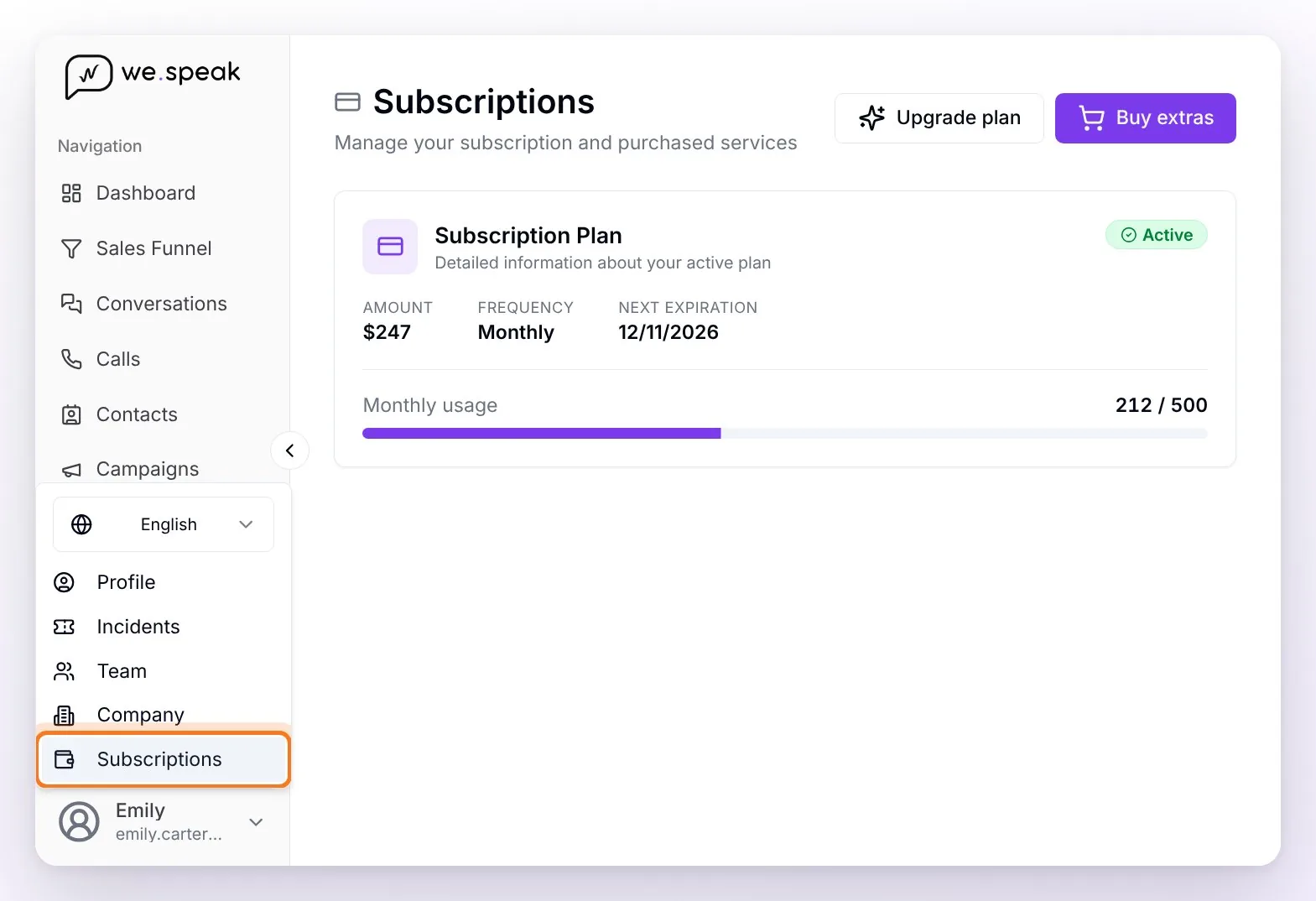
At the bottom left, click your name and choose Subscriptions (or go straight to app.wespeak.pro/billing).
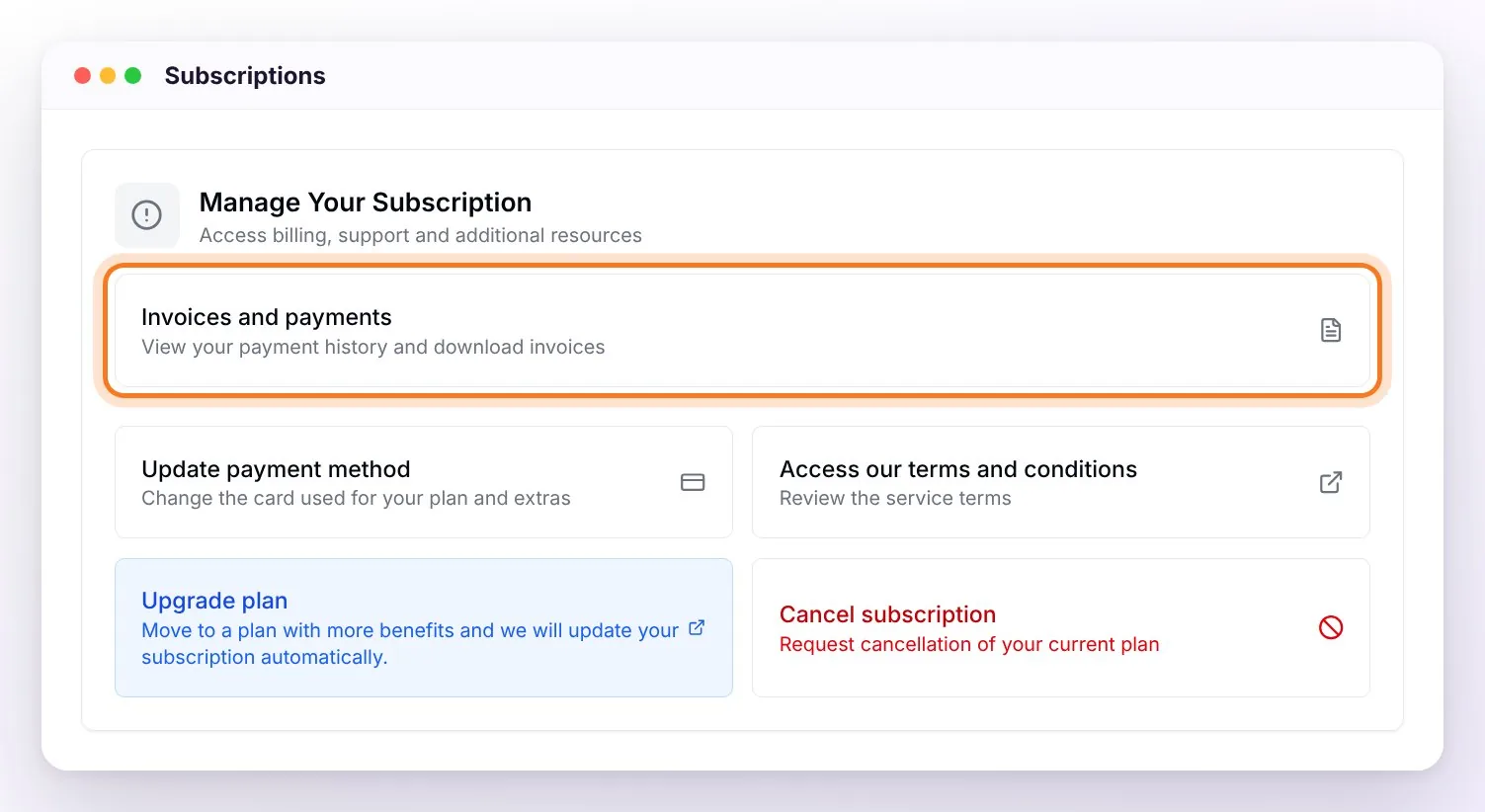
In the Manage Your Subscription card, click Invoices and payments (or go straight to app.wespeak.pro/billing/invoices).
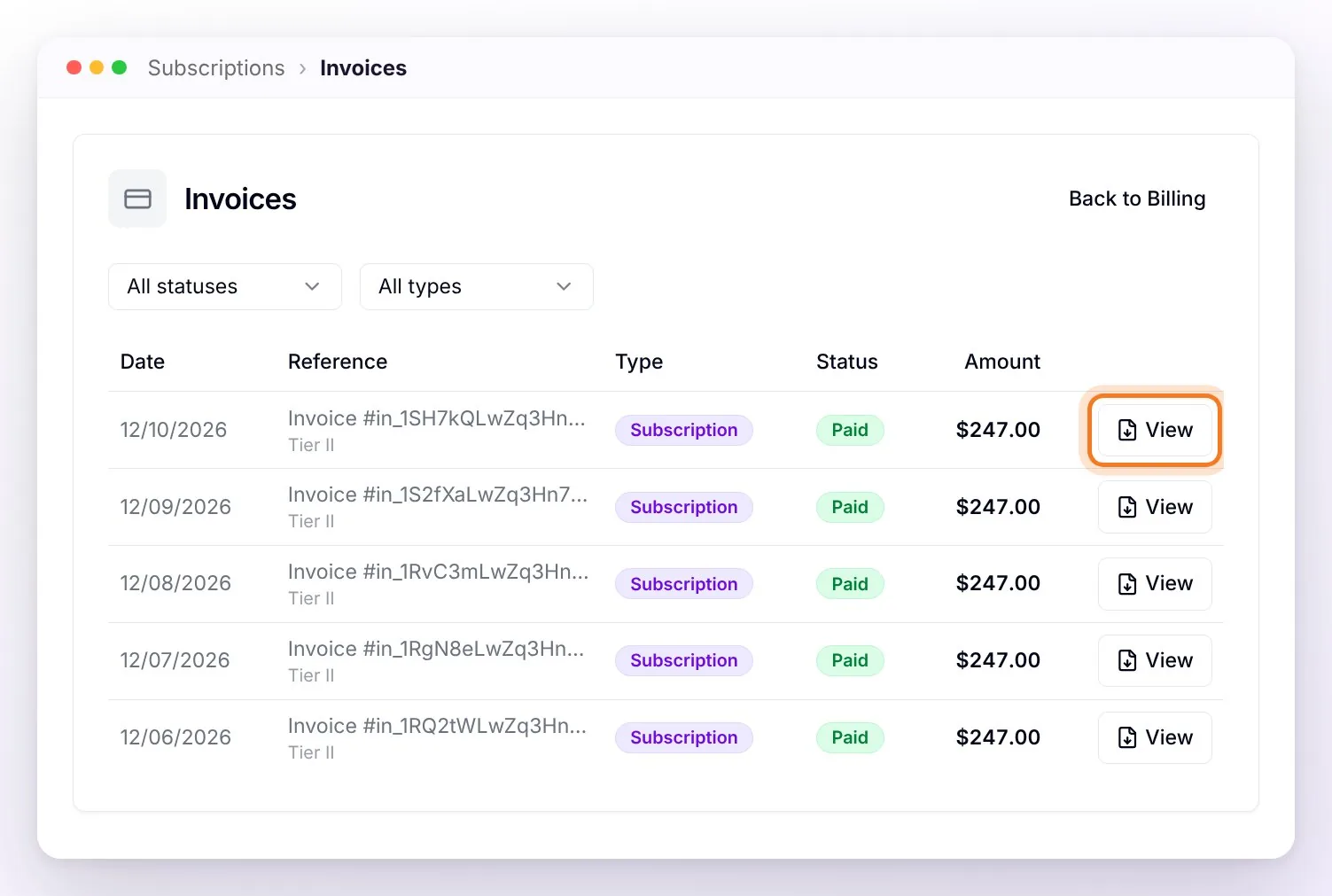
Each row is a payment:
| Column | What it shows |
|---|---|
| Date | The day of the charge. |
| Reference | Invoice #…, with the plan or the quantity purchased underneath. |
| Type | Subscription, Conversations or another extra you bought. |
| Status | Paid, Pending, Failed or Refunded. |
| Amount | The amount charged. |
At the end of each row you have the matching button:
- View — opens the invoice in a new tab, where you can download it as a PDF.
- Pay — shows up in red if a charge is Pending or Failed: it takes you to the secure payment page to settle it by card.
- Contact support — on bank transfer payments that are still pending.
At the top you can filter by status and by type (for example, to see only the subscription payments); Clear removes the filters.
⚠️ Can't see an invoice? The list shows the 12 most recent payments. If you're looking for an older one, or one you expected is missing, write to finanzas@wespeak.pro with your account's company name and the invoice's month.
ℹ️ On bank transfer payments the View button isn't active: the Finance team handles the receipts for those payments.
Was my plan charged? How to check your payments
- In Invoices and payments: if the period's payment shows Paid, it was charged. If it shows Failed, the card charge didn't go through: use Pay or change the card (see below).
- In Subscriptions: the Subscription Plan card shows the subscription status (Active, Payment pending…) and the Next expiration. If it shows Active and the expiration date is in the future, the current period is paid.
When your plan's charge goes through, the invoice shows up in Invoices and payments: look for it there before checking your email.
ℹ️ There's no downloadable "account statement" in the panel. If you need one (for example, for your accounting), ask finanzas@wespeak.pro.
Which email receives the payment notices
All billing emails go to your company's billing email:
- The failed charge notice and the reminders if the subscription expired unpaid.
- The renewal reminders for annual and semiannual plans (30 days before the due date) and for bank transfer payments (10 days before).
- The confirmations for extras purchases and received transfers.
- The conversation limit alerts (80%, 95% and 100%).
To see which one is your billing email, go to Settings → Notifications: it's the row with the padlock and the Billing email label. You also see it in Company.
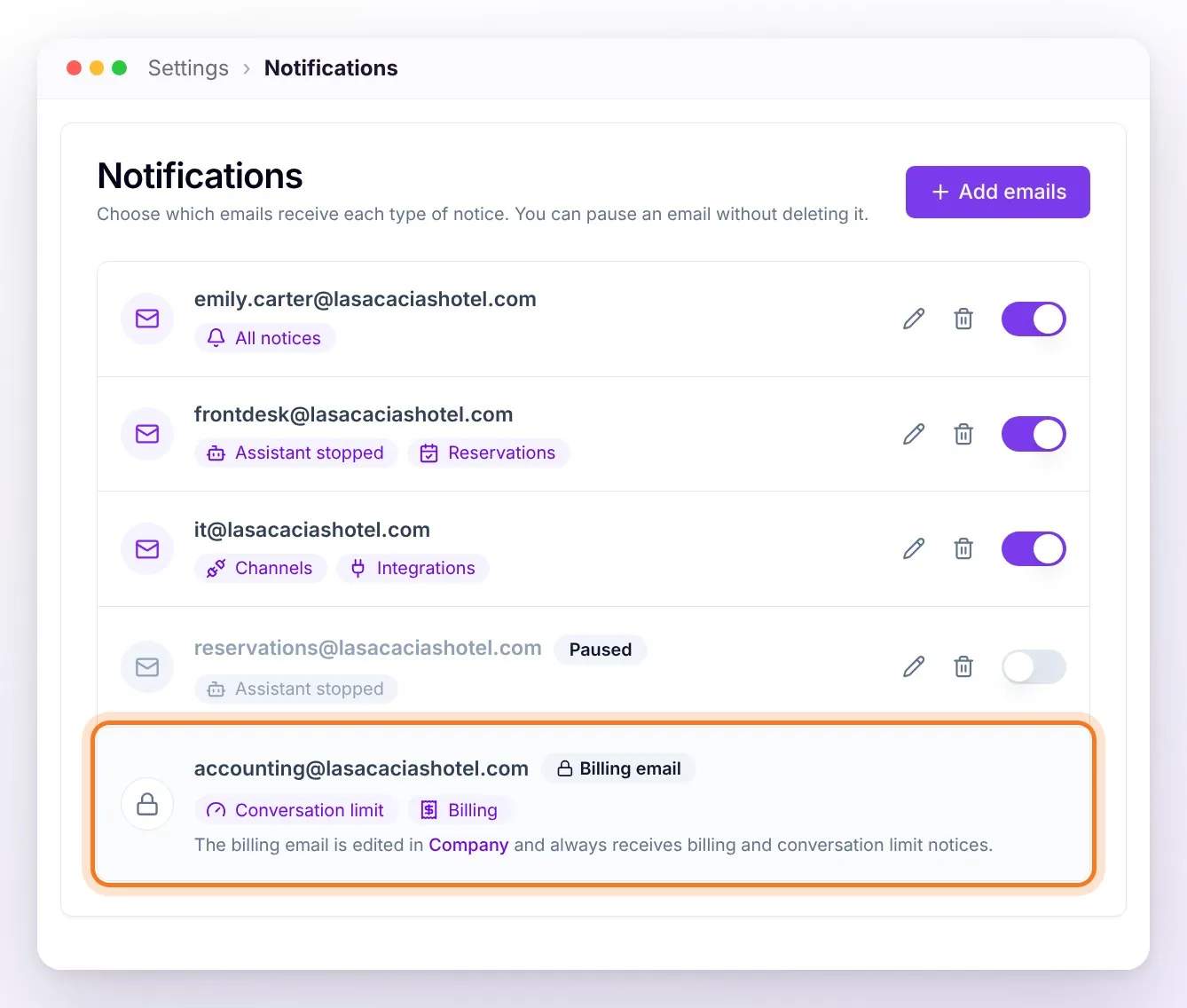
💡 It's common for the billing email to still be the address of whoever signed up (for example, reservations) while someone else pays (accounting). If that's your case, change it as explained next.
Change the billing email
- At the bottom left, click your name and choose Company (the Company Information page).
- In the Tax and Billing Information card, click Edit.
- Enter the new Billing email and click Save.
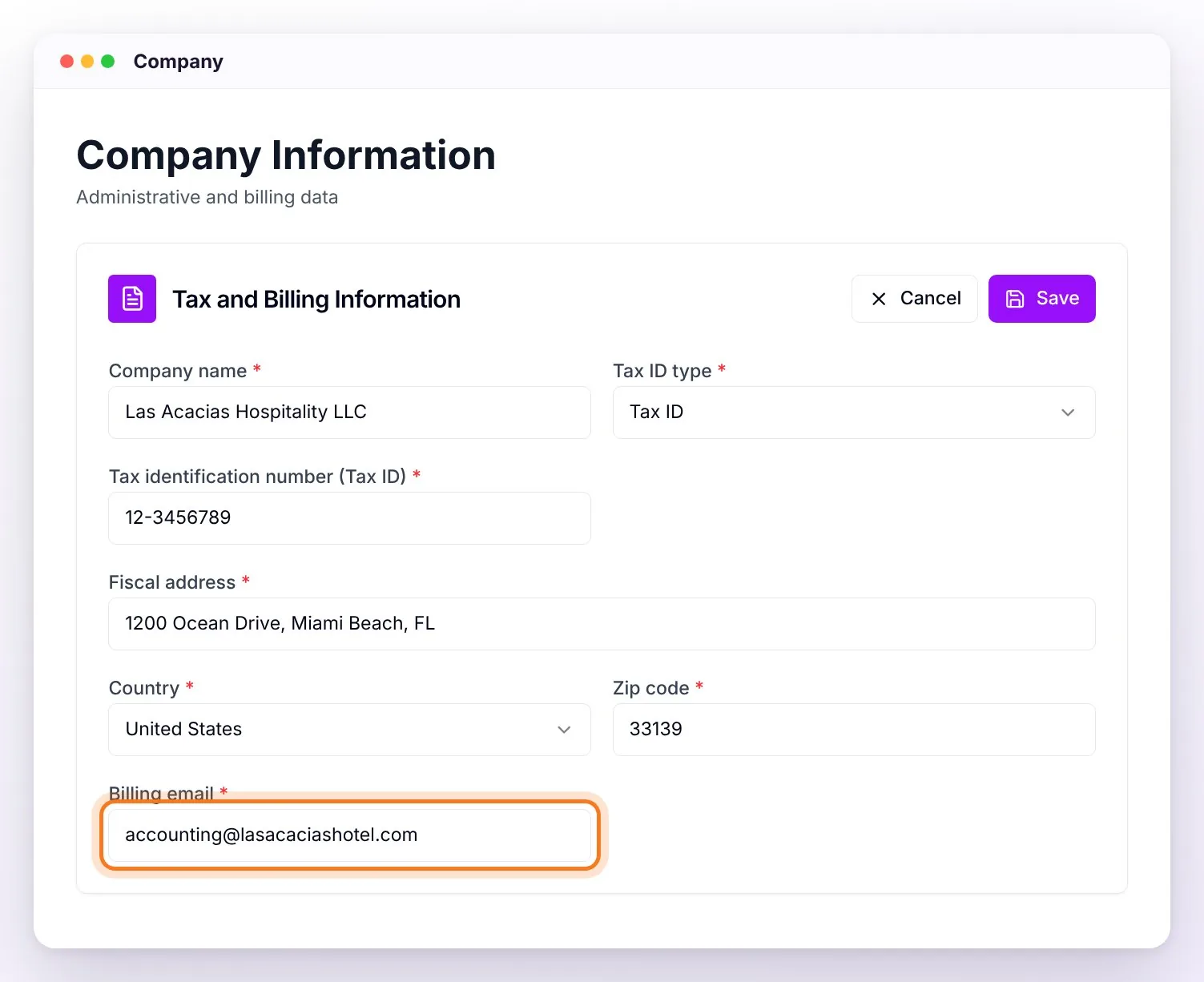
The Administrator and Supervisor roles can do it. Check that the email is spelled correctly before saving: it's where the payment notices go.
The same card holds the rest of the tax details your invoices are issued with: Company name, Tax ID type, Tax identification number (Tax ID), Fiscal address, Country and Zip code. Changes apply to the following invoices; the ones already issued don't change. If you need to correct one, write to finanzas@wespeak.pro.
Add someone else (accounting, bookkeeping)
There's only one billing email. Depending on what that person needs:
| They need… | What to do |
|---|---|
| To receive the payment notices by email | Set their address (or a shared one, like accounting@yourhotel.com) as the Billing email in Company. If the payment and due-date notices must also reach other addresses in copy, ask finanzas@wespeak.pro. |
| To view and download the invoices in the panel | An Administrator invites them from Team with the Administrator role, the only one that sees Subscriptions. Keep in mind that this role has access to the whole panel. If they already have a user with another role, use Edit Role. Details in Permissions and Roles. |
| Just one specific invoice | An Administrator downloads it with View and forwards it. |
⚠️ Adding an email in Settings → Notifications doesn't make the invoices reach it. That list is for operational notices (assistant stopped, channels, reservations, conversation limit…); Billing notices only go to the billing email. More in Notifications.
Change the card you're charged on
In Subscriptions → Manage Your Subscription, click Update payment method: Stripe's secure portal opens so you can change the card your plan and extras are charged to. The Administrator role can do it, on plans paid by card. If you pay by bank transfer, write to finanzas@wespeak.pro.
Frequently asked questions
I can't find an invoice in the list.
The Invoices and payments list shows the last 12 payments. If the invoice you're looking for is older or doesn't show up, write to finanzas@wespeak.pro with your account's company name and the invoice's month.
The invoices don't reach me by email.
The invoices are always in Subscriptions → Invoices and payments, even if no email reaches you. For the payment notices, check which one is your billing email (in Settings → Notifications, the row with the padlock): if nobody reads that inbox, change it in Company → Tax and Billing Information. Also check your spam folder.
I need every invoice since I signed up, plus an account statement.
You can download the last 12 payments from Invoices and payments with View. For older ones and for an account statement, write to finanzas@wespeak.pro with your account's company name.
How do I know whether my card was charged this month?
In Invoices and payments: if the payment shows Paid, it was charged. If it shows Failed, use Pay or change the card in Update payment method.
The person who pays the invoices can't log in to see them.
They need a user with the Administrator role. An Administrator on your account invites them from Team (or changes their role with Edit Role if they already have a user). Meanwhile, any Administrator can download the invoices and forward them.
I don't see Subscriptions in my menu.
Your user doesn't have the Administrator role. Ask an Administrator on your account to change your role from Team.
I want the invoice issued under another company name or with my tax ID.
Update the details in Company → Tax and Billing Information before the next charge. To correct invoices already issued, write to finanzas@wespeak.pro.