Contacts is the complete list of the people your business talks with, across all your channels. Each contact has its conversation (chat) and its place in the funnel; this screen shows them as a table, with tools to create, import, filter, and export.
Where everything is: at the top right, Tutorial (a video) and Add contact; below, Import contacts · Download · Filters · Search contact... · Last update (a date range).
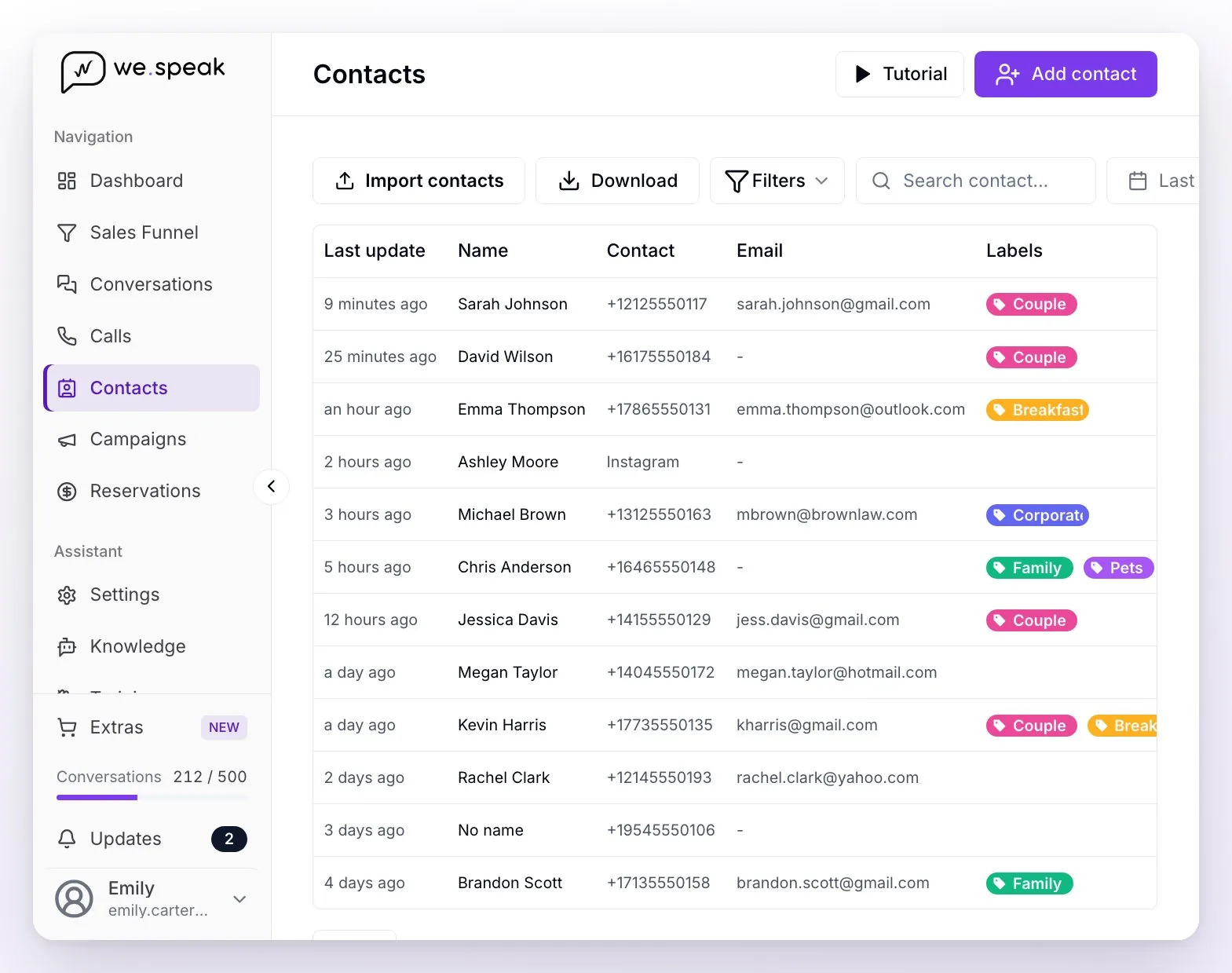
The table shows 50 contacts per page (Previous / Next) with the columns Last update, Name, Contact (the phone number; for Instagram and Facebook, the channel name), Email, Labels, Check-in, Check-out, Estimated amount, and Open chat.
ℹ️ To add or import contacts you need a connected WhatsApp channel (through the API or by QR) — if there isn't one, those buttons appear disabled.
ℹ️ All three roles —Administrator, Supervisor and User— see Contacts. If you turn on Restrict contacts to users (in Settings), each User only sees the contacts assigned to them or unassigned; the details are in Permissions and roles.
Add a contact by hand
Before creating it, look it up in Search contact...: if it already exists, open its chat instead of creating it again.
Click Add contact. Do you want to add a new contact? opens.
If you have several WhatsApp numbers connected, choose in Send from which one the conversation will be created from.
Fill in Name (*) and the Phone (pick the country on the flag or type it with its country code, for example +1 305…), and if you want, Email, Check-in, Check-out, and Estimated amount.
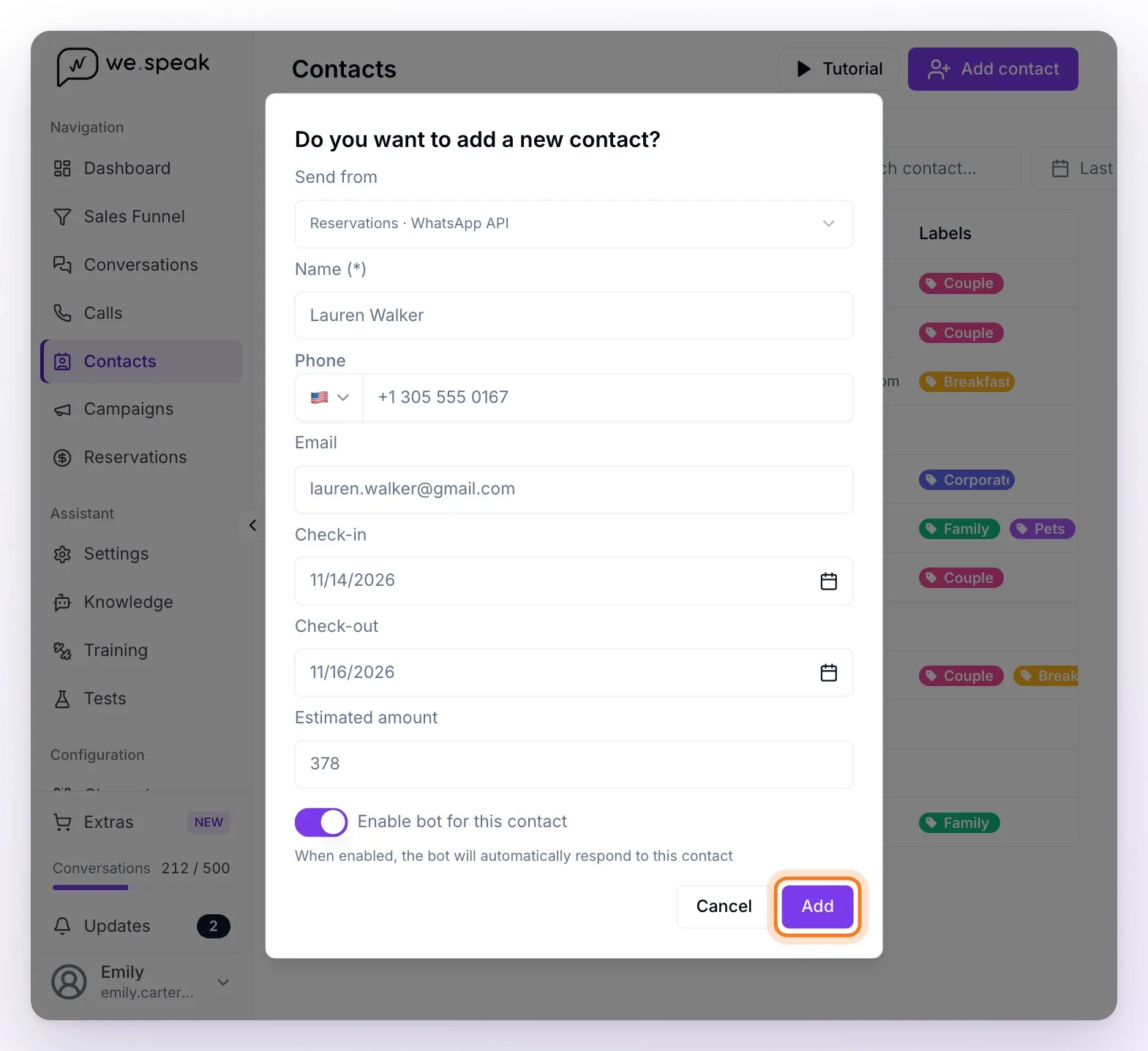
Decide the Enable bot for this contact toggle (on by default: the assistant will reply to them automatically when they write).
Click Add — you'll see Validating number on WhatsApp...: the system checks that the number exists on WhatsApp and creates the contact with its conversation, in the first phase of your first funnel. If the number doesn't exist on WhatsApp, it warns you with The number is not valid on WhatsApp and the contact isn't created.
ℹ️ Creating the contact doesn't send them any message. To write to them, open it with Open chat: if the conversation is over the WhatsApp API, the first message has to be a template approved by Meta.
Import contacts from a spreadsheet
Click Import contacts and choose your Excel or CSV file (.xlsx, .xls, or .csv). The first sheet is read, and its first row has to hold the column titles.
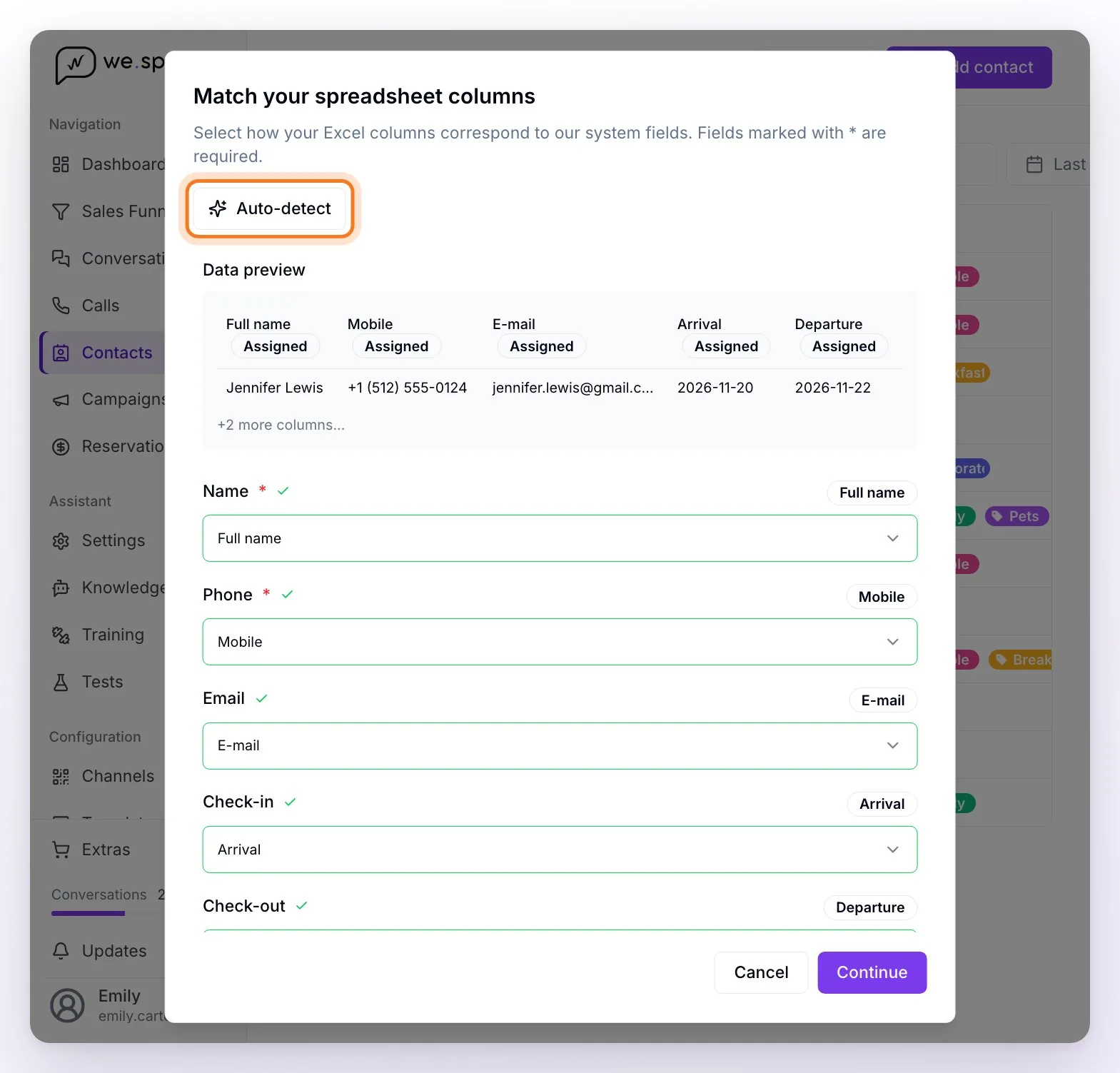
In Match your spreadsheet columns, indicate which column of your file goes with each field: Name and Phone are required; Email, Check-in, Check-out, and Estimated amount, optional. Auto-detect tries to match them on its own, and the Data preview shows you the first row of the file. Go on with Continue.
In Contacts to import, review each row's validation in the Message column: Ready to import, Duplicate contact in the list (the same phone appears more than once in the file) or, in red, the reason the row isn't valid (for example, a phone without the country code or a one-letter name). Only valid rows are imported. If the list is long, you can search by name, phone, or email and filter by status (Valid, Invalid, Duplicates…); Hide details leaves only the main columns.
Before confirming you can assign them all labels and a funnel with its phase (the two boxes at the top; if you don't choose any, they enter the first phase of your first funnel), and decide the Enable bot for imported contacts toggle. If you have several WhatsApp numbers, also choose which one in Send from.
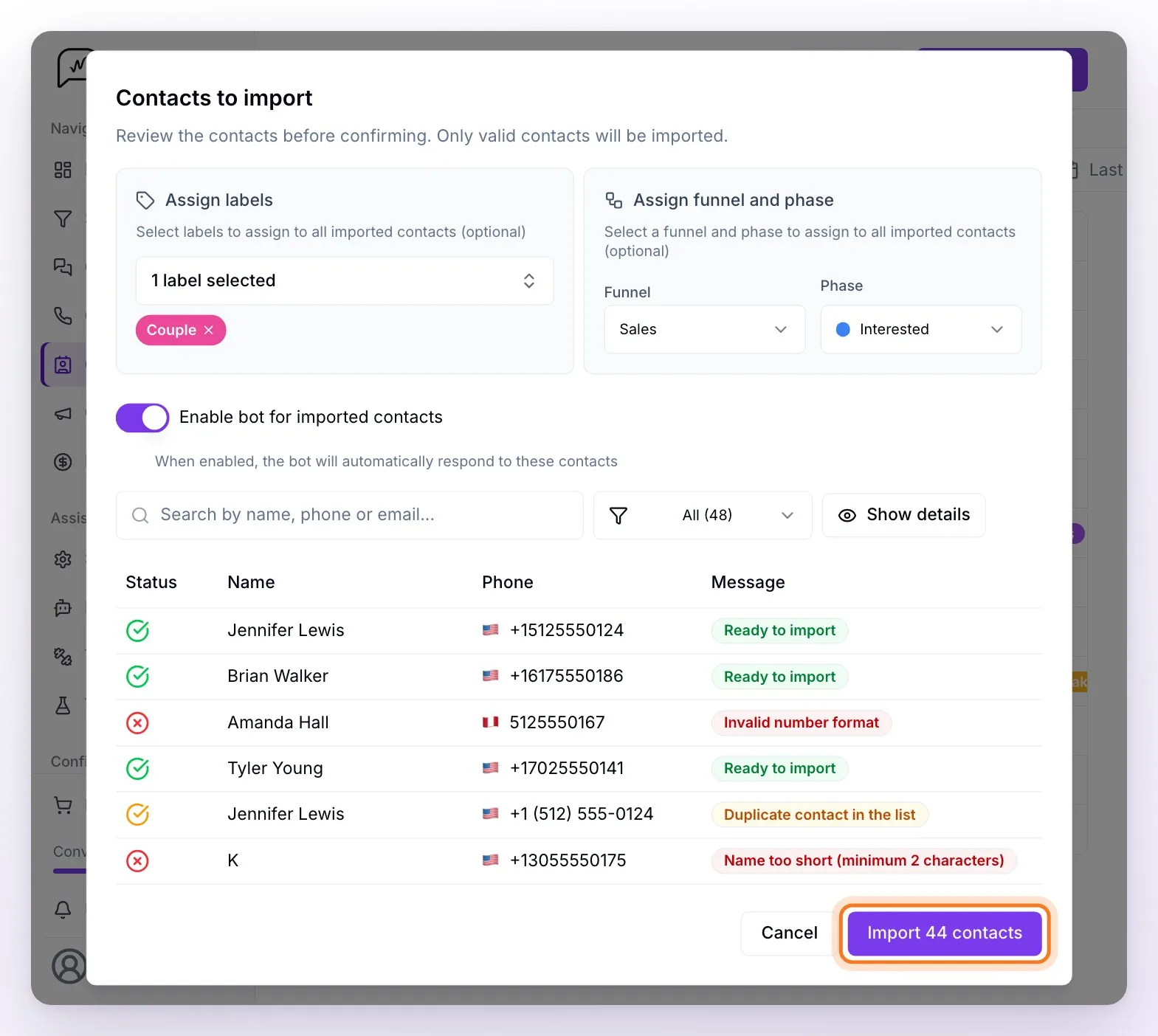
Confirm with Import N contacts (for example, Import 44 contacts). When it's done, each imported row shows Imported; numbers you already had as contacts aren't duplicated.
💡 What the validation checks: the phone with its country code (between 10 and 15 digits), a name of at least 2 characters with some letter, an email with a valid format (if you include one), valid dates (check-out after check-in), and a numeric amount. The import doesn't check whether each number has WhatsApp: that's only verified when you add a contact by hand.
ℹ️ Imported contacts come in with their conversation closed (they don't appear among the open conversations until there are messages) and as a lead with No status in the funnel. If 7 days go by without activity, the automatic closing marks them as Lost (see Funnels).
Export
The Download button generates an Excel with all the contacts that match the active filters (not only the page you see). The columns: Name, Phone, Email, State (the funnel phase), Check-in, Check-out, First follow-up, Second follow-up, Estimated amount, Last update, and one Label … column per label.
ℹ️ The follow-up columns show the date and time of the automatic follow-up messages each contact received — useful for auditing which leads have already been re-contacted.
💡 The Sales Funnel has its own Download button: it exports the funnel you're viewing with one sheet per phase and adds the Channel, Country, and Currency columns (see Funnels).
How everything connects
- Each contact has its conversation: the Open chat icon opens it in Conversations.
- Labels, dates, and the estimated amount are shown here and on its Sales Funnel card; the phase and the customer status, in the funnel and in the State section of its conversation.
- The Filters are the same as in Conversations: channels, labels, queried stay date and creation date, conversation status, funnel and phase, customer status, assigned user, read, assistant status, and country. Without filters, Contacts shows all your contacts, lost and archived ones included.
Frequently asked questions
I imported my spreadsheet and some contacts didn't get in.
Check the Message column in Contacts to import: rows with an error (in red, with the reason) or marked as Duplicate contact in the list aren't imported, and numbers you already had as contacts aren't created again. The most common cause is a phone without the country code.
Can I create a contact without the assistant talking to them?
Yes — turn off Enable bot for this contact when creating it, or Enable bot for imported contacts when importing.
Do Instagram/Facebook contacts appear here?
Yes: the list includes the contacts from all your channels. In the Contact column, WhatsApp contacts show their phone number and Instagram and Facebook ones, the channel name.
Can I prevent people from certain countries from writing to me?
Yes — in Settings there's the Country filter section, with three modes: All (replies to any country, the default mode), Block (doesn't reply to the countries you select), and Allow only (replies only to the selected ones). It applies to WhatsApp: the country is detected by the contact's phone prefix and filtered conversations close automatically, with no reply from the assistant.
How do I delete a contact?
Today there's no button to delete contacts from the panel. If you want to take one out of the daily work, archive its conversation: it closes, the assistant is paused, and it no longer shows in the funnel (it still appears in Contacts). If you need to truly delete it (for example, due to a privacy request), ask your advisor.
I'm coming from WhatsApp Business on the phone, how do I migrate my contacts?
Before leaving the app, export your contacts to a spreadsheet (Excel/CSV) — for example from the phone's contacts with Google Contacts. Then use Import contacts here: Auto-detect recognizes the columns of the Google Contacts file and each contact comes in with its conversation created. Check first that the phone numbers include the country code.