The floating WhatsApp button is a button that stays fixed in a bottom corner of your hotel's website. When visitors tap it, they open a WhatsApp chat with your hotel's number, with a message already written if you set one up. The conversation reaches WeSpeak like any other WhatsApp chat: your assistant handles it and you see it in Chats (the Conversations section of the sidebar).
This guide is for the hotel and for whoever manages its website, which may be the hotel itself, its designer or its agency. The code is generated in WeSpeak and pasted only once on the site. It's HTML and CSS, with no scripts, so whoever manages the website can edit it: change the image (for example, to the hotel's logo), change the size or add text below it (see Customizing the button).
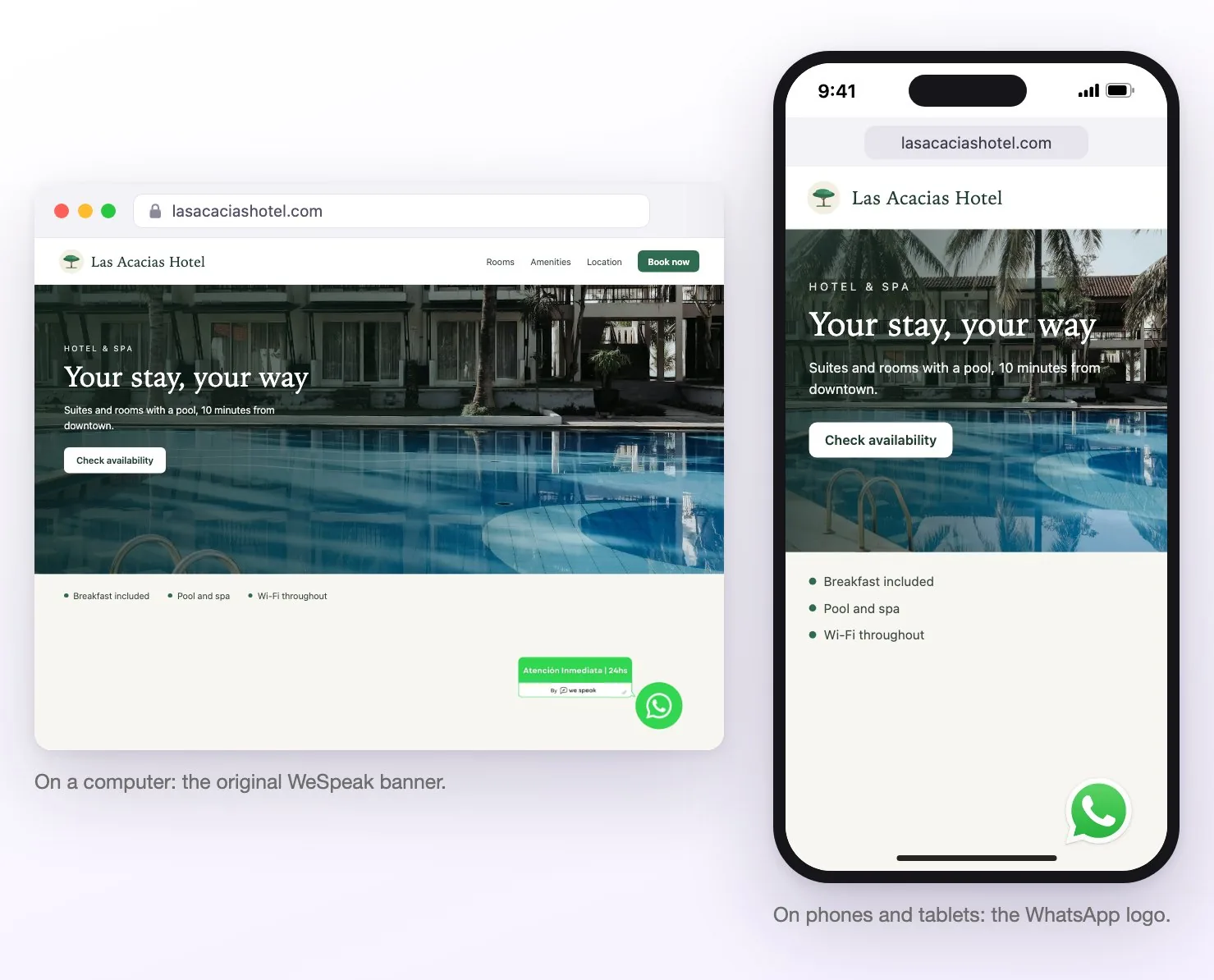
Illustrative example of the original design: the banner on desktop and the logo on mobile. In both cases, tapping the image opens WhatsApp.
How it differs from Chat Web
WeSpeak has two ways to receive inquiries from your website, and they can work side by side:
| What changes | WhatsApp button | Chat Web |
|---|---|---|
| Where the visitor chats | On WhatsApp, with your hotel's number. They need to have WhatsApp. | On your website, without leaving the page. They don't need WhatsApp. |
| What goes on the website | A block of HTML and CSS: the button's image and its styles. | A one-line code (a script). |
| How you change its look | By editing the code: the image, the size or a text label (see below). | From WeSpeak, in Customize: the image (for example, your logo), the color, the greeting and more, without touching the code. |
| Who replies | Your assistant, as in any WhatsApp chat. | The same assistant. |
You can have both: visitors who prefer WhatsApp tap the button, and those who'd rather stay on your website write in Chat Web. If you don't change anything, both sit at the bottom right, so put them in different corners: for example, the button on the Left (you choose it when you generate the code) and the Chat Web bubble on the right, or the other way around (an Administrator or a Supervisor moves the bubble from Customize, on its card in Channels). More about Chat Web: what it is and how to turn it on and how to install it.
1. Generate the code
- In WeSpeak, go to Channels and scroll down to the Tools section, at the bottom of the page.
- Click the WhatsApp Floating Button Generator card to expand it.
- Fill in the options (explained in the table below) and click Generate Code. The HTML Code appears, and the panel shows a preview of the button: Preview hides it or shows it again. If you then change the message, the position or WhatsApp logo only, the code doesn't update on its own: click Generate Code again before copying it.
- Click Copy and send the code to whoever manages your website, along with the link to this guide.
| Option | What it does |
|---|---|
| WhatsApp number | It only appears if your account has more than one WhatsApp number. Choose which number visitors write to. |
| Default Message | The text that appears already written in the chat when the visitor taps the button, for example: "Hi, I'm writing from your website". The visitor can change it or delete it before sending. If you leave it empty, the chat opens with no text. A message like that helps you spot, in Chats, the conversations that come in through the button. |
| Button Position | Left or Right (the one selected by default): the bottom corner of the screen where the button sits. |
| WhatsApp logo only | When it's off (the default), the button is the WhatsApp logo on phones and tablets, and on computers a wider banner: the logo with the text "Atención Inmediata | 24hs" (in Spanish) and WeSpeak's signature. When it's on, it's just the WhatsApp logo, at the same size on every device. |
ℹ️ The card appears if your account has at least one WhatsApp number (connected by QR code or through WhatsApp API). Anyone on the team who can open Channels can use it, whatever their role: Administrator, Supervisor or User.
💡 WeSpeak doesn't save the code or the options: if you need it again, generate it again. It always comes out with the original design, so if you customized it, keep a copy of the edited code.
2. Paste it on your site
The rule is always the same: only once, somewhere that loads on every page, inside the <body> (usually right before </body>). It doesn't go in the <head>: it's visible content —a link with an image—, not a script. Pick the option that matches how your site is built.
If your website already has another WhatsApp button (from a plugin, for example), remove it so there aren't two.
In the site's HTML
Paste the code on the line before </body>, in the template or the footer that every page shares. If your site has standalone pages with no shared template, paste it on each one.
With Google Tag Manager
- In your container, go to Tags and click New.
- In Tag Configuration, choose Custom HTML and paste the code.
- In Triggering, choose the All Pages trigger.
- Save the tag and publish the container (Submit → Publish). Until you publish it, the button won't appear on your website.
In WordPress
- The simplest way is a code snippets plugin such as WPCode (formerly Insert Headers and Footers): in its Header & Footer section, paste the code in the Footer box and save.
- Many themes and page builders (Elementor, Divi, Avada and others) have their own "custom code" field for the footer: it works if it accepts HTML.
- If you'd rather edit the theme, paste it before
</body>infooter.php, but do it in a child theme: otherwise it's lost when the theme updates.
In Wix, Squarespace, Shopify, Webflow and other site builders
| Platform | Where to paste it |
|---|---|
| Wix | Settings → Custom Code (under Development & integrations) → + Add Custom Code. Paste the code, choose All pages and, in Place Code in, Body - end. Click Apply. The site has to be published and have a connected domain. |
| Squarespace | In the Code Injection panel, paste the code in Footer and save. It's available on the Core, Plus and Advanced plans. |
| Shopify | Online Store → on your theme, the ⋯ button → Edit code → theme.liquid file: paste the code right before </body> and save. |
| Webflow | Site settings → Custom code → Footer code. Save and publish the site. |
| Another site builder or booking engine | Look for the option to add custom HTML to every page or to the footer. If you also want the button on your booking engine's pages, paste it there. |
Custom-built sites (React, Next.js and others)
Add the code once, in the template or layout shared by every page. It's standard HTML: if your site uses JSX, it needs adapting to that syntax (for example, the style attributes, the <style> block and the <!-- --> comments).
3. Check that it works
- Open your website on a phone: the button appears in the bottom corner you chose.
- Tap it: WhatsApp opens with your hotel's chat and, if you set one, the default message already written.
- Repeat the test on a computer, with the browser window maximized. There you'll see the wide banner, unless you turned on WhatsApp logo only or put in your own image. Clicking it opens a WhatsApp tab, from where the visitor continues on WhatsApp Web or in the desktop app.
- If you send a test message, it reaches Chats in WeSpeak and the assistant replies as in any WhatsApp chat.
💡 If your site uses a caching plugin or a CDN, clear it after pasting the code.
Customizing the button
The generator has no options to upload an image or add text, but it doesn't need them: the button is HTML and CSS that lives on your website, and whoever manages the site can edit it with any text editor, before pasting it or wherever it's already pasted.
The code has four parts:
- A wrapper (
<div id="wapp-button">) that keeps the button fixed in a bottom corner of the screen. - A link, inside the wrapper, that starts with
https://api.whatsapp.com/send?phone=: it opens the chat with your hotel's number and the default message. - The button's image, inside the link (
<picture>): one version for screens up to 1024 px wide, that is, phones and tablets (whatsapp.png, the WhatsApp logo), and another for wider screens, computers (right.pngorleft.png, the banner). With WhatsApp logo only, there's a single image:whatsapp.png. - A
<style>block, at the end, with the size: 80 px wide on phones and tablets, and 320 px on computers (80 px on every device with WhatsApp logo only).
This is what the link and image part looks like, simplified and with a sample number and message:
<a id="whatsapp-message" target="_blank" href="https://api.whatsapp.com/send?phone=15550000000&text=Hello%2C%20I%20want%20to%20book">
  <picture>
    <source media="(max-width: 480px)" srcset="https://d2txcta0d7tijy.cloudfront.net/wespeak/whatsapp.png" />
    <source media="(max-width: 1024px)" srcset="https://d2txcta0d7tijy.cloudfront.net/wespeak/whatsapp.png" />
    <img src="https://d2txcta0d7tijy.cloudfront.net/wespeak/right.png" alt="whatsapp button" />
  </picture>
</a>
Use your own image (for example, the hotel's logo)
- Upload the image to your website (for example, to the WordPress media library) and copy its address. It has to be public: if you open it in a private window, you should see it. A square image of at least 160 × 160 px works best, so it looks sharp.
- In the code, replace the three image addresses with yours: the two that end in
whatsapp.png(phones and tablets) and the one that ends inright.pngorleft.png(computers). If you generated the code with WhatsApp logo only, there's just one, the one that ends inwhatsapp.png.
You can also change only some of them: for example, keep the WhatsApp logo on phones and put your own banner on computers.
Change the size
On computers, the button is 320 px wide, designed for the banner. With a square image, it looks huge at that width: in the <style> block, under /* Desktop sizes */, change the two width: 320px; lines to width: 80px; (or to the width you want).
On phones and tablets it's 80 px wide: if you want another size there, change the width: 80px; lines in the /* Mobile sizes */ and /* Tablet sizes */ blocks. With WhatsApp logo only, it's 80 px on every device and there's nothing to change.
Add text below
Add this line right after </a> (that way it stays inside the wrapper, below the image):
<div style="margin-top:4px; padding:2px 6px; background:#ffffff; border-radius:6px; font-size:12px; text-align:center; color:#333333;">Book on WhatsApp</div>
Replace "Book on WhatsApp" with your text and, if you like, the colors: background is the background and color, the text. Keep it short: on phones the button is 80 px wide, so even "Book on WhatsApp" wraps onto two lines. The text isn't a link: only tapping the image opens the chat.
With your image and text, that part of the code looks like this (the link doesn't change: keep yours, with your number and your message):
<a id="whatsapp-message" target="_blank" href="https://api.whatsapp.com/send?phone=…&text=…">
  <picture>
    <source media="(max-width: 480px)" srcset="https://yourhotel.com/img/whatsapp-button.png" />
    <source media="(max-width: 1024px)" srcset="https://yourhotel.com/img/whatsapp-button.png" />
    <img src="https://yourhotel.com/img/whatsapp-button.png" alt="whatsapp button" />
  </picture>
</a>
<div style="margin-top:4px; padding:2px 6px; background:#ffffff; border-radius:6px; font-size:12px; text-align:center; color:#333333;">Book on WhatsApp</div>
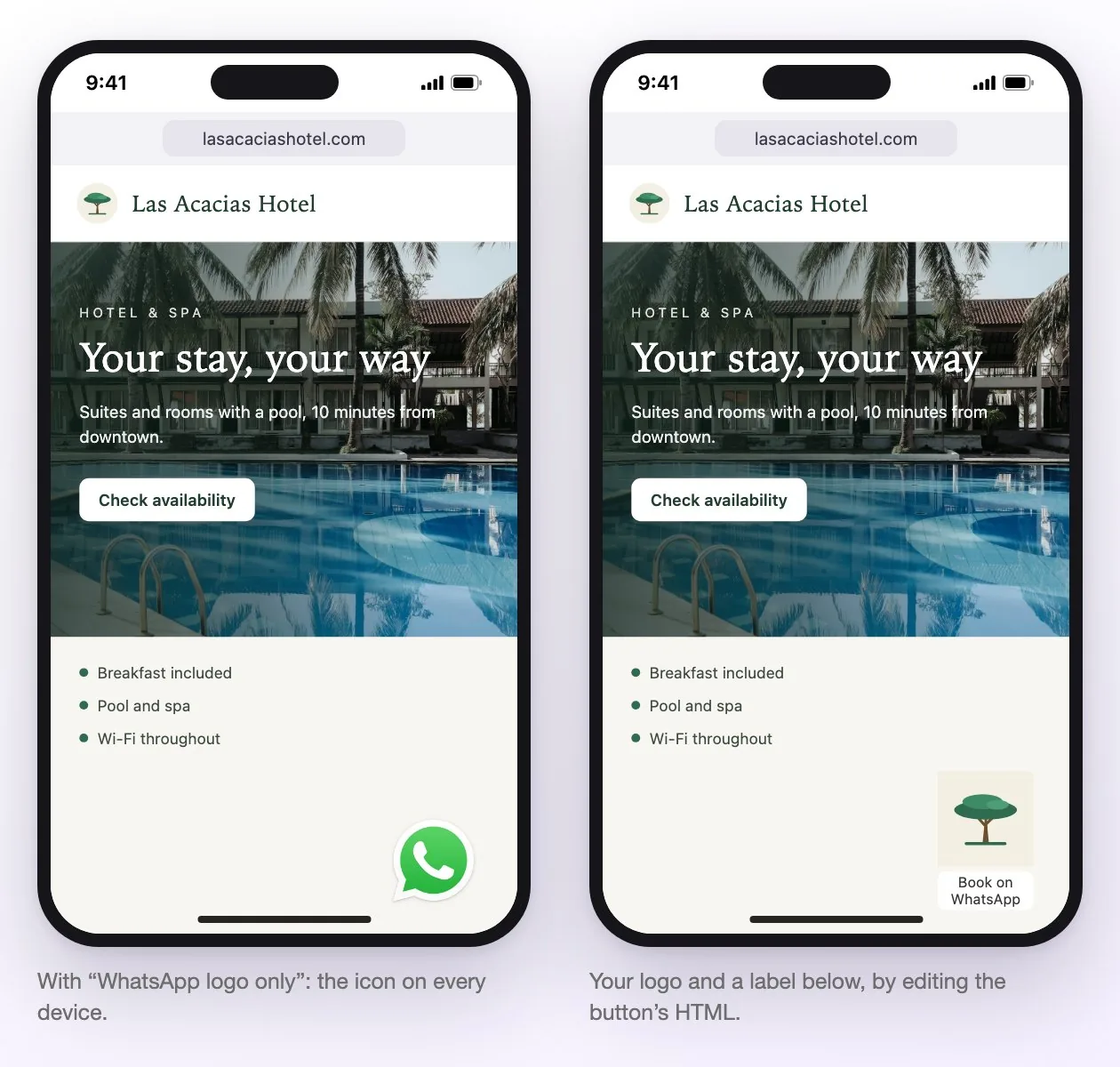
On the left, the generator's WhatsApp logo only option. On the right, an example with a custom image and text, created by editing the HTML. Only the image opens the chat; the text below is not a link.
What not to touch
The https://api.whatsapp.com/send?phone=… link: it's what opens the chat with your hotel's number and the default message. To change the number or the message, don't edit it by hand: generate the code again in WeSpeak, replace the old one and apply your image, size or text changes again.
Check the result
Open your website on a phone and on a computer: the button should show your image and your text, at the size you chose, in the corner you chose. Tap it: WhatsApp should open with your hotel's chat.
Editing the code doesn't change anything in WeSpeak: conversations keep reaching the connected number and the assistant replies as usual.
If something doesn't work
| What happens | What to check |
|---|---|
| The button doesn't appear | If you pasted it in the site's HTML, open the page's source code (Ctrl+U, or Cmd+Option+U on a Mac) and search for wapp-button. If you installed it with Google Tag Manager, it doesn't show there: check that the container is published. Either way, also check the site's cache. |
| On computers you see a wide banner instead of just the logo | That's the generator's desktop design. To show just the logo, generate the code again with WhatsApp logo only on, or use your own image. |
| Your image looks huge on computers | Change the two width: 320px; lines to width: 80px; (see Change the size). |
| A broken icon or text shows instead of your image | The image address isn't public or is misspelled. Open it in a private window: you should see the image. |
| WhatsApp opens with another number | Check that there isn't another WhatsApp button on your site (from a plugin, for example). If it's this one, generate the code again with the right number (if your account has more than one, you choose it in WhatsApp number) and replace the whole code. |
| The button covers the Chat Web bubble or another button on your site | Put each one in its own corner: generate the code choosing the other corner in Button Position, or move the Chat Web bubble from Customize. |
Current limits
- The panel has no options to upload an image or add text. That's done by editing the code, as explained in Customizing the button.
- WeSpeak doesn't edit your hotel's website. The code is pasted and customized by whoever manages it: the hotel, its designer or its agency. If you have questions about the button, ask your WeSpeak advisor.
- The desktop banner is fixed: it reads "Atención Inmediata | 24hs" (in Spanish), carries WeSpeak's signature and can't be changed from the panel. To avoid showing it, generate the code with WhatsApp logo only or use your own image.
- Each button leads to a single number. If you have several numbers (for example, one per property, each with its own website), generate a code for each one.
- WeSpeak doesn't save the code or your changes. Every new code comes out with the original design.
- It doesn't count clicks. The code has no scripts or tracking: in WeSpeak you see the conversations that come in, not how many people tapped the button.
Frequently asked questions
Can I use my hotel's logo on the button?
Yes, by editing the code: upload your image to your website, replace the code's image addresses with yours and, if it's square, change the desktop width from 320 px to 80 px (see Customizing the button). The panel has no option to upload it.
Can I add text below the button, like "Book on WhatsApp"?
Yes: add the text line right after </a> (see Customizing the button). Keep it short: on phones the button is 80 px wide.
Does editing the code change anything in WeSpeak?
No. Conversations keep reaching the same number and the assistant replies as usual. The only thing not to touch is the link that starts with https://api.whatsapp.com/send.
How do I change the number or the default message?
Generate the code again in Channels → Tools, with the new number or message, and replace the old one on your website. If you had customized it, apply the changes again.
Can WeSpeak change the button or install it on my website?
No: the button lives on your website, and WeSpeak doesn't edit its clients' sites. Whoever manages your website does it, with this guide.
Can I remove the "Atención Inmediata | 24hs" banner?
Yes. Generate the code with WhatsApp logo only on (so the button is just the WhatsApp logo on every device), or replace the banner image with yours.
Can I have the WhatsApp button and Chat Web at the same time?
Yes, they work side by side. Put them in different corners so they don't cover each other (see How it differs from Chat Web).
How do I remove the button from my website?
Delete the code from wherever you pasted it (or pause or delete the tag in Google Tag Manager and publish). Nothing changes in WeSpeak: the conversations that already came in stay in Chats.