When a guest asks something the assistant doesn't know, the assistant doesn't make it up: it stops, tells the guest the team will get back to them, and saves that question. Quick Training is where you answer those questions so it can answer them on its own next time.
In this article
- Which questions show up
- Answer from the chat
- Answer from the Training section
- What happens with your answer
- If the list is empty
- Improve the answers it already gives
- Frequently asked questions
Which questions show up
Only the ones that made the assistant stop because it didn't have the information: for example, about the hotel's services, facilities, or policies that aren't in its knowledge.
These don't show up:
- questions the assistant answered, even if you didn't like the answer (for those, see below);
- pauses for other reasons, such as a request to modify or cancel a booking, lack of availability, or a booking engine failure.
Answer from the chat
It's the fastest way. When the assistant stops on a question it can learn, the Help: Context notice appears at the top of that conversation with the guest's question:
- Write the correct answer in the notice's box.
- Click Quick Training.
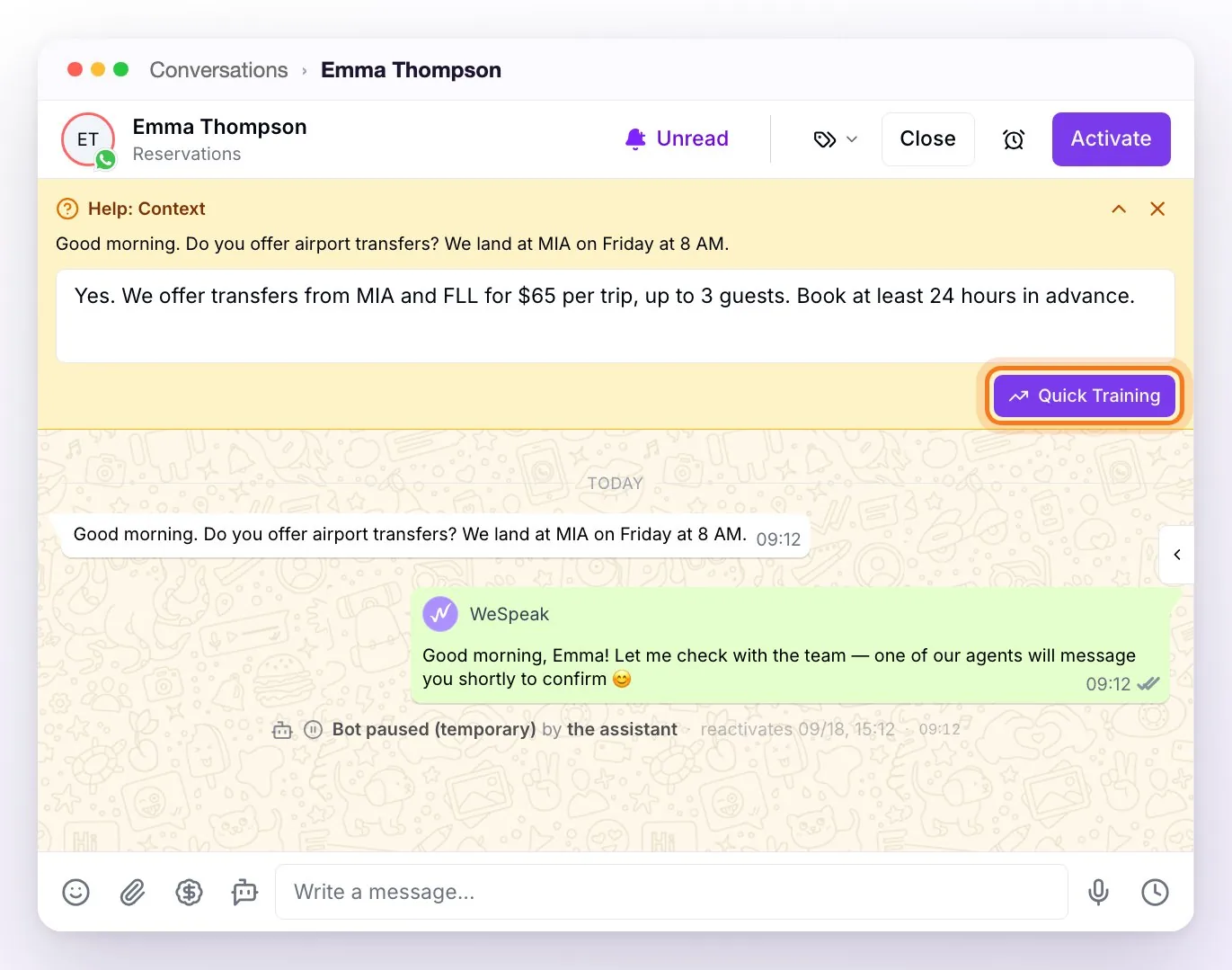
The ✕ dismisses the notice without answering.
Answer from the Training section
If you'd rather answer several at once, go to Training in the side menu (in the Assistant group), Quick Training tab. The table shows the Date and the Question of each pause; clicking Date changes the order.
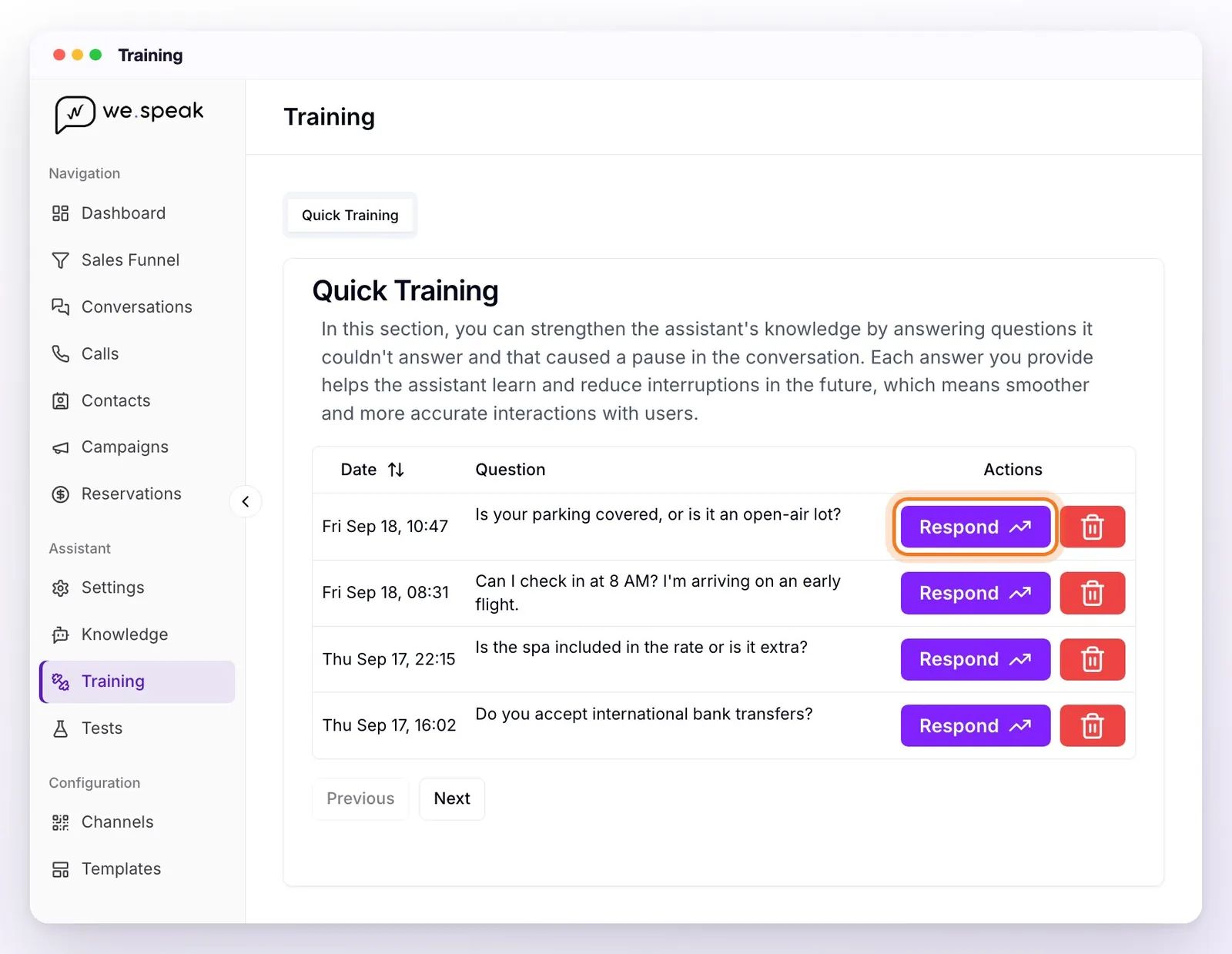
- Click Respond on the question.
- Detailed Information opens, with the date and the question. Write a complete and accurate answer: it's what the assistant will use from then on.
- Click Send Answer.
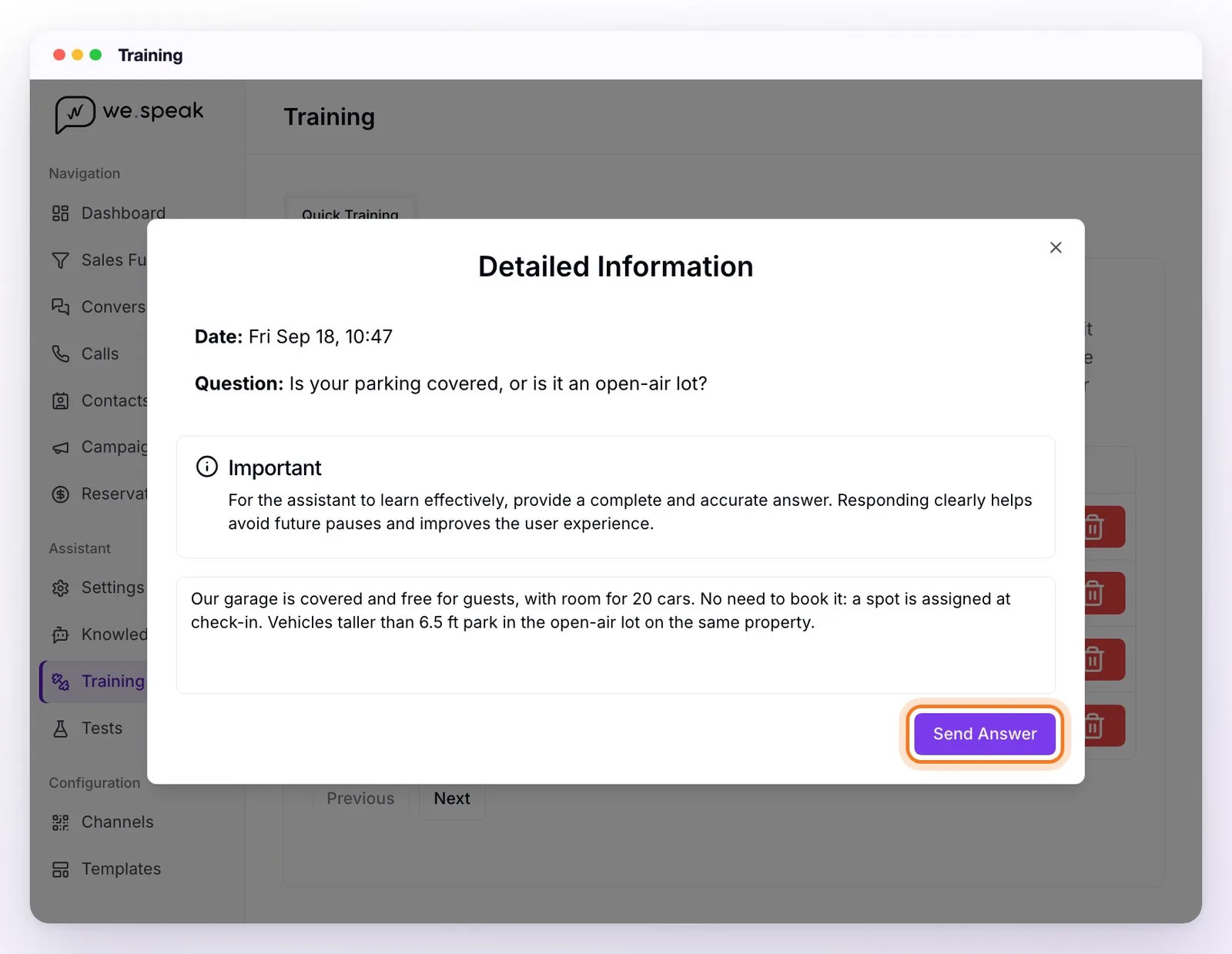
If a question isn't worth answering (a message unrelated to the hotel, a test), delete it with the red trash can button.
What happens with your answer
- It's added to the assistant's knowledge. A notice confirms which knowledge section it went into; from then on, the assistant answers that question on its own.
- It isn't sent to the guest who asked. Reply to that person yourself in their conversation.
- If the information changes later (a price, a schedule), correct it in Knowledge: that's where it was saved.
💡 Tip: answer as if you were writing to the guest, with all the details they need: price, schedule, conditions. A short or vague answer ("yes, ask us") makes the assistant stop again.
If the list is empty
That's a good sign: there were no pauses for unanswered questions. In a new account, the list fills up as inquiries come in. Questions you were asked before aren't loaded into this section: only those from new pauses show up.
Improve the answers it already gives
If the assistant answers something, but not the way you want, Quick Training isn't the way to go:
- Knowledge: add or correct the information in that section (services, policies, rooms…). It's what the assistant uses to answer.
- Tests: write to it as if you were a guest and check the answer before and after the change.
- Report problem: if a specific answer in a chat was wrong, report it from that message (see Get to know the Chats screen).
Frequently asked questions
Who can answer the questions?
Users with the Administrator or Supervisor role: the User role doesn't see the Training section (see Permissions and Roles).
Am I notified when the assistant stops?
Yes, depending on how your notifications are set up. The conversation is also marked as unread, with the assistant paused.
I answered a question and the assistant stopped again on something similar.
Check that the answer has all the information (not just "yes" or "no") and find it in Knowledge to complete it. Then test it in Tests.