This guide is for whoever manages the hotel's website: the hotel itself, its designer or its agency. Installing Chat Web means pasting a one-line code, only once, somewhere that loads on every page of the site — just like a tracking pixel. It takes a few minutes, and after that there's nothing else to touch: how the chat looks and behaves is set up from WeSpeak.
On video: the setup tutorial (in Spanish) shows where the code is copied from and how to install it with Google Tag Manager, as well as how to customize the chat.
Watch the video: setting up Chat Web
1. Get the code
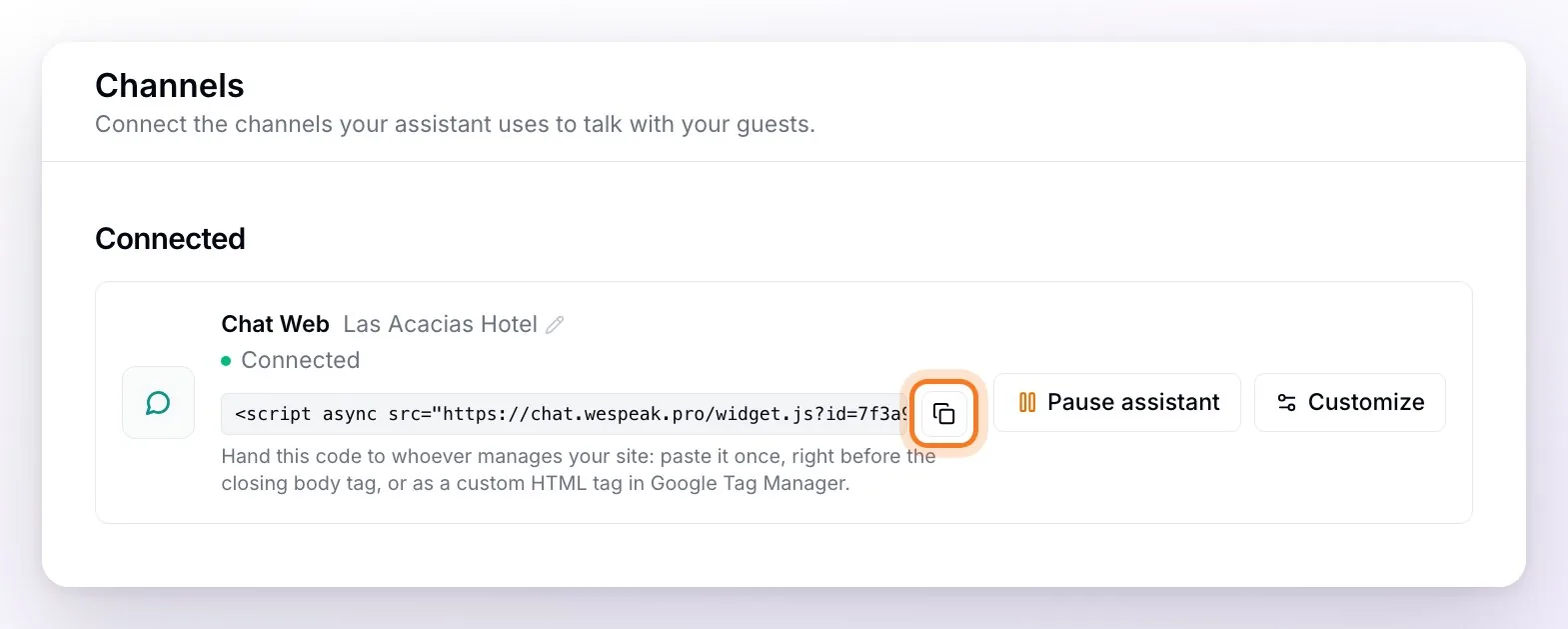
The hotel copies it from WeSpeak, in Channels → Connected, with the copy button on the Chat Web card (see how to turn it on). It looks like this:
<script async src="https://chat.wespeak.pro/widget.js?id=7f3a9c2e4b1d48f6a0c5e9b2d7a1f3c8"></script>
The id at the end is different for every hotel: always use the code you were given.
- One code per property. If the hotel has several properties, each one has its own code: each property's website gets its own, so conversations are linked to the right property.
- Only one code per page. If you paste two on the same page (for example, those of two properties), only the first one works.
- There's no need to edit it or paste it again when the hotel changes the chat's colors, image or greeting: those changes apply on their own.
- Allowed domains. If the hotel filled in that list in WeSpeak, your website's address has to be there exactly as the browser shows it: with
https://and, if you use both versions, with and withoutwww. If the chat also goes on another domain —the booking engine's, for example—, that address too.
2. Paste it on your site
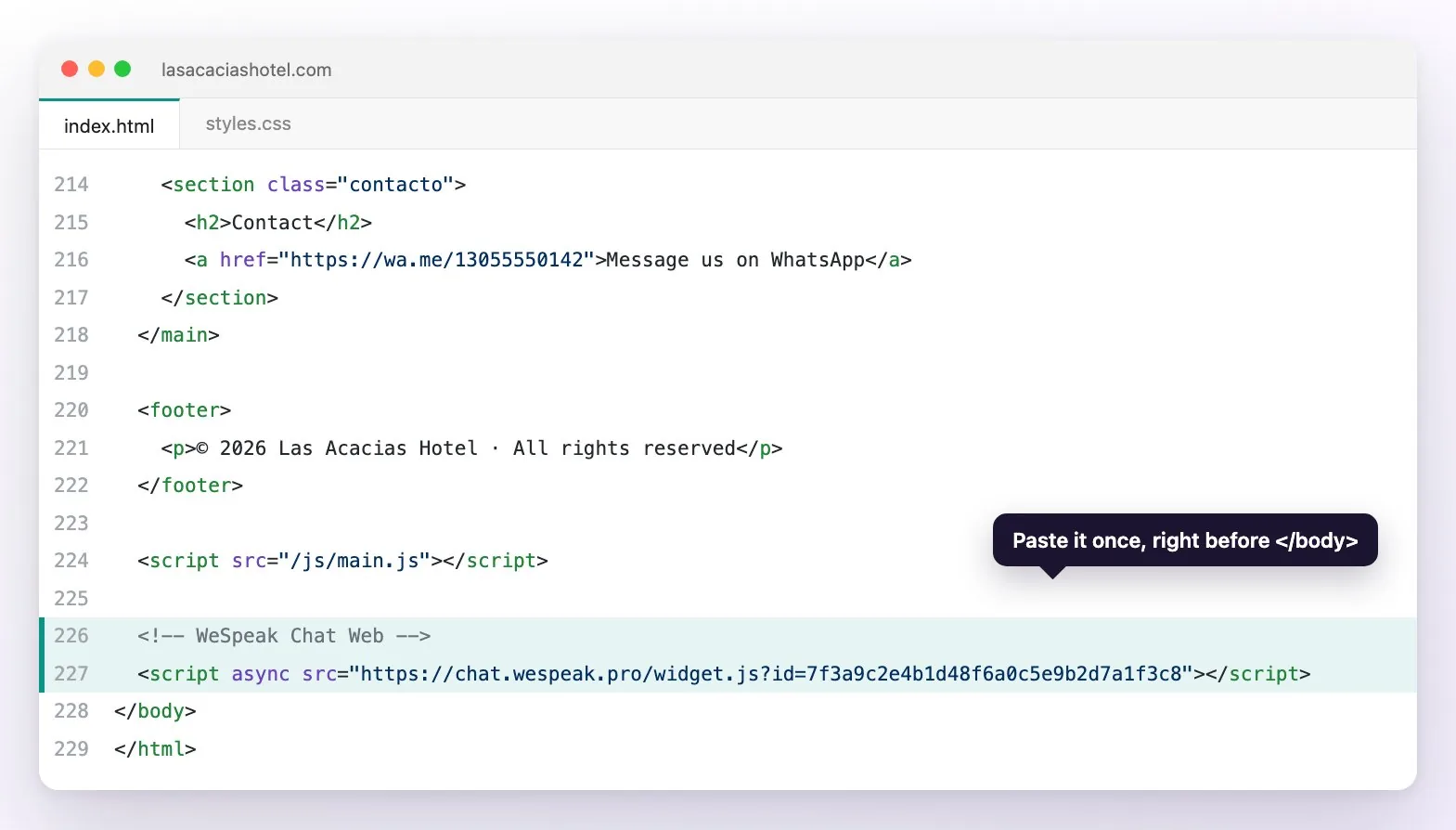
The rule is always the same: only once, in the template shared by every page, right before </body>. It also works inside the <head>, because it loads with async and doesn't slow the page down. Pick the option that matches how your site is built.
In the site's HTML
Paste the code on the line before </body>, in the template or the footer that every page shares. If your site has standalone pages with no shared template, paste it on each one.
With Google Tag Manager
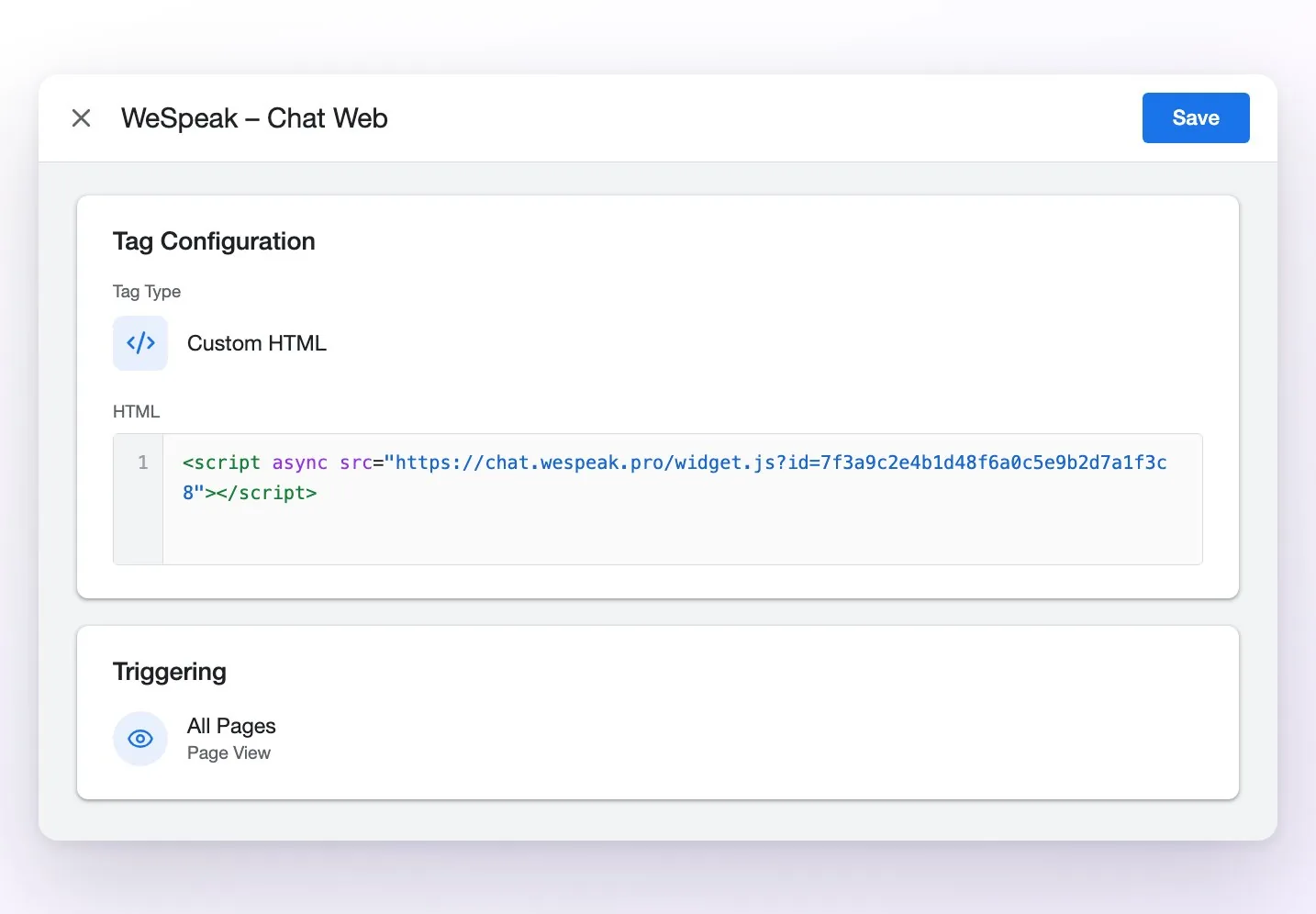
- In your container, go to Tags and click New.
- In Tag Configuration, choose Custom HTML and paste the code.
- In Triggering, choose the All Pages trigger.
- Save the tag and publish the container (Submit → Publish). Until you publish it, the chat won't appear on your website.
In WordPress
- The simplest way is a code snippets plugin such as WPCode (formerly Insert Headers and Footers): in its Header & Footer section, paste the code in the Footer box and save.
- Many themes and page builders (Elementor, Divi, Avada and others) have their own "custom code" or "footer scripts" field: that works too.
- If you'd rather edit the theme, paste it before
</body>infooter.php, but do it in a child theme: otherwise it's lost when the theme updates.
In Wix, Squarespace, Shopify, Webflow and other site builders
| Platform | Where to paste it |
|---|---|
| Wix | Settings → Custom Code (under Development & integrations) → + Add Custom Code. Paste the code, choose All pages and, in Place Code in, Body - end. Click Apply. The site has to be published and have a connected domain. |
| Squarespace | In the Code Injection panel, paste the code in Footer and save. It's available on the Core, Plus and Advanced plans. |
| Shopify | Online Store → on your theme, the ⋯ button → Edit code → theme.liquid file: paste the code right before </body> and save. |
| Webflow | Site settings → Custom code → Footer code. Save and publish the site. |
| Another site builder or booking engine | Look for the "custom scripts", "tracking code" or "footer HTML" option: the same place where you'd paste a Meta pixel or the Google Analytics code. |
Custom-built sites (React, Next.js and others)
Load the code once, in the root template or layout, not on every route change.
In Next.js, use the
Scriptcomponent withstrategy="afterInteractive":<Script src="https://chat.wespeak.pro/widget.js?id=7f3a9c2e4b1d48f6a0c5e9b2d7a1f3c8" strategy="afterInteractive" />
Don't defer it (for example, with
strategy="lazyOnload"or "once the page finishes loading"): the bubble would wait for everything else to download —videos, heavy photos— and could take many seconds to appear.
3. Optional: open the chat from a button on your site
If you want one of your own buttons ("Chat with us", "Ask us in the chat") to open the chat, call WsChat.show():
<button type="button" onclick="window.WsChat && WsChat.show()">Chat with us</button>
There's also WsChat.hide(), which closes it, and WsChat.toggle(), which opens or closes it. The Chat Web code has to be installed on that same page.
4. Check that it works
- Open your website in a private window: the bubble should appear in the bottom corner (on the right, or on the left if the hotel moved it).
- Open it and send a test question: the assistant replies within seconds.
- Ask the hotel to confirm that the conversation reached Chats in WeSpeak.
- Repeat the test on a phone: there the chat opens full screen.
💡 If your site uses a caching plugin or a CDN, clear it after pasting the code.
If something doesn't work
| What happens | What to check |
|---|---|
| The bubble doesn't appear | That the code is published: open the page's source code (Ctrl+U, or Cmd+Option+U on a Mac) and search for chat.wespeak.pro. Also check the site's cache, that the Google Tag Manager container is published and that your address is listed in Allowed domains (if the hotel filled in that list). |
| It appears on the home page but not on other pages (for example, on the booking pages) | The code is only in one template, or those pages are on another domain. Paste it in the shared template and ask the hotel to add that domain to Allowed domains. |
| The bubble takes a while to appear | The code is loaded late or the page is very heavy (videos, large images). Load it with async in the <head> or before </body>, not "once the page finishes loading". |
| The bubble appears, but the chat doesn't load | It's usually a very old browser (on iPhone, older than iOS 16.4). After 10 seconds an ✕ appears to close the chat. On a current browser it works. |
| The hotel changed the colors or the greeting and they don't show | The settings refresh in about 5 minutes. Reload the page after that time. |
| Your site has a strict content security policy (CSP) | Allow https://chat.wespeak.pro for scripts, iframes, connections and images. If the chat uses the hotel's own image, also allow that image's domain. |
How to remove it
To take the chat off the website, delete the code from wherever you pasted it (or pause or delete the tag in Google Tag Manager and publish). The bubble disappears and no new conversations come in; the history stays saved in WeSpeak, and the same code works again if you paste it back.