Labels are colored tags you put on conversations to group them: Invoice, Group, Corporate, Transfer… They help you quickly find a type of inquiry, let your team see at a glance what each chat is about, and let you build contact lists or campaign audiences. You can apply them by hand or let the assistant apply them on its own.
In this article
- Create a label
- Let the assistant apply it
- Add or remove labels by hand
- Filter by label
- Example: guests who ask for an invoice
- Edit or delete a label
- Frequently asked questions
Create a label
- Open any conversation in Conversations.
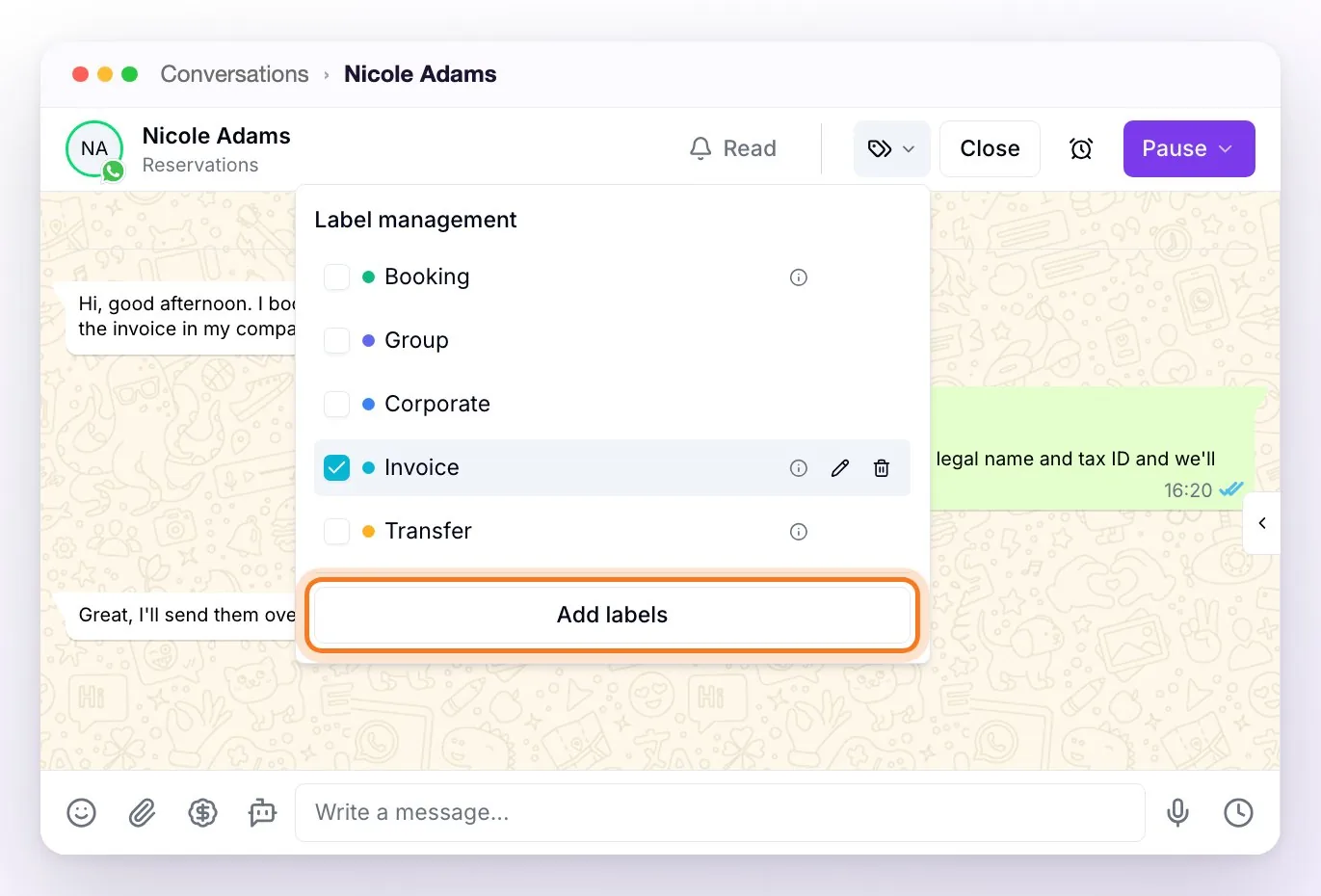
- In the chat header, click the labels button (the tag icon with the small arrow). Label management opens, with all the labels in your account.
- At the bottom, click Add labels.
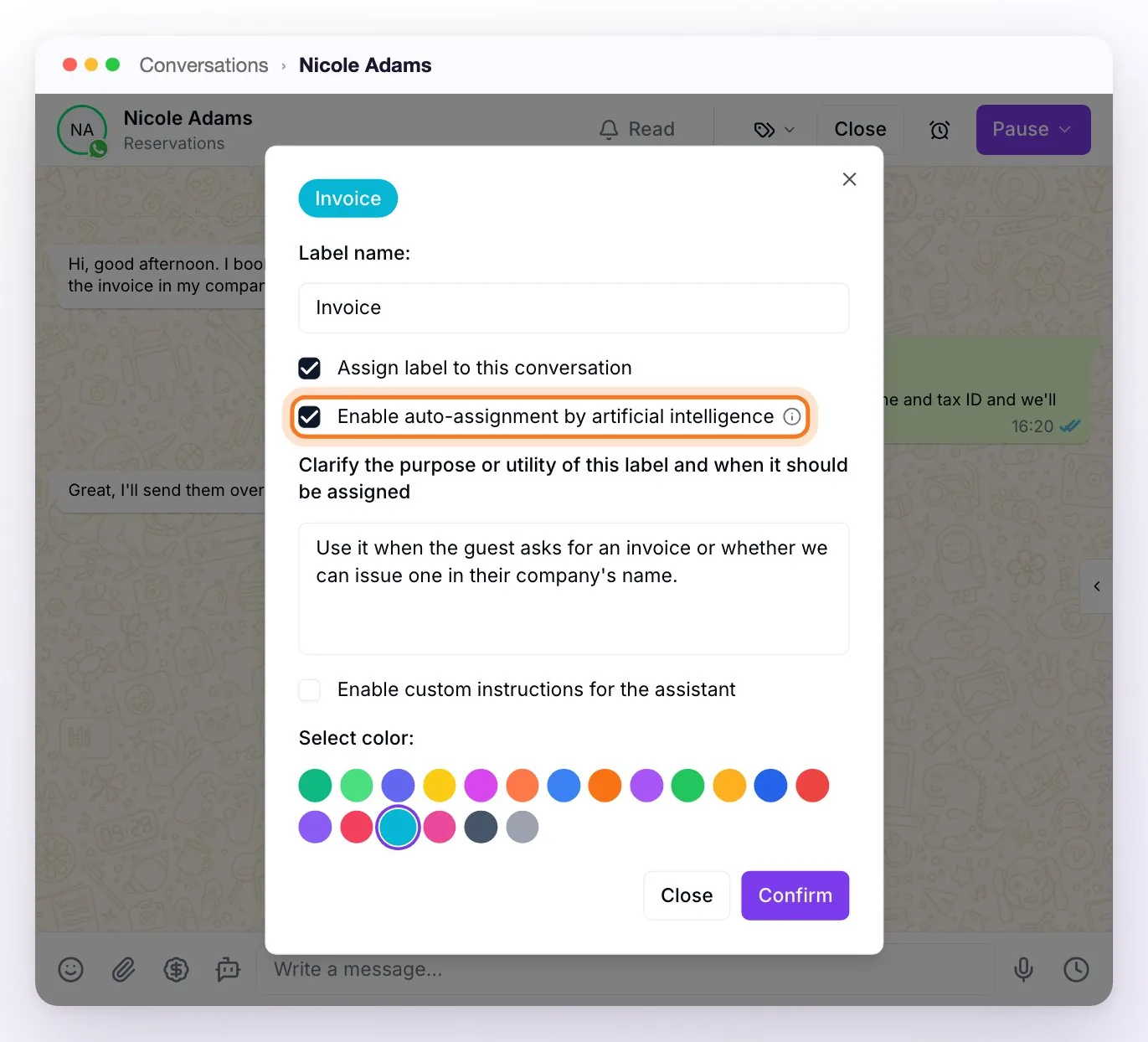
In the window that opens, fill in:
| Field | What it's for |
|---|---|
| Label name | What's shown in the chat, up to 50 characters. The top of the window shows how it will look. |
| Assign label to this conversation | If checked, the new label is applied to the chat you have open. |
| Enable auto-assignment by artificial intelligence | The assistant applies it on its own in the conversations where it fits (see the next section). |
| Clarify the purpose or utility of this label and when it should be assigned | The description. It's what the assistant reads to decide when to apply the label, and your team also sees it when hovering over the label. It's required if you enable auto-assignment. |
| Enable custom instructions for the assistant | Optional: tells the assistant how to reply in conversations that have this label (for example, "keep it short and offer at most two options"). |
| Select color | The label's color in the list and in the chat. |
Finish with Confirm.
💡 Tip: you can also create, edit, or delete labels from Filters → Labels, with the labels button in that filter.
Let the assistant apply it
With Enable auto-assignment by artificial intelligence, the assistant reads what the guest writes and, when it matches the label's description, applies the label on its own. That way it doesn't depend on someone on the team remembering to do it.
- Write the description as a concrete instruction: when to use it. For example: "Use it when the guest asks for an invoice or whether we can issue one in their company's name." The clearer it is, the more accurate it gets.
- It only works while the assistant is active in the conversation. If the chat is paused or a team member is handling it, it doesn't apply labels.
- It works going forward: it labels based on messages that arrive after you enable it; it doesn't review earlier conversations.
- You can always correct it by hand. If it applies a label where it doesn't belong, adjust the description or turn off auto-assignment.
Add or remove labels by hand
- From the chat: with the labels button in the header, check or uncheck each label.
- From the conversation list: right-click the conversation → Label management.
- On several conversations at once: right-click → Select, check the conversations, and use Bulk actions → Add label.
Filter by label
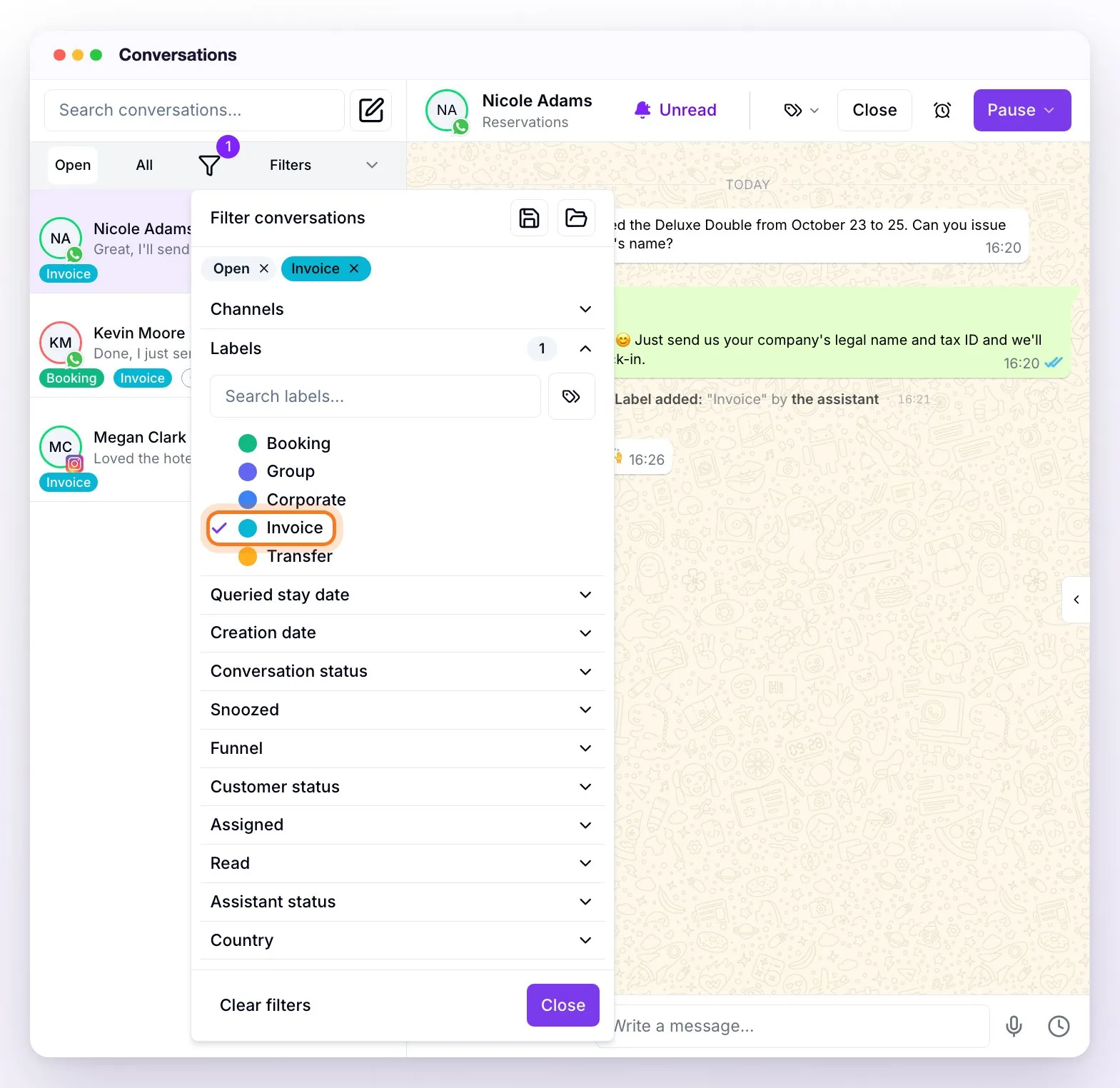
In Conversations, open Filters → Labels and check one or more: the list shows only the conversations that have them. The filter appears at the top of the panel and is removed with its ✕.
The same labels work in other sections:
- Contacts: filter by label and, with Download, get an Excel file with one column per label.
- Campaigns: use labels to choose who receives a campaign, or to exclude those who asked not to receive more messages.
Example: guests who ask for an invoice
- Create the Invoice label with Enable auto-assignment by artificial intelligence and a description like the example above.
- From then on, the assistant applies it to conversations where a guest asks for an invoice.
- To see them all together: Conversations → Filters → Labels → Invoice.
- To get the list with name, phone, and email: Contacts → Filters → Labels → Invoice → Download.
Edit or delete a label
In Label management, hover over the label: the pencil ✏️ edits it (name, description, auto-assignment, instructions, and color) and the trash can 🗑️ deletes it. Deleting can't be undone.
Frequently asked questions
Can the guest see the labels?
No. They're for your team only: the guest never sees them.
The assistant applied a label where it didn't belong.
Edit the label and make the description more precise (it's what the AI uses to decide), or turn off its auto-assignment. In that conversation, remove it by hand.
I enabled auto-assignment and a conversation wasn't labeled.
Check that the assistant is active in that chat: if it's paused or a person is handling it, it doesn't apply labels. It also doesn't label conversations from before you enabled it.
What do custom instructions do?
While the label is applied to a conversation, the assistant follows those instructions in that chat. They're useful, for example, for a VIP label ("always offer the superior room first") or Group ("ask for the number of rooms and nights before quoting").