To write to a guest more than 24 hours after their last message, WhatsApp only allows a template approved by Meta. This guide is the whole path: how to write it so it gets approved the first time, what to do if it's rejected, and what to check when it's approved but still doesn't arrive.
ℹ️ If you don't yet know what a template is or how to use it with / in the chat, start with Meta templates. This guide assumes that part.
In this article
- Step 1 · Write the template
- Step 2 · Pick the right category
- Step 3 · Send it and watch the status
- Before you send it: check these 8 things
- Why they reject it (and how to fix it)
- It's approved but it doesn't arrive
- Look after your templates once approved
- Frequently asked questions
Step 1 · Write the template
In the Templates section of the panel, tap Create Template. Only the body is required; everything else is optional.
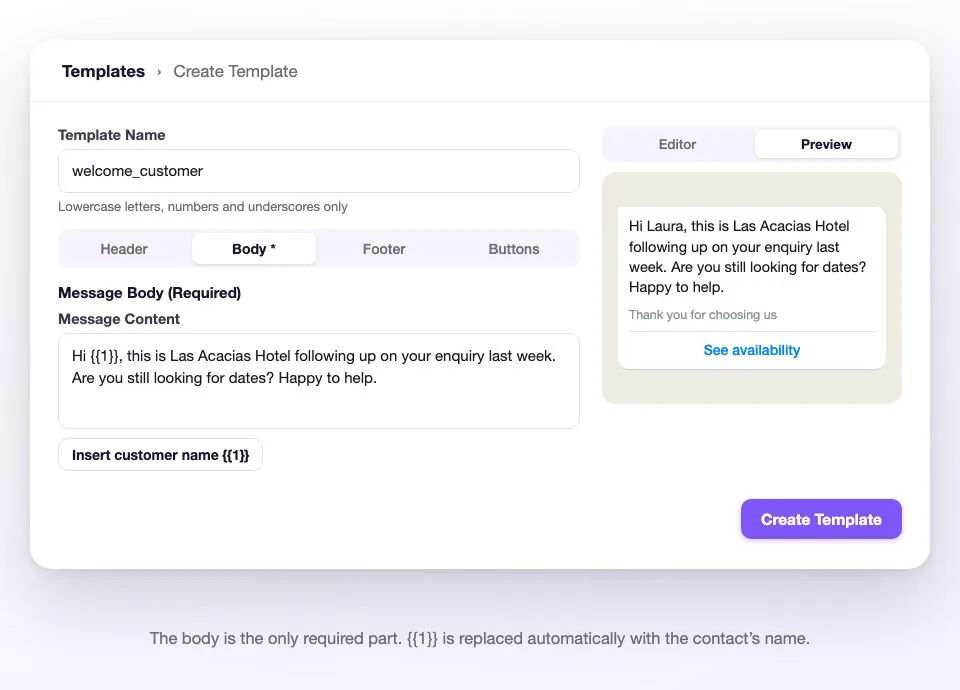
| Part | What to put in it |
|---|---|
| Name | Lowercase letters, numbers and underscores only: checkin_reminder. It's internal, the guest never sees it, and it can't be changed once sent to Meta. |
| Body (required) | The message. Write it complete and natural, the way someone from the hotel would write it. The Insert customer name {{1}} button adds the personalized greeting. |
| Header (optional) | A short title, 60 characters max. |
| Footer (optional) | One line at the bottom, 60 characters max ("Thank you for choosing us"). |
| Buttons (optional) | Up to 3, WhatsApp's limit: quick reply, web link or call. |
💡 Write for whoever reviews it. Meta doesn't know your hotel: from that text alone it has to understand who is writing, why, and what the guest gets out of it. A template that starts with "Hi {{1}}, this is Las Acacias Hotel following up on your enquiry last week" gets approved on its own; one that says "Hi! Check this out 👇" doesn't.
Step 2 · Pick the right category
When you tap Send to Meta it asks for two things: the language and the category. The category is the most important decision in the whole process: it defines which rules you're reviewed under and how much Meta charges you per message.
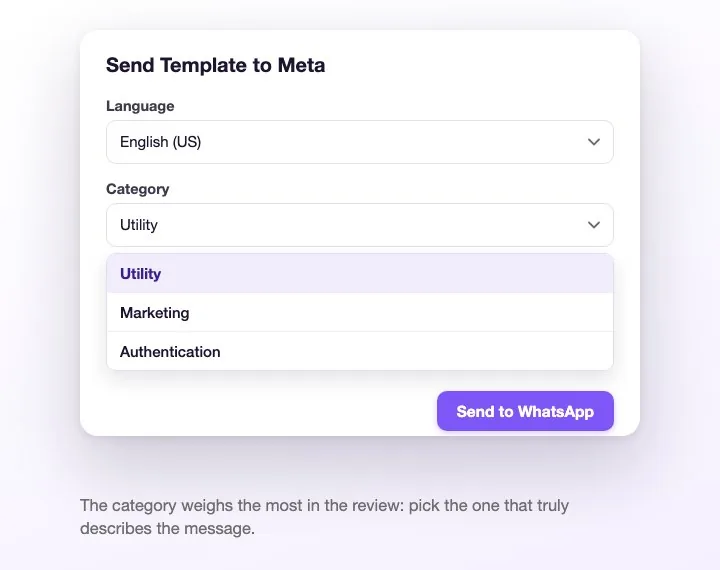
| Category | When to use it | Hotel examples |
|---|---|---|
| Utility | The message is about something the guest already did: a booking, an enquiry, a payment. Reviewed under more permissive rules and costs less. | Booking confirmation, check-in reminder, notice that the deposit is still pending, reply to an open enquiry. |
| Marketing | You're offering something they didn't ask for: promotions, news, re-engagement. | "We have 20% off for the long weekend", "come back and visit us", "our new pool is open". |
| Authentication | Verification codes. Almost never used in hospitality. | — |
⚠️ Don't pick Utility to pay less. It's the most expensive mistake: if the text has discounts, offers or "book now", Meta detects it, and at best recategorizes it to Marketing on its own — at worst it rejects it and lowers your number's quality. A promo is Marketing, and that's perfectly fine.
Step 3 · Send it and watch the status
After you send it, the template sits as Pending. The status shows in the WhatsApp status column, and there's a button to refresh it without reloading the page.
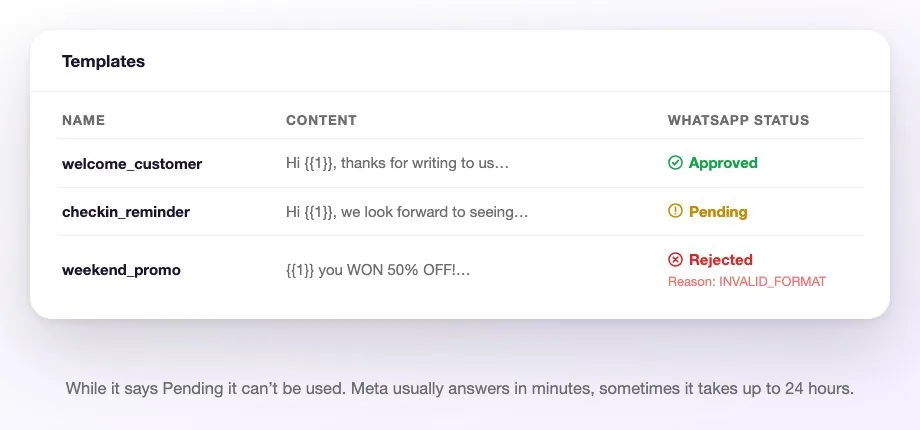
- Pending: under review. Usually resolved in minutes, but Meta may take up to 24 or 48 hours. While it says Pending it can't be used.
- Approved: ready. It now shows when you type / in the chat and can be used in campaigns.
- Rejected: the reason Meta returned appears below it ("Reason: …"), in English and in caps. They're explained further down.
ℹ️ A template already sent to Meta can't be edited. To change a single word you have to create another template (with another name) and send it for approval again. That's why it pays to review the text before sending.
Before you send it: check these 8 things
- Is the category the right one? If there's an offer inside, it's Marketing.
- Is the language you pick the language it's written in? Declaring Spanish and writing in English is an automatic rejection.
- Is it clear who is writing? Name your hotel in the text.
- Is the text complete? No "…", no messages that say nothing without an image that isn't there.
- Are the variables written correctly?
{{1}}, two braces on each side, numbered in order:{{1}},{{2}},{{3}}. - Does it start and end with text? It can't start or end with a variable.
- No shouting? No sustained CAPS, no strings of emojis, no "!!!URGENT!!!".
- Are the links normal? No bit.ly-style shorteners: Meta looks at those closely. Use your own domain.
Why they reject it (and how to fix it)
Meta returns the reason in English. Here's what each one means and what to change:
| What Meta says | What happened | How to fix it |
|---|---|---|
| INVALID_FORMAT | A formatting problem, almost always in the variables: badly written braces, skipped numbers ({{1}} and {{3}}), or a message that starts or ends with a variable. | Check they are {{1}}, {{2}}… in order, with text before and after. |
| INCORRECT_CATEGORY | The content doesn't match the chosen category: almost always a promo sent as Utility. | Create it again as Marketing. |
| ABUSIVE_CONTENT | Meta read the text as aggressive, threatening or intrusive (for example, chasing a debt in a threatening tone). | Rewrite it in a neutral, friendly tone. |
| SCAM | It sounds like a scam: prizes, gifts, "you won", false urgency, odd links. | Remove the promises and the shortened links; say clearly what you're offering. |
| TAG_CONTENT_MISMATCH | The declared language isn't the one the text is in, or the content has nothing to do with what the template claims to be. | Fix the language or rewrite the text. |
What to do after a rejection: there's no way to "appeal" from WeSpeak. The path is to create a new template, with another name, fixing what Meta flagged, and send it for approval. If you're rejected twice in a row and can't find the reason, write to your account manager with the template name and the text — we'll review it with you.
It's approved but it doesn't arrive
This is the most frequent question of all. The template says Approved, you send it, and in the panel it's marked as not delivered.
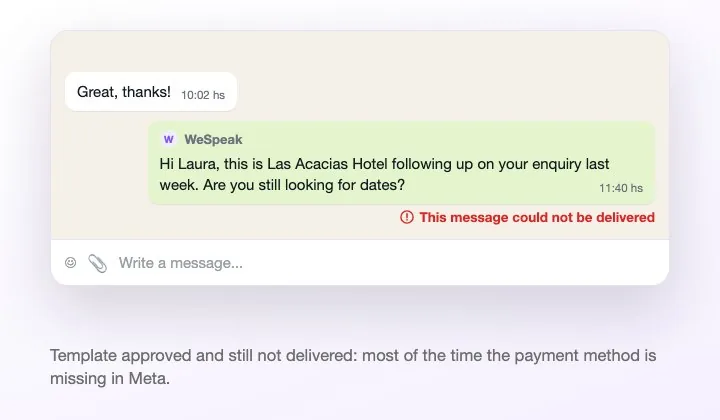
Check in this order — it's sorted by what happens most:
1. The payment method is missing in Meta (by far the most common)
Template messages are billed by Meta, so if your WhatsApp Business account has no card loaded, Meta simply doesn't deliver them. No warning appears in WeSpeak: the template is approved all the same, it's sent all the same, and it doesn't arrive.
How to check it:
- Go to business.facebook.com/settings (Business settings) with the admin user.
- In the left menu, Billing & payments.
- Switch to the WhatsApp Business accounts tab.
- If where the card should be it says Add payment method, that's the problem. Load it and try again.
⚠️ The card used for ads doesn't count. WhatsApp billing is independent from advertising billing: the card has to be loaded on the WhatsApp Business account. And if you changed cards recently, check it didn't fall out of sync — it has happened to several hotels: the card was listed, but Meta had stopped taking it and sending stopped until it was loaded again. The step by step to load or change it, with screenshots, is in How to add or change the WhatsApp payment method in Meta.
2. The guest has a Brazilian number (+55)
Meta blocks templates to Brazilian numbers on accounts that aren't fully verified. It has a fix, explained in Messages to Brazilian numbers.
3. There's another company using WhatsApp API on the other side
WhatsApp doesn't deliver templates between two numbers that use the WhatsApp Business API. If you write to another company, it arrives as an "unsupported message" or doesn't arrive at all. Their 24-hour window still opens, so they can write to you.
4. Meta throttled the sending, by volume or by quality
It can happen for three different reasons:
- You hit your number's daily limit (Meta raises it as your account behaves well).
- Meta limited marketing messages to that contact, to protect their experience. It's not a problem with your account: try later or wait for them to write to you.
- Your number's quality dropped because several guests blocked or reported earlier messages.
In all three cases sending resumes on its own; what you shouldn't do is push more bulk sends.
5. The number has no WhatsApp, or the phone is offline
Less frequent, but it happens: the contact wrote the number down wrong, or their phone has been off for a long time.
6. The template was created on another number
If you have several numbers connected, the template only exists in the WhatsApp Business account where you created it. From another number you'll see it marked as unavailable. It has to be created on that number too.
Look after your templates once approved
An approved template isn't approved forever: Meta watches how people react to it.
- If many guests block or report the messages from a template, Meta pauses it (it can't be sent for a while) and, if it continues, disables it. In the template list you'll see that status exactly as Meta sends it, in English.
- What lowers quality: sending to people who never wrote to you, repeating the same promo often, sending in the middle of the night.
- What raises it: useful, timely messages to contacts who already dealt with your hotel.
💡 Before a big campaign, try the template with 50 or 100 contacts and see how they respond. If it works, scale it; if nobody answers, change the message before spending the rest. More in Bulk message campaigns.
Frequently asked questions
How long does approval take?
Usually minutes. Meta reserves up to 24 or 48 hours, and it tends to take longer the first time your account sends templates.
Can I edit an already approved template?
Not from WeSpeak: you have to create another one with another name and send it for approval. Better to review the text carefully before sending.
Can I use a template with an image?
Yes, but those are created in Meta Business Manager and then brought over with Sync with Meta. The step by step is in How to create a template with an image.
My approved template doesn't show up when building a campaign.
Campaigns only accept templates without variables. If it has {{1}}, it isn't listed: create a version without variables and send it for approval.
How much does each template cost?
Meta charges for it, based on the guest's country and the category — Marketing costs considerably more than Utility. When you build a campaign, WeSpeak shows you the approximate cost before sending it.
How many templates can I have?
As many as you need. Better to have few and good ones: one for re-engagement, one for reminders, one for a pending deposit. Each approved and tested.
I send the template and the guest replies. Does the next one have to be a template too?
No: as soon as they reply the 24-hour window opens and you can write freely. The template is only for reopening the conversation.