Chat Web, also called the web widget, is a WeSpeak channel just like WhatsApp, Instagram or Facebook: a chat bubble on your hotel's website. Visitors write from there and the same AI assistant that serves your other channels answers them, with the same knowledge: it gives information, quotes on cards, sends photos and shares your location. The conversation lands in your Chats inbox (the Conversations section of the sidebar) with everything else, and your team can step in whenever needed.
It's available to every account from Channels, at no extra cost: you don't need to ask anyone to enable it.
▶️ Prefer to watch it? Watch the video: setting up Chat Web · Watch the video: handling Chat Web conversations. Both are in Spanish and are also embedded further down, each in its own section.
Why add it
- You serve visitors while they're browsing your site, without sending them to WhatsApp or to a form that gets answered days later.
- It doesn't generate Meta charges. Starting October 1, Meta charges for every message your assistant sends through the WhatsApp API (see costs). Chat Web conversations don't go through Meta.
- It answers 24/7, in the visitor's language.
- You can collect payment through the same chat: with WeSpeak Payments, your team sends the visitor the payment link from Chats.
- You capture inquiries you're losing today: people browsing on a computer, who don't use WhatsApp or who'd rather not share their number before asking.
- Everything stays in one place: website conversations use the same labels, the same funnel and the same history as your other channels.
What the visitor sees
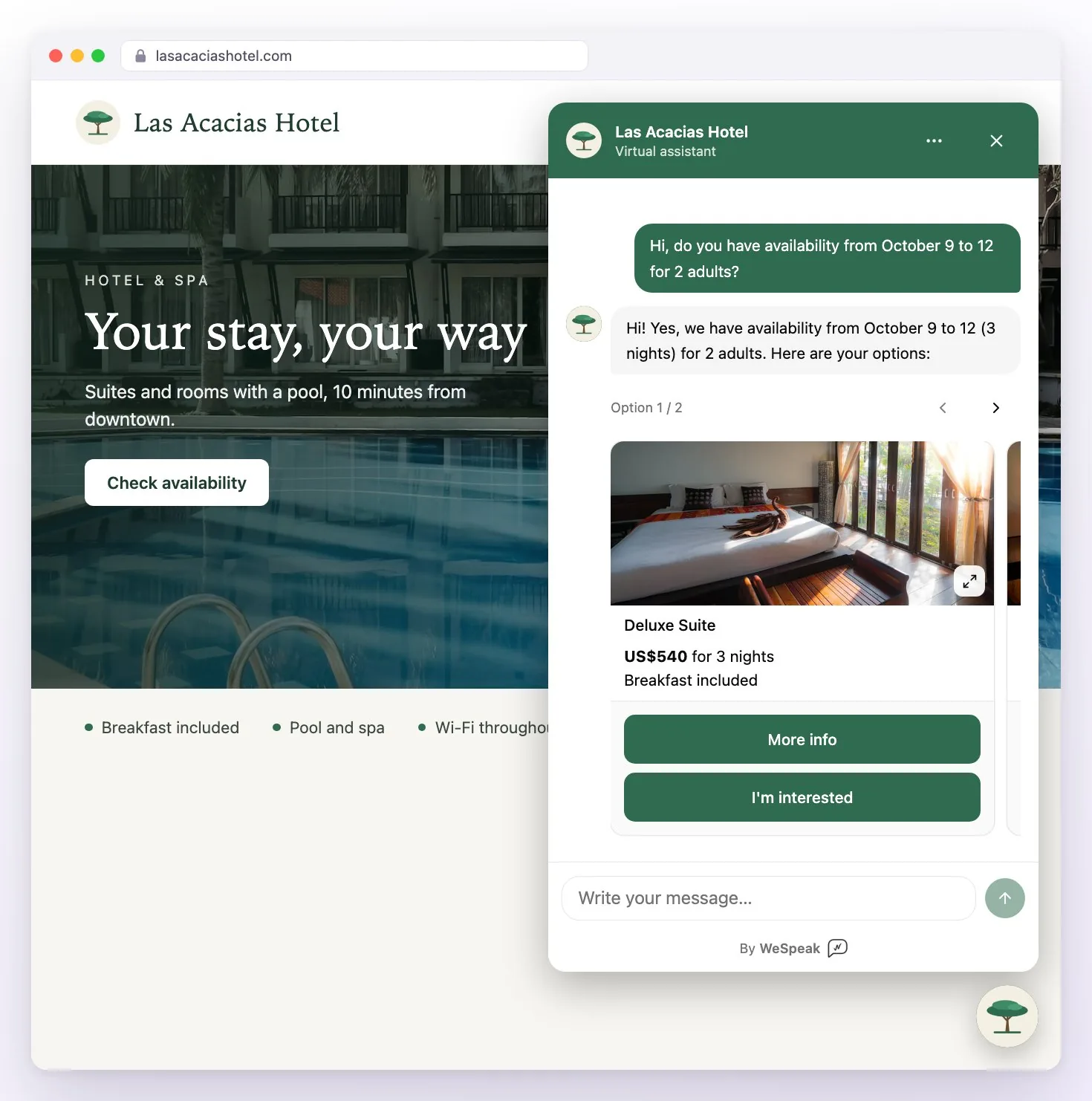
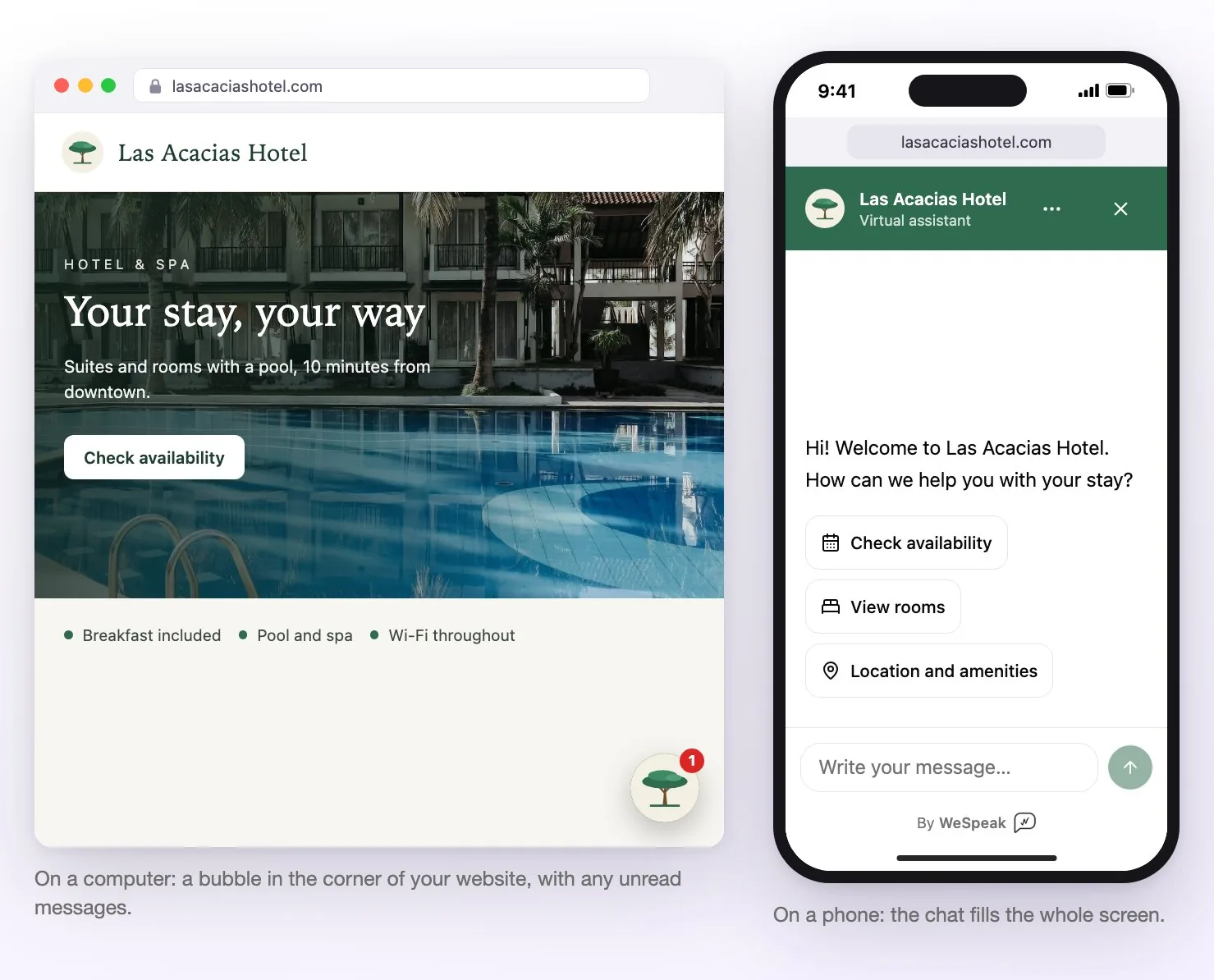
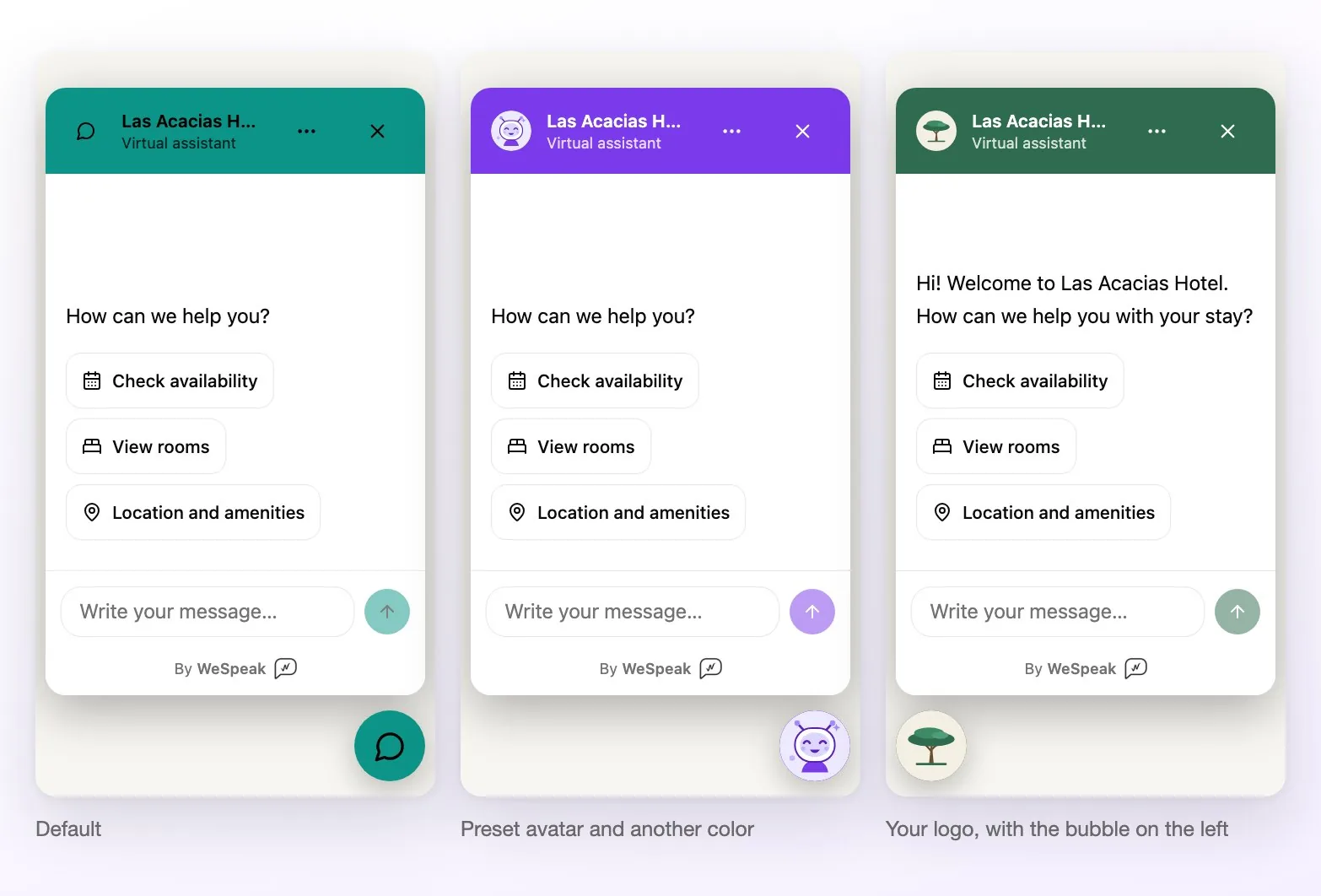
- A bubble in the bottom corner of the page, with the image and color you choose (on the right, unless you move it to the left).
- Tapping it opens the chat: on a computer, as a panel over the page; on a phone, it fills the whole screen.
- At the top they see your hotel's name and "Virtual assistant". When they open it, they find your greeting and three quick questions: Check availability, View rooms and Location and amenities. Each one sends that question as if they had typed it.
- They type and the assistant replies within seconds. While it's preparing the answer they see "Typing…"; if it takes longer than usual, the chat lets them know.
- If they close the panel, they can keep browsing your site: the conversation is still there. When a reply arrives while the chat is closed or the tab is in the background, a short sound plays and the bubble shows the unread messages.
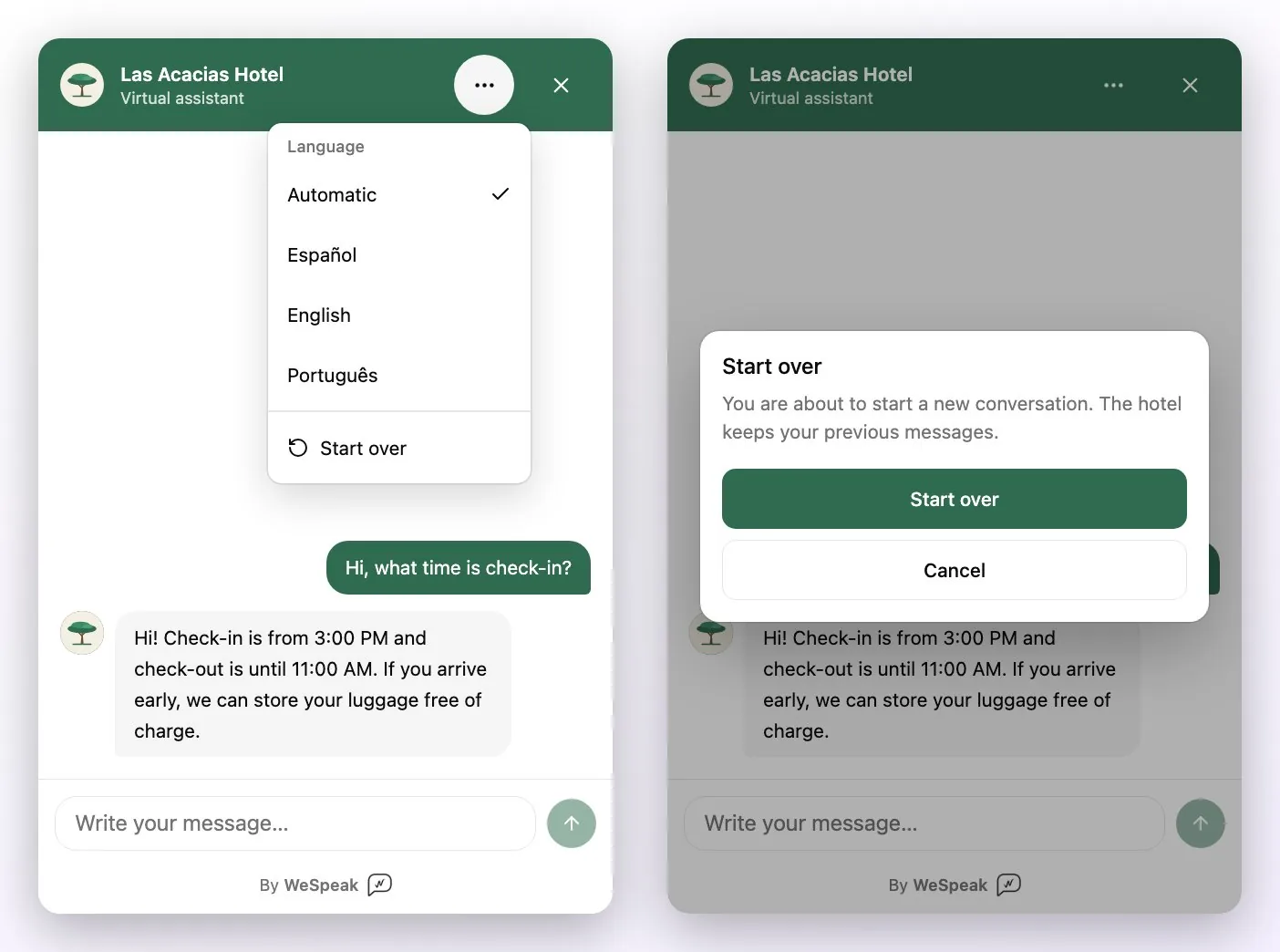
From the chat's ⋯ menu, the visitor can change the interface language (Automatic, Español, English or Português) or Start over with a blank conversation. The language changes the buttons, the greeting and the form; the assistant keeps replying in whatever language it's written to.
How to turn it on, step by step
On video: the setup tutorial (in Spanish) walks through the whole process: connecting Chat Web in Channels, customizing it, copying the code and installing it on your website with Google Tag Manager.
Watch the video: setting up Chat Web
ℹ️ Connecting, customizing and pausing Chat Web is a hotel setting: users with the Administrator or Supervisor role can do it. A User sees the card but can't connect it; they do handle the conversations.
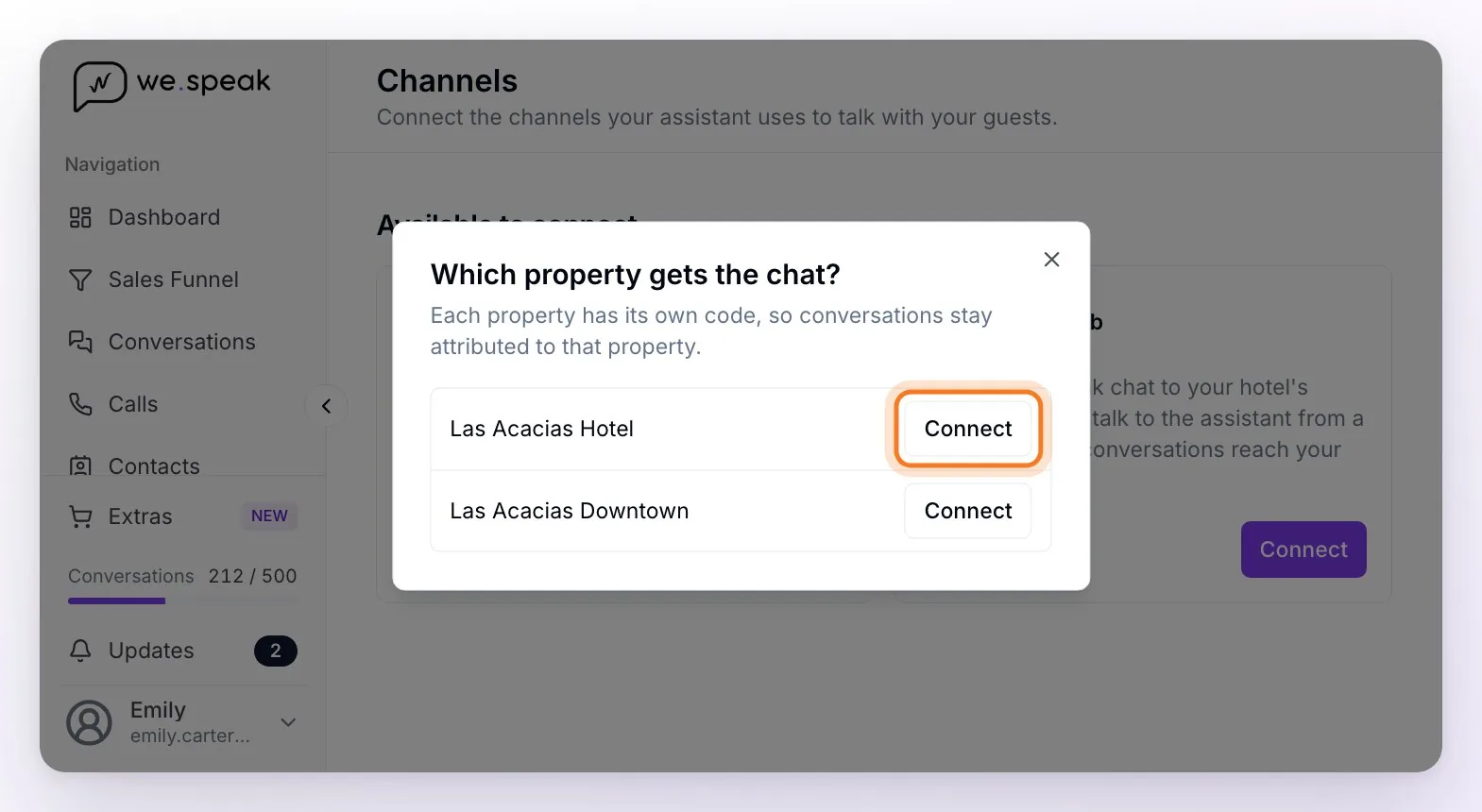
Go to Channels and, under Available to connect, click Connect on the Chat Web card.
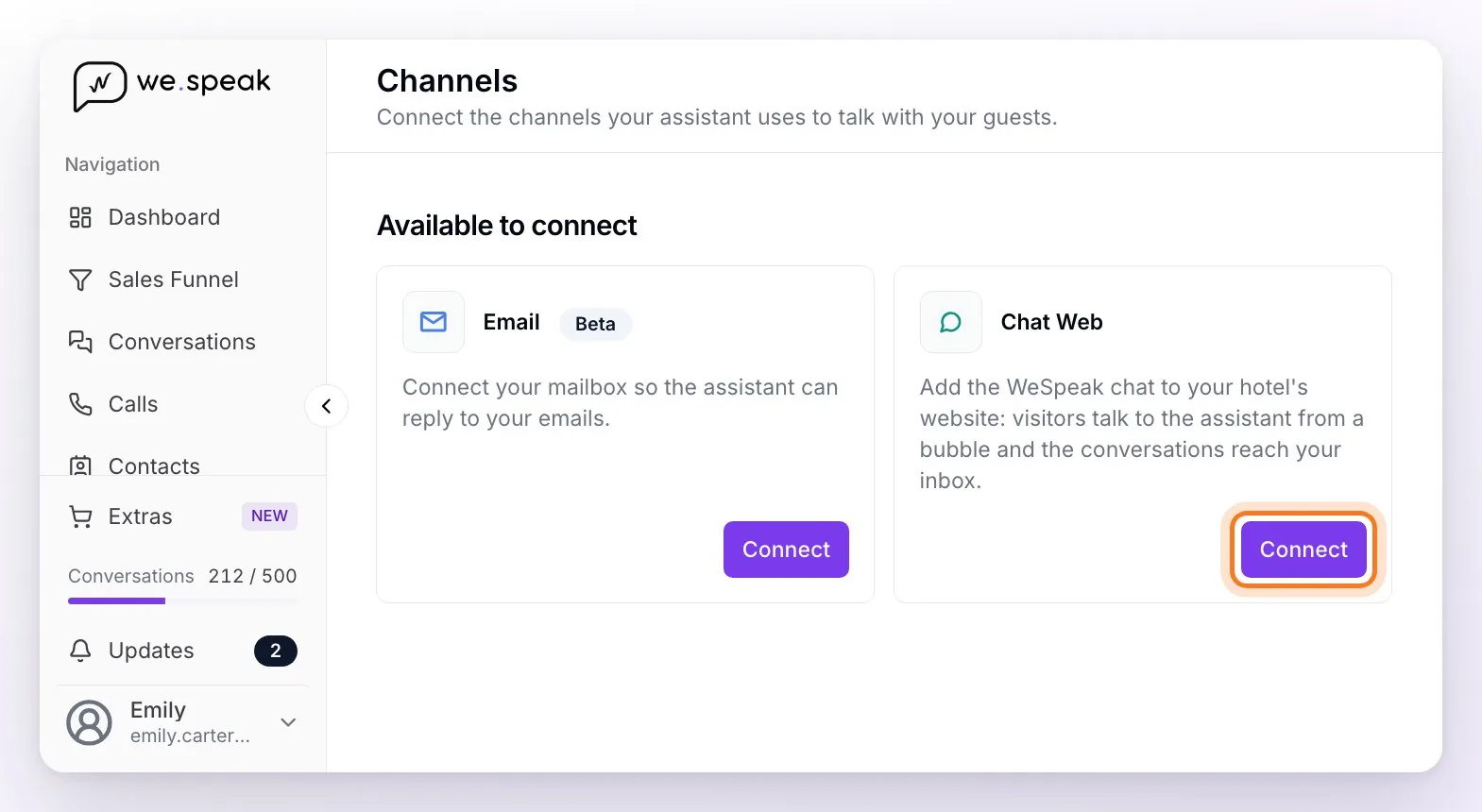
If your account has several properties, choose which one you're installing it on: each property has its own code, so conversations are linked to that property. With a single property, it connects right away.
Chat Web moves to Connected, on a card with the property's name, its install code and the button to copy it.
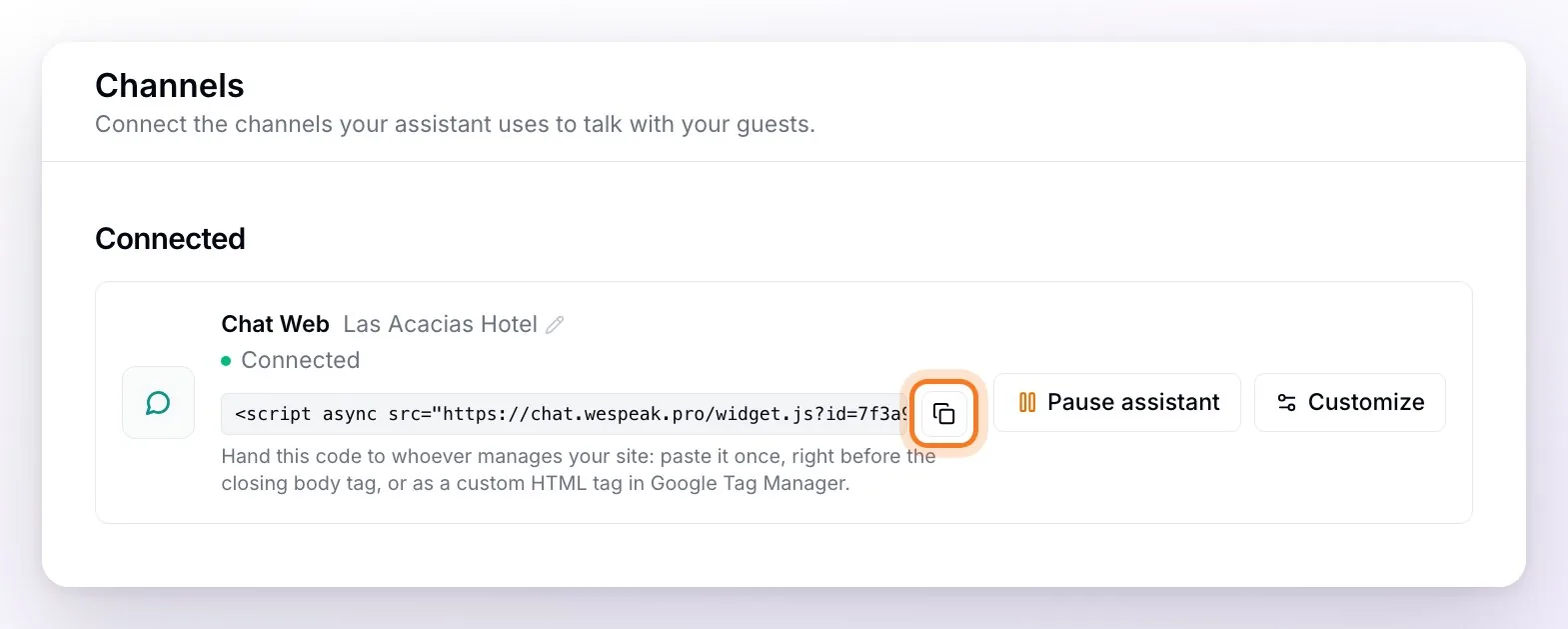
Copy the code and send it to whoever manages your website. It's pasted only once, right before the closing
bodytag of your site or as a custom HTML tag in Google Tag Manager — just like a tracking pixel. Chat Web: website installation guide has the step-by-step for each platform (HTML, Google Tag Manager, WordPress, Wix and others): you can send that link to your web designer.Customize it with the card's Customize button (see the next section). You don't need to change the code afterwards: changes apply on their own.
Test it: open your website (ideally in a private window), check that the bubble appears, send a question and confirm the conversation reaches Chats.
⚠️ "Connected" doesn't mean "installed". The card says Connected as soon as the code is generated. The bubble shows up on your website only once the code is published on the site.
💡 Once all your properties have their Chat Web, the card no longer appears under Available to connect. You'll find each property's card under Connected.
Customizing the chat
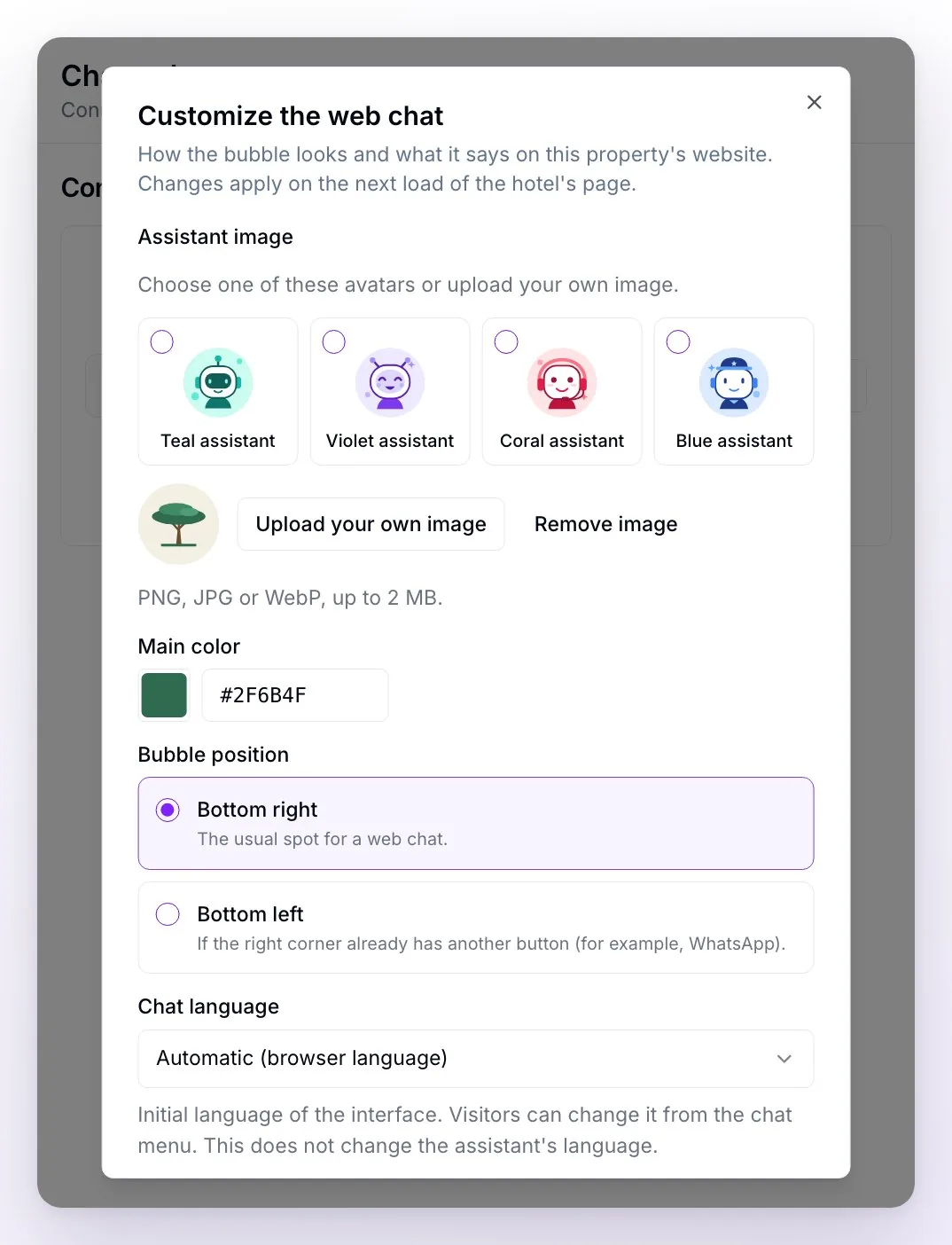
From the card's Customize button (one setup per property):
| Option | What it does |
|---|---|
| Assistant image | Choose one of the four avatars or upload your own image — your logo, for example — in PNG, JPG or WebP, up to 2 MB. It shows on the bubble, in the chat header and next to every assistant reply. With no image, a chat icon is shown. |
| Main color | The color of the bubble, the header and the buttons, so it matches your brand. The text adjusts on its own (white or black) so it's always readable. |
| Bubble position | Bottom right (the usual spot) or Bottom left, if that corner already has another button — the WhatsApp one, for example. |
| Chat language | The initial interface language: automatic (based on the visitor's browser), Spanish, English or Portuguese. The visitor can change it from the chat menu. It doesn't change the assistant's language. |
| Initial greeting | The first message the visitor sees, with one version per language (ES, EN and PT tabs, up to 200 characters each). They aren't translated automatically: write each one. If you leave one empty, that language's default greeting is used ("How can we help you?"). |
| Ask for contact details | When to ask the visitor for an email or phone number: At the start, required, At the start, optional or Later. It's explained in the next section. |
| Allowed domains | The addresses of your website where the chat can work, one per line, with https:// and no trailing slash (for example, https://yourhotel.com). The www version counts separately. Up to 20. Empty = it works on any page where the code is pasted. |
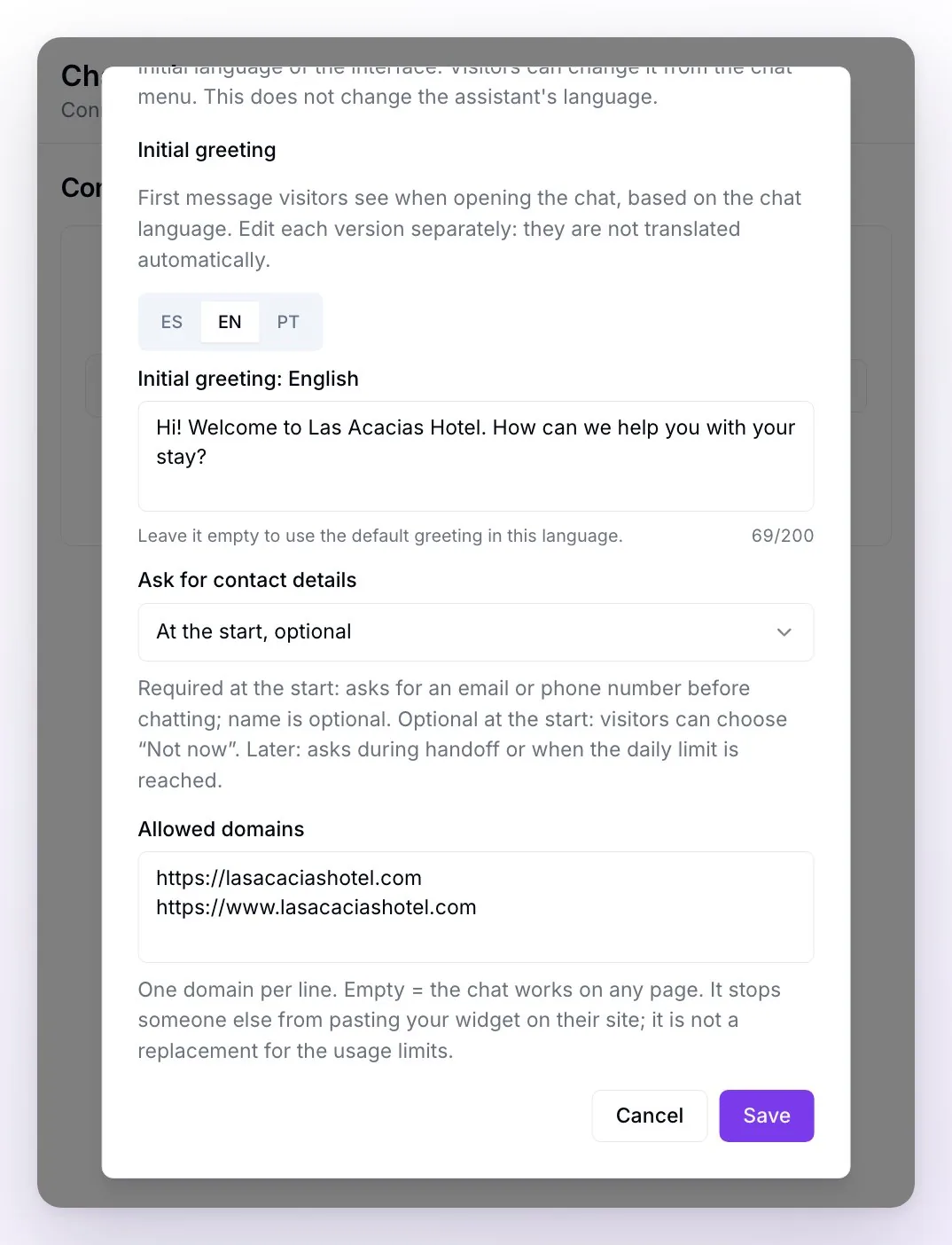
Save when you're done. Changes show the next time the page loads on your site and can take about 5 minutes; a tab that was already open doesn't change on its own, so reload it to check.
The visitor's contact details
On a website, nobody arrives with a phone number the way they do on WhatsApp. And once the visitor closes the tab, there's no way to write to them through the chat. That's why, in Ask for contact details, you choose when to ask them for an email or phone number:
- At the start, required: before their first message, the visitor leaves an email or phone number (the name is optional). Nobody chats without leaving at least one way to reach them.
- At the start, optional: it's requested when the chat opens, but they can choose Not now and chat anyway.
- Later (the default): nothing is requested to get started. The form appears when the assistant hands the conversation off to your team or when the chat reaches its daily limit of replies. It doesn't appear "after a certain number of messages".
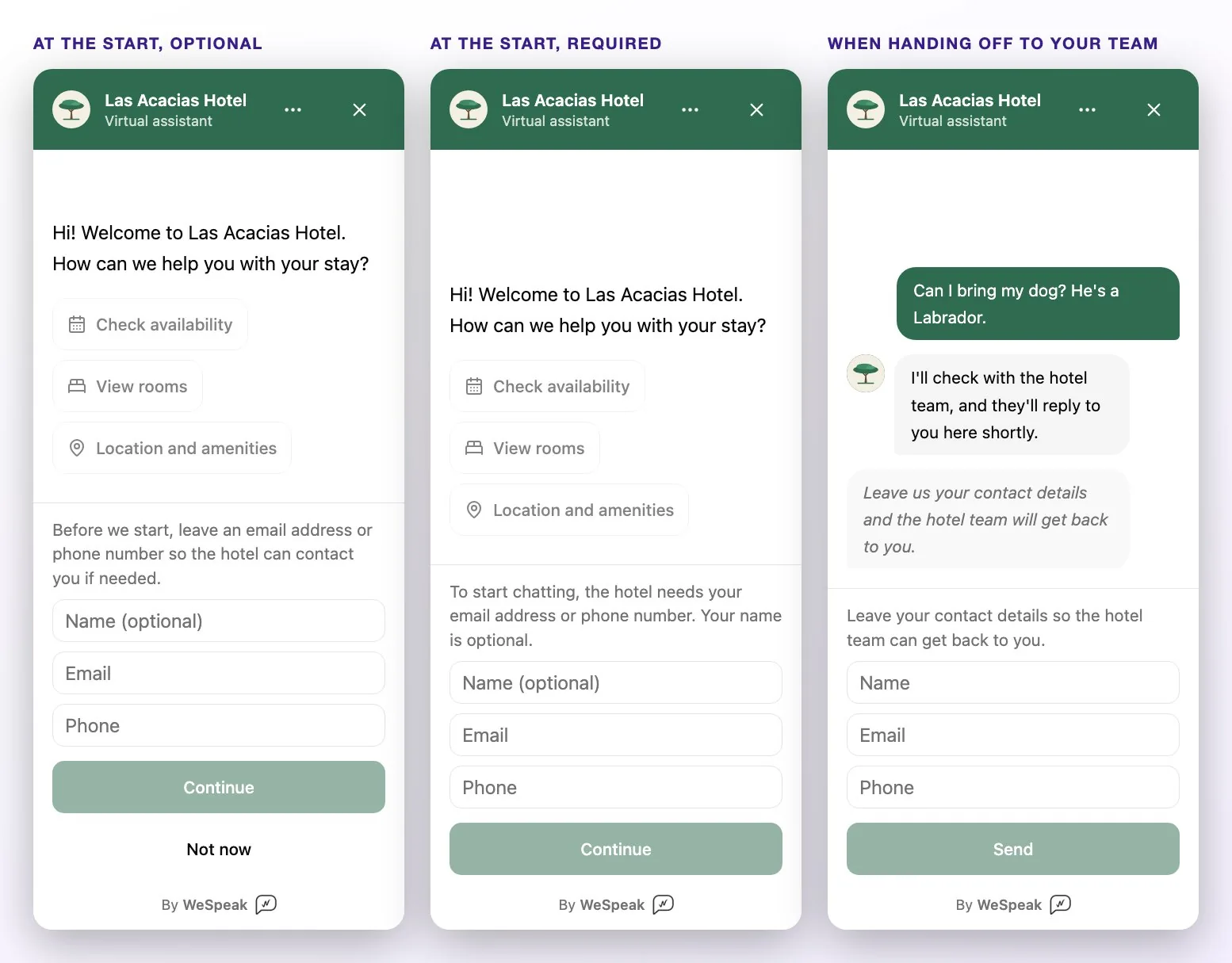
Whatever the visitor leaves shows up instantly on their contact card in Chats. If they leave it at the start, the conversation appears in your inbox even before they write. If they've already left an email or phone number, they aren't asked again.
⚠️ On the form that appears when handing off or when the daily limit is reached, typing just a name is enough to send it. Before promising to contact them, check on their contact card what they actually left.
💡 Which one should you choose? If your priority is not losing a single contact, use At the start, required. If you'd rather nobody hits a barrier before asking, Later is the lightest option: the assistant asks for the details right when your team needs to step in.
What the assistant can do in the chat
It's the same assistant as in your other channels, so it answers with your usual knowledge. On the website, it also shows each thing in its own format:
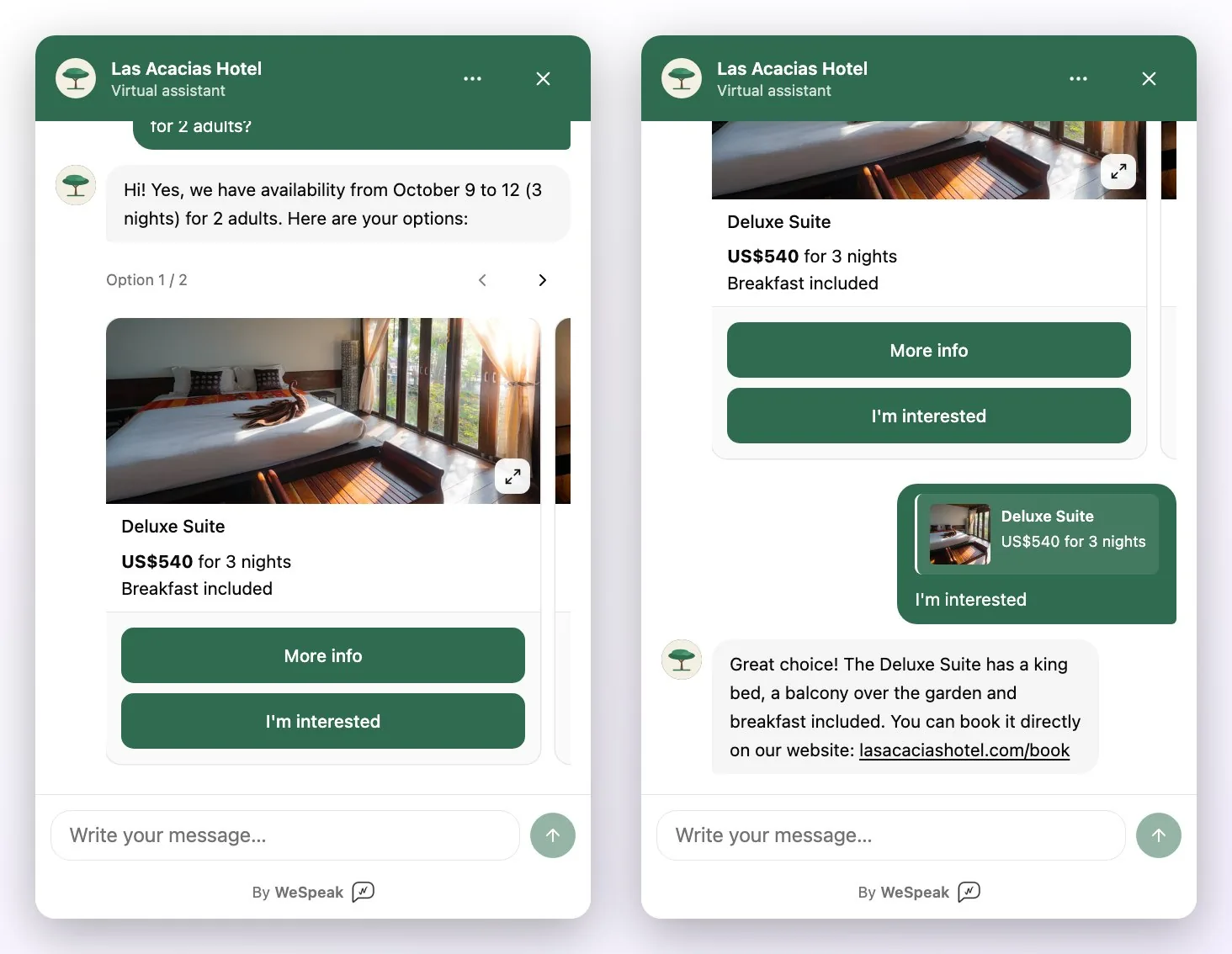
- It quotes on cards. One card per option, with a photo, description and price, plus the More info and I'm interested buttons, which continue the conversation about that option. Up to 10 options and up to 5 photos per card; if a quote can't be shown on cards, it goes out as text and photos. In Chat Web the cards are always on: they don't depend on the WhatsApp carousel setting.
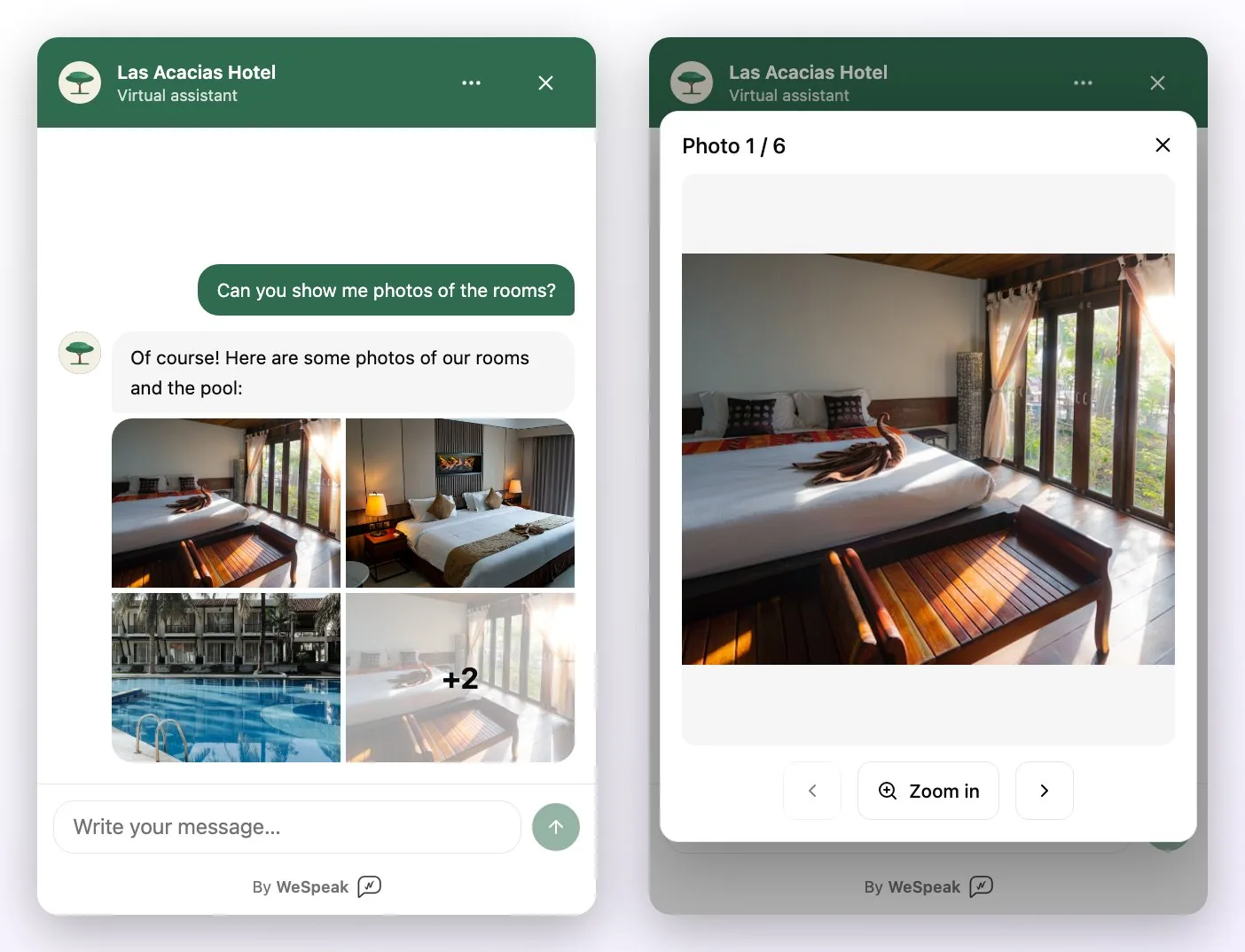
- It sends photos. It groups them into a mosaic that opens in a gallery, with arrows and a Zoom in button to see the details.
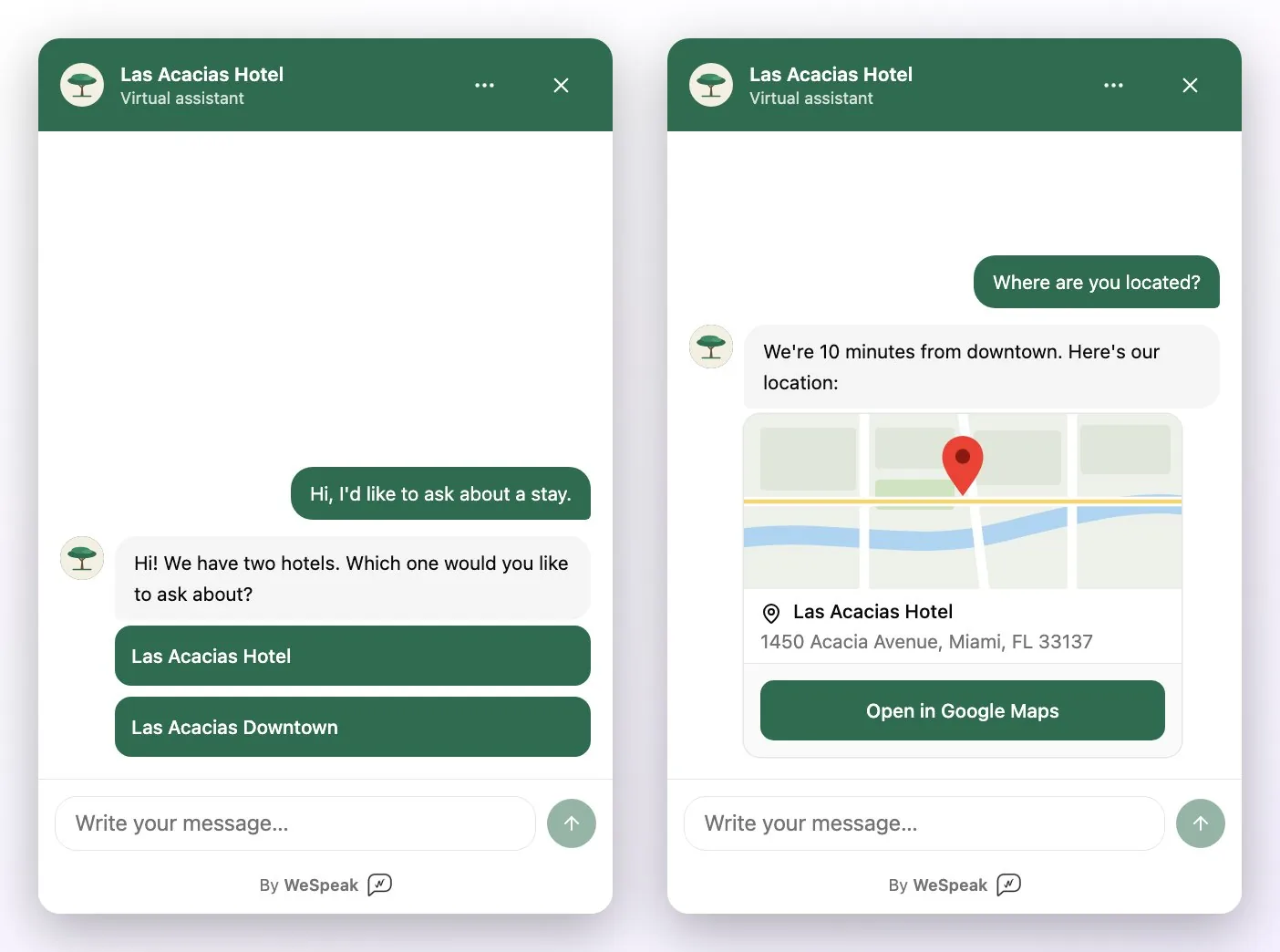
- It shares your location with a map, the hotel's name and address, and an Open in Google Maps link.
- It lets visitors pick a hotel. If your account has several properties and it needs to know which one they're asking about, it shows one button per hotel (up to 20; with more, it asks the visitor to narrow it down).
- It shares your booking link from your booking engine, if you use one, just like in your other channels. What the assistant does not do on its own on the website is generate the WeSpeak Payments link or create bookings, because the visitor is anonymous: I'm interested continues the conversation; it doesn't book. The payment link can still reach the visitor through Chat Web: your team sends it from Chats (see below).
How your team handles it
On video: the tutorial on handling conversations (in Spanish) shows how to find Chat Web conversations in Chats, what happens when the assistant hands one off to you, how to reply as a team and what to do if the visitor leaves.
Watch the video: handling Chat Web conversations
Chat Web conversations reach Chats like any other channel's: with the Chat Web icon, filterable by channel, with labels, notes, the AI Summary and the same funnel, which the assistant updates based on the conversation.
- Under the contact's name you see the property the chat belongs to. If the visitor hasn't left their name yet, they show up as Visitante web.
- On the contact card you see the Starting page (the page of your website where they opened the chat) and, if they left them, their name, email and phone number. The phone number can be edited.
- You can step in whenever you want: when someone on your team replies, the assistant pauses in that chat, just like in the other channels. You can also use Pause in the header.
- When the assistant hands the conversation off to a person (its usual stop situations), it pauses and notifies you just like in your other channels: in the platform and by email, depending on your Notifications settings. If the visitor still hasn't left an email or phone number, the chat asks for one.
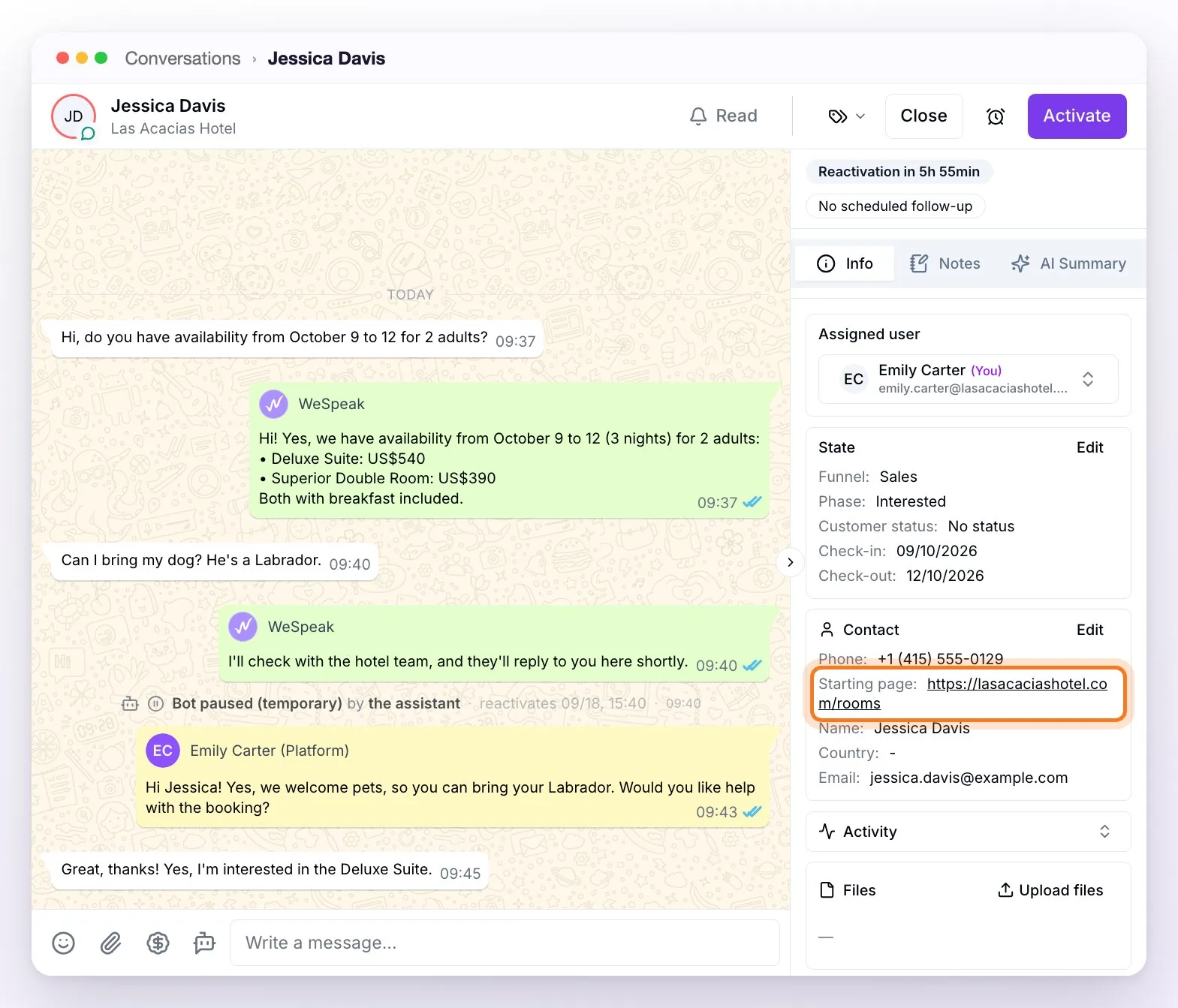
You can only reply while the visitor is connected
Chat Web has no number to write to later: your reply arrives while the visitor has the chat open on your website. When you open the conversation, sending is enabled once the connection is confirmed. If the visitor leaves, you'll see the Visitor offline notice (or Visitor reconnecting / Cannot check the visitor's connection) and sending is blocked; your draft is kept, and sending turns back on by itself if they reconnect. If they left their contact details, use them to follow up another way.
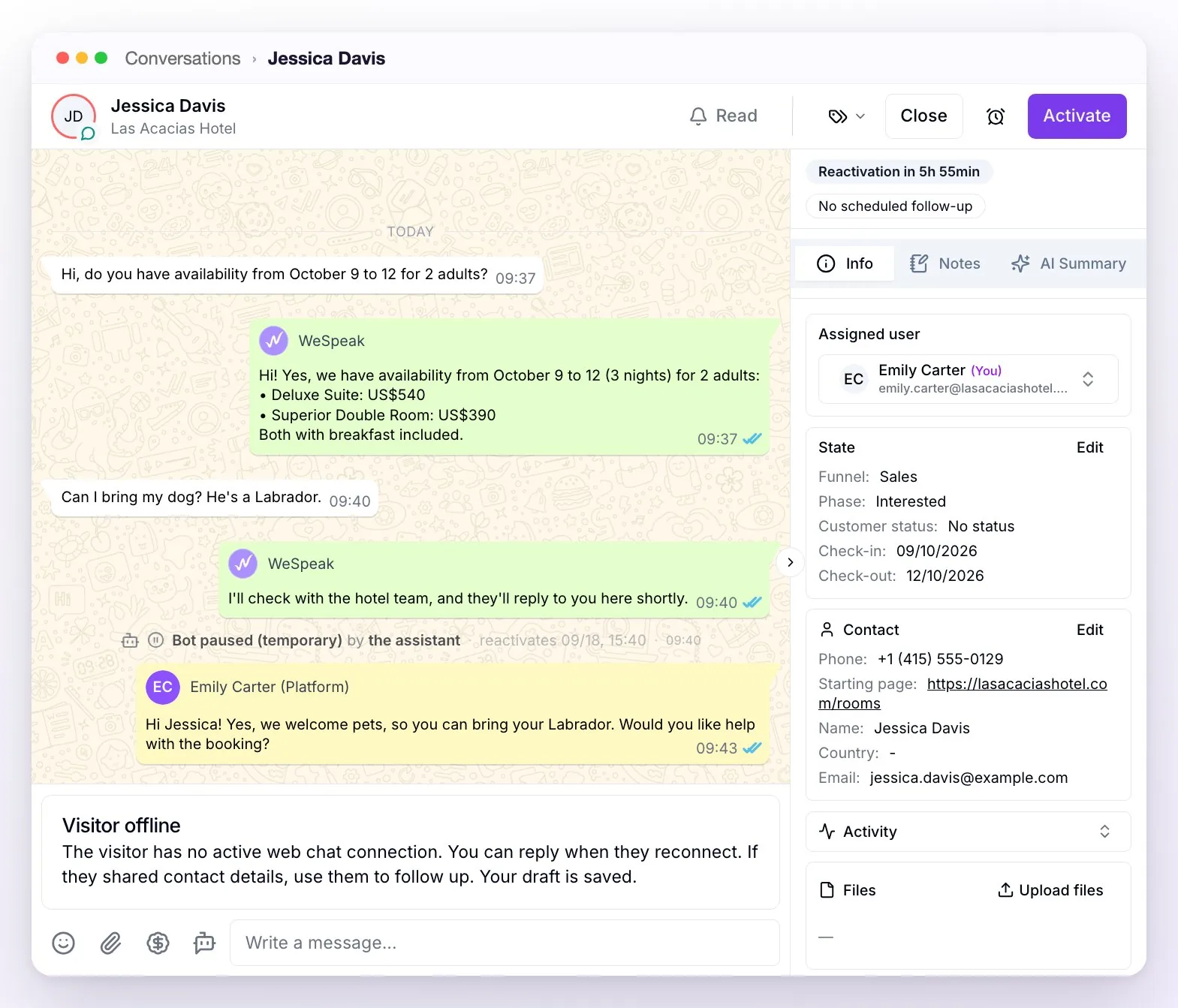
A visitor leaving doesn't close or archive the conversation. And some things aren't available on this channel, precisely because they depend on being able to write to someone who's no longer there: there are no scheduled messages, you can't start a conversation from the platform, and automatic follow-ups and campaigns don't apply.
What your team can send: text and images (with the attach button, or by pasting or dragging them into the chat). Audio, video and documents can't be sent. Templates are inserted as editable text, and messages can't be quoted or deleted.
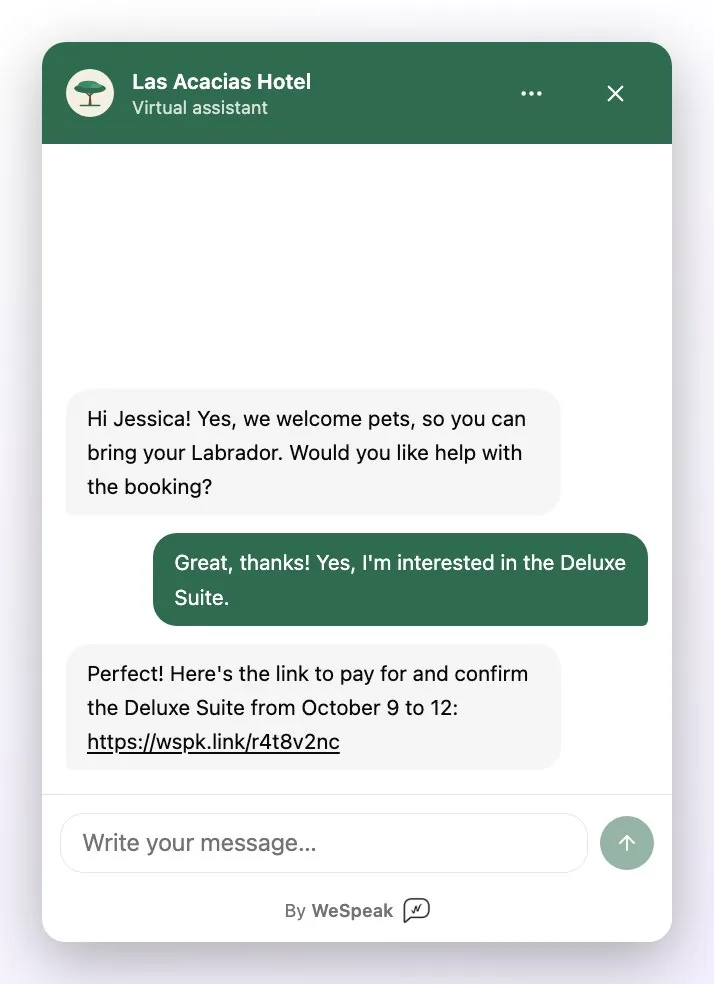
Charging through Chat Web: with WeSpeak Payments, your team can also send the payment link. In the conversation, click $ in the message box, turn on Generate payment link, choose the room and rate and copy the link with Copy payment link; then paste it and send it in the chat while the visitor is connected (if they disconnect, the quote tool won't let you confirm until they're back). The visitor opens it in a new tab and pays on your booking page, just like from any other channel (see the payment link).
Pausing the Chat Web assistant
If you want your team to handle all of a property's Chat Web by hand, with no automatic replies, use Pause assistant on its card in Channels → Connected. The card switches to Assistant paused: the bubble stays on your website, messages keep arriving in Chats and your team replies manually while the visitor is connected. To go back to normal, Resume assistant.
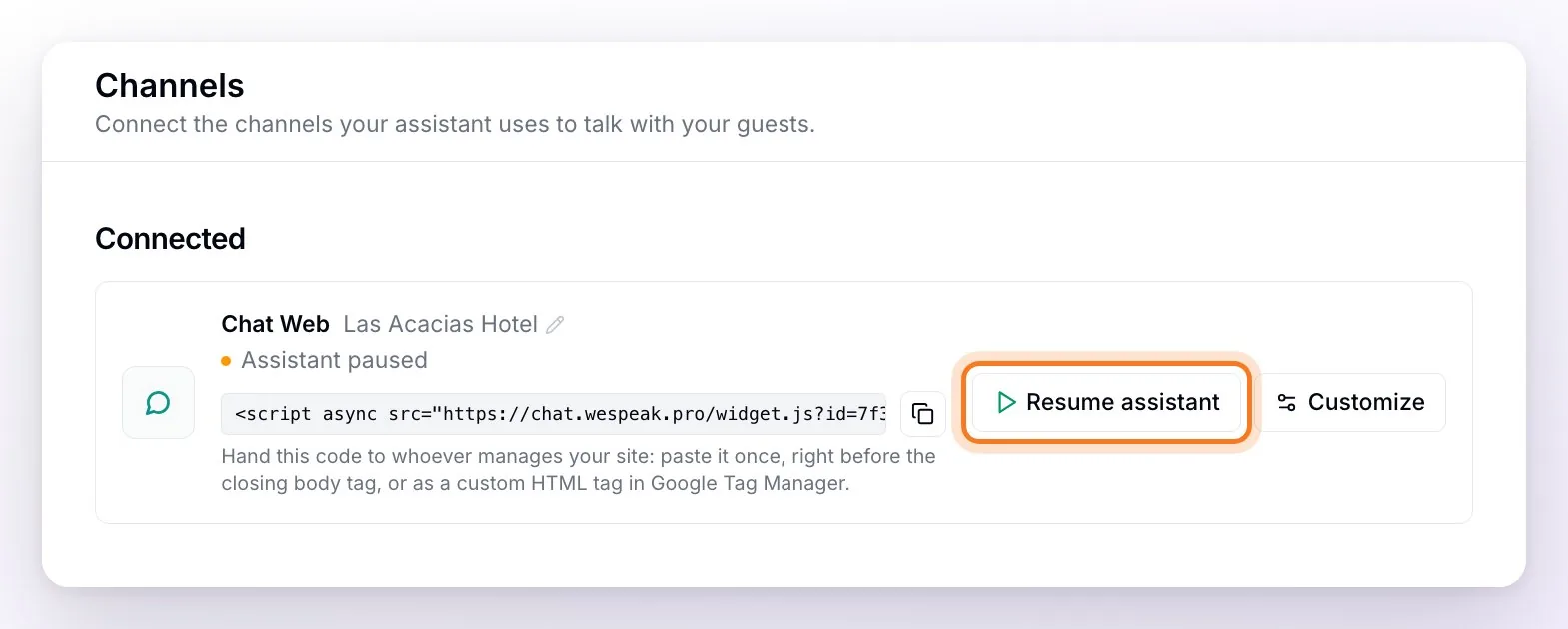
It's different from pausing a single conversation (the Pause button in the Chats header), and it doesn't hide the chat from your website: to do that, you need to remove the code from the site.
How long a conversation lasts (and why)
A conversation lasts the visit in that tab. If the visitor browses your site, reloads the page or closes and reopens the panel, the chat stays where it was. If they close the tab, their next visit starts a new conversation; the previous one stays saved in Chats, with everything that was said.
It's a security measure: if someone asks from a shared computer — at a library, an internet café or a hotel lobby — and the chat stayed open, the next person could read the conversation and the details they left. It's the usual practice for website chats. That's why it's worth asking for contact details: once the tab is closed, they're how you pick the conversation back up.
Start over (in the ⋯ menu) asks the visitor to confirm and opens a blank conversation. Your team keeps both in Chats.
Security and usage limits
- Allowed domains. We recommend adding your website's addresses: that way the code only works on your site and not on another one where someone copies it. It's a layer of protection, not a password: it doesn't identify visitors.
- Anti-abuse limits. The chat has a cap on messages per visitor and a daily cap on assistant replies per hotel, set by WeSpeak. If someone writes too fast, the chat asks them to wait a few seconds. If the daily cap is reached, the assistant stops replying through the chat for that day and offers the visitor the contact form; they never see an error. If your hotel needs a higher cap, ask support.
- Browsers. The chat works on any current browser (on iPhone, from iOS 16.4). On a very old one the bubble appears, but the chat doesn't load.
Usage and costs
- Chat Web has no extra cost and doesn't generate Meta charges.
- Every conversation the assistant handles counts as a conversation on your plan, just like on WhatsApp, Instagram and the other channels: one contact handled by the assistant in the month is one conversation (see Types of usage). If only your team handles it, it doesn't count.
Limits of this version
- The assistant doesn't generate payment links on the website: it gives information, quotes and shares your booking engine link; the WeSpeak Payments link is sent by your team from Chats, with the $ button.
- Only while the visitor is on your website: no scheduled messages, automatic follow-ups or campaigns, and no automatic emails to a visitor who left.
- Visitors write text only: they can't attach photos, files or audio. Your team sends text and images.
- It doesn't detect which hotel they're interested in from the page they're viewing. Each code belongs to one property; if you have a single website for several hotels, the assistant asks the visitor which one they're asking about.
- It doesn't measure the lead's source yet: we can't tell whether the visitor came from a Meta ad, from Google or from somewhere else (or which campaign). For now, the contact card only shows the Starting page, and Chat Web conversations don't appear in the Dashboard's Lead attribution card (Channel tab) either. To find out the status of this improvement, ask support.
- It doesn't include a proactive greeting (the chat opening on its own after a few seconds on the page).
Frequently asked questions
Does it cost anything?
There's no extra cost and it doesn't generate Meta charges. Conversations handled by the assistant count toward your plan's allowance, as on any channel.
Do Chat Web conversations count as plan conversations?
Yes, just like WhatsApp and the other channels: each contact the assistant handles in the month is one conversation on your plan (see Types of usage). If only your team handles it, it doesn't count. What they don't have is Meta charges.
Do I need to ask for it to be enabled?
No. It's in Channels for every account: an Administrator or a Supervisor connects it in a minute.
Do I need a developer?
Only to paste the code once on your site (or add it in Google Tag Manager). If someone else manages your website, send them the Chat Web: website installation guide. After that, everything is managed from Channels.
Do I need one code per hotel?
Yes: each property has its own code. Install on each website the code for that property, so conversations are linked to the right one.
Do I need to change the code if I customize the chat?
No. Save your changes in Customize and reload your website; they can take a few minutes to show.
Does it replace the WhatsApp button on my website?
No, they work side by side. The WhatsApp button takes the conversation to your number; Chat Web serves visitors right there on the page, for those who'd rather not leave your site. That's why the bubble can go on the left, so it doesn't cover the WhatsApp button.
Does the assistant reply differently on the website?
It's the same assistant, with the same knowledge and the same behavior. On the website it shows quotes on cards, photos in a gallery and your location on a map; the difference is that on the website it doesn't generate payment links on its own.
Can I charge for a booking through Chat Web?
Yes, with WeSpeak Payments: your team generates the payment link from Chats with the $ button and sends it in the chat while the visitor is connected. The assistant doesn't generate it on its own on the website.
Is it managed in Chats the same way as other channels?
Yes. Chat Web conversations have the same tools as any other channel's: labels, Pause and Activate for the assistant in the header, notes, the Assigned user, the funnel and the AI Summary tab in the contact panel. The only differences are the ones specific to the channel: you reply while the visitor is connected, with text and images, and there are no scheduled messages.
Will I be notified when someone needs attention?
Yes, just like in your other channels: when the assistant hands a conversation off, you get the alert in the platform and by email, depending on your Notifications settings.
Can I see which page they wrote from?
Yes: the contact card shows the Starting page, the page of your website where they opened the chat.
Can I tell whether the lead came from Meta, Google or somewhere else?
Not yet. Chat Web doesn't measure the lead's source: it can't tell whether the visitor came from a Meta ad, from Google or organically, and its conversations don't appear in the Dashboard's Lead attribution card. To find out the status of this improvement, ask support.
Why doesn't the visitor see their previous conversation?
Because the conversation lasts the visit in that tab: when they close it, it's cleared from their browser for security (see above). Your team still has it in Chats.
What happens if the visitor leaves before we reply?
The conversation stays in Chats with everything that was said. If they left an email or phone number, your team can follow up that way; if they come back to your website, a new conversation starts.
Can I share the chat as a link, without installing it on my website?
For now, Chat Web is designed to live inside your site: the platform gives you the install code, not a link to share. If you'd like to use it from social media or other channels, let your WeSpeak advisor know.
How do I remove it from my website?
Remove the code from your site (or from Google Tag Manager): the bubble disappears and no new conversations come in. The history is kept, and the same code works again if you paste it back. Pause assistant only stops the automatic replies: it doesn't hide the chat.