Before you offer a payment method on your page, you have to connect it. It's done in the Connections tab of Payments configuration.
ℹ️ This guide is part of WeSpeak Payments, which has the list of what has to be ready before you start.
In this article
- Which payment methods you can offer
- Connections
- Connect a gateway (Stripe, Mercado Pago, PayPal, PayU or Wompi)
- What each gateway asks for
- Wompi: the events URL
- The card guarantee
- Bank transfer, payment link and pay at the hotel
- Edit the credentials
- Disconnect a payment method
- Frequently asked questions
Which payment methods you can offer
| Method | What the guest pays with | What it needs before you offer it | Payment |
|---|---|---|---|
| Stripe | Credit and/or debit card. | Connection with your keys and Charge with Stripe in the card option. | Online, at booking (the total or the deposit). |
| Mercado Pago | Card and/or the Mercado Pago option (pays on Mercado Pago with their account). | Connection and turning on one or both options. | Online, at booking. |
| PayU | Card and/or the PayU option (pays on PayU's page). | Connection and turning on one or both options. | Online, at booking. |
| PayPal | The PayPal option (pays on PayPal). It doesn't charge the card. | Connection and turning it on. | Online, at booking. |
| Wompi | The Wompi option (pays on Wompi's page: cards, PSE, Nequi…). Wompi charges in Colombian pesos. | Connection, the events URL set up in Wompi and turning it on. | Online, at booking. |
| Card guarantee (Store Card Data) | Credit and/or debit card: the card is saved, with no charge. | It comes connected; in Payment methods, the card in Save card data for manual charge. | You charge it later, with the details an Administrator sees in Reservations. |
| Bank Transfer | Transfers to your account using your instructions. | Connection (one click), turning it on and writing the instructions. | You record it in Reservations when it arrives. |
| Payment Link | Pays on a generic link from your own gateway, entering the amount and their details. | Connection (one click), turning it on and writing the instructions with the link. | You record it in Reservations when it arrives. |
| Pay at Hotel | Pays on arrival, in cash or by card at the front desk; books with no advance payment. | Connection (one click), turning it on and writing the instructions. | You record it in Reservations when you collect it. |
- Time to pay: the link doesn't expire; with gateways and the card guarantee, the guest has 12 minutes to complete the payment from the moment they confirm (see What the guest sees).
- Countries and currencies: the panel doesn't limit which countries or currencies you use each gateway in; what matters is that your account with the provider accepts charging in your reservations' currency (see Currencies and conversion).
Connections
The Connections tab (Knowledge → Price and Availability → Payments configuration) shows what's already connected, with its type (Payment gateway, Manual card or Direct method), its status (Active) and three actions: View details (the eye), Edit (the pencil, only on gateways) and Disconnect (the plug). On laptop screens you'll see only the icons; hovering shows the name.
- Who can do it: Administrator and Supervisor users.
- Each property connects its own: if you have several, first choose the property in the Per-hotel configuration bar (see Set up your reservations page). What you connect in one property doesn't work for the others.
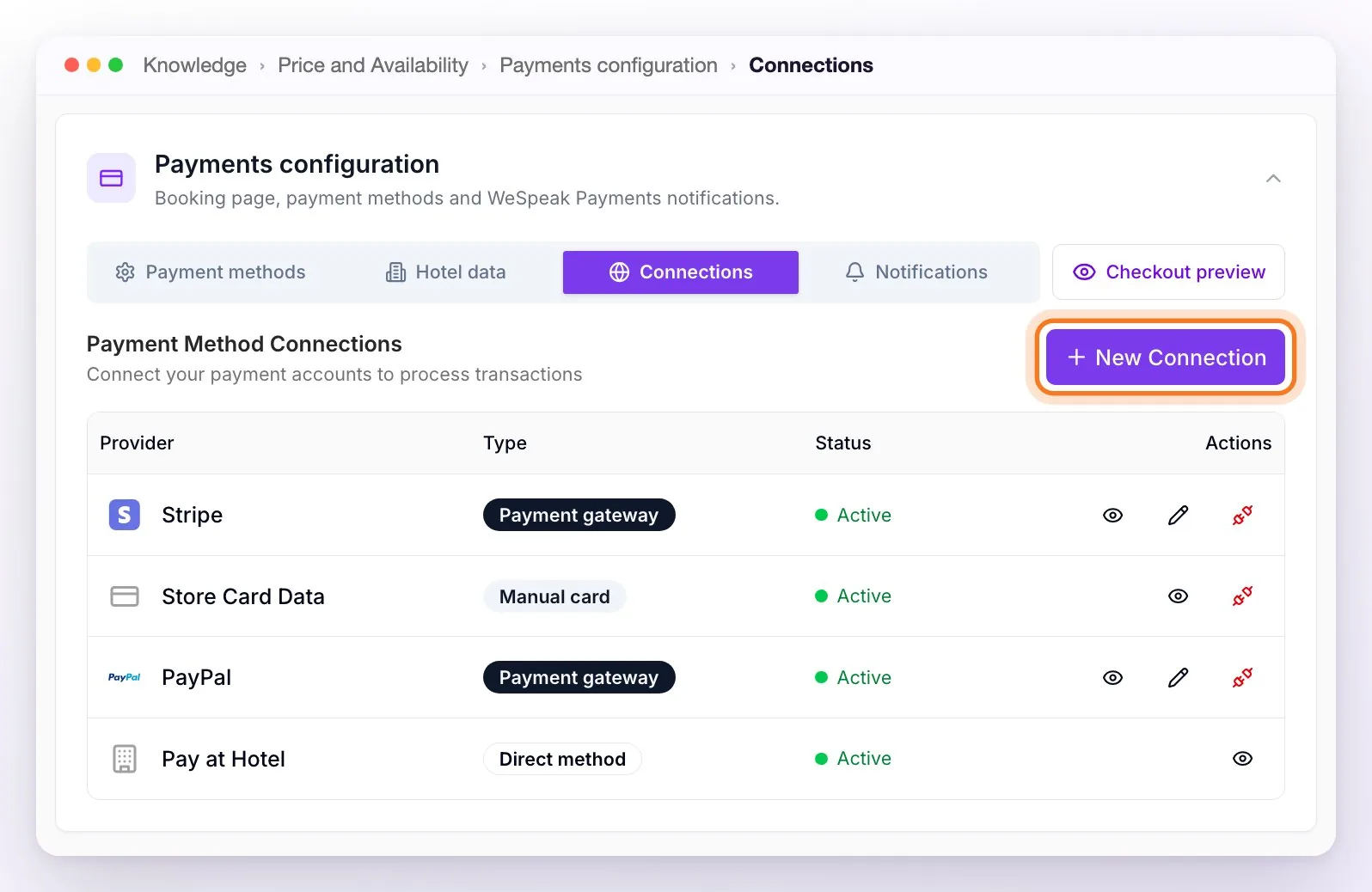
ℹ️ When you activate WeSpeak Payments, you'll already find Store Card Data connected in each property: it's the card guarantee (see The card guarantee).
⚠️ Connecting doesn't turn anything on in your page. After you connect a payment method, turn it on in the Payment methods tab (see Payment methods). Until then, the guest doesn't see it.
Connect a gateway (Stripe, Mercado Pago, PayPal, PayU or Wompi)
You need your own account with the gateway: the payments go straight into that account.
In Connections, click New Connection.
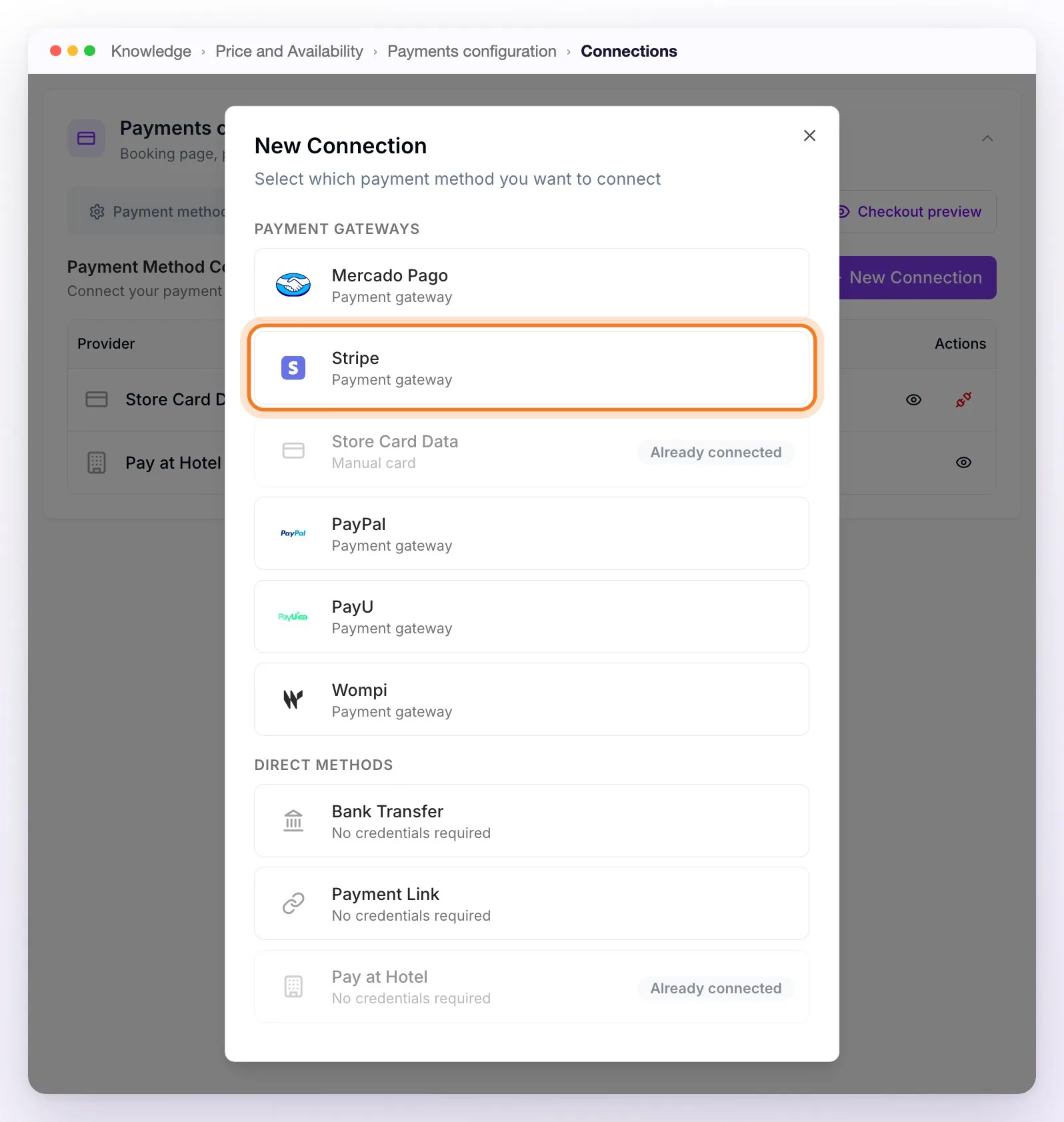
In Payment Gateways, choose the provider. What's already connected appears dimmed, with Already connected: you can have only one account per provider per property.
The provider's Connect window opens, with a step-by-step guide: how to create or sign in to your account, where the credentials are in the provider's dashboard and what to set up there. Below the guide (on a laptop, scrolling down inside the window) paste the credentials. The fields have the names the provider uses in its dashboard.
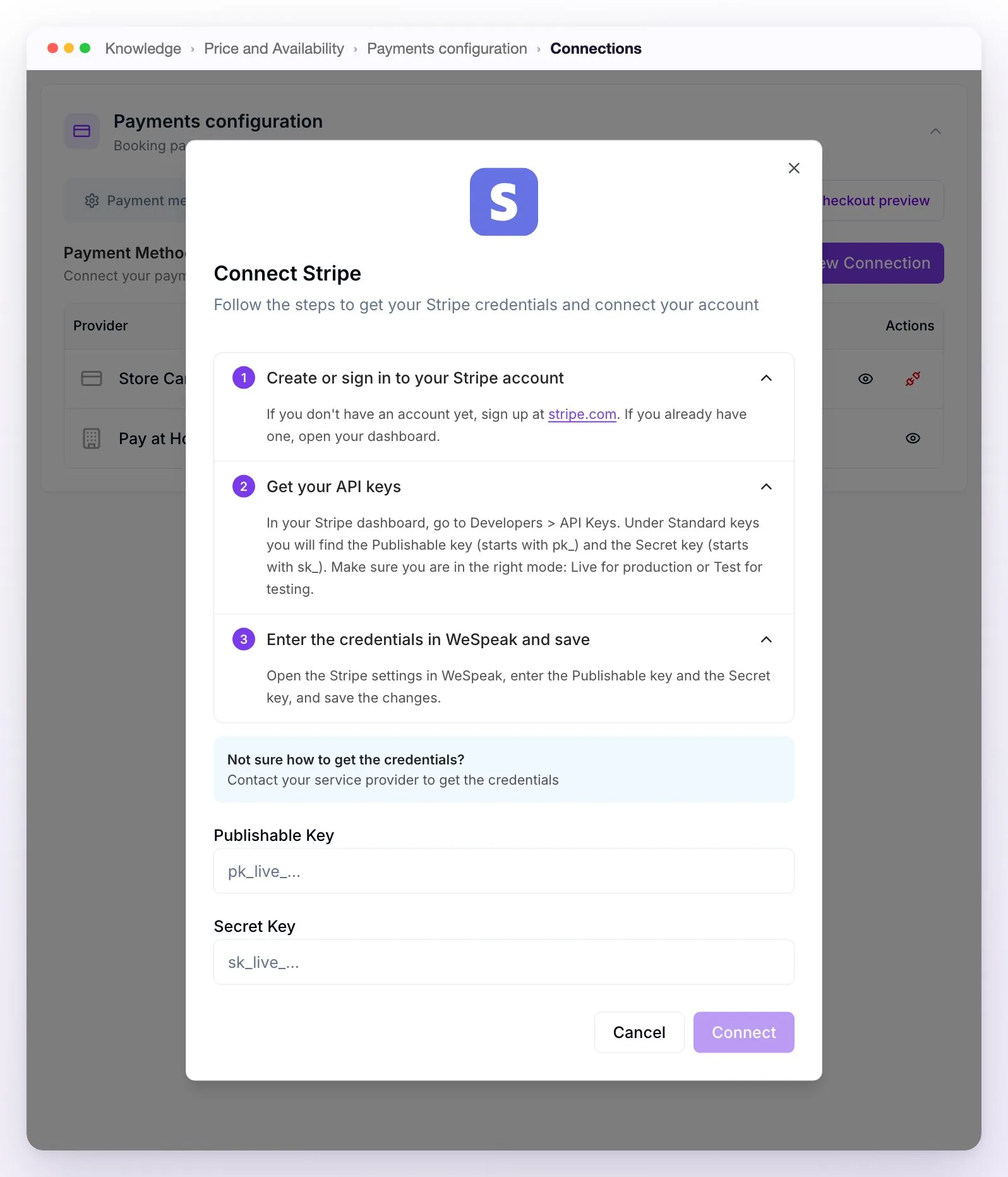
Click Connect (it's enabled once you fill in all the fields). The provider appears in the table as Active.
In the Payment methods tab, turn the method on and, to charge cards, choose Charge with… (see Payment methods). If you use WeSpeak Rates, also check the payment policies that have their own setup (see Payment policies).
⚠️ WeSpeak doesn't check the credentials with the provider. If you paste a key with a typo or a test key, the connection shows Active anyway and your guests' payments fail. Copy the production keys straight from the provider's dashboard and make a test reservation before you open (see Test before you open).
What each gateway asks for
| Gateway | Credentials | Where they are (according to the window's guide) | What it adds to your page |
|---|---|---|---|
| Stripe | Publishable Key and Secret Key | Stripe dashboard → Developers → API Keys (Standard keys), in Live mode. | Charging the card: Charge with Stripe. |
| Mercado Pago | Access Token and Public Key | Mercado Pago developer dashboard → your integrations → your application → production credentials. | Two options with the same connection: charging the card (Charge with Mercado Pago) and the Mercado Pago option, where the guest pays on Mercado Pago with their account. The checkout asks for their country's document type (DNI, CPF, RUT…). |
| PayPal | Client ID and Client Secret | PayPal developer portal → Apps & Credentials → REST API apps (with a business account, in Live mode). | The PayPal option: the guest pays on PayPal. It can't be used to charge the card. |
| PayU | Merchant ID, Account ID, API Login and API Key | PayU dashboard → technical configuration settings. | Two options with the same connection: charging the card (Charge with PayU) and the PayU option, which takes the guest to PayU's payment page. |
| Wompi (Colombia) | Llave Pública, Llave Privada, Secreto de Integridad and Secreto de Eventos | Wompi dashboard → Desarrollo → Programadores. Plus the events URL (see below). | The Wompi option: the guest pays on Wompi's page (cards, PSE, Nequi…). It can't be used to charge the card or for the card guarantee. |
If you can't find the credentials in your account, ask your provider for them: the same window reminds you of this in Not sure how to get the credentials?.
Wompi: the events URL
Wompi notifies each payment to an events URL that's set up in its dashboard. The guide's Configure the events URL (webhook) step shows you WeSpeak's URL with a Copy button: paste it in Wompi, in Desarrollo → Programadores → Seguimiento de transacciones → URL de eventos, and save. If you also use Wompi's test mode, repeat the step in that environment.
⚠️ Without the events URL, the guest pays but the reservation isn't confirmed in WeSpeak: Wompi's notice never arrives.
Wompi accepts a single events URL. If that field already has your booking engine's or website's URL, don't replace it: in Already have a URL in that field?, paste the URL you have today and copy the one it gives back. With that single URL, WeSpeak processes the notices for its reservations and your other integration keeps receiving its own.
The card guarantee
Store Card Data saves the guest's card as a guarantee without charging anything. It comes connected from the moment you activate WeSpeak Payments, and in the Payment methods tab the card starts out in Save card data for manual charge.
- The guest chooses Credit and/or debit card, enters the card on the secure payment page and, at the end, is told that their card was left as a guarantee and that nothing has been charged yet.
- You charge it with your own means (for example, your card terminal), when your policy says so: an Administrator user sees the card details from Reservations (see Card guarantee: view the details and mark it as charged).
- It has no credentials, so it can't be edited. If you disconnect it and it was the way the card was processed, the card disappears from your page until you choose another provider. To get it back, connect it from New Connection and choose Save card data for manual charge again in Payment methods.
Bank transfer, payment link and pay at the hotel
These methods don't ask for credentials and don't charge online: the guest pays on their own and you record the payment in Reservations (see Record a payment).
- In New Connection → Direct Methods, choose Bank Transfer, Payment Link or Pay at Hotel ("No credentials required"). It's Active right away.
- In Payment methods, turn on Show Bank Transfer in checkout, Show Payment Link in checkout or Show Pay at hotel in checkout.
- Write the instructions in the field that appears below the switch (they're saved when you leave the field):
- Bank Transfer: the details to transfer (account holder, bank, account number or alias).
- Payment Link: a generic link from your own gateway and how to use it. WeSpeak can't build it with the amount or the guest's details: the guest enters them by hand. With Insert variable you can add the Reservation ID in PMS.
- Pay at Hotel: when and how they pay (for example, in cash or by card at check-in).
The guest sees those instructions on the confirmation page of their reservation.
⚠️ The panel warns you if the field is empty ("You must configure the instructions before enabling this option in checkout"), but it doesn't stop you from turning it on. If you leave it empty, the guest can choose the method and receives no instructions.
These methods have no Edit or Disconnect: to stop offering one, turn off its switch in Payment methods.
Edit the credentials
If you changed or renewed a key in the provider's dashboard, update it with Edit (the pencil on the row). The public details come filled in and the secrets appear empty, marked as already configured: type only what changed (an empty secret stays as it was) and click Save changes. The gateway's guide is still there, collapsed, in case you need it. In Mercado Pago and PayU, both options (the card and the account) are updated together.
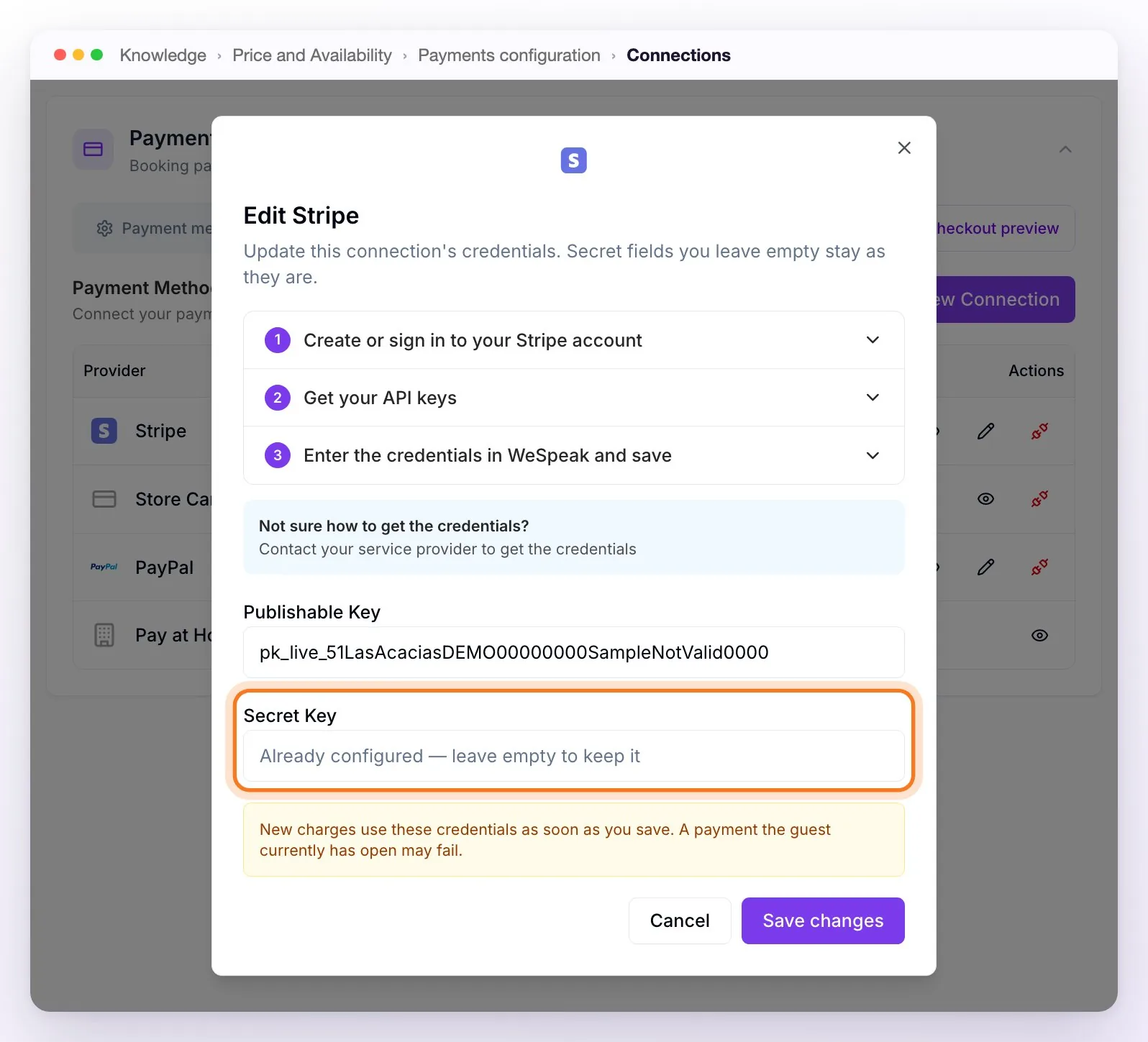
⚠️ New charges use the new credentials as soon as you save: a guest who's paying at that moment may see their payment fail. Do it at a quiet time.
If the provider rejects a detail, the window tells you which one: fix it and save again. If it tells you the connection is from a previous version and can't be edited, disconnect it and connect it again with its credentials.
Disconnect a payment method
With Disconnect (the plug) and the Disconnect …? confirmation, the payment method is removed from the property and your page stops offering it. If it was the one charging the card, the card is turned off until you choose another provider in Payment methods; if you use WeSpeak Rates, it's also removed from your payment policies. The credentials aren't kept: to use it again, connect it again from New Connection.
If you see This connection needs a manual removal, the connection is from a previous version: with Disconnect anyway it's removed from the property, and then write to support so we can complete the removal with the provider.
Frequently asked questions
What do I need to connect Stripe?
Just your two API keys: the Publishable Key and the Secret Key (Stripe dashboard → Developers → API Keys, in Live mode). The Connect Stripe window guides you step by step and you don't need to turn on anything else in Stripe. WeSpeak doesn't check the keys: if there's a typo, the connection shows Active anyway and payments fail, so make a test reservation. Then, in Payment methods, choose Charge with Stripe for the card.
I connected Stripe (or Mercado Pago), but cards aren't being charged.
In Payment methods, How do you want to process card payments? is still set to Save card data for manual charge (that's how the account starts out): the card is only saved as a guarantee. Choose Charge with Stripe (or Charge with Mercado Pago / Charge with PayU). If you use WeSpeak Rates, also check the payment policies that have their own setup.
Can I connect two Stripe accounts (or two of another gateway) in the same property?
No: each property has a single connection per provider. If you manage several properties, each one connects its own (it can be the same account or a different one).
I already use Wompi with my booking engine. Do I have to change the events URL?
Don't replace it: in the events URL step, in Already have a URL in that field?, paste the one you have today and copy the combined URL it gives back. Your engine keeps getting its notices and WeSpeak confirms the payments for its reservations (see Wompi: the events URL).
The guest booked with bank transfer and didn't get the account details.
The instructions are missing: when you turn on Show Bank Transfer in checkout, the instructions field appears and, if it's left empty, the guest gets no details. The same happens with the payment link and pay at the hotel. Fill it in (in each property) and send that guest the details through the chat.