Your reservations page is the one the guest opens with the payment link: they see the summary of their stay, enter their details, choose how to pay and book. It's set up in Knowledge → Price and Availability, in the Payments configuration section, at the end of the page: click its title to expand it. If you just activated WeSpeak Payments, the Set up reservations page button in the Extras panel takes you straight there.
ℹ️ This guide is part of WeSpeak Payments, which has the list of what has to be ready before you start.
In this article
- How the setup is organized
- Payment methods
- Hotel data
- Notifications
- Frequently asked questions
How the setup is organized
ℹ️ If Payments configuration appears grayed out and doesn't expand, WeSpeak Payments isn't active on your account or your reservations balance ran out (see Activate WeSpeak Payments).
- One setup per property. If you have several properties, when you expand the section the Per-hotel configuration bar appears: choose there which one you're setting up (the section title shows Per hotel · and its name). Everything you do in the four tabs applies only to that property, so repeat it in each one.
- It saves by itself. There's no save button: switches and options are saved instantly, and texts when you leave the field (you'll see a confirmation notice).
- Checkout preview. The button to the right of the tabs opens a panel with your page as the guest will see it on their phone, with the changes you're making.
| Tab | What you set up |
|---|---|
| Payment methods | Which payment methods you offer, how the card is charged, the instructions for manual methods, the deposit and the cancellation policy. |
| Hotel data | The contact details, check-in and check-out times, address and map the guest sees. |
| Connections | Your payment accounts (see Connect your payment methods). |
| Notifications | The confirmation email to the guest and the WhatsApp notice. |
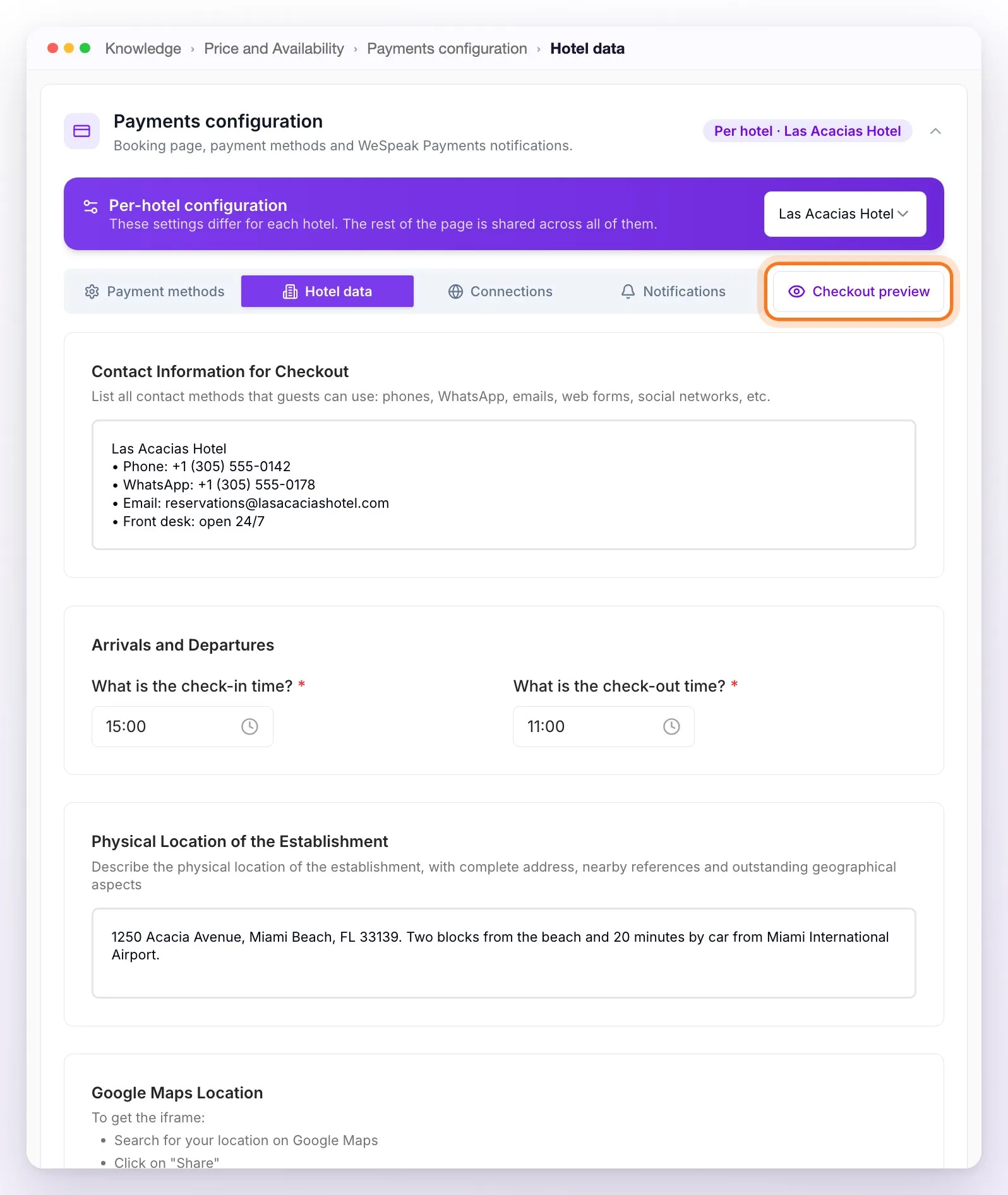
The preview uses a sample reservation: it's useful to check which payment methods appear, how the deposit looks and how your details and cancellation policy look, but it doesn't apply your taxes or your rates' payment policies. To see a real reservation, generate a test link (see Test before you open).
ℹ️ If your panel still shows the previous version of Knowledge, the section is called Reservation Page and Payment Methods Configuration and its tabs are Property Info, Connections, Checkout (the Payment methods one) and Notifications, with the same content. You choose the property with the Select a complex selector at the top of Knowledge, and the preview shows on the side on wide screens (on smaller ones, with the round eye button at the bottom right).
Payment methods
In the Payment methods tab you choose what the guest will see to pay, how much is charged at booking and your cancellation policy. Only the methods you've already connected appear (in Connections): if one is missing, connect it first (see Connect your payment methods).
Turn on the switch of each method you want to offer: Show Credit/Debit Card in checkout, Show Mercado Pago in checkout (paying with a Mercado Pago account), Show PayPal in checkout, Show PayU in checkout, Show Wompi in checkout, Show Bank Transfer in checkout, Show Payment Link in checkout or Show Pay at hotel in checkout.
If you turn on the card, choose in How do you want to process card payments? who charges it: Charge with Stripe, Charge with Mercado Pago or Charge with PayU charge at booking; Save card data for manual charge only saves it as a guarantee, without charging anything (see The card guarantee). It's a single option for the whole page.
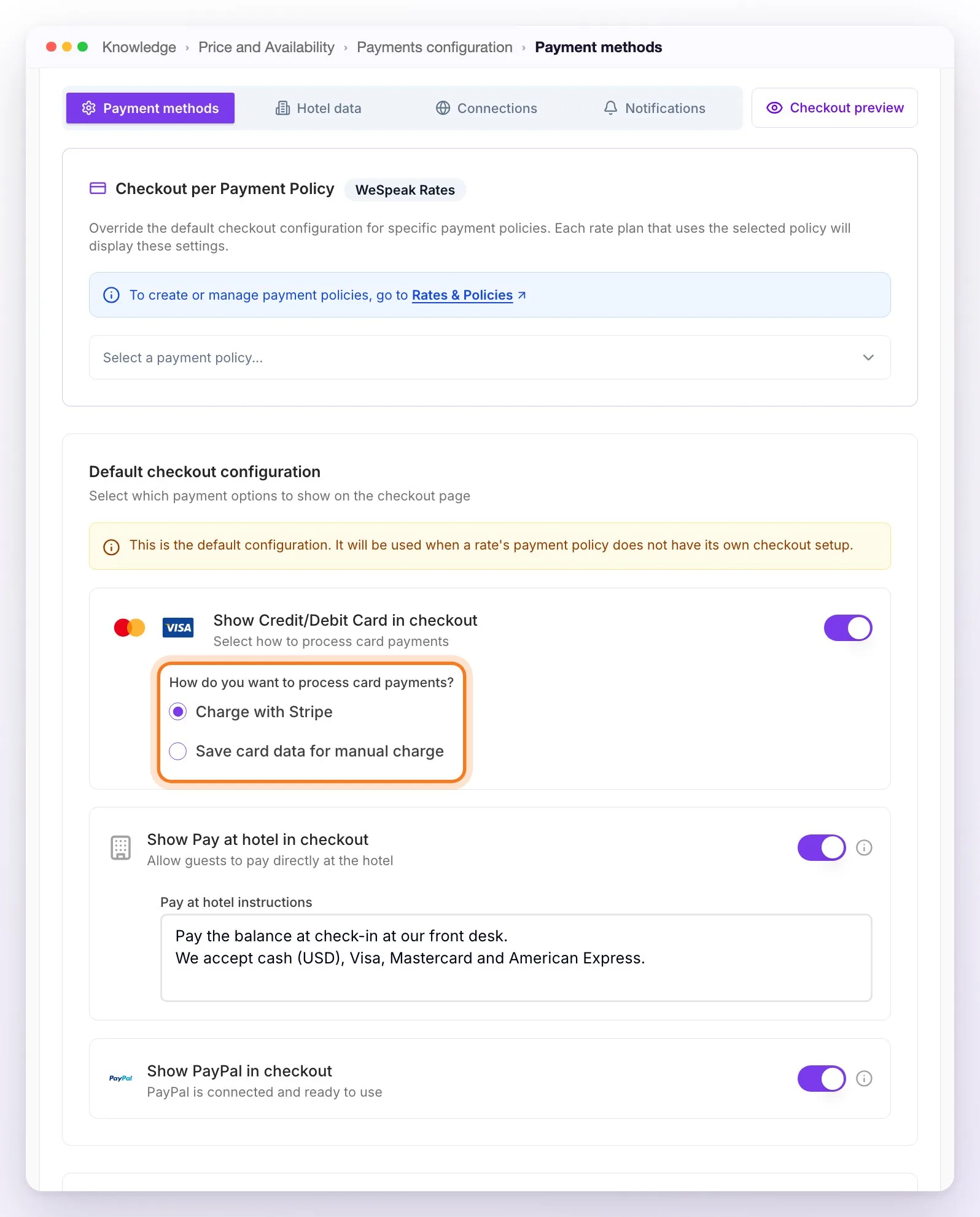
If you turn on Bank Transfer, Payment Link or Pay at hotel, fill in the instructions field that appears below it: it's the only thing the guest receives to pay you (what to write in each one: see Bank transfer, payment link and pay at the hotel).
Further down, set the Deposit: how much is charged at booking (see The deposit).
Write your Cancellation Policy and Property Information: the guest reads it on the payment page, accepts it in the Terms and Conditions and receives it in the email. You can also add house rules here (pets, quiet hours, late check-out).
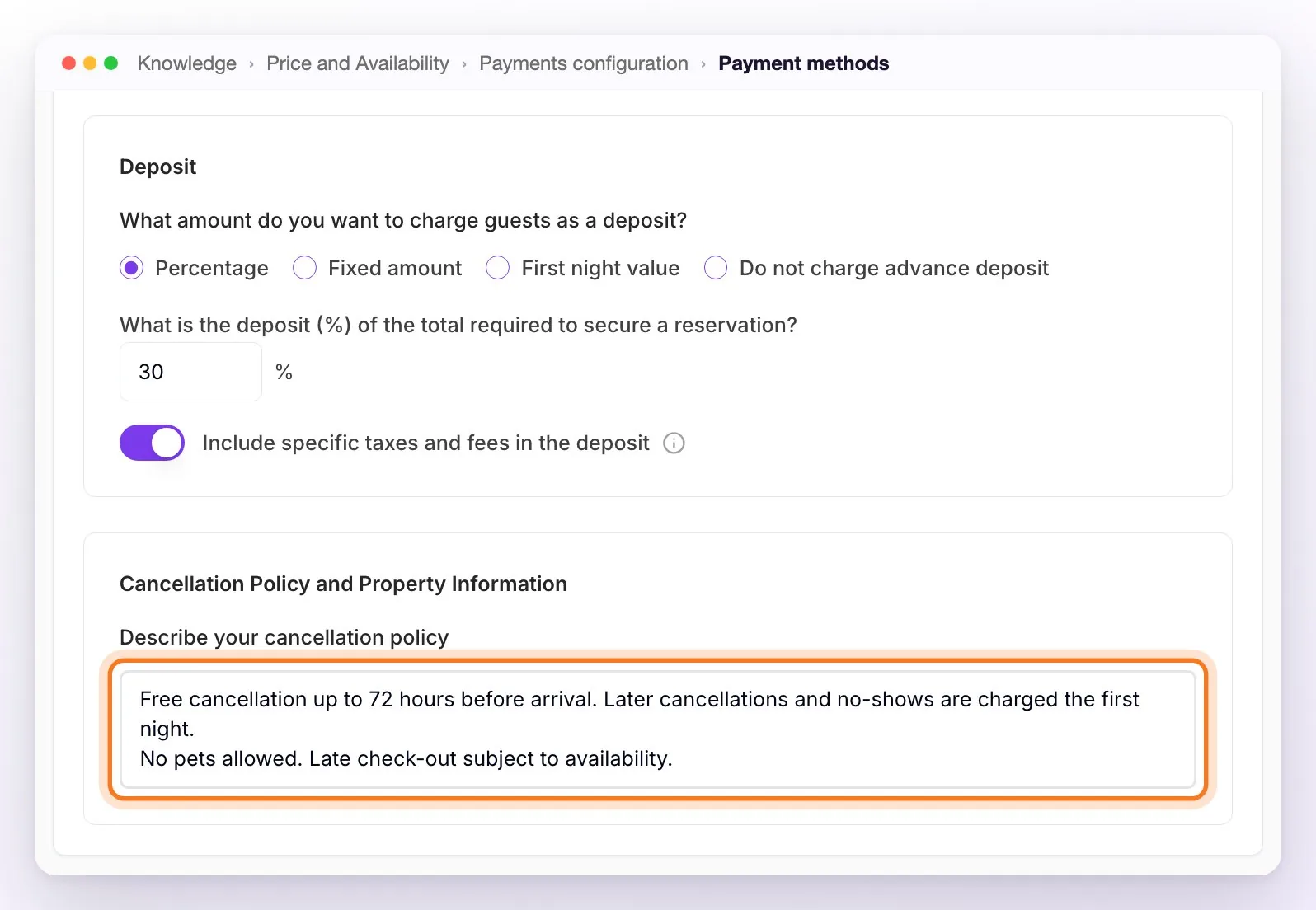
⚠️ Check how your account starts out. When you activate WeSpeak Payments, each property is left with the card turned on in Save card data for manual charge (nothing is charged), the deposit in Do not charge advance deposit and a generic cancellation policy, in Spanish, that doesn't match that: "Se cobra el 100% del total de la reserva al momento de realizar la reserva." ("100% of the reservation total is charged at the time of booking"). Replace it with yours. And connecting Stripe, Mercado Pago or PayU doesn't change by itself how the card is charged: to charge at booking, choose Charge with… in step 2.
⚠️ If no method is turned on, the guest can't book: the page doesn't offer them a way to pay and the Book Now button is disabled. The assistant doesn't detect this and sends the link anyway: check it before you change the booking mode.
ℹ️ With WeSpeak Rates, Checkout per Payment Policy appears at the very top, where each payment policy can have its own methods and its own deposit (see Payment policies); the Default checkout configuration below applies to rates whose policy doesn't have its own setup. And if the rate has a cancellation policy, the guest reads that policy's description instead of your text.
Hotel data
What you enter in the Hotel data tab is shown to the guest in the Property Information block of the payment page and the confirmation, and part of it also goes in the confirmation email. Fill in the first three before you start: if they're left empty, the page doesn't show your details.
| Field | What to enter | Where the guest sees it |
|---|---|---|
| Contact Information for Checkout | Phone, WhatsApp, email, social media and opening hours. | On the payment page and the confirmation (it's not in the email). |
| Arrivals and Departures | The check-in and check-out times. They're required: while they're missing you'll see the Configuration required notice. | On the payment page, in the Terms and Conditions they accept when booking, on the confirmation and in the email. |
| Physical Location of the Establishment | The full address and, if you like, how to get there. Start with the address: the email uses this text as the hotel's address. | On the payment page, on the confirmation and in the email. |
| Google Maps Location (optional) | In Google Maps, search for your hotel, click Share → Embed a map, copy the code and paste it here. If it's correct, you'll see the map below the field. | A map next to the address, on the payment page and on the confirmation. |
- The hotel name isn't entered here: the page uses the name of your establishment (or of the property, if you have several).
- These details aren't copied automatically from your establishment information in Knowledge. If a field is empty and that detail is already entered there, the panel shows it below (From Hotel Information: …) so you can copy it.
Notifications
In the Notifications tab you decide what the guest receives when their reservation is confirmed. You always receive an email for each confirmed reservation at the emails that have the Reservations notice in Settings → Notifications (see Notifications).
- Send confirmation email from WeSpeak — it comes turned off. Turn it on if your PMS or engine doesn't send its own confirmation email; if it already does, leave it off so the guest doesn't get two. The email goes out in your account's language, with the reservation details, the amounts, the address, the times and the cancellation policy.
- Send confirmation message via WhatsApp/Instagram — sends the guest a WhatsApp template approved by Meta, in the same conversation where they got the link:
- Create the template in Templates and wait for Meta to approve it (see META Templates). If it has a variable, use only {{1}}: WeSpeak fills it with the guest's first and last name. Don't add other variables.
- Turn on the switch and choose the template in Select confirmation template. Only your WhatsApp number's approved templates appear; if you have several numbers, you choose one for each (Confirmation template for …).
- If you haven't chosen it, the panel warns you ("Please select a template to activate sending.") and nothing is sent.
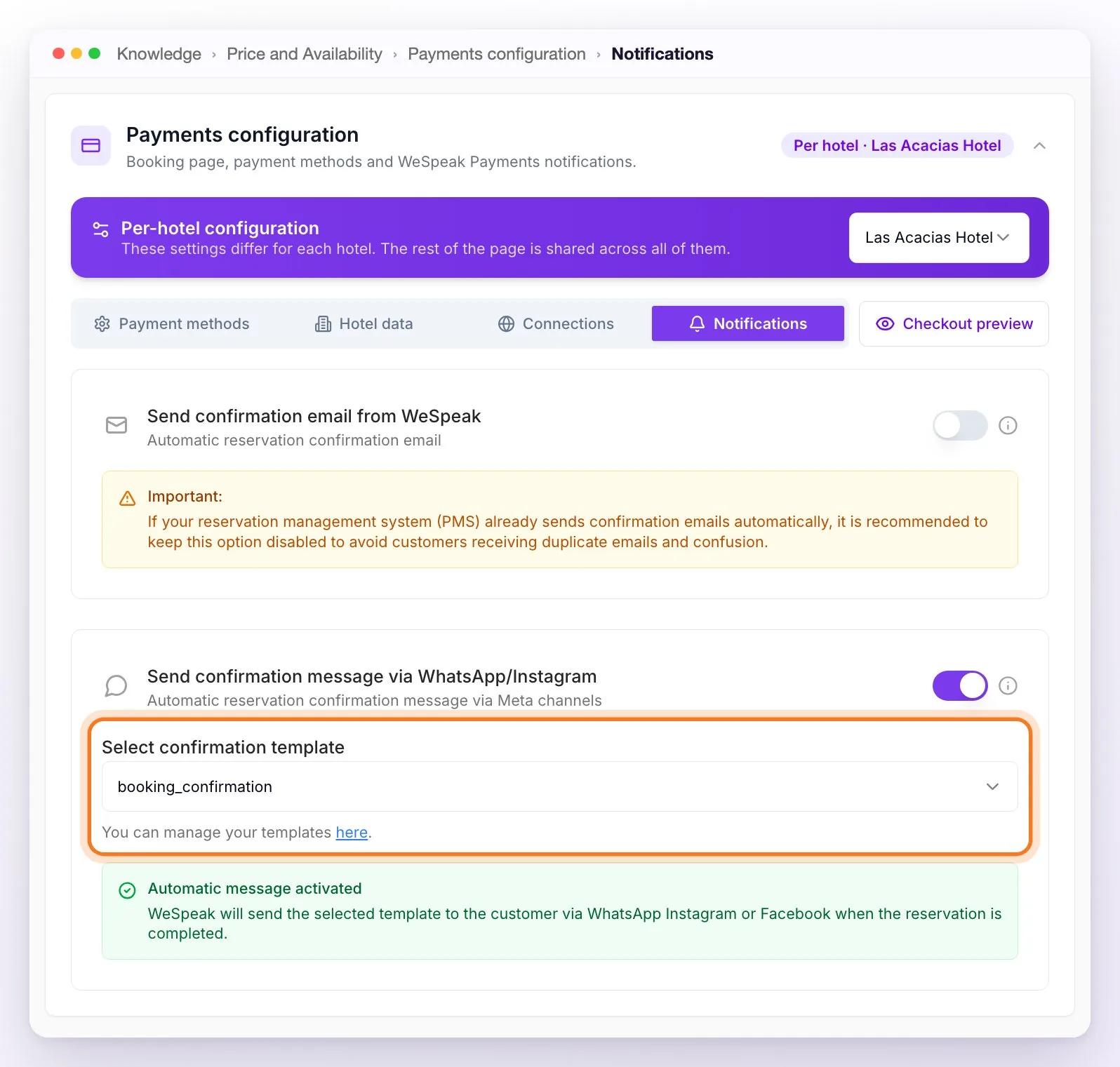
ℹ️ The WhatsApp message goes out only for reservations that start in a conversation (the assistant's link or the $ quoter's) and through that same conversation: if its WhatsApp number is disconnected, it isn't sent.
Frequently asked questions
My address, contact details or times don't appear on the payment page.
They're missing in Payments configuration → Hotel data. They aren't taken from your establishment information: enter them there, in each property (see Hotel data).
I have two hotels and changed the cancellation policy, but the other one still has the old one.
It's per property: choose the other hotel in the Per-hotel configuration bar and change it there too.
How do I see what the guest will see before I send a link?
With Checkout preview, to the right of the tabs: it shows your page with a sample reservation. To see real prices, taxes and policies, generate a test link with the $ quoter.
The guest is getting the confirmation email twice.
WeSpeak's email to the guest comes turned off: if they get two, it's because it's turned on and your PMS also sends its own. Turn off Send confirmation email from WeSpeak in Payments configuration → Notifications (in each property, if you have several).
Does the guest get a WhatsApp when their reservation is confirmed?
Only if you turn on Send confirmation message via WhatsApp/Instagram and choose an approved template, and only for reservations that started in a conversation (see Notifications).
Which email do reservation confirmations and not-registered reservation notices go to?
To the emails that have the Reservations notice in Settings → Notifications (see Notifications). If no active email has it, you don't get the confirmation of each reservation or the "⚠️ Reservation not registered in…" notice.