WeSpeak Rates is where you create and manage your rates, so the assistant can quote over chat with real prices and availability and close the booking. It's your conversational booking engine: on top of your website, you sell directly through WhatsApp.
You'll find it under Rates, in the Assistant group of the side menu: it shows up when your account has WeSpeak Rates active, and the Administrator and Supervisor roles can see it. It works with integrations that can load the booking into your PMS or your Channel Manager, or with WeSpeak Engine; if yours can't, you'll see the notice Your integration isn't compatible with WeSpeak Rates and the New Rate button is disabled (see The connection types, below).
One key distinction to understand everything else:
- Rates manages the RATES (the prices and their rules).
- AVAILABILITY is handled by your integration (your Channel Manager or your PMS). The only exception is WeSpeak Engine, the native engine, where you also load the inventory into WeSpeak.
What you can do with Rates
- Corporate and promotional rates (public or with a code).
- Parent and child rate structures (derived by percentage or amount: Early Booking, Last Minute, Long Stay…). If the parent's price changes, the children's price is recalculated automatically.
- Taxes and fees per rate (included in the price or not).
- Each rate with its own payment and cancellation policy — for example, a "Non-Refundable" one that charges 100% at booking and a "Flexible" one that only asks for a card as a guarantee (the deposit and the checkout payment methods are set in the payment policy, with WeSpeak Payments).
- Restrictions per rate: validity period, stay dates, minimum/maximum stay, lead time (to build last minute / early booking rates), countries, and arrival or departure blocks.
The Rates screens
You pick the view at the top; Calendar opens by default. If your account has several hotels, you first choose the hotel: each one has its own rates and rooms, while taxes and policies belong to the whole account.
| Section | What it's for |
|---|---|
| Integration | Your current integration (channel, type, Property ID, hotel name and currency) and how it works, plus the age setup: the infant, child, teenager and adult ranges, whether an infant occupies a bed, and the minimum allowed age. The Property ID is the connection code you give your Channel Manager. |
| Rooms | Your room types: capacity (maximum persons, adults and children), description, photos, and the switch to stop offering a room. Adding or deleting rooms is only possible with a Channel Manager or WeSpeak Engine; with a PMS, they come from your system. |
| Taxes | Create taxes and fees (percentage or fixed amount, included in the price or not) to assign them to your rates. |
| List | All your rates with their type and status, and each one's action menu (see Statuses and actions of each rate). |
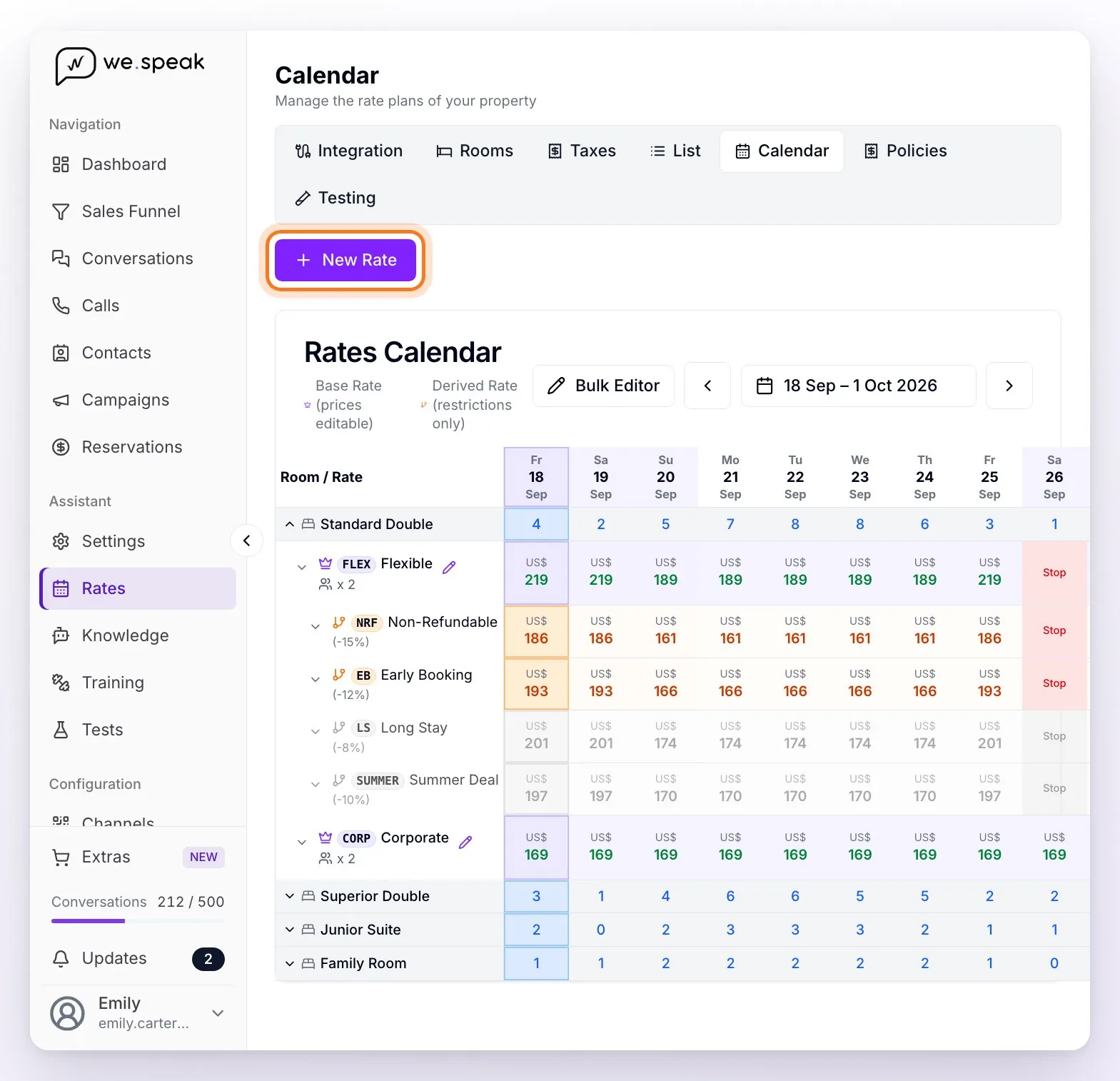
| Calendar | 14 days per room: the availability, the base rate (in purple) and its derived rates below it (in orange). From here you edit a single day or open the Bulk Editor. |
| Policies | Cancellation and payment policies. WeSpeak creates three of each as examples (origin System: you can edit them but not delete them); the ones you create show as Custom. Each policy's description is what the assistant explains to the guest. |
| Testing | Simulate a query and see what the assistant would quote, with the option to include draft rates. |
| New Rate | The purple button at the top right (not shown in the Taxes view): it opens the creation wizard. |
How a rate is created (the steps of the creation wizard)
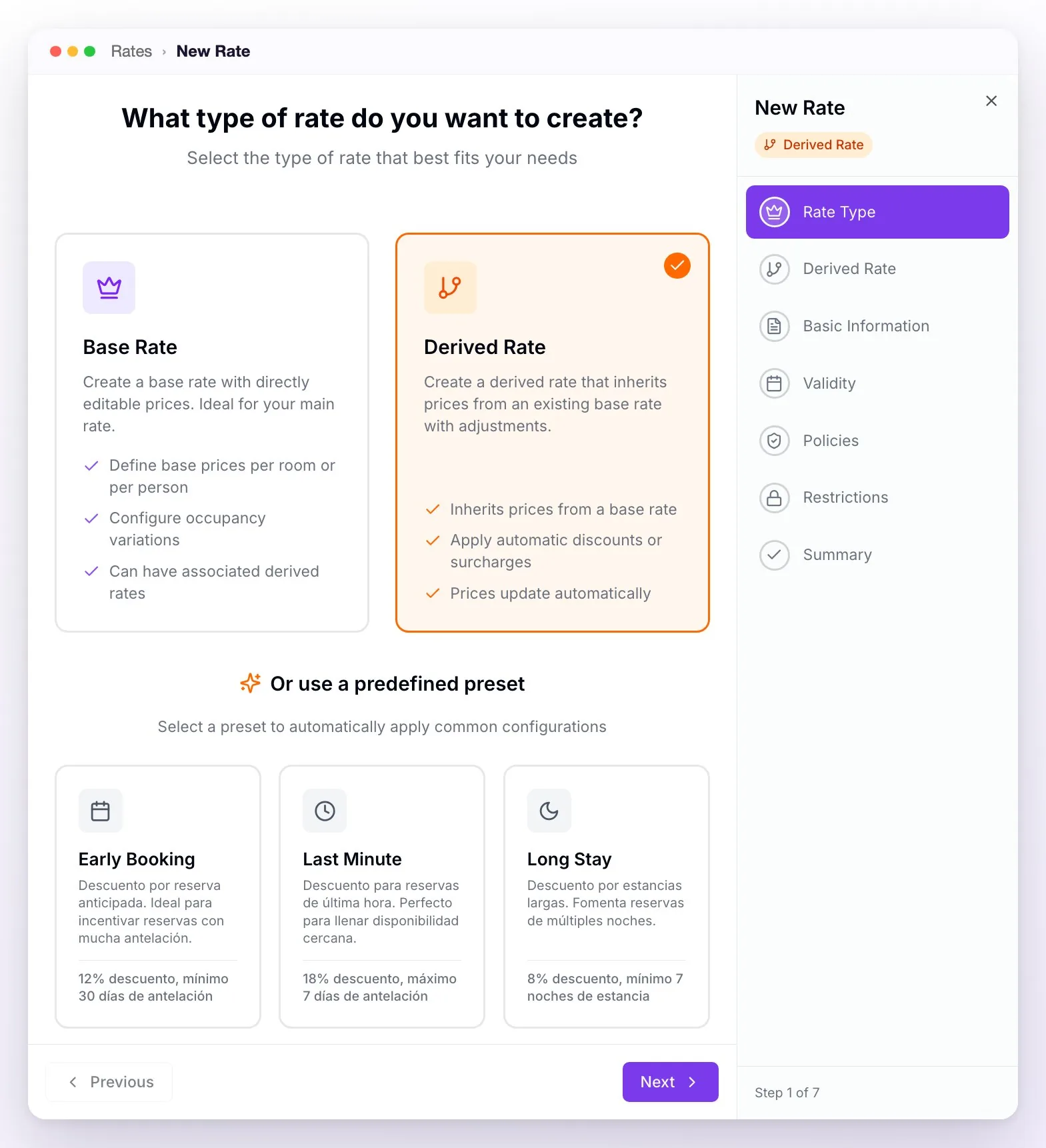
When you click New Rate, the creation wizard opens. On the right you see the seven steps and which one you're on (Step 1 of 7); you move forward with Next, and each step is validated before you can go on. The steps are:
Rate Type — you choose between Base Rate, Derived Rate or, only with a PMS via API that has rates to map, External Rate (it takes the price of a rate from your PMS and applies WeSpeak's restrictions, policies and taxes to it). If you choose Derived Rate (you need at least one base rate), you can start from a predefined preset: Early Booking (12% discount, at least 30 days in advance), Last Minute (18% discount, at most 7 days in advance) or Long Stay (8% discount, at least 7 nights). The preset fills in the name, code, description, adjustment and restriction, and takes you to the next step; you can change all of it later. Once the rate is created, the type can't be changed.
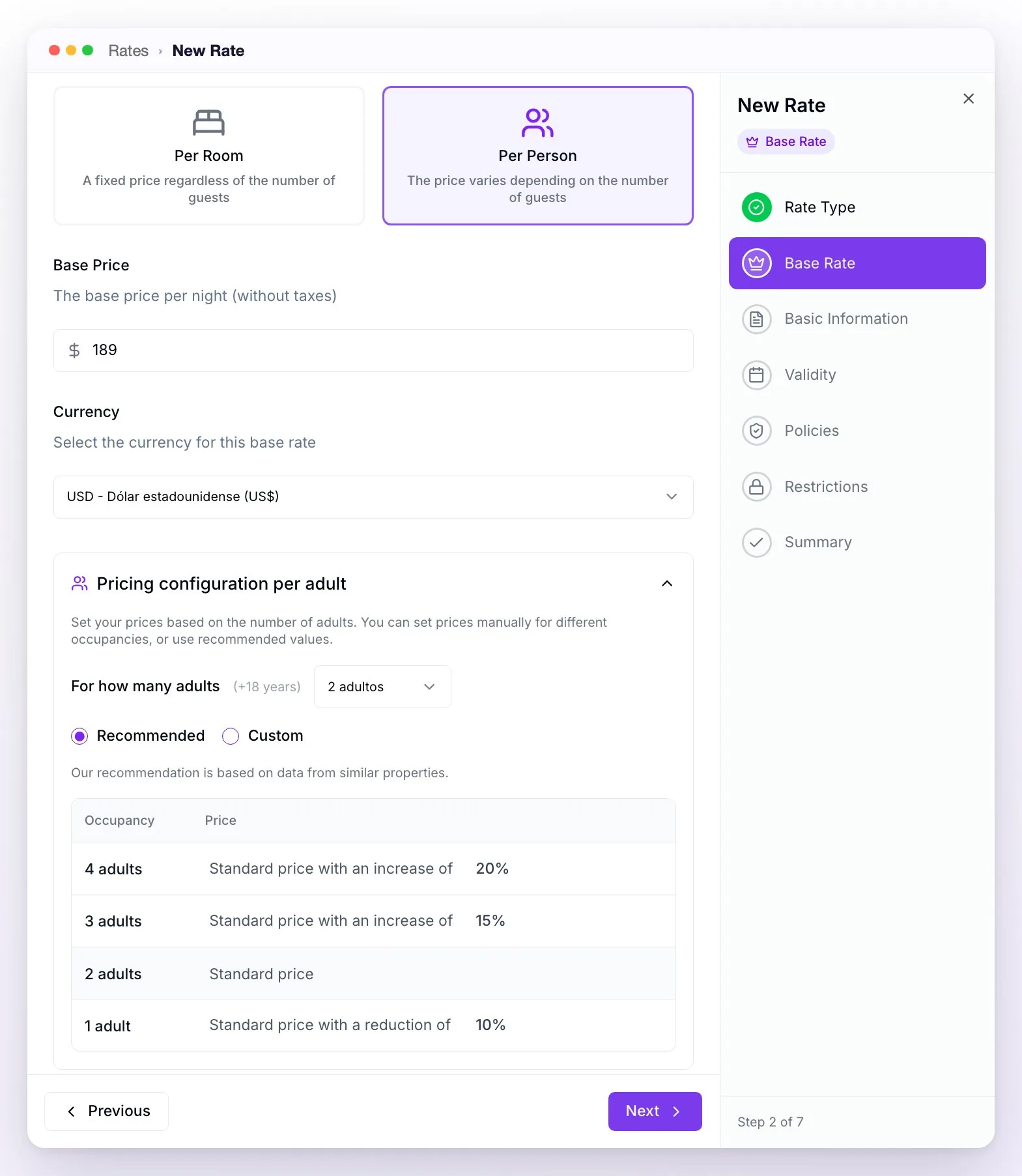
Base Rate (or Derived Rate / External Rate, depending on the type) — for a base rate you set the Price Type (Per Room or Per Person), the Base Price per night (before taxes), the Currency, and the Room types it applies to (at least one). You fine-tune the price of each day and room later in the Calendar. With a Channel Manager you don't enter a price: you choose the price type your Channel Manager uses for that rate, and the prices come from it. Derived rates are explained below.
Basic Information — Rate Name, Code (short, uppercase and unique in your hotel) and Description. The assistant receives the name and description of each active rate, so they should be clear and the code consistent (e.g., if the rate is called "Flexible," the code "FLEX").
Validity — two distinct windows. The Validity Period (Booking Window) defines when it can be booked: with Applies to all dates it's always on sale; if you turn it off, you add one or more periods with Add period, each with its Valid days of the week, which are the days on which the rate can be booked (it looks at the day of the query, not the days of the stay). The Stay Window (Travel Window) defines when the guest can stay: with Define allowed stay dates you load Check-in from / Check-out until periods, and the stay has to fall within them (e.g., I sell today, but only for stays in December).
Policies — the Cancellation Policy and the Payment Policy (both are required; the pencil edits the selected one and + creates a new one without leaving the wizard), the Taxes and Fees that apply (you can also Create new tax from there), and the Meal Plan: if you turn it on, you choose the Plan Type (Room Only, Bed & Breakfast, Half Board, Full Board or All Inclusive).
Restrictions — the access and stay conditions (see the table below).
Summary — you review everything and click Create Rate. The rate is created with the Active status: from that moment on, the assistant can offer it. If you'd rather test it first, switch it to Draft in the List and use Testing.
To edit a rate, click its name in the List (or the pencil in the Calendar): the same wizard opens, from the second step, and you save with Update Rate.
Statuses and actions of each rate
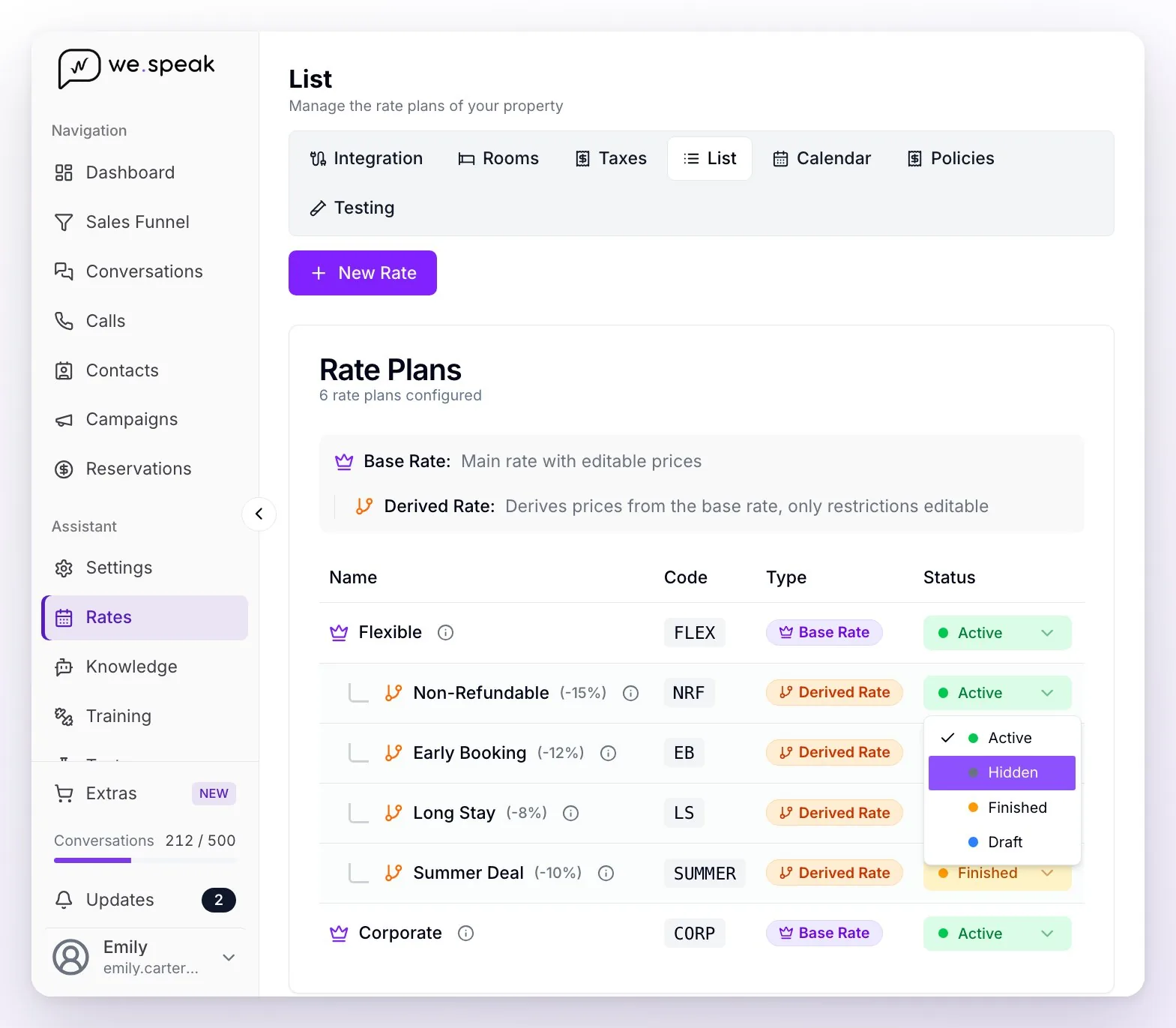
In List you see all your rates, with the derived ones below their base. You change the status with the selector in the Status column:
| Status | What it means |
|---|---|
| Active | The assistant offers it (if it meets its restrictions). |
| Hidden | It still exists, but the assistant doesn't offer it. If you hide a base rate, its active derived rates keep taking their price from it. |
| Finished | For a rate that has ended (e.g., a seasonal promo). It isn't offered either. |
| Draft | It isn't offered. It only shows up in Testing if you turn on Include rates in draft status. |
In each row's ⋯ menu you have Edit, Duplicate (it creates a copy in Draft, with a new code you can change when you edit it), Create derived rate (on base and external rates: it opens the wizard with that rate already chosen as the base) and Delete. Deleting can't be undone and also removes the loaded prices and restrictions; if you delete a base rate, all its derived rates are deleted too.
The restrictions, one by one
| Restriction | What it does |
|---|---|
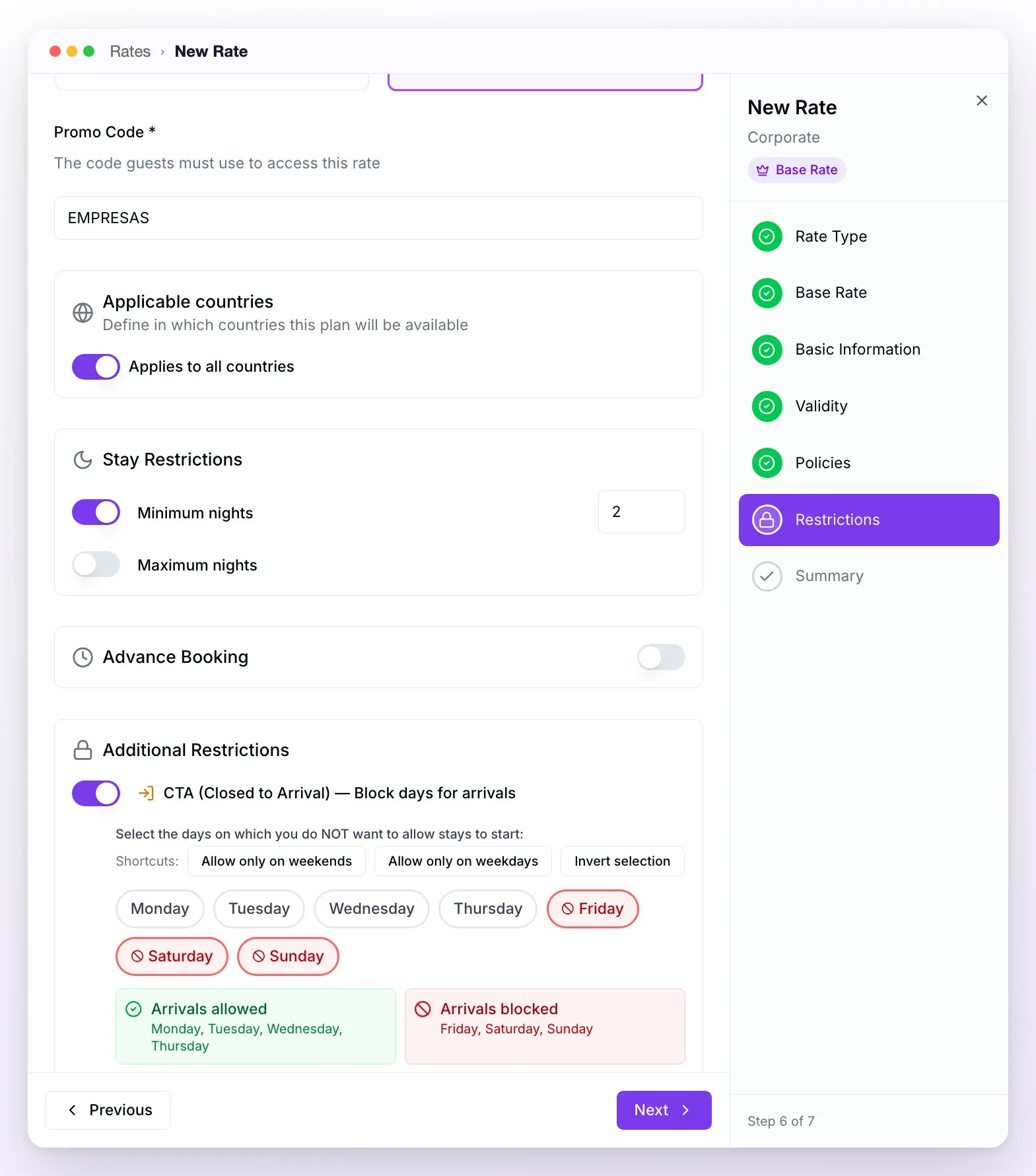
| Access Type | Public (any guest sees it) or Promo Code: the rate only shows up when the guest gives that code to the assistant (e.g., "SUMMER2024"; upper or lower case doesn't matter). Useful for corporate rates. |
| Applicable countries | Applies to all countries, or Only these countries / All except these countries. On WhatsApp, the country comes from the guest's phone number; on Instagram, Messenger and TikTok your hotel's country is used, and if the country isn't known, the restriction doesn't apply. Useful for market-based promotions. |
| Stay Restrictions | Minimum nights and Maximum nights. With a minimum of 7 nights you build a "Long Stay" promo. |
| Advance Booking | Minimum (days) and Maximum (days) between the day of the query and check-in; a maximum of 0 means "same-day check-in only." The Last Minute preset uses a maximum of 7 days, and Early Booking a minimum of 30 and a maximum of 365. |
| CTA (Closed to Arrival) | Blocks check-in on the days of the week you mark: the marked days are the blocked ones, not the available ones. You have the shortcuts Allow only on weekends, Allow only on weekdays and Invert selection. To close a specific date, use the Calendar. |
| CTD (Closed to Departure) | The same for the day of departure. |
| Stop Sell | It's not in the wizard: you set it per date in the Calendar or with the Bulk Editor (Sale status). If the stay includes a day with Stop Sell, the rate can't be booked. |
The Validity Period and the Stay Window of the Validity step also work as restrictions: outside them, the rate isn't offered.
Price per room or per person
- Per Room: a fixed price for the unit, regardless of how many guests occupy it (within its capacity). Ideal for fixed corporate rates.
- Per Person: the Base Price is the price for a base occupancy. In Pricing configuration per adult you choose For how many adults that price is (1 to 4) and, for each occupancy, an increase or a decrease. With Recommended, WeSpeak suggests the adjustments (+15% with one more adult, +20% with two more, and −10% for each adult fewer); with Custom you choose Percentage, Fixed amount or Absolute price for each occupancy, or disable it. In Child rate configuration you define, for each age category (based on the ranges in Integration), whether they all pay the same or a different price for the first, the second and the additional ones: Free, Fixed price or Percentage of adult price.
ℹ️ If your prices come from a Channel Manager, in the wizard you only choose the Price Type your Channel Manager uses for that rate: the base price and the per-occupancy prices aren't entered in WeSpeak, they come from the Channel Manager (that's why the Calendar shows them as read-only).
Derived rates: what they inherit and what they don't
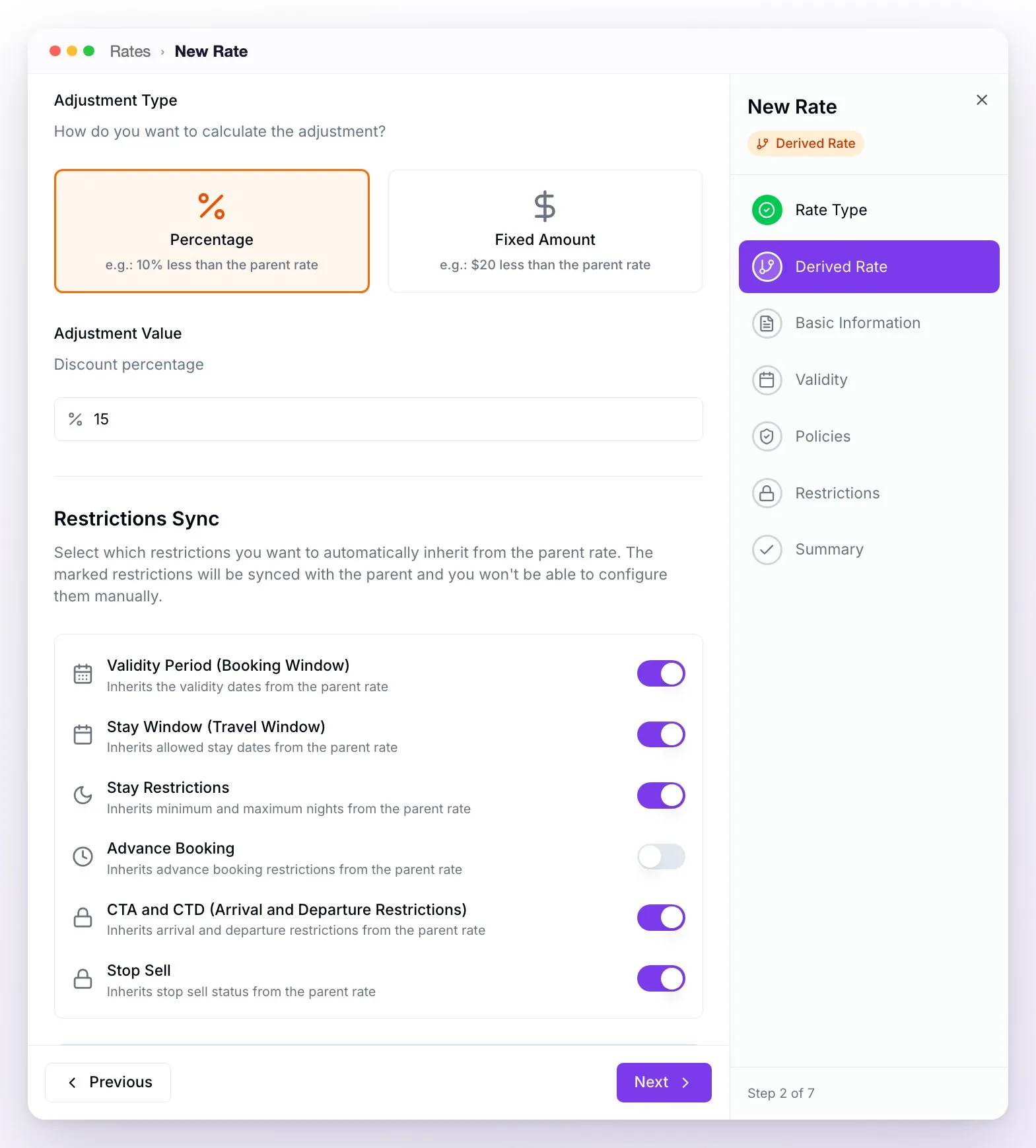
- The price is not entered by hand: it's calculated each night on the base rate's price, with the Adjustment Direction (Cheaper / More Expensive), the Adjustment Type (Percentage or Fixed Amount, per night) and the Adjustment Value. If the base rate's price changes, the derived one is recalculated automatically; in the Calendar, you can only edit a derived rate's restrictions.
- It inherits the currency of the base rate (it can't be changed).
- It can only apply to the base rate's rooms: when you choose the base, all of them are checked and you can remove some, but not add others.
- Taxes and policies are its own: when you choose the base, its taxes are preloaded, and you choose the cancellation and payment policies for the derived rate. If you later change the base rate's, check its derived rates too.
- In Restrictions Sync you choose what it takes from the base: Validity Period (Booking Window), Stay Window (Travel Window), Stay Restrictions, Advance Booking, CTA and CTD (Arrival and Departure Restrictions) and Stop Sell. Whatever you turn on is always read from the base and can't be configured in the derived rate; the rest you define separately. Stop Sell comes turned on: that way, if you close sales on the base, the derived rate closes too.
- If you only want to sell the derived rate (for example, a package), switch the base to Hidden: the derived rate keeps taking its price from it.
- You can also create a derived rate from List → ⋯ → Create derived rate.
Taxes and fees: how they're calculated
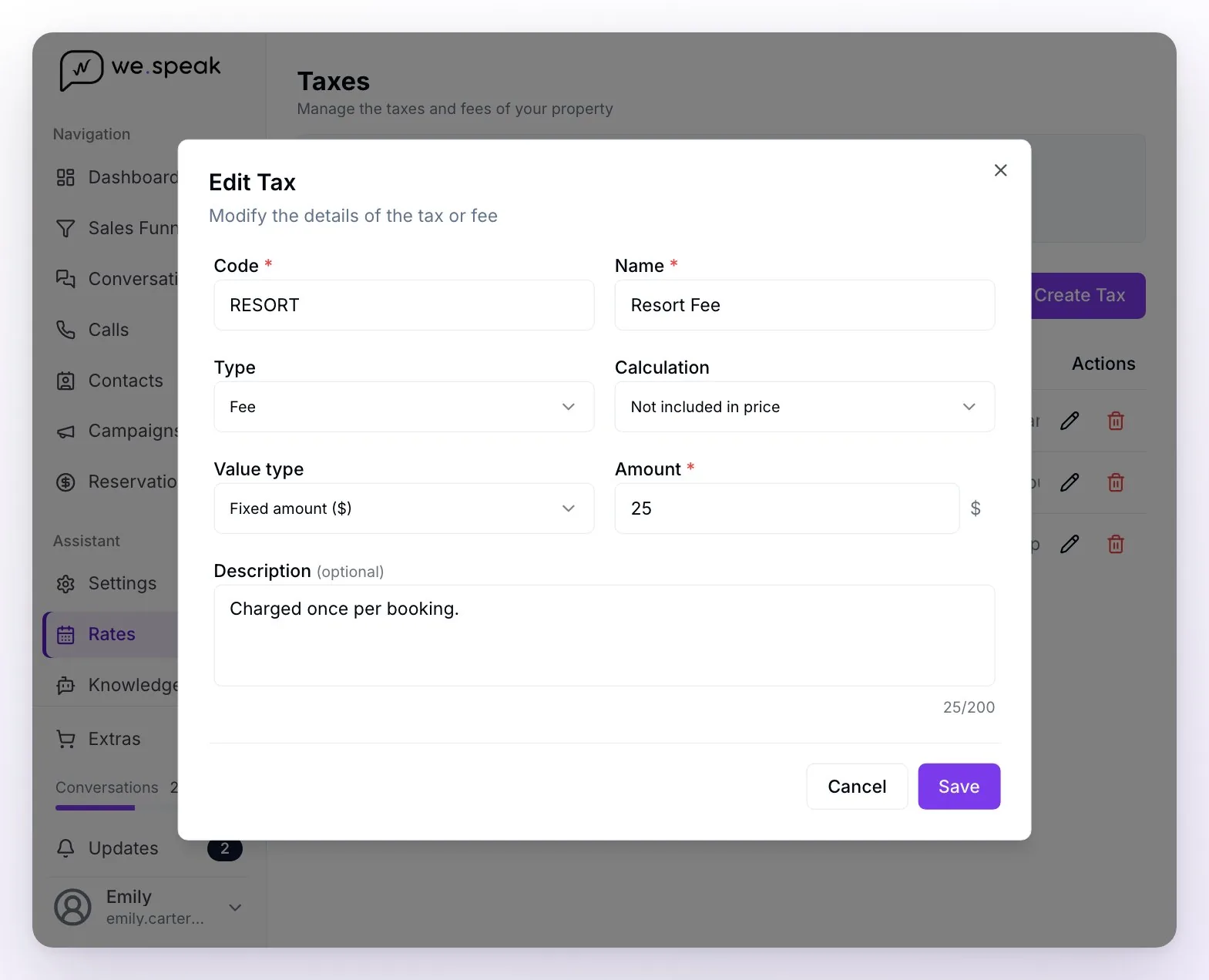
- You create them in Taxes (Create Tax button) or from the wizard's Policies step, with Create new tax, and you assign them to each rate in that same step.
- Type: Tax or Fee. It's the label it's reported with; both are calculated the same way.
- Value type: Percentage (%), calculated on the total price of the stay, or Fixed amount ($), added only once per booking, without multiplying by nights or guests.
- Calculation: Included in price (it's already part of the rate and is reported as included) or Not included in price (the assistant mentions it separately from the rate's price and, if you use WeSpeak Payments, the checkout adds it to the total).
- "Included" or "Not included" is a property of the tax, not of the rate: if it's included in one rate and not in another, create two taxes.
- The Description (optional, up to 200 characters) reaches the assistant: use it to explain exemptions or how it's charged.
- If you have several properties, the Property scope defines which ones it applies to.
- A payment policy's deposit can be calculated with or without taxes (Include taxes in the deposit, with WeSpeak Payments).
Test before publishing
In Rates → Testing (not to be confused with Tests in the side menu, which is for testing the assistant) you check availability and prices with the same rates engine the assistant uses: you fill in Currency, Dates, Adults, Children and Children's ages, and click Query Availability and Prices. Useful options:
- Include rates in draft status — test Draft rates without them being sold.
- Promo Code (optional) to see a rate with a code, or Include rates with promo codes to see them all.
- User Country (for geographic filter) — simulate the query from a specific country to test country restrictions.
The result has two tabs. In Summary you see whether there's Availability Confirmed (or No Availability), the Best Option (the cheapest rate that can be booked), the Price Range (minimum / average / maximum) and the Restrictions Detected (rates that can't be booked, closed to arrival or departure). In Rooms, each rate with its total price, the base, the taxes not included, the policies, the daily prices, the restrictions applied and, if it can't be booked, the reason: ideal for understanding why the assistant isn't offering a rate.
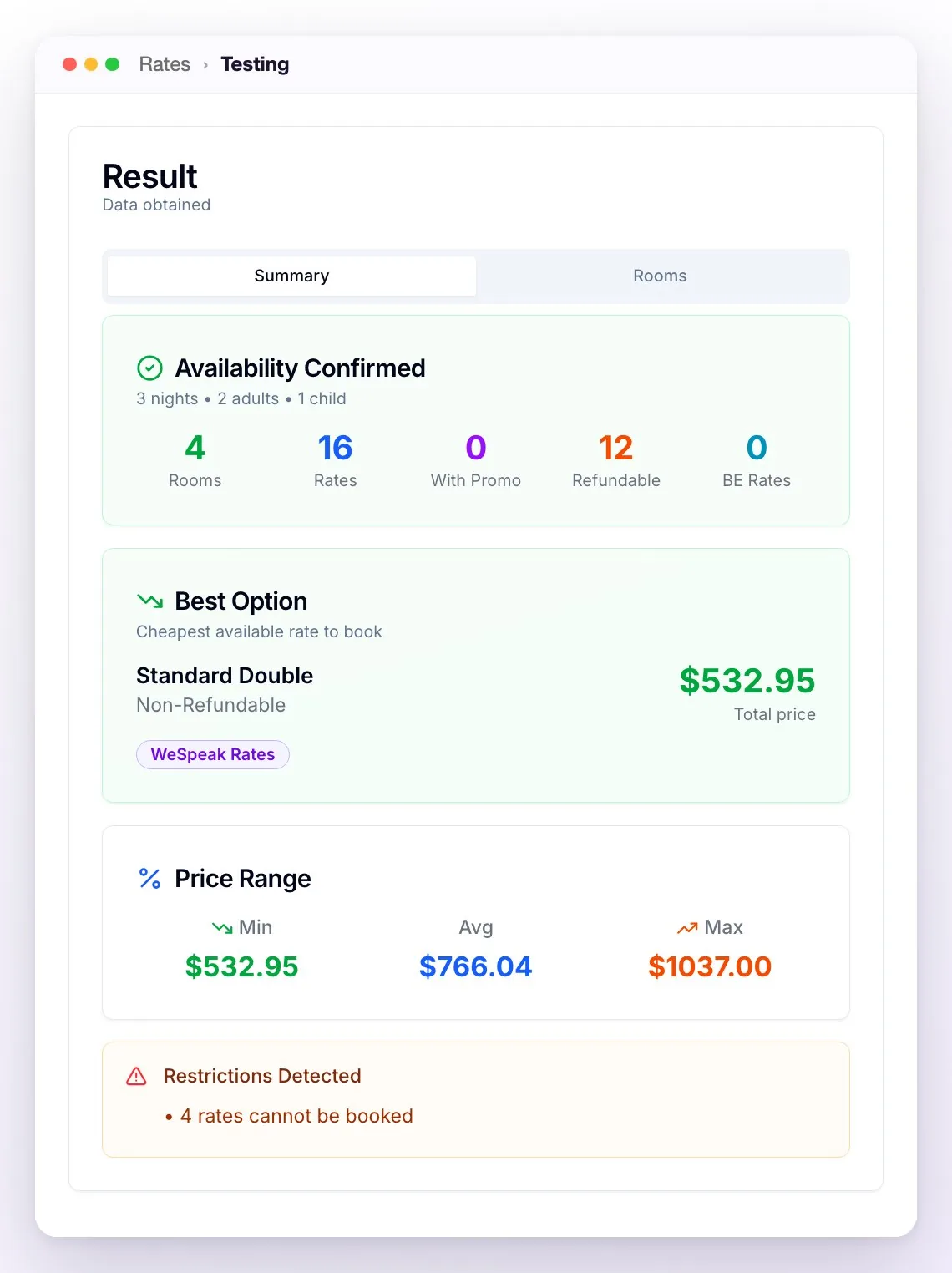
💡 A rate that's filtered out by its Validity Period, its Stay Window, the promo code or the country doesn't show up in the result. The ones that show up as Not bookable pass those filters but have a stay, advance booking, CTA/CTD or Stop Sell restriction.
Bulk Editor
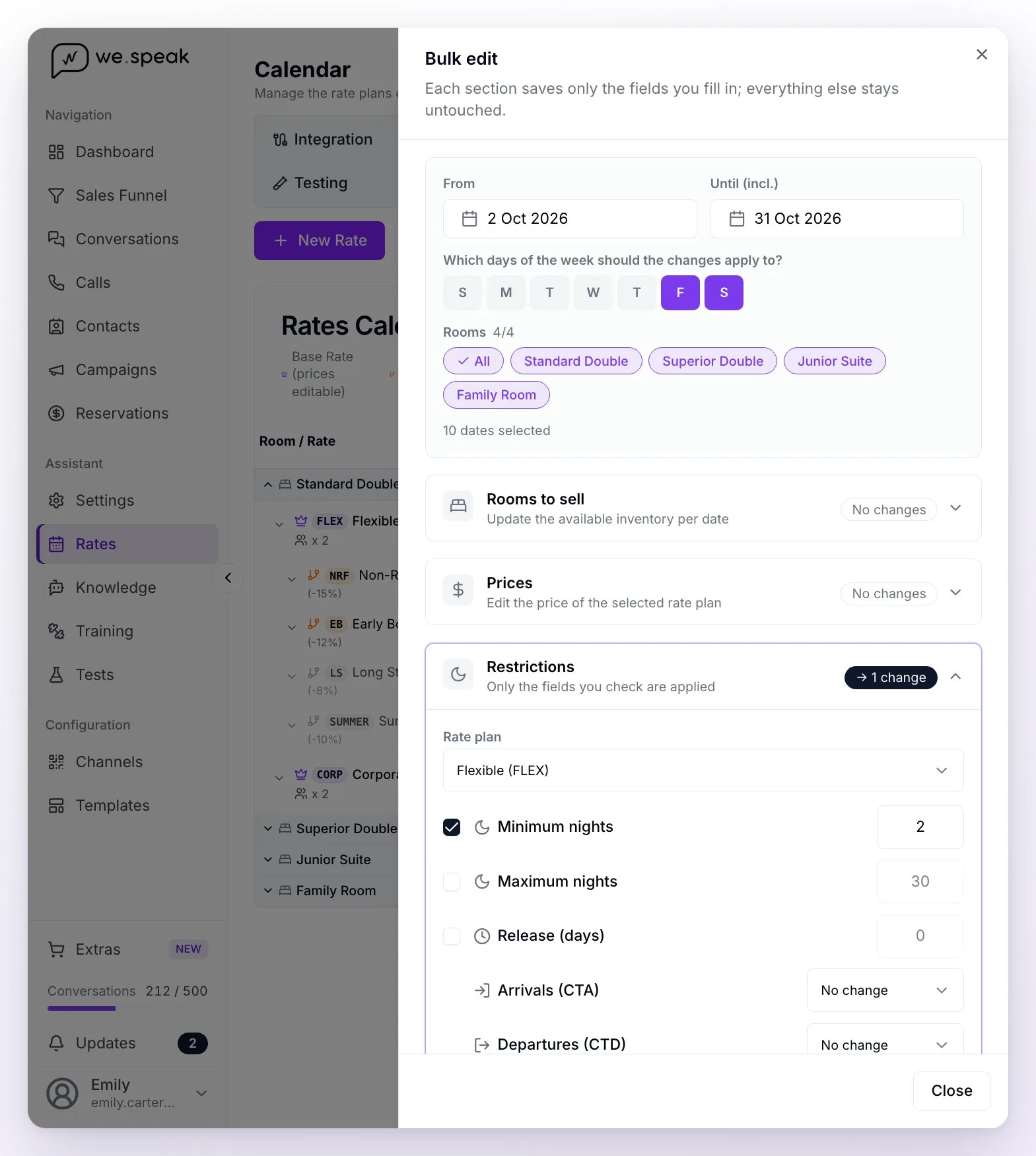
From Calendar → Bulk Editor the Bulk edit panel opens: you choose the date range (From / Until (incl.)), the days of the week and the rooms, and each section saves separately only what you fill in (the rest is left untouched):
- Rooms to sell — the inventory per date (WeSpeak Engine only).
- Prices — the price of a base rate, with the per-occupancy and per-age prices if it's Per Person. Derived rates aren't edited: they follow their base.
- Restrictions — Minimum nights, Maximum nights, Release (days) (the minimum lead time), Arrivals (CTA) and Departures (CTD); only the fields you check are applied. If a derived rate inherits those restrictions, the editor warns you that the change applies to it too.
- Sale status — Open sale or Close sale (stop sell).
What it allows depending on your connection:
| Connection | What can you edit in bulk? |
|---|---|
| Channel Manager | ❌ The Bulk Editor is disabled: prices and restrictions come from your Channel Manager. |
| PMS via API | ✅ Prices and restrictions of your base rates (External rates take the PMS price) |
| WeSpeak Engine | ✅ Prices, restrictions and inventory |
Best practices
- Create a single Base Rate for all room categories: the plan is shared but the price is individual per room (you adjust it in the Calendar), and any price change to the base carries over to all its derived rates.
- Use a single currency across your entire structure (in LATAM hospitality, USD is the norm). You can mix currencies, but it's not recommended: a booking that combines rates in different currencies can't be loaded, and the guest has to book each room separately.
- Create few base rates (1 or 2) and handle promotions with derived ones.
- Set the base rate as your most flexible and highest-priced rate — it's the standard hotel practice and what's usually mapped in Channel Managers.
The connection types — which is yours
The behavior of Rates depends on how your hotel is connected:
| Channel Manager | PMS via API | WeSpeak Engine | Booking engine | Custom API | |
|---|---|---|---|---|---|
| Examples | Channex, RoomCloud, Amadeus, Opera Cloud | Cloudbeds, Mini Hotel, Lodgy | WeSpeak's native engine | Your booking page | Your custom system |
| Do you create rates in Rates? | ✅ | ✅ | ✅ | ❌ Not compatible | ❌ Not compatible |
| Who controls the prices | Your Channel Manager | WeSpeak (for External rates, your PMS) | WeSpeak | Your engine | Your system |
| Who controls the inventory | Your Channel Manager | Your PMS | WeSpeak | Your engine | Your system |
| Do you edit inventory in WeSpeak? | No | No | ✅ Yes (only one) | No | No |
| The booking is created in… | Your Channel Manager | Your PMS | WeSpeak (requires Payments) | WeSpeak (requires Payments) | Your system |
With a booking engine, a GDS or a custom API, the assistant quotes with your system's prices and Rates shows the notice Your integration isn't compatible with WeSpeak Rates: you can't create or duplicate rates (the ones that already existed can still be edited). Your integration type appears in Integration, and the same brand can be connected in more than one way: for example, Cloudbeds or Mini Hotel can be set up as API PMS or as Booking Engine. Opera Cloud syncs with WeSpeak like a Channel Manager: its prices and availability arrive automatically and the Calendar shows them as read-only.
ℹ️ WeSpeak Engine is what we call it in the articles; your panel shows it under Rates → Integration as the WeSpeak Rates type, with the WeSpeak (rsv) channel.
💡 General recommendation: the ideal scenario is the Channel Manager (everything syncs by itself). Each type has its own article with the step-by-step: Channel Manager, PMS and without a PMS or a Channel Manager.
A limit to keep in mind
Today, Rates doesn't manage one-off "extras" (spa, transfers, dinners as a separate charge). Packages can be built as a derived rate as long as the charge is per night.
If availability or price doesn't match your engine
Checklist before reporting:
- Check in your engine/PMS that there really is availability for those exact dates and occupancy (including the children's ages — a "2 adults + 1 child" query may find no room if the room doesn't accept that age; it's adjusted in Integration).
- Check that the assistant is active and the channel connected.
- Use Rates → Testing: simulate the same query and compare the final price.
- If you just renamed rooms or rates in your system, give it a few minutes — the change re-syncs; if it doesn't reflect, report it.
- Still not matching? Report it with the thumbs down on the assistant's reply, indicating the contact's number and the queried dates.
Frequently asked questions
I want a rate not to show in the chat (e.g., "Standard Rate").
In List, change its status to Hidden: it still exists but the assistant stops offering it. If it's a rate that comes from your PMS and you don't see it in List, check with your advisor.
Can the assistant quote in another currency?
Yes. If you want it to quote in another currency based on the guest's country (for example, in reais to contacts from Brazil), ask your advisor: that rule is set up by the WeSpeak team. In addition, in Knowledge → Price and Availability → Advanced settings → Quotes in another currency you give the assistant instructions for when a guest asks for the price in another currency (for example, hand off to an advisor).
Can the booking link come with the dates already filled in?
It depends on your booking engine: if its link supports pre-filled dates, the assistant includes them. Check with your advisor, indicating which engine you use.
Can I create a plan that only applies on certain dates (e.g., year-end)?
Yes: in the Validity step, turn on Define allowed stay dates and load the period in which the guest can stay (the Stay Window); with the Validity Period you can also limit until when it can be booked. Add the restrictions you need (minimum stay, lead time). With a Channel Manager, the prices for those dates come from your Channel Manager.
Can I create a rate that only applies on weekends?
It depends on what you want to limit. If it's the stay (the guest arriving on Friday, Saturday or Sunday), use the CTA in the Restrictions step with the Allow only on weekends shortcut (and, if needed, Maximum nights or the CTD). The Valid days of the week in the Validity step are something else: the days on which the rate can be booked (for example, a promo that's only sold on Mondays).
I created a derived rate but it won't let me choose rooms.
A derived rate can only use its base rate's rooms: in the Derived Rate step you only see those (you can remove some, but not add others). If you need another category, add it to the base rate first.
Can I change the type of an already-created rate (from Base to Derived, for example)?
No — the type is chosen when creating it and can't be changed afterward. Create a new rate of the correct type and switch the previous one to Hidden or Finished, or delete it (careful: deleting a base rate also deletes its derived rates).
Why doesn't the assistant offer one of my rates?
Check in order: that it's in Active status in List (not Draft, Hidden or Finished); that today is within its Validity Period (and is one of its valid days) and that the queried dates fall within its Stay Window; that it isn't blocked by a restriction (minimum or maximum stay, lead time, CTA/CTD, Stop Sell, country); that it doesn't require a promo code; and that the room is enabled in Rooms and accepts that number of guests. Rates → Testing shows you which rates remain and why the ones that can't be booked are blocked.