Business Intelligence is the Dashboard's analytics section, designed for pricing and sales decisions. It uses the same period filters as the entire Dashboard (Today, Week, Month, Year, or a custom range). Unless stated otherwise, each card counts the conversations that started in the period.
ℹ️ Much of what you see here comes from each conversation's State — amount, currency, check-in and check-out dates, loss reason — which the AI fills in after each assistant reply (only if your funnel has stages with AI-managed phase turned on, see Funnels) or your team fills in by hand. If these cards look empty, check that first.
The financials (at the very top)
| Card | What it measures |
|---|---|
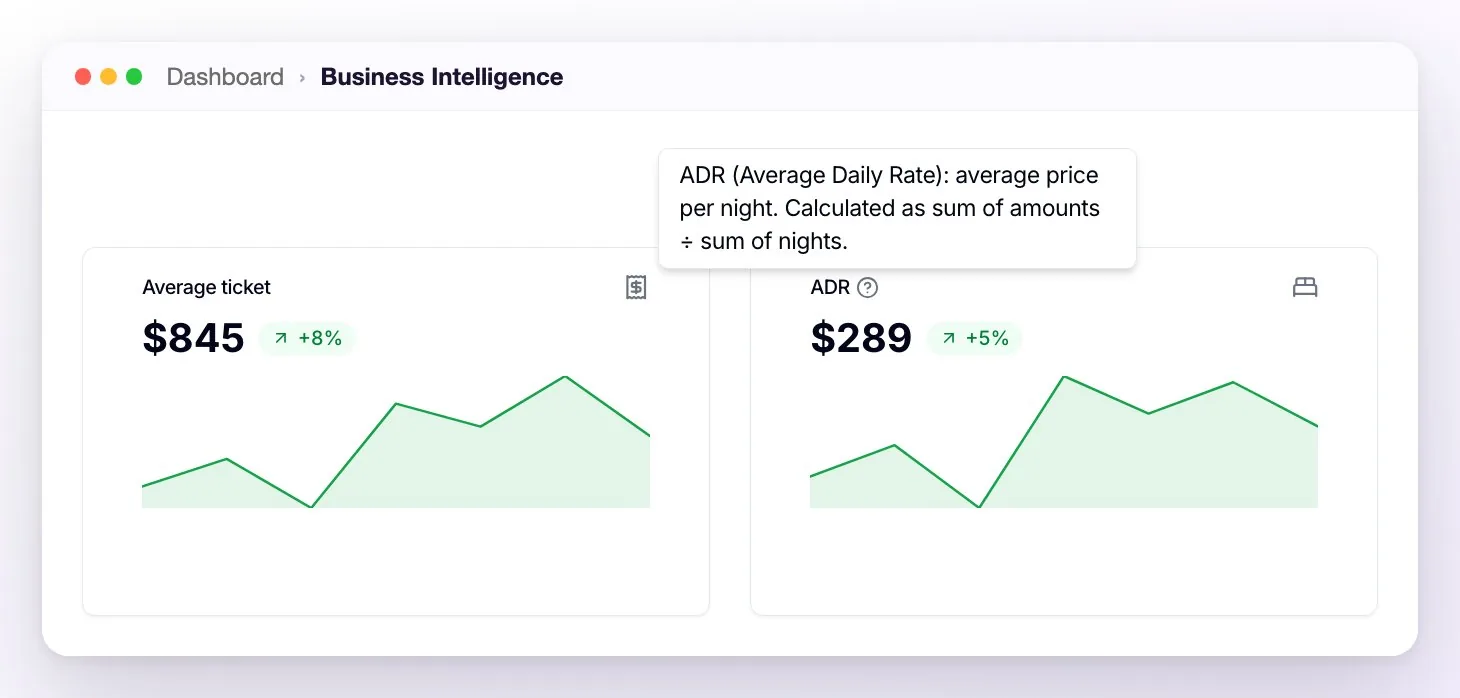
| Average ticket | The average amount of the stays quoted in the period's conversations: the Amount in each conversation's State, which the AI fills in with the total quoted to the guest (if there were several options, once they pick one) and your team can edit. |
| ADR | ADR (Average Daily Rate): average price per night. It's calculated as sum of amounts ÷ sum of nights, only with the conversations that have check-in and check-out dates. |
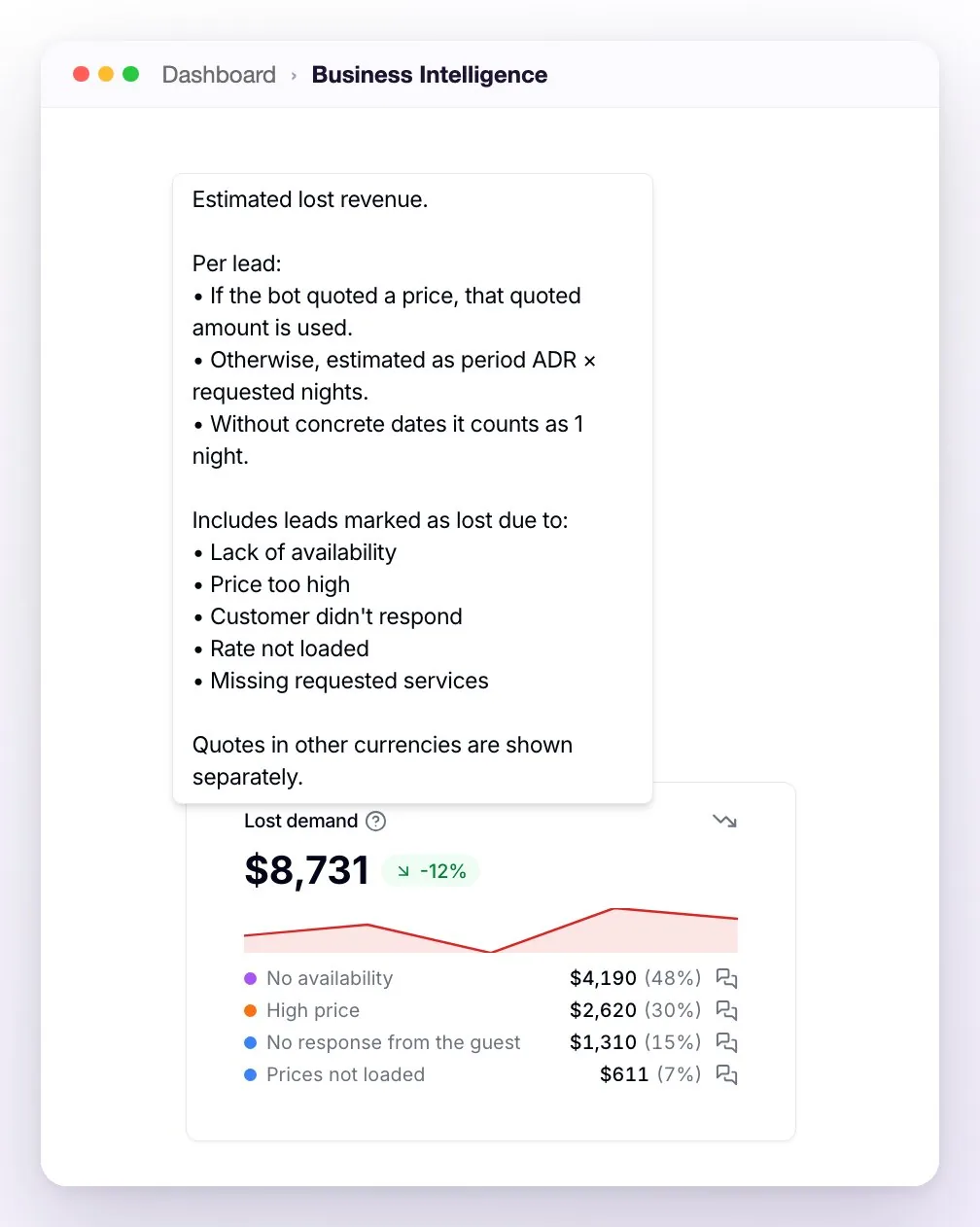
| Lost demand | How much estimated money wasn't billed due to lost leads, in your main currency. |
Next to each amount you see the change against the previous period of the same length (hover to see the dates compared; No data for the previous period if there's nothing to compare with), and below it a mini chart with the evolution within the period. If you work with more than one currency (for example, complexes with different currencies), you see one Average ticket card and one ADR card per currency.
How lost demand is calculated
It values the conversations that started in the period and are currently Lost. Each one's value is estimated in this order:
- If there's a quoted amount (the Amount in its State), that amount is used.
- If there isn't, it's estimated as period ADR × nights requested.
- If there also aren't concrete check-in/check-out dates, it's counted as 1 night.
Only the loss reasons that represent real demand that couldn't be captured are included: No availability, High price, No response from the guest, Prices not loaded, and Missing services. Conversations lost with No reason recorded or Automatically closed due to inactivity are left out so as not to inflate the number, as are the ones with no currency recorded in their State.
- The card shows the breakdown by reason with its percentage, and each reason has a conversations icon (View conversations) that opens Conversations filtered by that subset: creation date within the period, Lost status, that reason, and your main currency, with every conversation of each contact — you see exactly the conversations that make up that amount. The applied filters appear above the list and you can remove them from there.
- If there were lost quotes in other currencies, they're listed separately at the bottom (Also in other currencies): they aren't added to the total or the breakdown, so as not to mix currencies.
- The colors are inverted on purpose: here, going down is good (you lose less money), so the change shows in green when it goes down and in red when it goes up, and the mini chart is always red.
Demand vs. availability
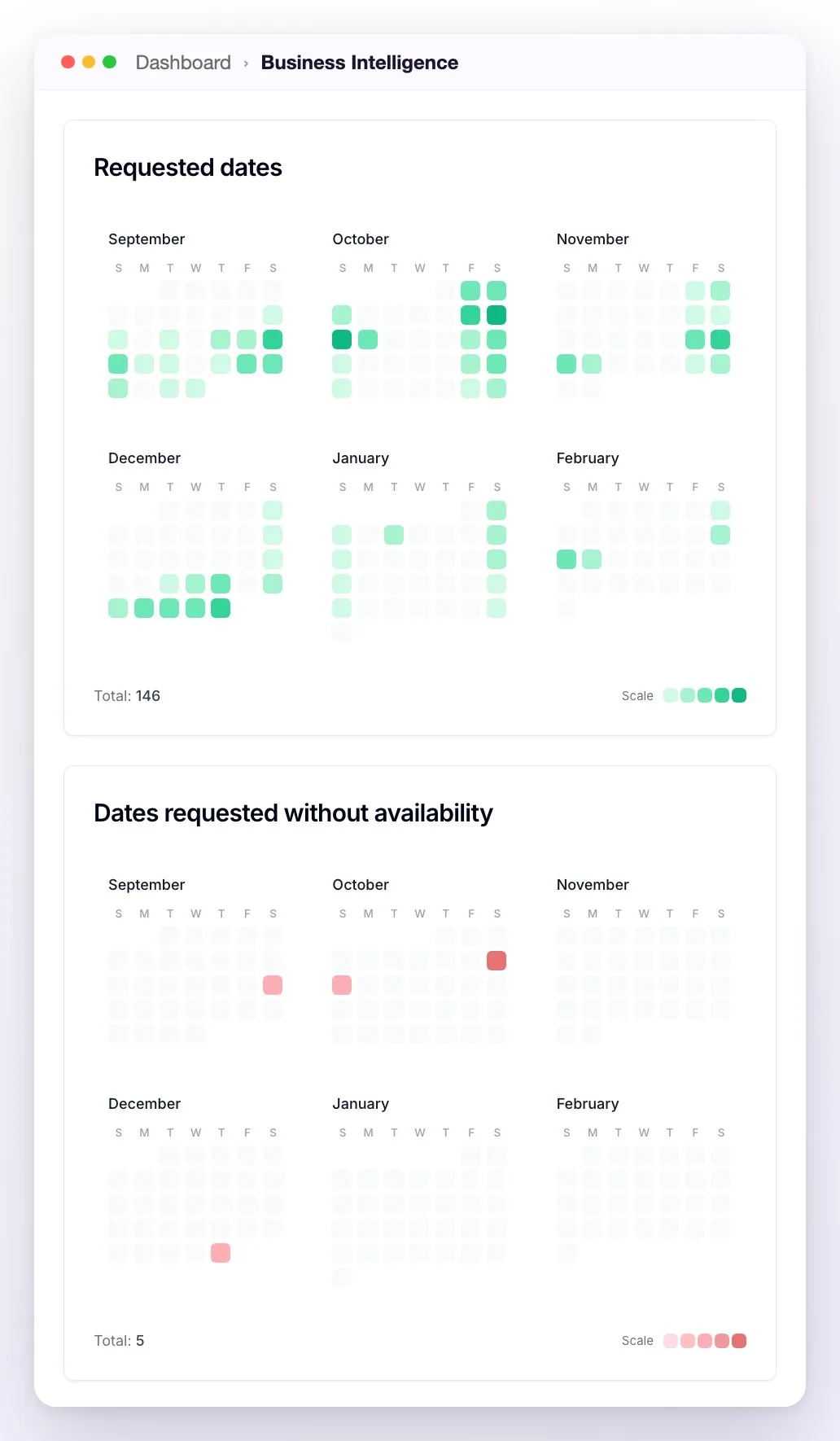
Two 6-month calendars (the current month and the next five), side by side:
- Requested dates (green): which check-in days the period's conversations asked for.
- Dates requested without availability (red): the same, but only the conversations lost due to No availability — where there was demand and you didn't have room.
Each day is shaded in five tones according to how many inquiries it had compared with the busiest day (Scale); hover to see the count, and at the bottom, the Total. The gap between the two calendars is your lost opportunity. Clicking a day — or dragging to mark several — opens Conversations with those conversations: filtered by Queried stay date and by creation date within the period (in the red calendar, also only the ones lost due to lack of availability).
Inputs for your pricing
- Average lead time: a bar chart with how many days before the requested check-in each conversation started, grouped into 1, 2, 3, 4–6, 7–13, 14–29, and 30+ days (same-day inquiries count under "1 day").
- Requested length of stay: distribution of the nights requested (1 to 7 nights one by one, then 8–14 and 15+).
Sales pipeline
- Funnel: how many conversations are in each stage of the funnel you pick, among those with activity in the period. Each stage shows its count and its percentage of the total, and next to the name, the percentage relative to the previous stage. At the top you choose the Funnel and the Status (All, No status, Won, or Lost). With the Conversion Pixel active, the stages marked as won separate the bookings detected on your booking engine from the platform's.
- Lead attribution: a card with tabs — Channel (where each lead came in from: WhatsApp, Facebook, Instagram, or TikTok — Chat Web conversations don't appear in this chart yet; clicking a channel in the list hides it from the chart or shows it again), Geography (countries, with their share), and Ads (the ads that generated leads; if you have WeSpeak Tracker active, this tab doesn't appear because that detail lives there).
Portfolio and activity
- Label statistics: a treemap where the size of each rectangle is proportional to how many conversations with activity in the period have that label — much easier to compare than a pie chart when the values are very different. Each rectangle shows the name, count, and percentage (in the small ones, on hover), and at the bottom you see the Total. Only labels used more than 3 times in the period appear.
- Stop reason and Lost reason: why the assistant stopped in the period and why the conversations with activity in the period were lost, each in a pie chart with the list beside it. They only appear with Month, Year, or a custom range of more than 30 days.
- Activity Heat Map: a 7-day (Monday to Sunday) × 24-hour grid with when you get the most activity — ideal for defining your team's hours. It has a Messages / Conversations toggle.
The Messages / Conversations toggle of the heatmap
| Mode | What it measures |
|---|---|
| Messages (the one shown when it opens) | Number of incoming messages received per day and hour. |
| Conversations | Number of conversations started per day and hour, regardless of how many messages each one had. |
The difference matters: a guest who sends 10 messages in the same conversation counts as 10 in Messages mode, but as 1 in Conversations mode — which better reflects the real demand (how many distinct guests wrote in each slot).
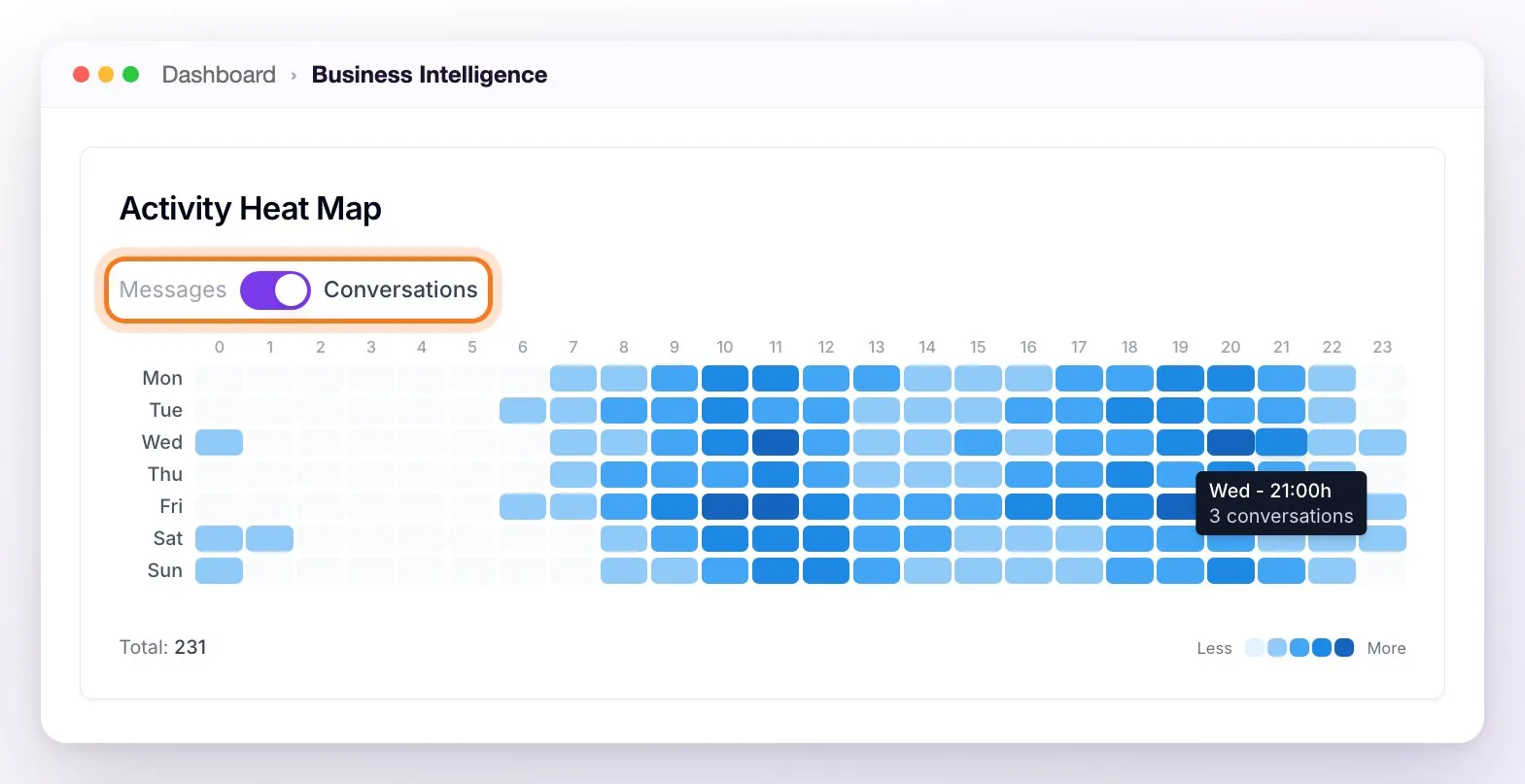
ℹ️ In Conversations mode, the moment the conversation started is counted (not its last message), all conversations are included — even if the assistant was off — and, as throughout the Dashboard, the time zone configured in your account is used.
Frequently asked questions
Why did lost demand "go up" and it's in red?
Because losing more is worse: in this card the colors are inverted on purpose.
Why doesn't lost demand include all my lost leads?
It's intentional: only the reasons that represent real uncaptured demand are valued (No availability, High price, No response from the guest, Prices not loaded, Missing services). Conversations lost with No reason recorded or Automatically closed due to inactivity, the ones with no currency recorded, and the ones that started outside the period don't add to the amount.
I quoted in two currencies and the lost demand total doesn't add them up.
Correct: the total is calculated only in your main currency. Lost quotes in other currencies are listed separately at the bottom of the card, without being added, so as not to mix currencies.
Does the heatmap count activity even if the assistant was off?
Yes — in Conversations mode all started conversations are counted, with or without the assistant active.
Why don't I see "Stop reason" or "Lost reason"?
They only appear with long periods: Month, Year, or a custom range of more than 30 days (for example, from the 1st to the 31st of a month).