A campaign is a send of the same message to many contacts at once — for promotions, check-in or payment reminders, reactivating contacts, or announcements. It lives in the Campaigns Dashboard, with the Create campaign button and the list of your campaigns, where you also see what each one brought in: who replied and which conversations ended in a booking.
⚠️ Important: WhatsApp is designed for conversations, not for bulk mailing. Excessive promotional use can lead WhatsApp to block your number — watch the frequency and the quality of your lists.
How to create a campaign
Create campaign opens the form, laid out in two cards: Campaign (what is sent and when) and Recipients (who to). The Back, Save draft, and Create campaign buttons are always at hand in the bottom bar.
- Sending number / account — if you have more than one channel of the same type, choose which one to send from. Recipients are restricted to that channel and the send goes out through that same channel. (With a single channel, this step doesn't appear.)
- Campaign name — between 5 and 50 characters.
- Campaign date — start date and time (in the future, up to a year out). The platform calculates the estimated completion based on recipients and the daily limit.
- Select template — choose a WhatsApp-approved template. You'll see the message preview. (Campaigns don't currently support templates with variables.)
- Audience filters — combine: Labels, Conversation status (open / closed / all), Funnel and stage, Customer status (with its loss reason), Country, and Consulted date (the check-in dates the contact asked about).
- Review the Recipients card: Users reached, Daily limit, Sends per day (the real figure for the channel you chose), and Approx. cost per message.
- Save draft (it stays in Draft status to launch later) or Create campaign.
ℹ️ If you use the standard WhatsApp connection (QR code), when you create the campaign you'll see a notice: it's a connection meant for individual use, with limitations in stability and volume. For bulk sends, the recommended channel is the official WhatsApp API.
The campaign list
Each campaign is a card with everything important in view:
- the channel it goes out from and the template (hover to see the message);
- the audience filters it was built with (hover to see the details);
- the status and a delivery bar with read, delivered-not-read, and failed over the total (hover to see the breakdown);
- Recipients, Sent, and Read, plus the creation, start, and end dates.
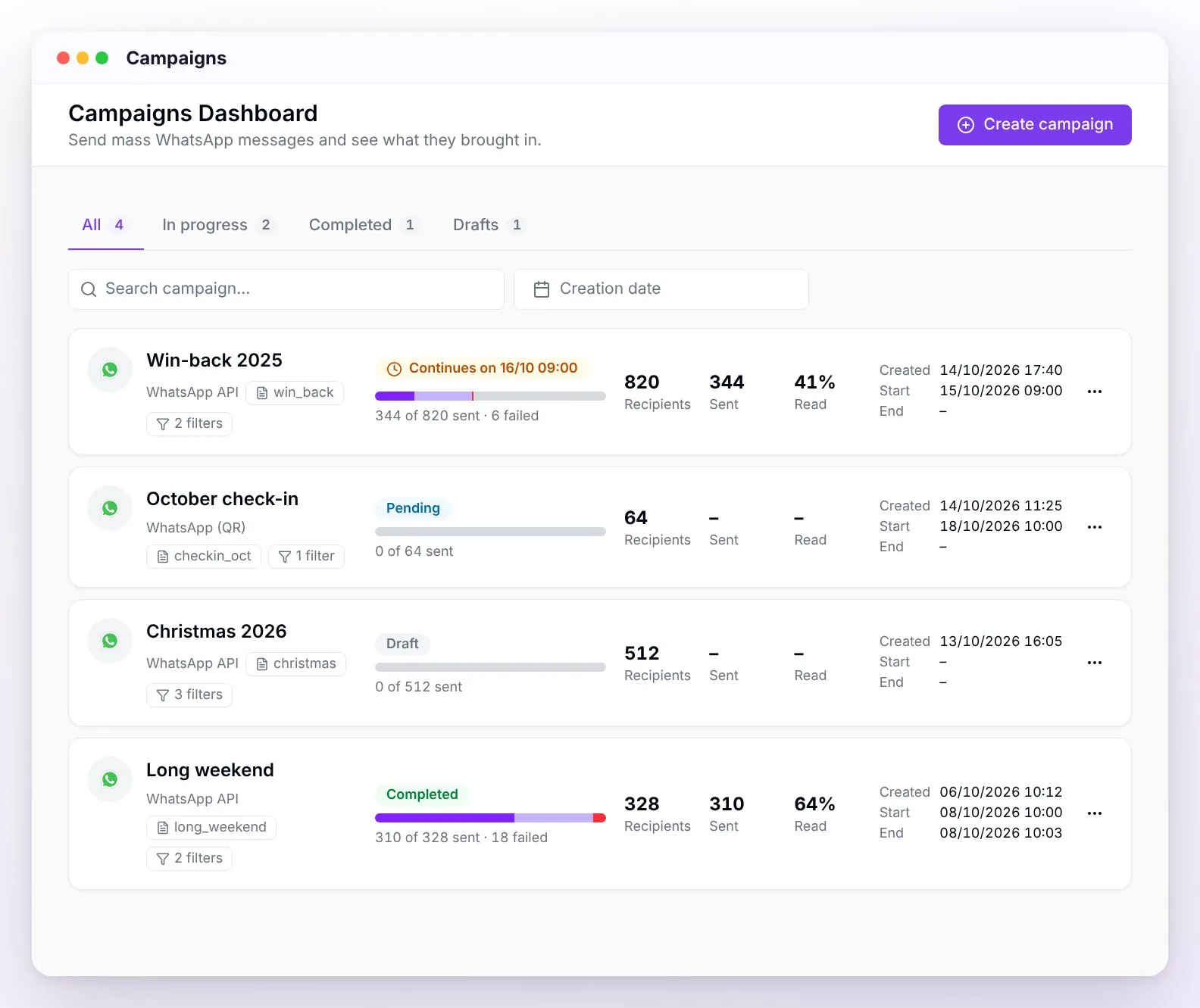
At the top, the All / In progress / Completed / Drafts tabs show how many campaigns are in each group. In progress groups pending, sending, and paused campaigns; a failed campaign only shows up under All. Use the search box to find a campaign by name and Creation date to filter by the day you created it.
From each card's menu you can View detail, Launch, Pause, Resume, or Delete.
Campaign statuses
| Status | What it means |
|---|---|
| Draft | Saved without launching. Launched with the Launch action. |
| Pending | Scheduled, waiting for its start date and time. |
| Sending | In progress: messages go out respecting the daily limit. |
| Continues on… | It reached its channel's daily limit and picks up on its own at the date and time shown. No need to pause or relaunch it. |
| Paused | Stopped manually with Pause; resumed with Resume. |
| Paused with an ⓘ icon | Campaign paused automatically: when it was launched there was another active campaign. You can start it manually once the previous one finishes. |
| Completed | All sends finished. |
| Failed | The campaign couldn't be completed; check the detail of the failed recipients. |
Sending speed
- Official WhatsApp API: up to 3 messages per second.
- Standard connection (QR): roughly 1 message every 50 seconds, to protect the number.
That's why a 350-recipient campaign over the API finishes in minutes, while one of 2,000 spreads over several days (batches of up to 350 per day).
The limits (the most asked-about part)
- WhatsApp limits how many campaign messages you can start per day, based on your number's tier: from 250 (unverified number) up to 100,000 (top tier). The tier goes up on its own after maintaining good quality for about a week — and goes down if users report or block you.
- WeSpeak adds a protective brake: a maximum of 350 messages per day (or 80% of your WhatsApp limit, whichever is lower), to safeguard your number's health. In practice, an unverified number caps at 200 per day (80% of 250); from the 1,000 tier onward the cap reaches 350.
- Other channels: a WhatsApp QR line sends up to 50 messages per day, and Instagram and Facebook up to 200. When you create the campaign, Sends per day shows the figure for the channel you chose.
- The WhatsApp API cap can be raised case by case if your number is verified, with high quality and healthy contact lists — contact support to have it assessed (it's not automatic).
- A large campaign is automatically spread over several days. The "day" is counted in 24-hour windows from the start time: a campaign that starts Monday at 5:00 p.m. and hits the cap continues Tuesday at 5:00 p.m. (not at midnight). While it waits, you'll see it as "Continues on…".
- There can only be one active campaign at a time: if you launch another, it lands in the "Campaign paused automatically" status and you can start it manually once the previous one finishes.
Your number's quality
WhatsApp rates each number with three quality levels — High, Medium, and Low — based on how many people report you as spam, block you, ignore your messages, or whether you send disproportionate volumes. You can view it in Meta Business Manager.
| Quality | What it implies |
|---|---|
| High | All good; the tier (and your daily limit) can go up. |
| Medium | Warning: it's best to pause bulk sends and improve the list or message before continuing. |
| Low | WhatsApp reduces your daily limit. If it continues, there's a risk of blocking. |
⚠️ A permanent block is irreversible: the number becomes unusable and isn't recovered. And if you have several numbers under the same WhatsApp Business account, misuse of one can lead to restrictions on the entire account.
A campaign's results
Click a card (or View detail) to open the campaign detail. There you see not only whether the message arrived, but what it brought in.
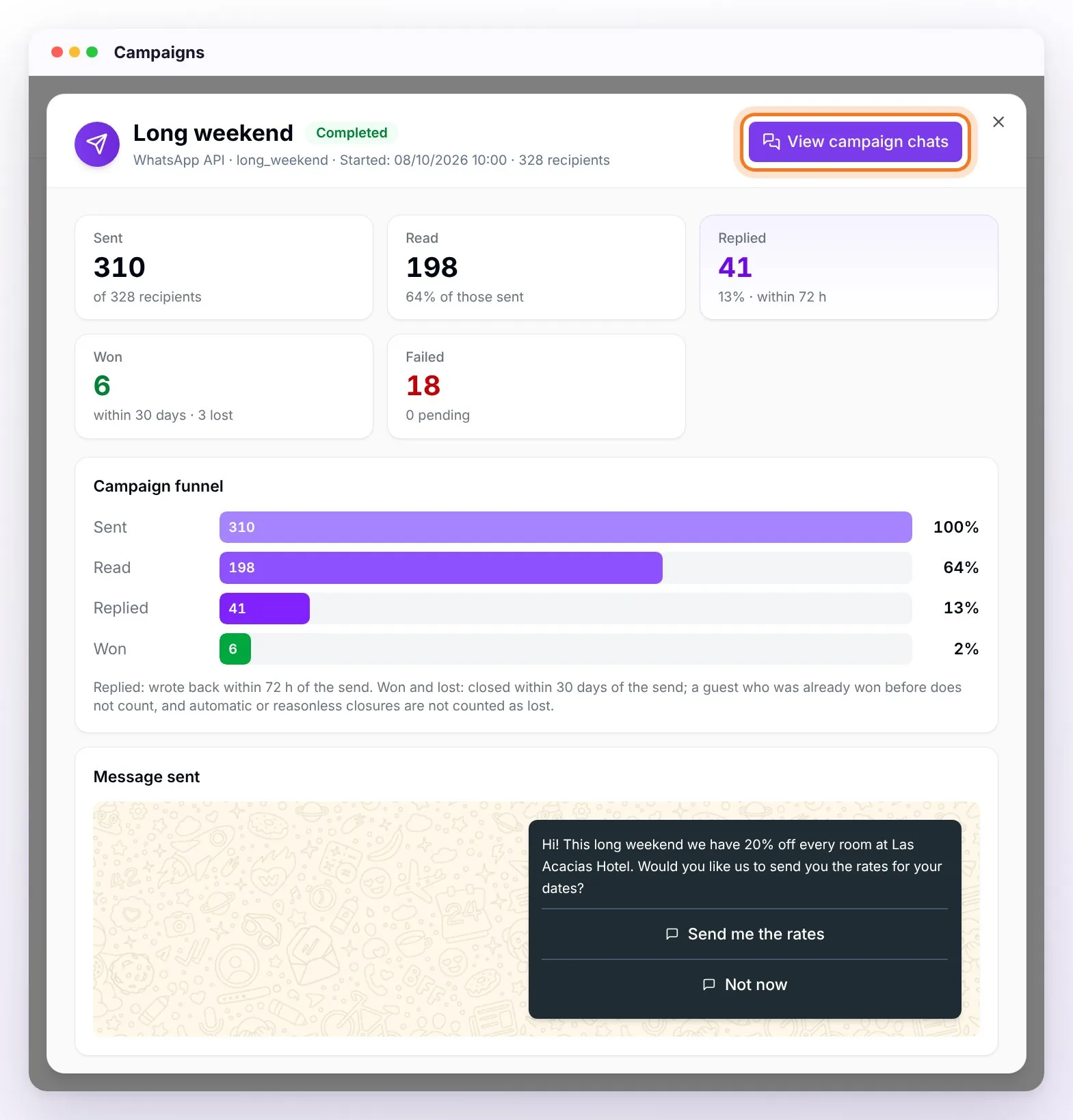
The indicators
At the top you get five indicators and the Campaign funnel (Sent → Read → Replied → Won):
| Indicator | What it means |
|---|---|
| Sent | WhatsApp (or the channel) accepted the message and didn't reject it afterwards. Includes those already read. |
| Read | Of those sent, the ones the recipient opened (double blue check). |
| Replied | Those who wrote to you within 72 hours of the send. The percentage is over those who received the message. |
| Won | Conversations that moved to won in the funnel within 30 days of the send. Below it you'll also see how many were lost in that window. |
| Failed | Couldn't be delivered (invalid number, no WhatsApp, blocks, WhatsApp limits). Below it, how many are still pending. |
How won and lost are counted. The campaign only takes credit for what it could have caused:
- A guest who was already won before the send doesn't count.
- Automatic or no-reason closures (for example, a conversation WeSpeak closed for inactivity) don't count as lost: for a campaign they mean "didn't reply", and Replied already measures that.
- A failed recipient never counts: they didn't receive the message.
💡 The 72-hour and 30-day windows keep the same booking from counting for every campaign that guest received earlier.
The message sent
Below the indicators you see the Message sent: the template exactly as the guest received it, with its buttons and its Meta category (on WhatsApp API), or the text and files on other channels.
The recipients
The Recipients tab lists each contact with result filters — All, Replied, Won, Lost, and Failed — and these columns:
- Contact and Delivery: delivered, read, failed, or pending, with the time or, if it failed, the reason.
- Replied: the time of their first message within the 72 hours.
- Funnel: the stage they're in today, with the won or lost pill. If it's shown in gray, it doesn't count toward this campaign (hover to see why).
- Chat: a shortcut to their conversation.
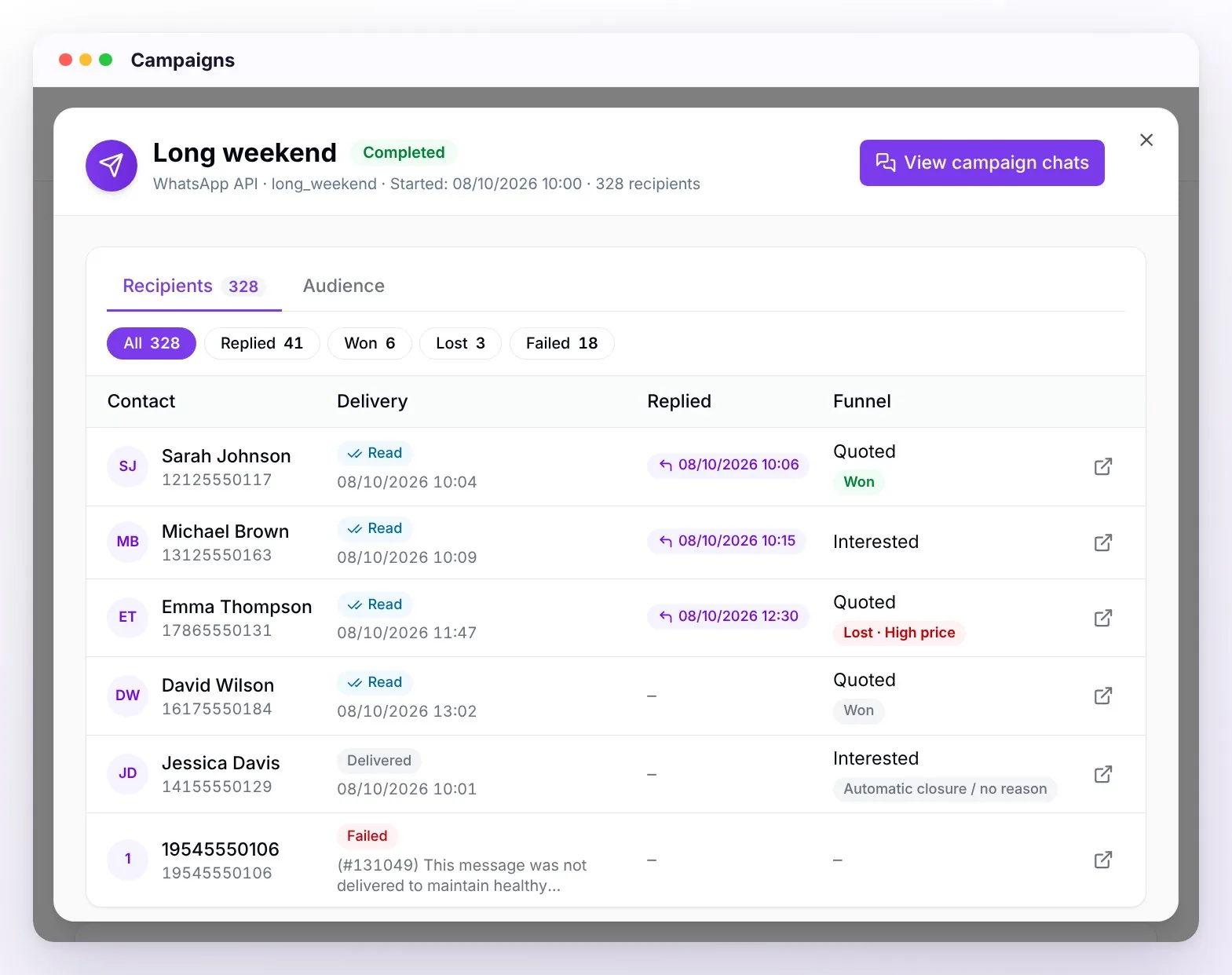
The Audience tab shows the filters you built the campaign with.
💡 Healthy campaign benchmark: delivered above 90%, read above 50% in the first 24 h, failures below 5%.
View the campaign's chats
The View campaign chats button opens Conversations filtered to the contacts who received that campaign — including closed, archived, and snoozed ones, so the list matches the table. Above the list you'll see the "Campaign: …" notice; the ✕ removes the filter.
And the other way around: inside a chat, among the chips at the top of the side panel, the "Campaign: …" chip tells you that contact received campaigns. Open it to see the recent campaigns sent to them, with their date and status (delivered, read, or failed), and View chats to jump to each one's list. That way your team knows, before replying, which message the guest is answering.
Best practices
Before sending
- Verify that your number's quality is High (Meta Business Manager). Only send high volume in that state.
- If it's the first campaign with that template, test first with 50–100 recipients.
- Segment the audience with the filters: a relevant message for each group performs better than the same text for everyone.
- Exclude those who asked not to receive more (label them and filter by that label).
- Schedule at a reasonable time for the recipient.
During and after
- Watch Replied in the first few hours: if no one replies, the message isn't connecting.
- If failures exceed 10%, there's a problem with the list — stop and clean it up.
- If the number's quality drops to Medium, don't launch another campaign until you understand what happened.
- Use the Replied filter in the detail (or View campaign chats) to label those who replied and use them as a "warm" audience in the next campaign.
- Compare Won across campaigns to learn which messages and audiences bring in bookings, not just reads.
Which list works (and which is risky)
- Healthy contacts: those who wrote to you first, come from a booking or an ad, or interacted in the last 30–90 days.
- Risky contacts: those who never interacted with you, the ones imported or bought from another platform, and those with more than 6 months without contact. Bought lists are the fastest route to a block.
Frequently asked questions
Why didn't my campaign go out in full today?
It reached its channel's daily limit: you'll see the "Continues on…" status with the date and time it picks up (24 hours after the start time). No need to pause or relaunch it.
How do I know how many bookings a campaign brought in?
Open its detail and look at Won: the conversations that moved to won within 30 days of the send. The Won filter shows who they were, and View campaign chats opens their conversations.
A guest from the campaign shows as won but doesn't count in Won.
That happens when they were already won before the send, or closed more than 30 days after it: the campaign didn't cause it. In the Funnel column you'll see a gray pill; hover to see the reason.
My campaign has many lost conversations in the funnel, but Lost shows few.
Automatic closures for inactivity or with no reason don't count as lost in a campaign: you'll see them as "Automatic closure / no reason", in gray. To measure who didn't answer, look at Replied.
On an old campaign, Won and Lost show 0.
The date a conversation is won or lost has been recorded since mid-August 2026. On earlier campaigns those counters can stay at 0 even if the Funnel column shows won guests.
How do I know whether a contact already received a campaign?
In their chat, the "Campaign: …" chip shows the last campaign they received; open it to see the recent ones with their date and status.
Can I use any template?
Only approved WhatsApp templates. Pending or rejected ones don't appear for you to choose.
My template is approved but doesn't appear in the list.
It most likely has variables ({{1}}, like the customer's name): campaigns only support templates without variables, because the same text goes to many recipients. Create a version without variables and send it for approval. If you have several numbers, also check that it's approved on the sending number you chose: WhatsApp templates are per number.
Can I send a video in the campaign?
Yes, in two ways: with an approved template that has the video in its header (those are created in Meta Business and brought in with Sync with Meta in Templates), or by pasting the link to the video (YouTube, public Drive) in the template text.
Can I send campaigns via Instagram or Facebook?
Yes, they're also available as a campaign channel, with up to 200 messages per day. The recommended one for bulk sends is WhatsApp API.
And via Chat Web?
No: Chat Web isn't a campaign channel, because you can only write to a visitor while they have the chat open on your website.
Why did so many messages come out as failed?
The most common causes: invalid numbers or numbers without active WhatsApp, an old list with outdated contacts, recipients who blocked your number, or a temporary channel disconnection. It can also be that WhatsApp limited marketing messages to that contact because they already received several promotions from different businesses — it doesn't depend on your number's quality. If failures exceed 10%, clean the list before the next campaign.
A recipient went from "Delivered" to "Failed".
That's expected: WhatsApp first accepts the message and only later reports if it didn't deliver it. At that point Sent goes down and Failed goes up, with the reason in the detail.
Why did my number's quality drop after a campaign?
It's usually due to sending to cold contacts (who never wrote to you), a message that annoyed the audience, repeating campaigns to the same audience within a few days, or spam reports. Pause the sends, review the list and content, and resume when the quality returns to High.
Can I raise the 350-messages-per-day cap?
It's assessed case by case: you need the number verified with High quality, a good campaign history (high delivered and read, low failures), and lists of your own — never bought. Write to support with those details.
I have two WhatsApp numbers, which one does the campaign go out from?
From the one you choose in the Sending number / account selector when creating it. Recipients are also restricted to that channel, so verify it's the right one before launching.