Meta bills WhatsApp messages directly to your WhatsApp Business account, not through WeSpeak. For that it needs a card loaded on that account. Without one, Meta doesn't deliver templates (the messages you send outside the 24-hour window) and, from October 1, 2026, it also stops delivering your assistant's replies once the free allowance of 1,000 messages per number runs out. This guide walks you screen by screen until the card is loaded — and shows you how to change it.
ℹ️ This is Meta's billing, separate from your WeSpeak subscription (that one is paid from Billing in the dashboard: Subscription, billing and usage). What Meta charges and how much is in WhatsApp costs (Meta).
🔗 Did you get Meta's email saying your business has no payment method? Its Add payment method button takes you to Meta's Billing Hub, which shows up in Meta Business Suite as Billing & payments. You can go straight to Billing Hub → Payment methods, with the hotel's business portfolio picked at the top left. If it's your first time or you can't find the WhatsApp account, follow the step by step below.
🖼️ The screenshots show Meta's interface in Spanish (they were taken on a real hotel account). Every step gives the English name of each menu and button, and the screens are laid out the same way in every language.
In this article
- Before you start
- Step 1 · Open the business settings
- Step 2 · Check the business portfolio
- Step 3 · Open WhatsApp accounts
- Step 4 · Pick the right account
- Step 5 · Go to Payment settings
- Step 6 · Fill in the business info
- Step 7 · Add the card
- How to confirm it's loaded
- Change or remove a card that's already loaded
- If Meta rejects the card
- FAQ
Before you start
Have these four things at hand — they save you going back and forth:
- A Facebook username and password with access to the hotel's business portfolio (the same user that connected WhatsApp API).
- Admin permissions on the portfolio and on the WhatsApp account. The Finance editor role also works.
- The business's tax details: legal name, address and tax ID (VAT number, EIN, CUIT, CNPJ…).
- A valid debit or credit card enabled for international purchases: Meta charges from abroad, even if you pick your local currency.
Step 1 · Open the business settings
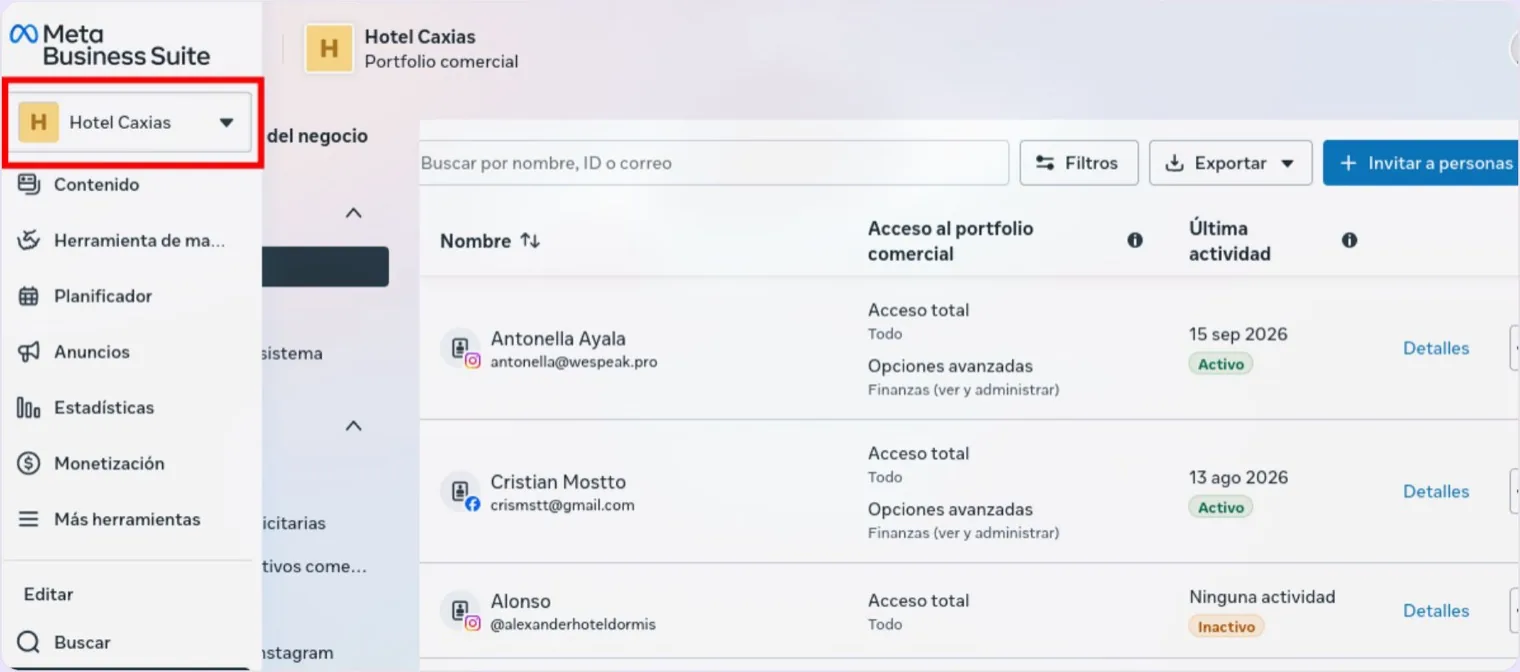
Sign in with your Facebook user at business.facebook.com/latest/settings — that's the Settings of Meta Business Suite.
Step 2 · Check the business portfolio
The business portfolio is the folder where Meta keeps the business's assets: the Facebook Page, the ad accounts and the WhatsApp accounts. If you manage more than one (two hotels, say, or the hotel and an agency), confirm in the selector at the top left that you're in the hotel's portfolio before going on.
Step 3 · Open WhatsApp accounts
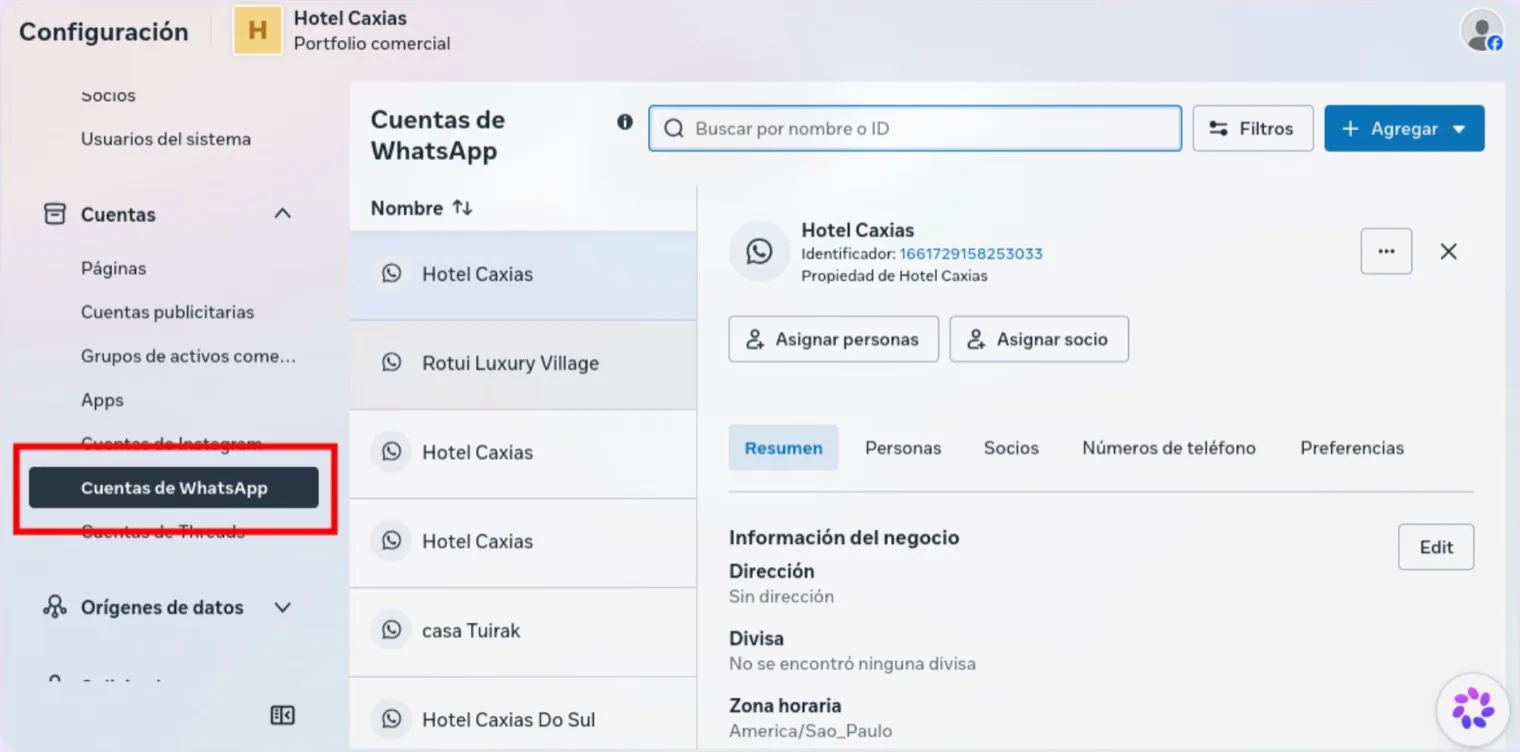
In the left menu, expand the Accounts section and click WhatsApp accounts.
Step 4 · Pick the right account
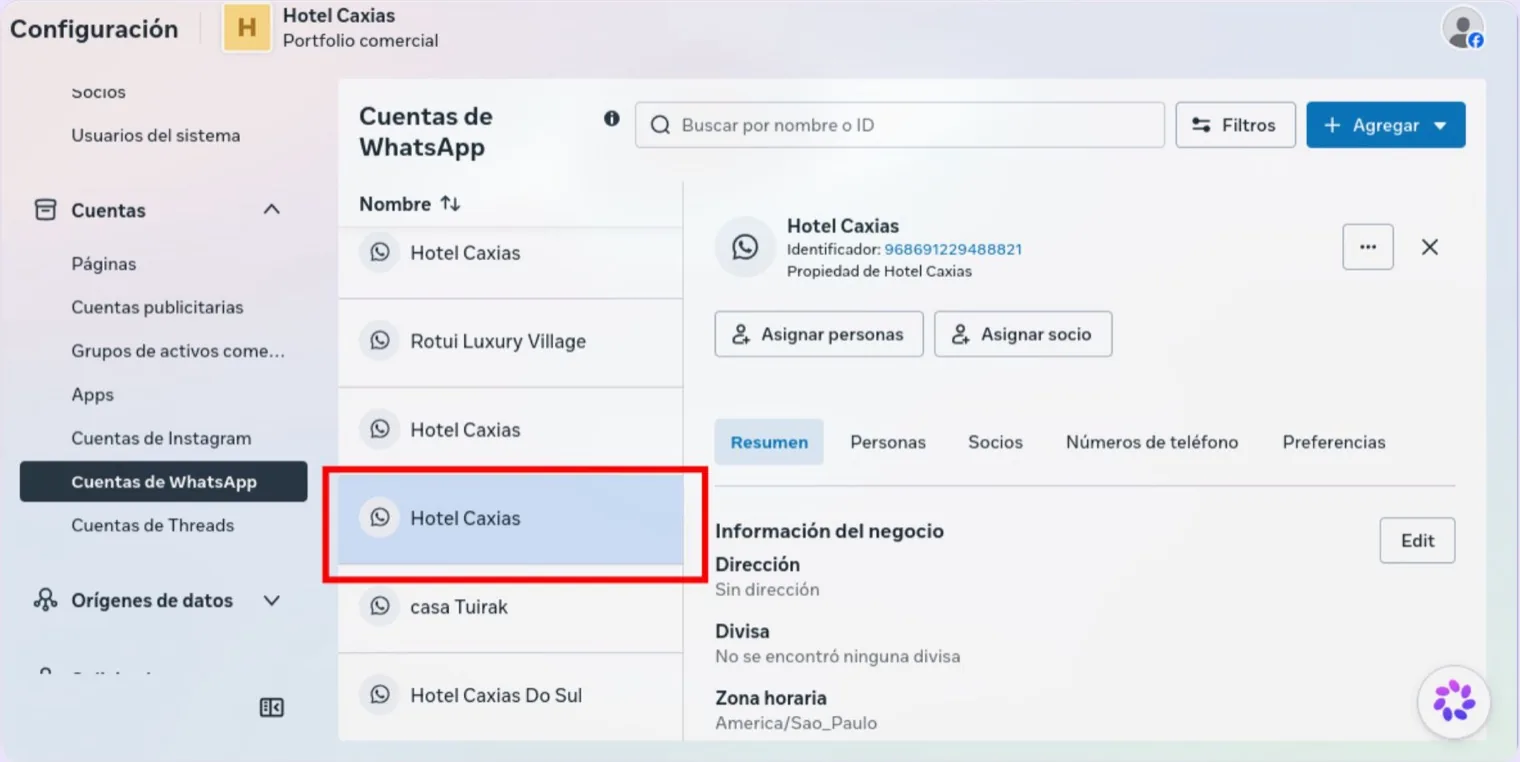
Select from the list the WhatsApp account you want to load the card on. If there are several with similar names, look at the numeric ID shown in the right-hand panel: it's the WhatsApp Business account ID, and your WeSpeak advisor can confirm which one is connected to the dashboard.
Step 5 · Go to Payment settings
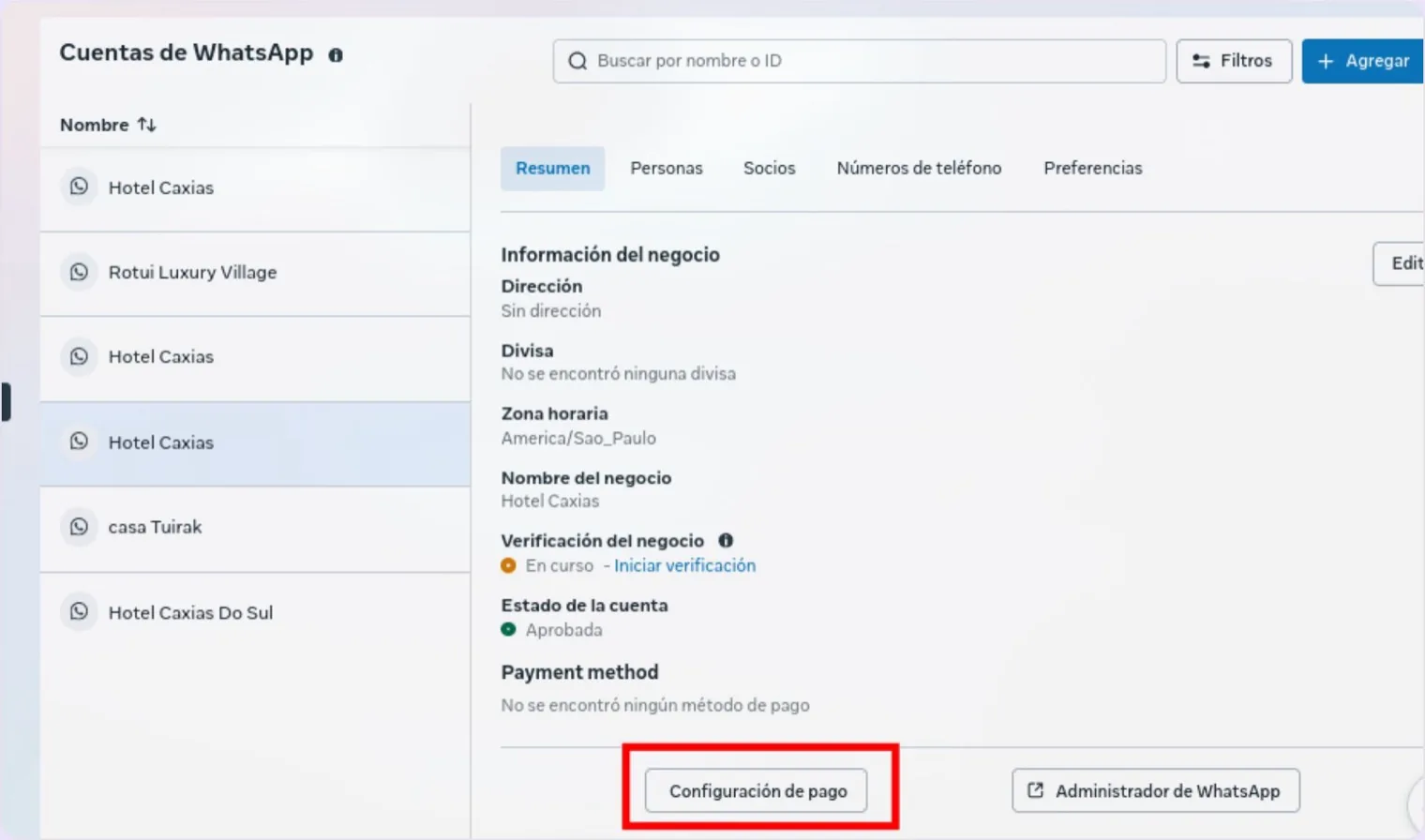
In the account's Overview tab, scroll to the bottom of the panel. There you see the Payment method status — if it says "No payment method found", the account has no card yet — and the Payment settings button. Click it: the Billing & payments section opens, already positioned on that account.
💡 Shortcut: from Business settings, go to Billing & payments (Meta's Billing Hub), switch to the WhatsApp Business accounts tab and click View details on the account. You land on the same screen.
Step 6 · Fill in the business info
Before loading the card, fill in the details Meta will use to issue the invoices. In the Business info block, click Edit.
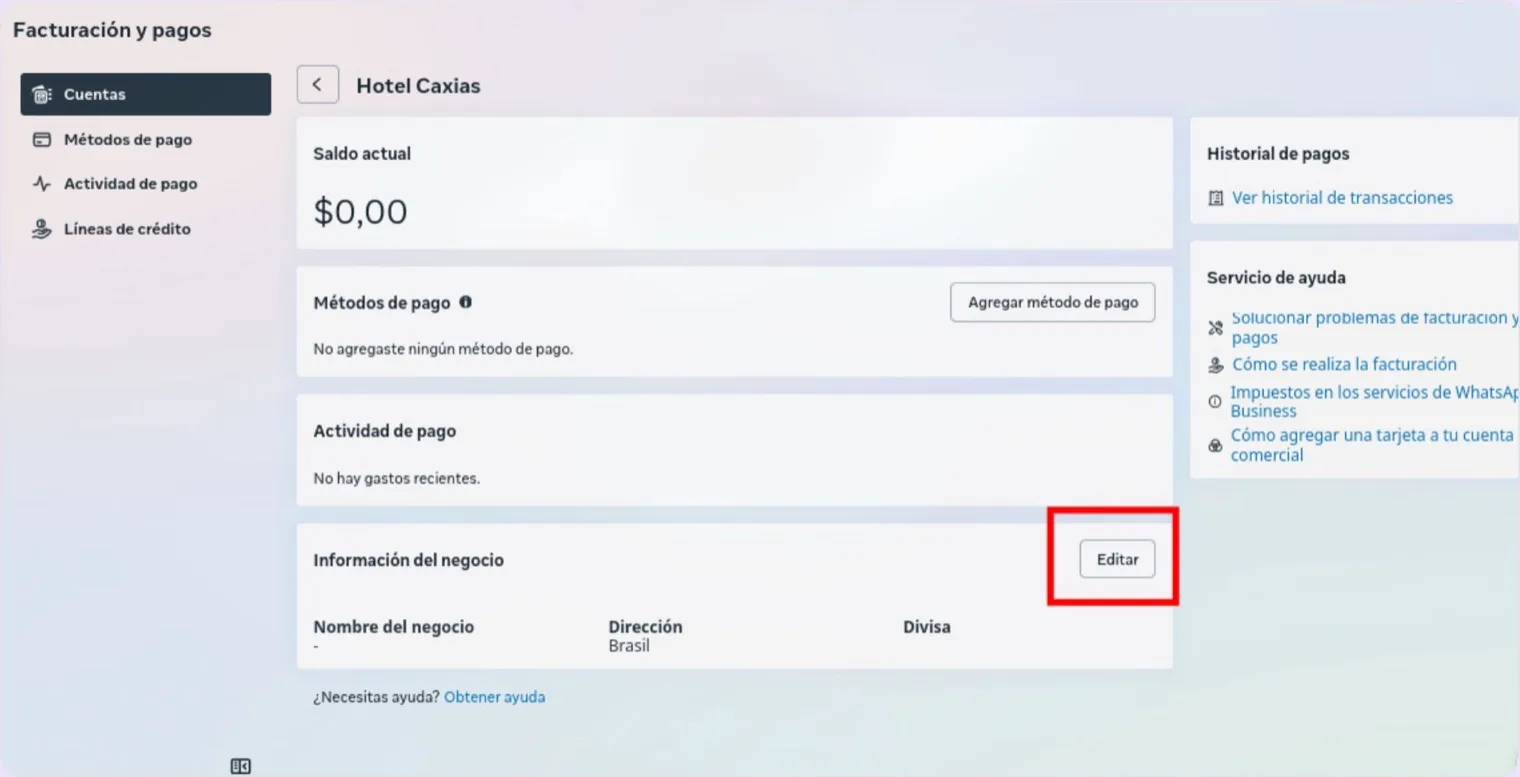
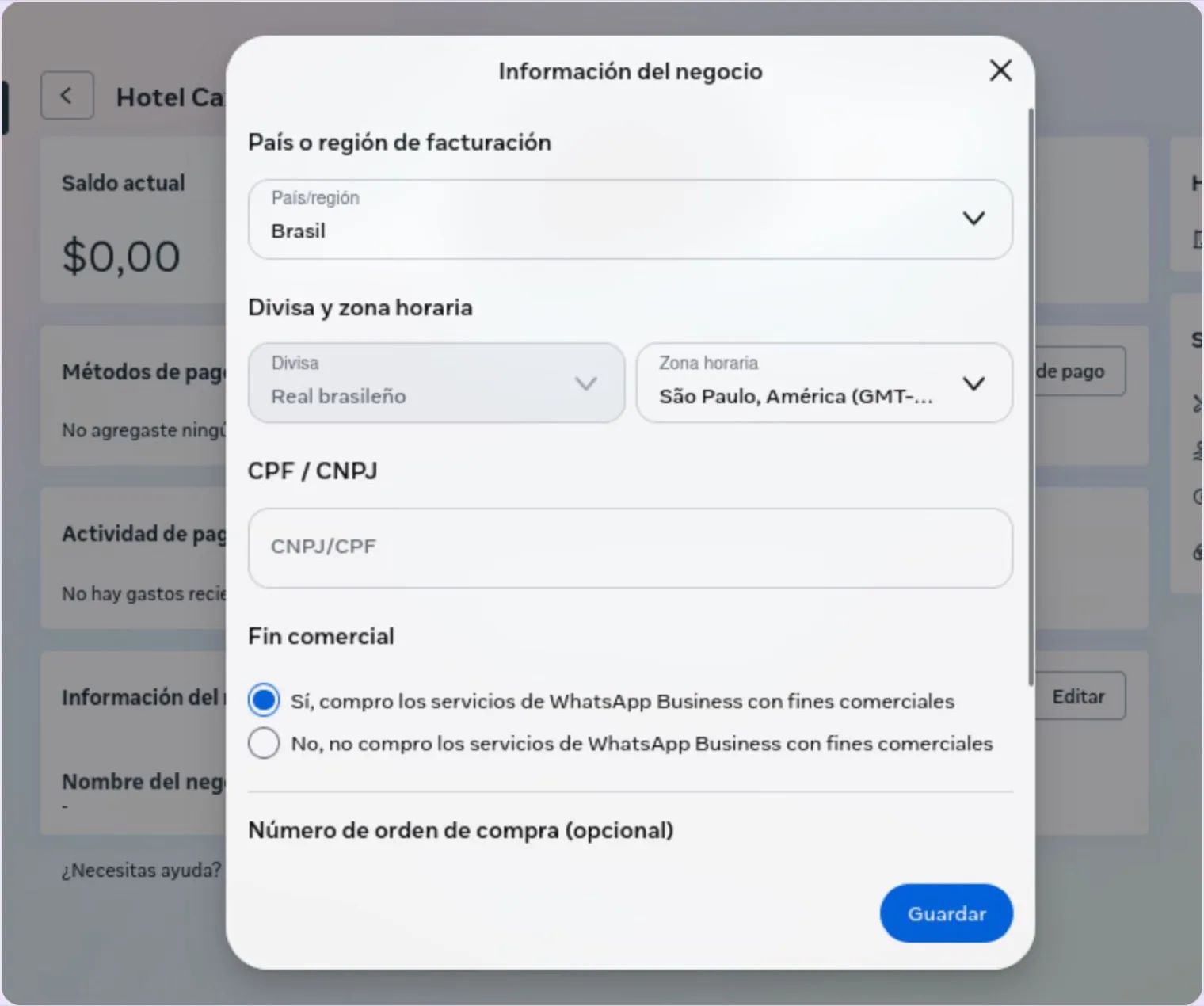
Fill in the billing country or region, the currency, the time zone and the business's tax ID — the field changes with the country: CNPJ/CPF in Brazil, CUIT in Argentina, VAT number in Europe, etc. Under Business purpose, select Yes, I'm purchasing WhatsApp Business services for business purposes and save.
Step 7 · Add the card
In the Payment methods block, click Add payment method.
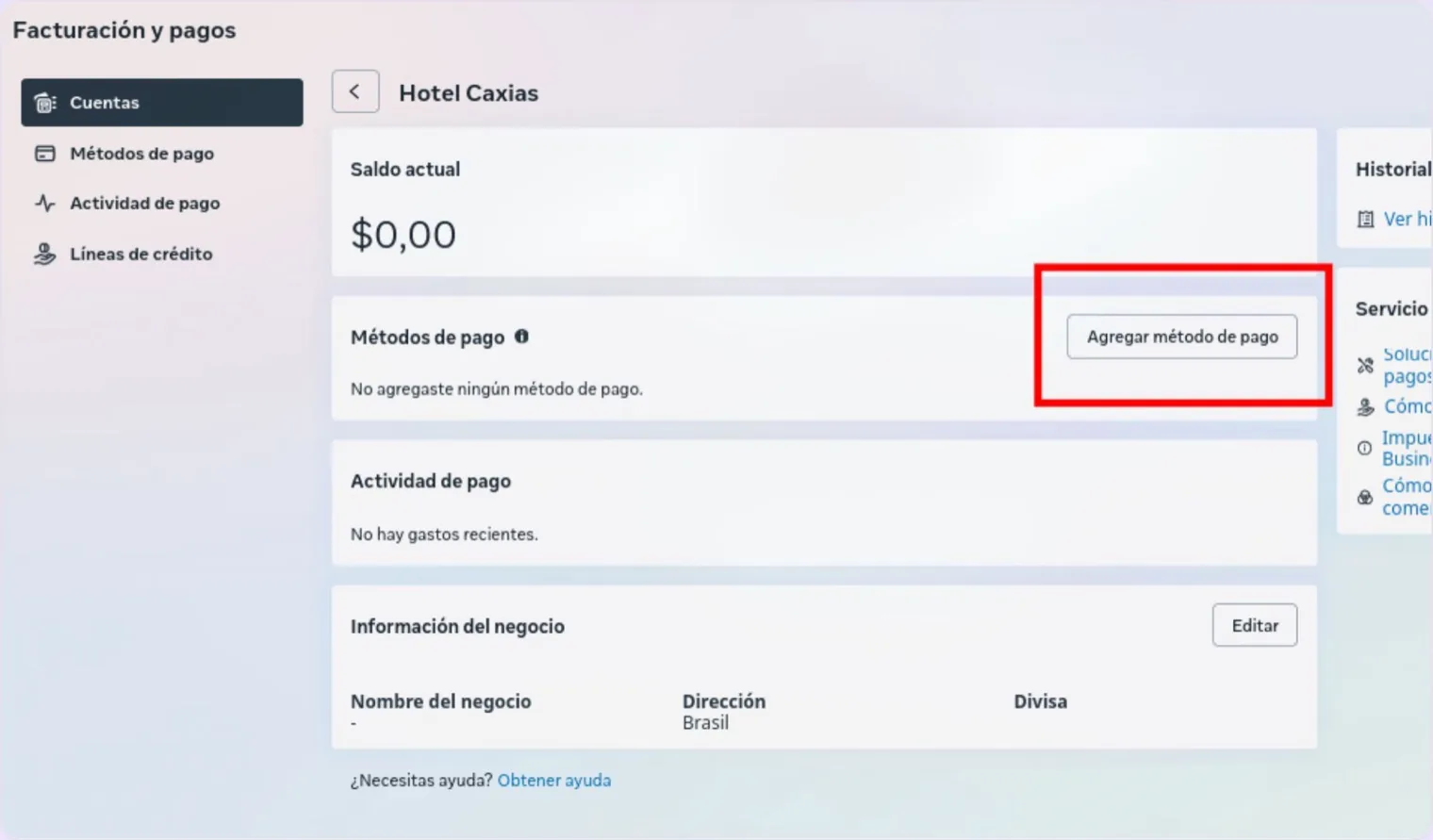
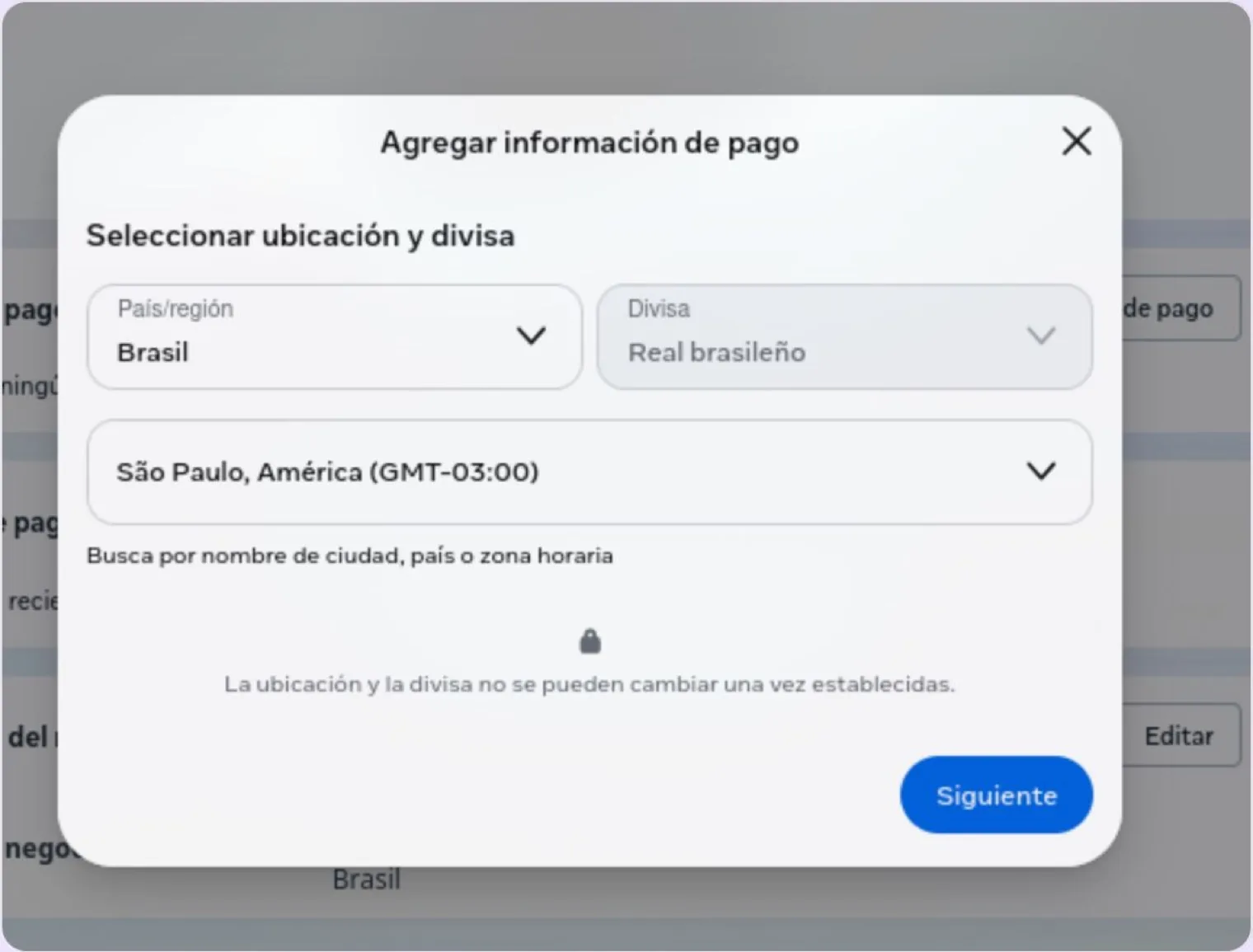
Choose the location and the currency Meta will charge you in. You can pick your local currency (Argentine pesos, reais, Mexican pesos…) or US dollars, and the time zone defines when each billing day closes.
⚠️ Location and currency can't be changed once set. Choose them carefully: if later you want to be charged in another currency, there's no way to change it from this screen.
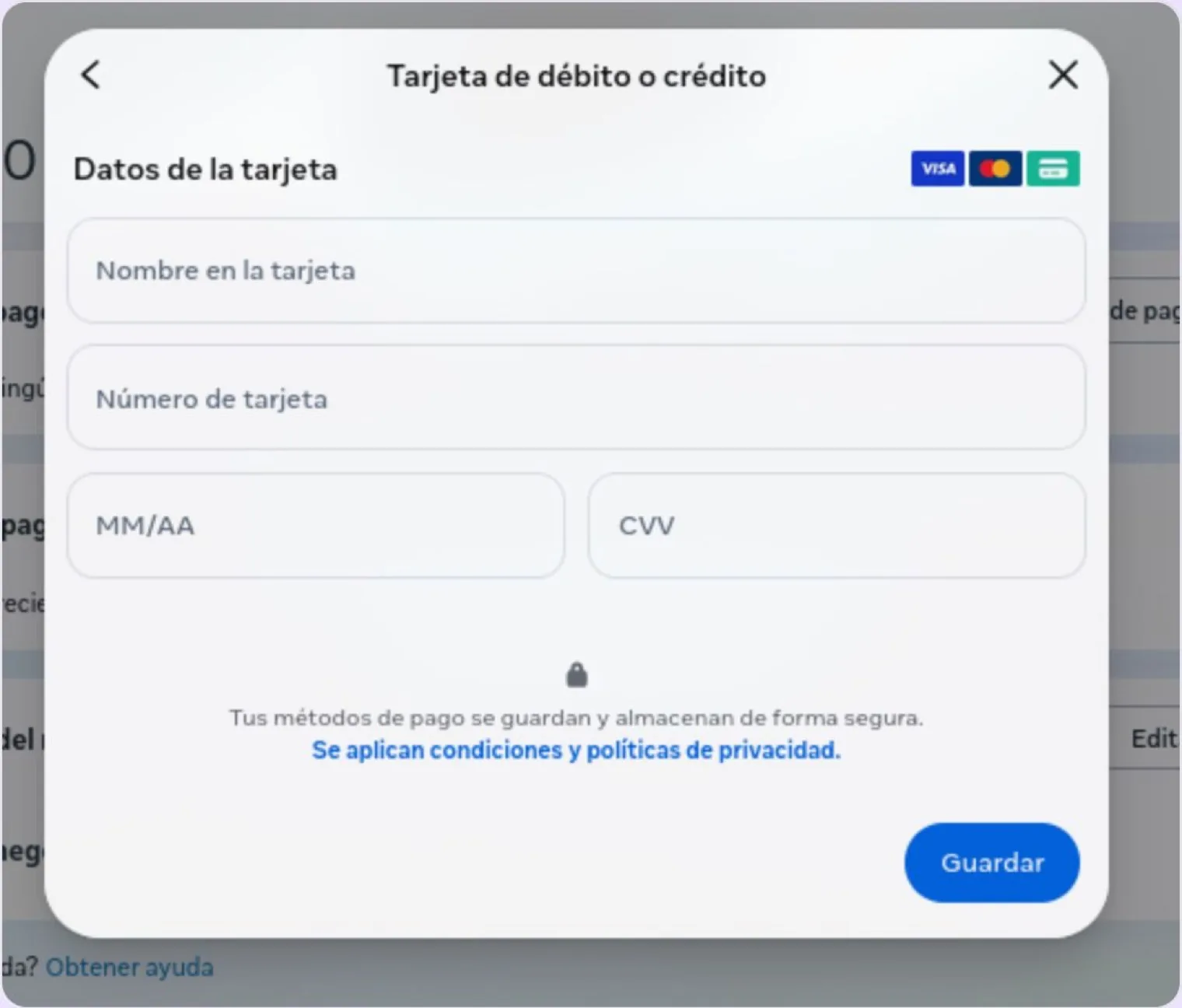
Enter the name on the card, the card number, the expiry date and the security code, and click Save. On saving, the card is linked to the WhatsApp Business account. It's normal to see a small verification charge, which Meta voids within a few days.
How to confirm it's loaded
Go back to the account's Overview (Step 5): Payment method should now show the card. In Billing & payments, the Payment methods block lists it as primary, and Payment activity will show each Meta charge with its date and amount.
There's nothing to reconnect or change in WeSpeak: if you loaded the card because templates weren't arriving, just try sending again.
Change or remove a card that's already loaded
If the card expired, you changed banks or want to pay with another one:
- Get to the account's Billing & payments (Steps 1 to 5).
- In Payment methods, click Add payment method and load the new card. This time it won't ask for location or currency: they stay as you set them the first time.
- Open the new card (the three-dot menu or Edit) and set it as primary. Only then remove the old one.
⚠️ Meta won't let you remove the account's only card, nor a card with an outstanding balance: if there is one, pay it first with Pay now on the same screen. And if you changed cards recently and sending stopped, check that the new one is set as primary — it has happened to several hotels: the card was listed, but Meta had stopped taking it until it was loaded again.
If Meta rejects the card
- Enable it for international and online purchases. Many banks block them by default; Meta charges from abroad even if you picked your local currency. A call to the bank usually solves it.
- Try another card: credit instead of debit, or from another bank. Prepaid cards and some debit cards aren't accepted.
- Check the Business info (Step 6): in some countries Meta won't accept the card until the tax ID is complete.
- If nothing works, write to soporte@wespeak.pro or to the support WhatsApp (+54 9 3446 64-5873) with a screenshot of the error and the WhatsApp account ID (Step 4).
FAQ
Does the card I already have loaded for ads count?
No. Meta has two separate billings: ads (ad accounts) and WhatsApp (WhatsApp Business accounts). The card has to be loaded on the WhatsApp account, following this guide. If you got a message mentioning an "ad account", you were in the wrong section: there's no ad account to close or create.
Which currency does Meta charge me in?
The one you picked in Step 7. Meta's rates are published in US dollars; if you picked your local currency, Meta converts the amount when charging. How much each message costs by the guest's country is in WhatsApp costs (Meta).
Can I change the currency or billing country later?
No: they're fixed from the first time you set them. You can change the card as many times as you like.
What happens if I don't load any card?
Templates aren't delivered (with no warning in WeSpeak: the template is approved and sent all the same, but it doesn't arrive). And from October 1, 2026, once each number's free allowance of 1,000 service messages runs out, Meta also stops delivering your assistant's replies until you load one. The details are in WhatsApp costs (Meta).
I have several WhatsApp numbers connected — do I load the card on each one?
The card is loaded per WhatsApp Business account, not per number. If your numbers are in the same account, one card covers them all; if they're in different accounts, repeat the process on each.
Who can do this?
An admin of the business portfolio, or a user with the Finance editor role. If your user only has access to the WhatsApp account or the Page, you won't see the Billing & payments section: ask the admin to grant you the permission or to load the card.
Does this change anything in my WeSpeak subscription?
No. What you pay WeSpeak is managed from Billing in the dashboard and has nothing to do with the card you load in Meta.