When the assistant needs your team — a guest asked to talk to a person, wants to book, or something requires attention — or something important happens in your account, WeSpeak notifies you by email and inside the panel. Here you set which email receives each type of notice, so each person only gets what's theirs: reservations to the front desk, channel outages to IT, handoffs to the sales team.
Where it's configured
In Settings, Notifications card. There you see the list of emails that receive notices; each one shows which notices it receives (or All notices) and has three controls:
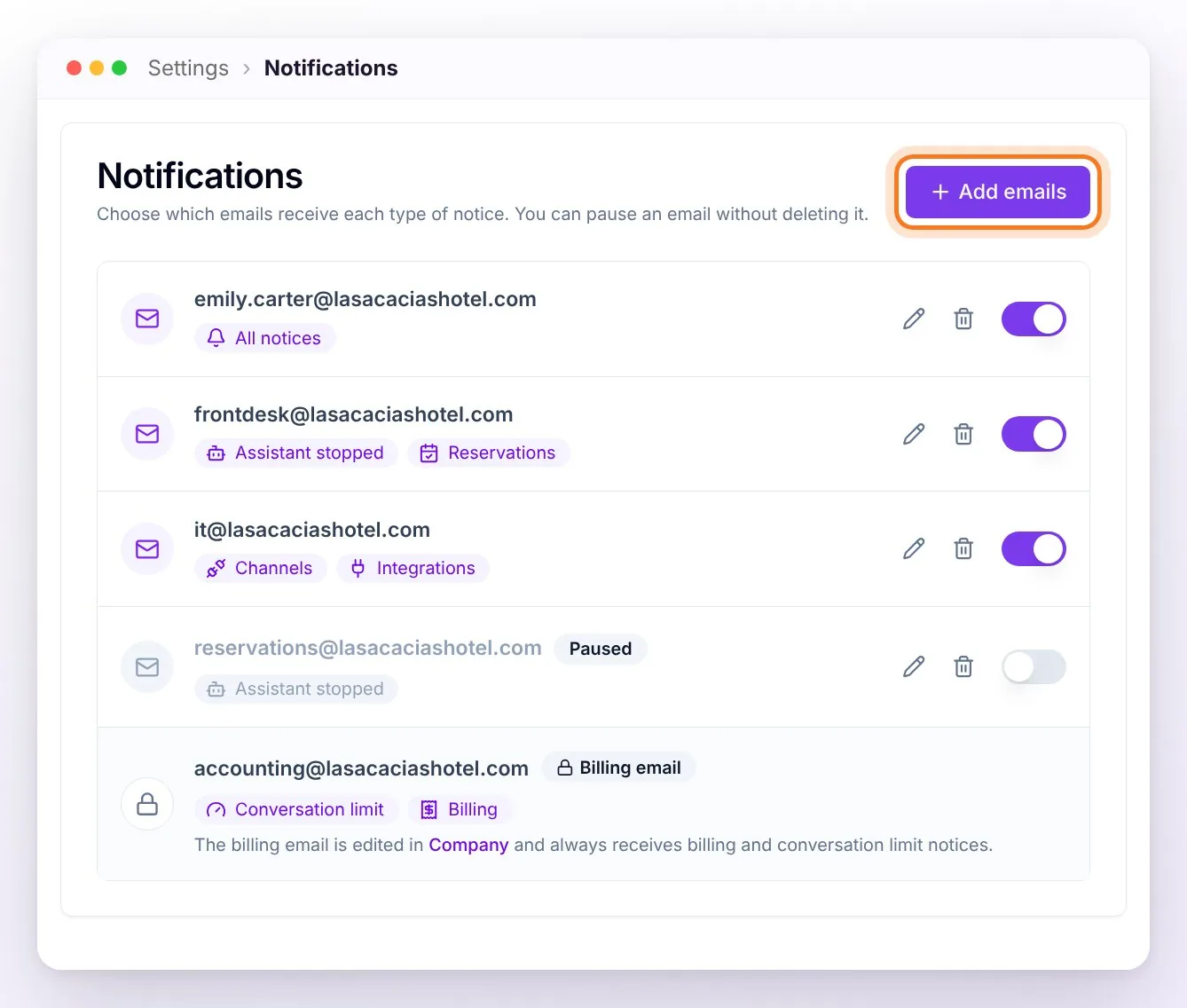
- Edit (pencil): change the email or the notices it receives.
- Delete (trash can): remove it from the list.
- Switch: pauses it — it stops receiving every notice, but stays saved so you can turn it back on whenever you want. A paused email shows in gray with the Paused tag.
Every change is saved instantly (you'll see "Notifications updated"). You can have up to 20 emails. The Administrator and Supervisor roles can edit this card (see Permissions and Roles).
ℹ️ If you never set up the list, you'll see the notifications email you already had with All notices: it keeps receiving everything, as before. From there you can add more emails or split up the notices.
Add emails
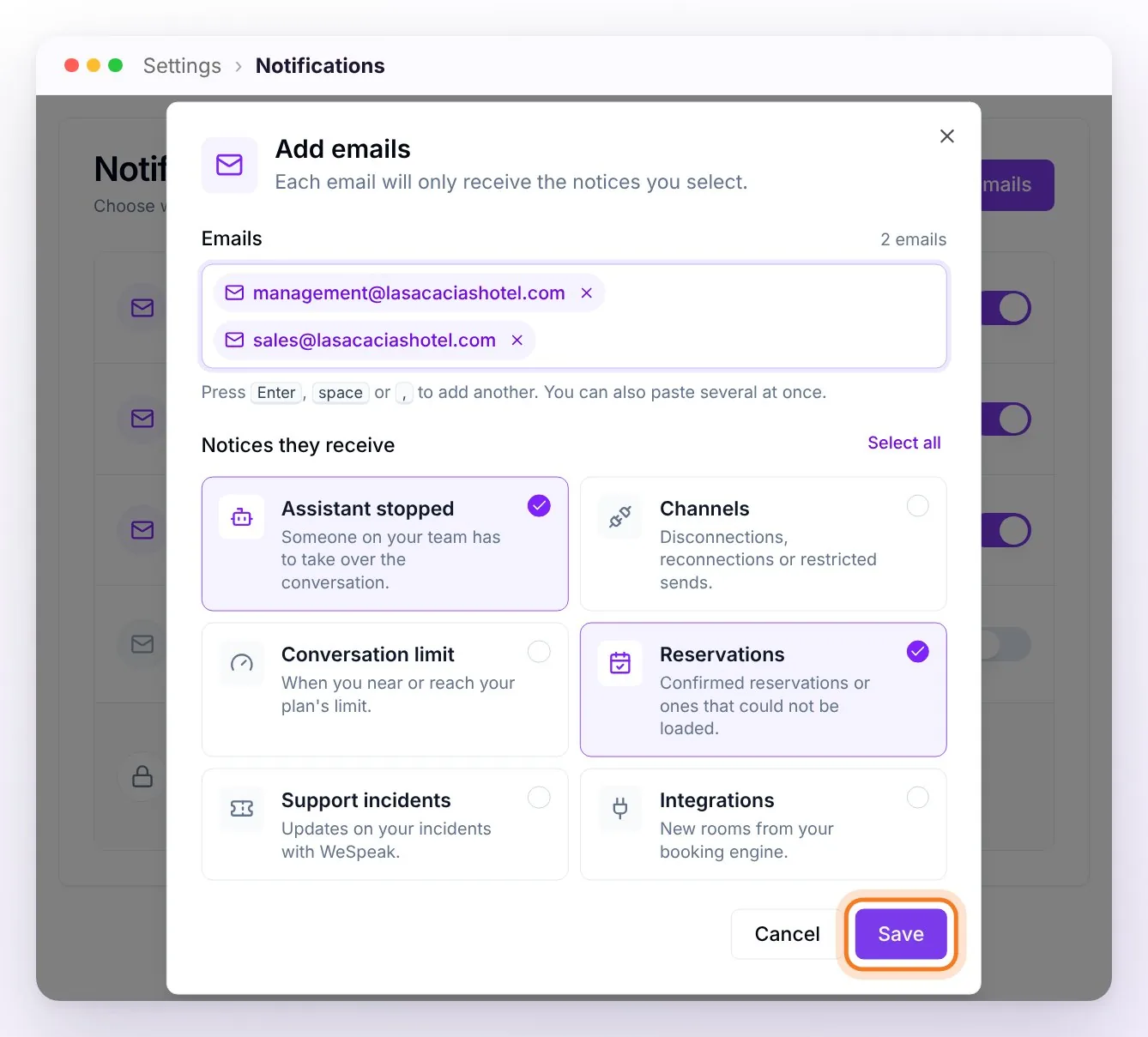
- Click Add emails.
- Type the email. To add several at once, press Enter, space, or comma after each one — or paste a whole list.
- Under Notices they receive, check the types of notice (or Select all). All the emails you add together get the same notices; afterwards you can edit each one separately.
- Save.
The billing email
At the end of the list, with a padlock, you'll find your account's Billing email. It's edited in Company (not from Notifications) and can't be paused or deleted: it always receives billing notices and conversation limit notices. If the payment notices must reach someone else —accounting, for example—, change the billing email: see Invoices and billing email.
"Nobody will get these notices by email…"
If no active email has a type of notice, the card warns you in yellow: "Nobody will get these notices by email: …". Assign that notice to an email (or turn a paused one back on) so you don't miss it.
The types of notice
| Notice | What it tells you |
|---|---|
| Assistant stopped | The assistant stopped and a person has to take over the conversation: the guest asked for an agent, wants to book, requested an invoice, a guest staying needs assistance… The email includes the context of the conversation, so you can pick it up without reading the whole history. |
| Channels | A channel disconnected or needs to be reconnected (WhatsApp, Instagram, Facebook, TikTok, email), or Meta restricted your sends (for example, because of a pending payment on your Meta account). |
| Conversation limit | You're nearing or reaching your plan's limit (80%, 95%, and 100%). It also always goes to the billing email. |
| Reservations | Each confirmed reservation and the ones your PMS or Channel Manager didn't accept ("⚠️ Reservation not registered in…"). |
| Support incidents | Updates on your incidents with WeSpeak: received, awaiting your reply, closed automatically. |
| Numbers and calls | Your virtual numbers and your call balance (WeSpeak Voice). |
| Integrations | New rooms from your booking engine that were added automatically. |
ℹ️ Numbers and calls only appears if you use WeSpeak Voice. If you don't have it yet, don't worry: emails with All notices start receiving them on their own when you start using WeSpeak Voice.
ℹ️ Billing (payment reminders, renewals, receipts, extras purchases) isn't assigned from this list: it always goes to the billing email in Company.
Details of each notice
- Channel disconnected: when WhatsApp, Instagram or Facebook lose the connection (for example, because Meta invalidated the access), you'll see the notice "Your channel has been disconnected. Go to Channels to reconnect." The same notice isn't repeated more than once every 30 minutes per channel, so as not to overwhelm you.
- WhatsApp by QR code: before notifying you, the system verifies that the disconnection is real and checks it again (at 30 and 60 minutes) — so momentary phone drops don't generate false alarms. Also, during the first 4 days after connecting the channel these notices aren't sent (it's normal for the connection to stabilize at first).
- Conversation limit: each threshold (80%, 95%, and 100%) notifies only once per cycle — you won't receive the same notice repeated.
- Incidents: if an incident stays awaiting your reply for 7 days, it closes on its own and you receive the notice "Your incident was automatically closed due to no response".
The inactivity alert
In Settings, General card, you can enable "Alert about inactivity in paused conversation after": if a conversation was paused (waiting for your team) and nobody handles it within the time you choose, you receive the reminder "Paused conversation without response". The available times range from 10 or 30 minutes, through 1 to 6 hours, up to 12 hours or 1 day — or Disabled if you don't want the reminder.
Alerts inside the panel
Besides email, the notices that need action show up in the panel, under News → Alerts (sidebar): the assistant's handoffs, your incidents, channels that need reconnecting or have restricted sends, and number and call notices. Each alert tells you the reason and takes you straight there with the View chat or View incident buttons. It's the fastest way to work the day's handoff queue.
Some of the reasons you'll see (depending on what the assistant detected):
- "User requested to speak with advisor"
- "Client wants to make a reservation"
- "Guest needs urgent assistance"
- "Invoice request" / "Client requests payment information"
- "Cancellation or modification request"
- "Price and availability query" (when it requires review by your team)
- "Conversation requires review" — the assistant preferred to stop and ask for a human look.
- "Paused conversation without response" — the inactivity reminder you configured.
- "Possible hallucination detected — assistant paused" — the quality control detected a possible incorrect reply and paused the assistant in that conversation so your team can review it.
Frequently asked questions
How do I send reservations to the front desk and channel outages to IT?
In Settings → Notifications, add the front desk email with the Reservations notice and the IT email with Channels. Each email only receives what you checked for it.
Can I stop receiving notices for a while without deleting the email?
Yes: turn off its switch and it becomes Paused. To receive them again, turn it back on; it keeps the notices it had.
I see "Nobody will get these notices by email…".
No active email has that type of notice. Edit an email and check it, or turn a paused one back on.
I can't edit or pause the billing email.
It's changed in Company. That email always receives billing and conversation limit notices.
I added an email with every notice and the invoices don't reach it.
That's expected: billing notices only go to the billing email. If that person needs them, change the billing email in Company. Details in Invoices and billing email.
I don't see "Numbers and calls" in the list of notices.
It only appears if you use WeSpeak Voice. Emails with All notices receive it on their own once you start using it.
I used to get the notice when they asked for an agent and now I don't.
Check that some active (not paused) email has the Assistant stopped notice, and check the spam folder. Keep in mind that billing always goes to the billing email in Company.
Can I get an email when the assistant ends up handing off to an agent?
Yes — it's the Assistant stopped notice: it reaches the emails that have it checked, with the context of the chat, and also as an alert in the panel.
The assistant promised to hand off to an agent and nothing reached me.
First check that some active email has Assistant stopped. If it does, report it with the thumbs down on that assistant reply: it may be a case to adjust in its stopping rules.