In the Team section of the panel you manage who accesses your WeSpeak account and with what permissions. Each person has their own user — don't share a single account: that way you can assign conversations, measure each person's work and remove access when someone leaves the team.
Team isn't in the list of sections of the sidebar: it's in your user menu. At the bottom left, click your name and choose Team. Only users with the Administrator role see it.
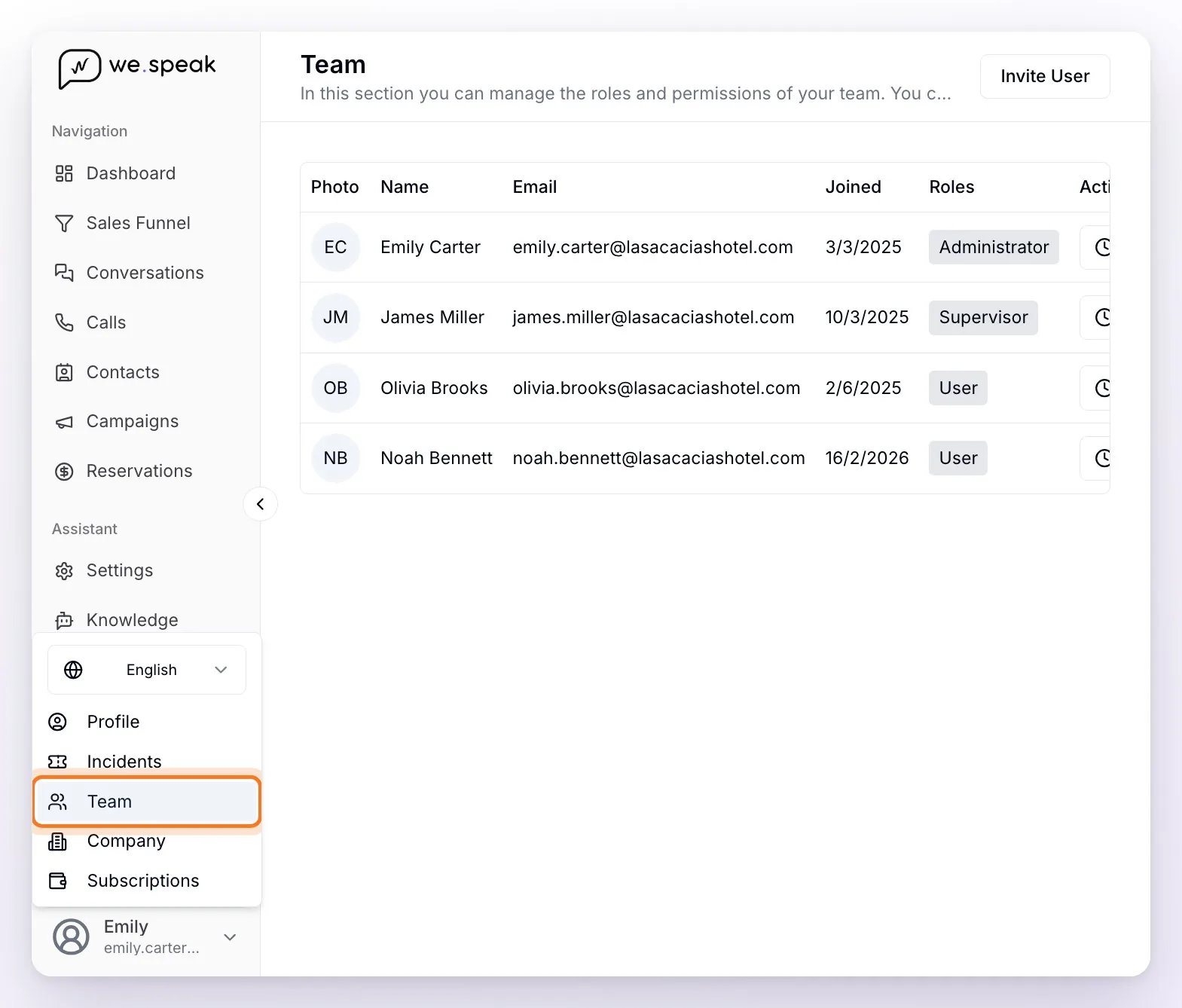
Invite a person
In Team, click Invite User (top right).
In the window that opens, choose the role (User comes selected) and type the email of the person. If the email format is invalid, you'll see the notice "Invalid email address".
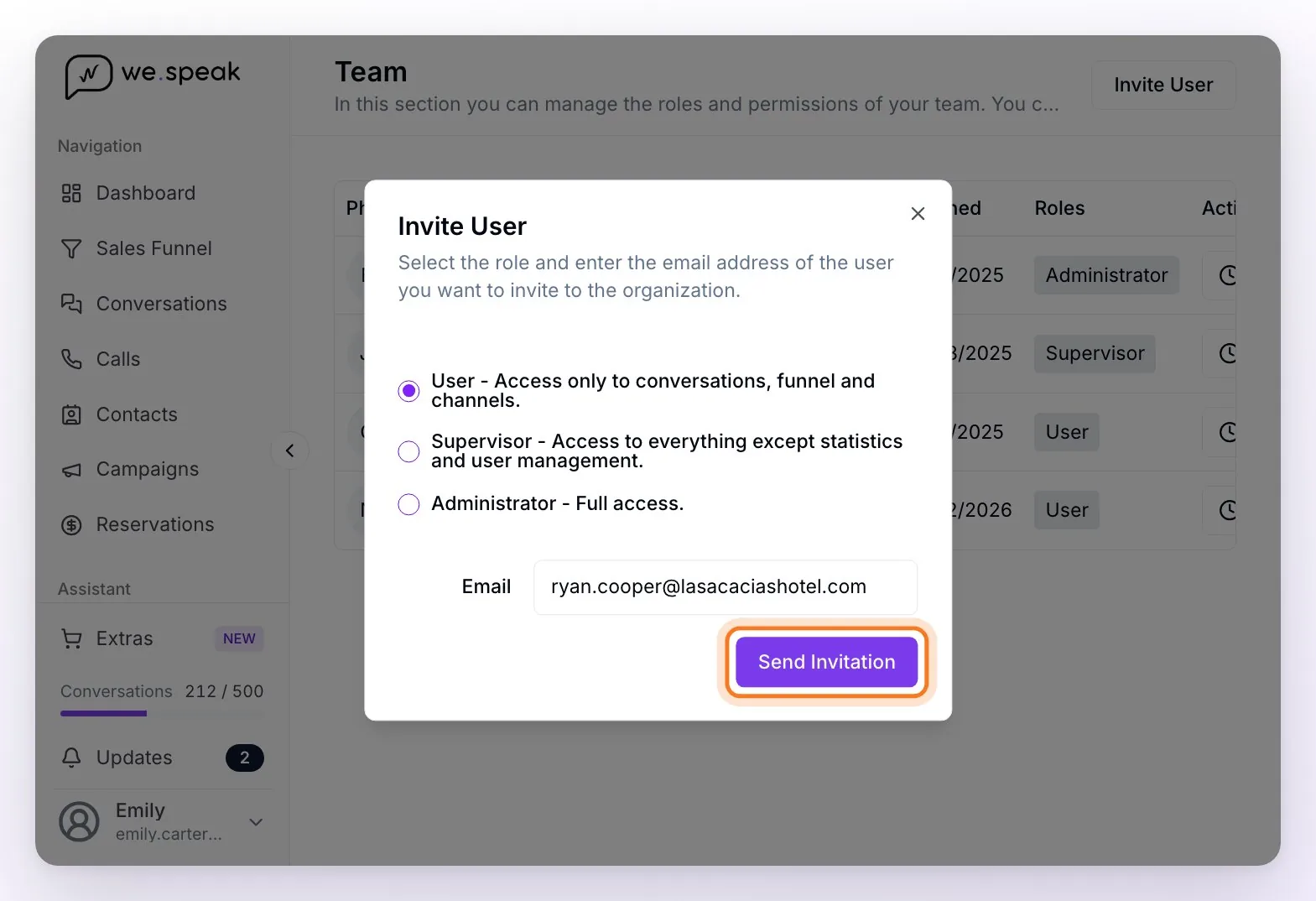
Click Send Invitation. When the confirmation "Invitation sent!" appears, the person is already part of your team with that role —they show up in the table— and they get an email from WeSpeak with a Join the team button to create their access.
ℹ️ The link in the email doesn't expire, and it's just a shortcut: the access was already created when you sent the invitation. If the email doesn't arrive or gets lost, the person can log in directly at app.wespeak.pro with that same email (they receive an access code by email).
⚠️ If the person is already in the table, don't invite them again: to change their permissions, use Edit Role. A second invitation isn't the way to change their role and can leave their access in an inconsistent state (for example, a duplicate access that later keeps them from logging in). If, on sending, "The user already exists in the organization." appears and the person isn't in the table, ask support for help.
The roles
Only one role per user is allowed. When you choose it you see a short description —Administrator - "Full access.", Supervisor - "Access to everything except statistics and user management.", User - "Access only to conversations, funnel and channels."—; this is the detail of what each one sees and does:
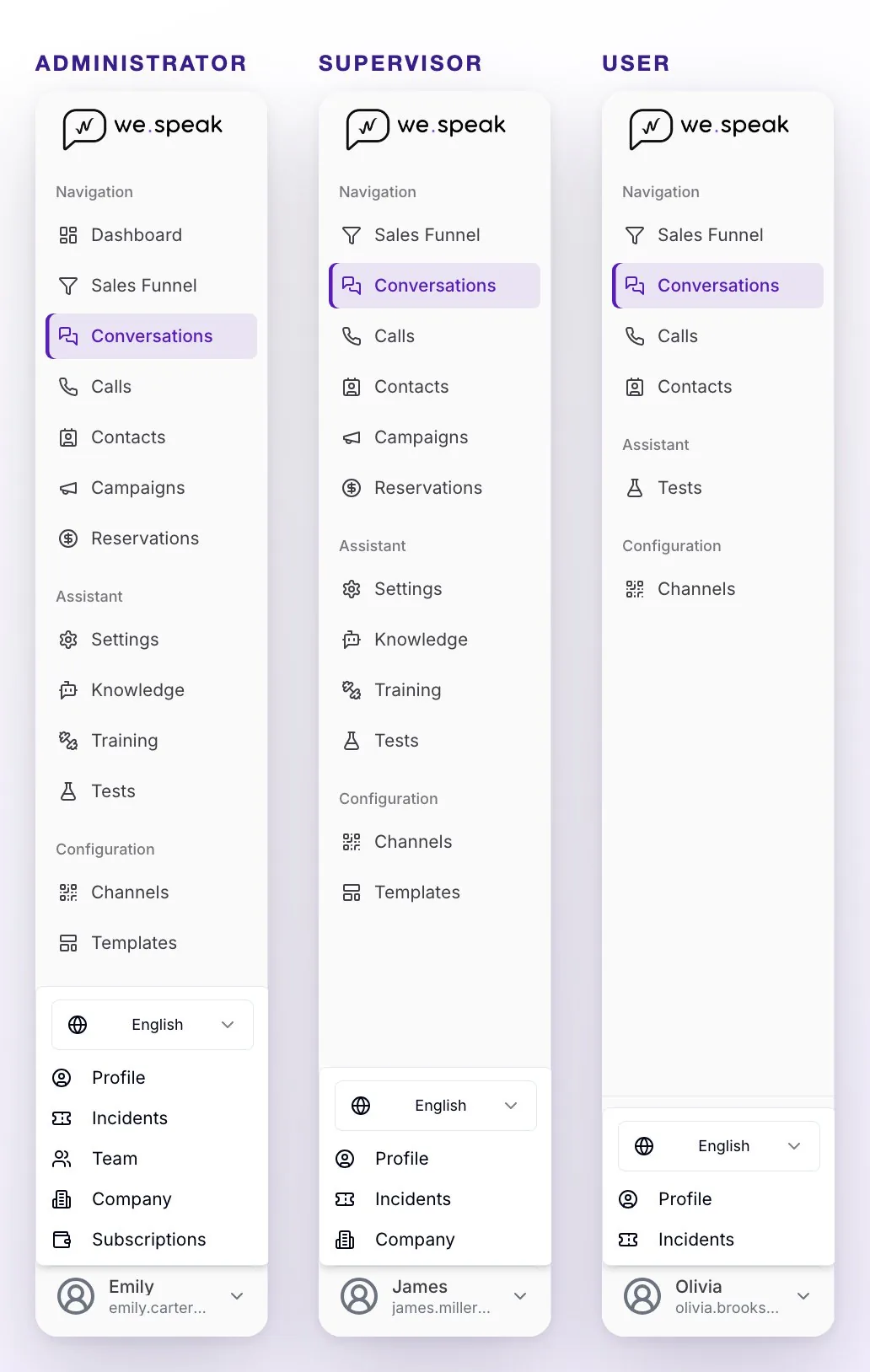
| Section or action | Administrator | Supervisor | User |
|---|---|---|---|
| Conversations, Sales Funnel and Contacts | ✅ | ✅ | ✅ (you can limit it to their own, see below) |
| Assign a conversation to someone else | ✅ | ✅ | Only to themselves |
| Calls (if your account has WeSpeak Voice) and Tests | ✅ | ✅ | ✅ |
| Channels | ✅ | ✅ | Sees them and can scan the WhatsApp QR code; can't connect Meta or TikTok channels, connect or customize Chat Web, or pause or remove channels |
| Campaigns, Reservations and Rates | ✅ | ✅ (in Reservations, without the card details) | ❌ |
| Settings, Knowledge, Training and Templates | ✅ | ✅ | ❌ |
| Extras | Buys and activates | View only | View only |
| Dashboard (statistics) | ✅ | ❌ | ❌ |
| Team (invite, change roles, delete) | ✅ | ❌ | ❌ |
| Subscriptions (plan and billing) | ✅ | ❌ | ❌ |
| Company (your company's details) | ✅ | ✅ | ❌ |
| Profile and Incidents | ✅ | ✅ | ✅ |
ℹ️ Some sections only appear if your account has them active (for example, Calls or Rates). In Reservations, credit card details are reserved for the Administrator: the Supervisor sees "Only administrators can access sensitive credit card data."
Make each User see only their own conversations
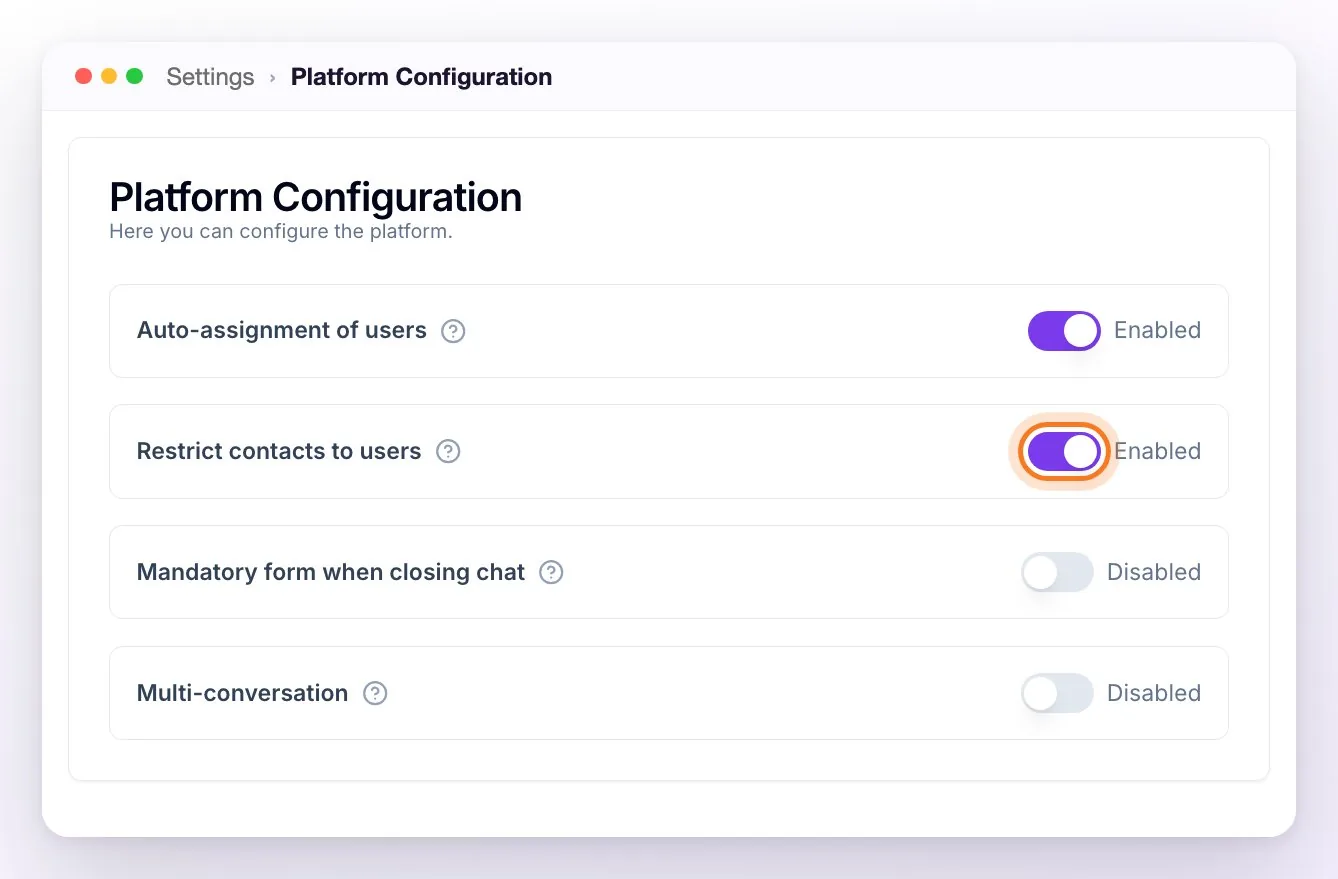
By default, a User sees every conversation in the account. If you'd rather have each person work only on their own, an Administrator or Supervisor can turn it on in Settings → Platform Configuration (the last card on the page):
- Restrict contacts to users — users with the User role only see the conversations and contacts assigned to them or unassigned, in Conversations, Sales Funnel and Contacts. Administrators and supervisors still see everything.
- Auto-assignment of users — a conversation with nobody assigned is automatically assigned to the person who sends it the first message.
Manage your team
The Team table shows each person with their Photo, Name, Email, Joined date and Roles. Until someone completes their name, they show up with the first part of their email (for example, ryan.cooper). In Actions you have three buttons per person:
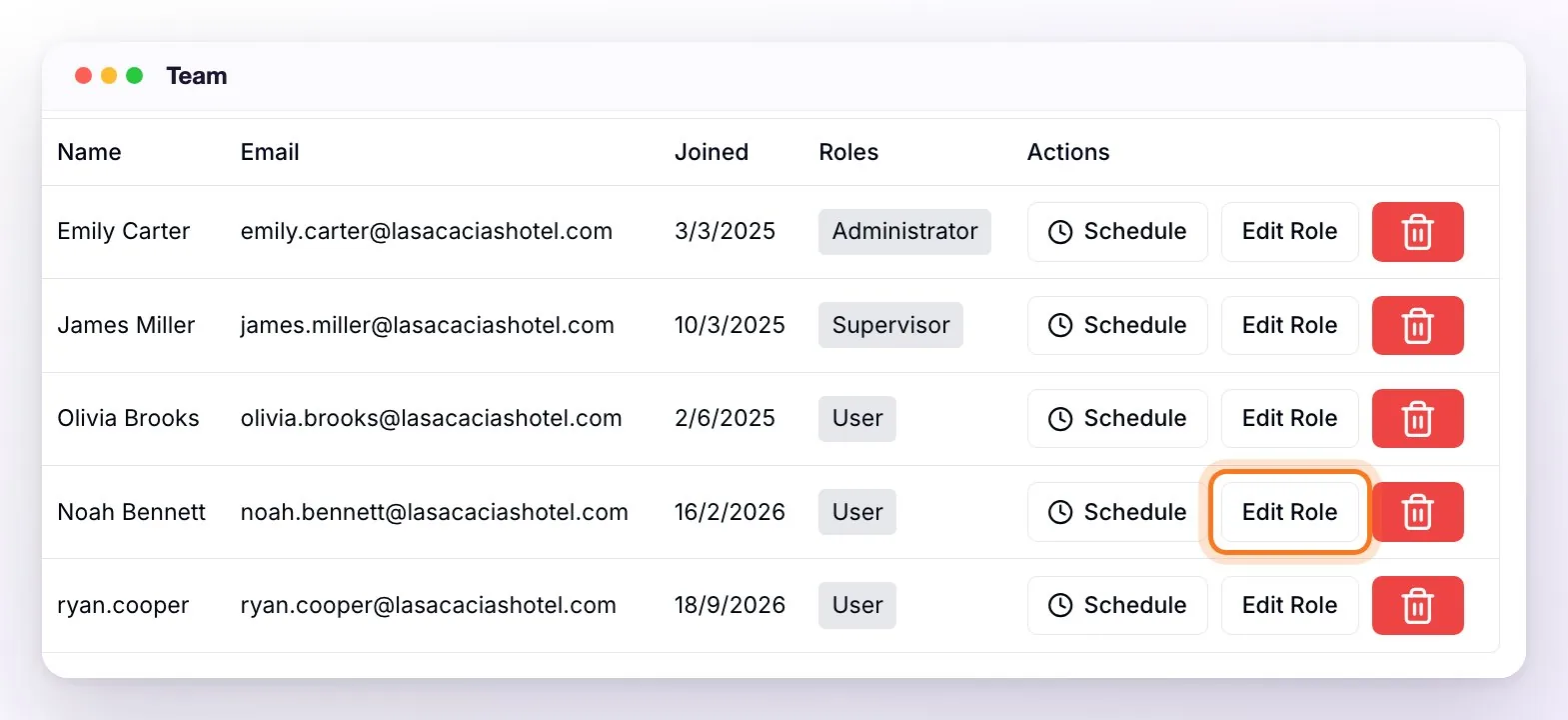
- Schedule — opens their Working hours: the days and hours when incoming calls ring for them, and their Time zone (by default, the hotel's). It's only used with WeSpeak Voice.
- Edit Role — opens the "Edit Role for [name]" window, where you choose the new role (remember: only one role per user is allowed). On Save you'll see "Role modified successfully and sessions invalidated.": that person's open sessions are closed and, when they log in again, they already have the new permissions.
- Delete (the red button with the trash can) — removes their access to your account. The panel asks you to confirm it ("Are you sure you want to delete?" — "This action cannot be undone"). The conversations they had assigned are left without that assignment. It's permanent, though you can invite them again whenever you want; and if that person also has access to other accounts of your group, they keep that access (Multi-account).
Frequently asked questions
When logging in I get "Usuario no encontrado" (user not found).
That screen (it's only in Spanish for now) means the access you logged in with isn't linked to any WeSpeak account. It usually happens when you log in with a different email than the one invited (for example, your personal Gmail instead of the hotel's email), with another sign-in method than usual (for example, with your Microsoft account instead of the code you get by email) or when you were removed from the team. On that screen tap Cerrar sesión (log out) and log in again with the exact email of the invitation and your usual method. If it's still the same, use the Contactar a soporte (contact support) button on that screen: it opens a WhatsApp chat with WeSpeak support.
I invited someone and the email didn't reach them.
Ask them to check spam and promotions. Either way, it doesn't depend on the email: since you sent the invitation they're already on your team, so they can log in directly at app.wespeak.pro with that email. If on sending you saw "Error sending email.", check the email was typed correctly; if it was wrong, delete that row from the table and invite them again with the right email.
There are several of us (front desk, reservations, management), how do I add them?
Invite each person with their own email and the appropriate role: the operational team as User, whoever coordinates as Supervisor and management as Administrator.
Who can see the statistics?
Only the Administrator role sees the Dashboard. If someone needs to see them, change their role from Team with Edit Role.
I manage several hotels, do I need a user for each one?
No: with Multi-account, the same user accesses several accounts and switches between them from the sidebar. Each account invites them with the same email, and they can have a different role in each one.