A template approved by Meta can carry an image above the text: a photo of a room, the flyer for an offer, a map with directions. It's how you send an image when you start the conversation, when more than 24 hours have passed since the guest's last message, or in a campaign.
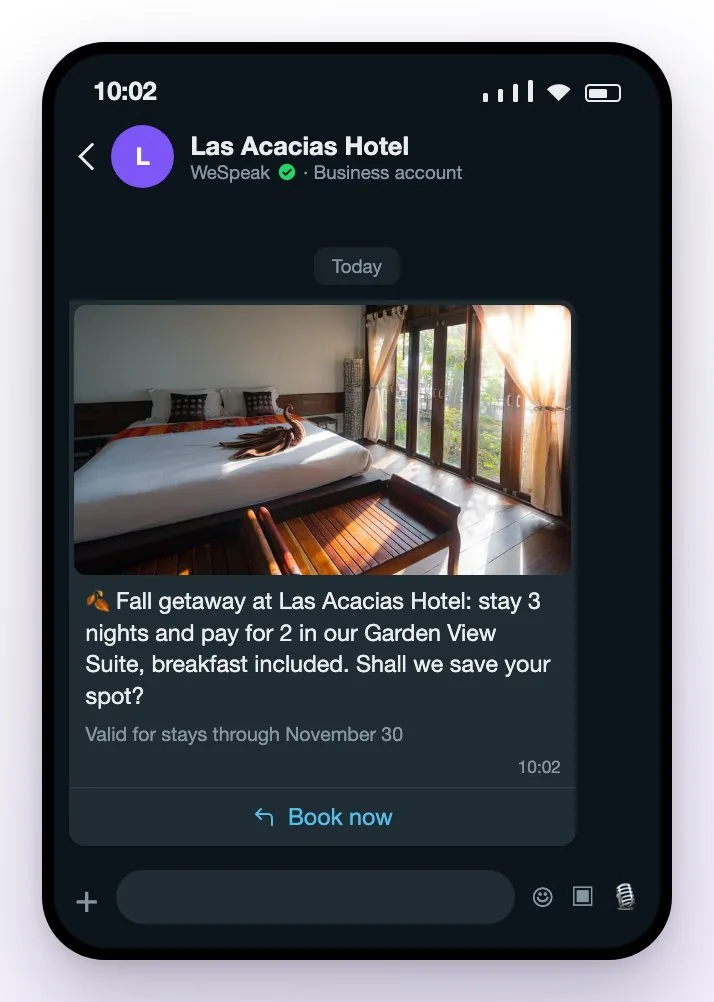
It takes three steps: the template is created in Meta (WeSpeak's builder only creates text headers), is brought into WeSpeak with one button, and is sent like any other approved template.
💡 Do you only want to send photos while the conversation is active? Within the 24 hours you don't need any of this: attach the image in the chat, or set up a quick reply with Upload files (see META Templates).
Before you start
- WhatsApp API connected in WeSpeak. The QR connection has no approved templates.
- Access to the hotel's Meta Business, with permission to manage the WhatsApp account. Usually it's whoever connected the number.
- The final image, in JPG or PNG and up to 5 MB. Landscape works best: WhatsApp shows it full width, above the message.
- A payment method on the WhatsApp account. Without it, Meta approves the template but doesn't deliver it: see How to add or change the WhatsApp payment method in Meta.
- If you have more than one WhatsApp API number, read If you have several numbers (multichannel) first.
Step 1 · Create the template in Meta
- Open Meta's template manager: in WeSpeak, go to Templates and click View in Meta Business, or go straight to business.facebook.com/latest/whatsapp_manager/message_templates
- If your business has more than one WhatsApp Business account, pick at the top the one that holds the number you'll send from.
- Click Create template and choose the category: Marketing for offers and news, Utility for notices about a booking that already exists.
- Give it a name (lowercase letters, numbers and underscores only, for example
fall_offer) and choose the language. - Under Header, choose Image and upload the photo.
- Write the Body. Optionally, add a Footer and up to 3 buttons (quick reply, website link or call).
- Click Submit for review.
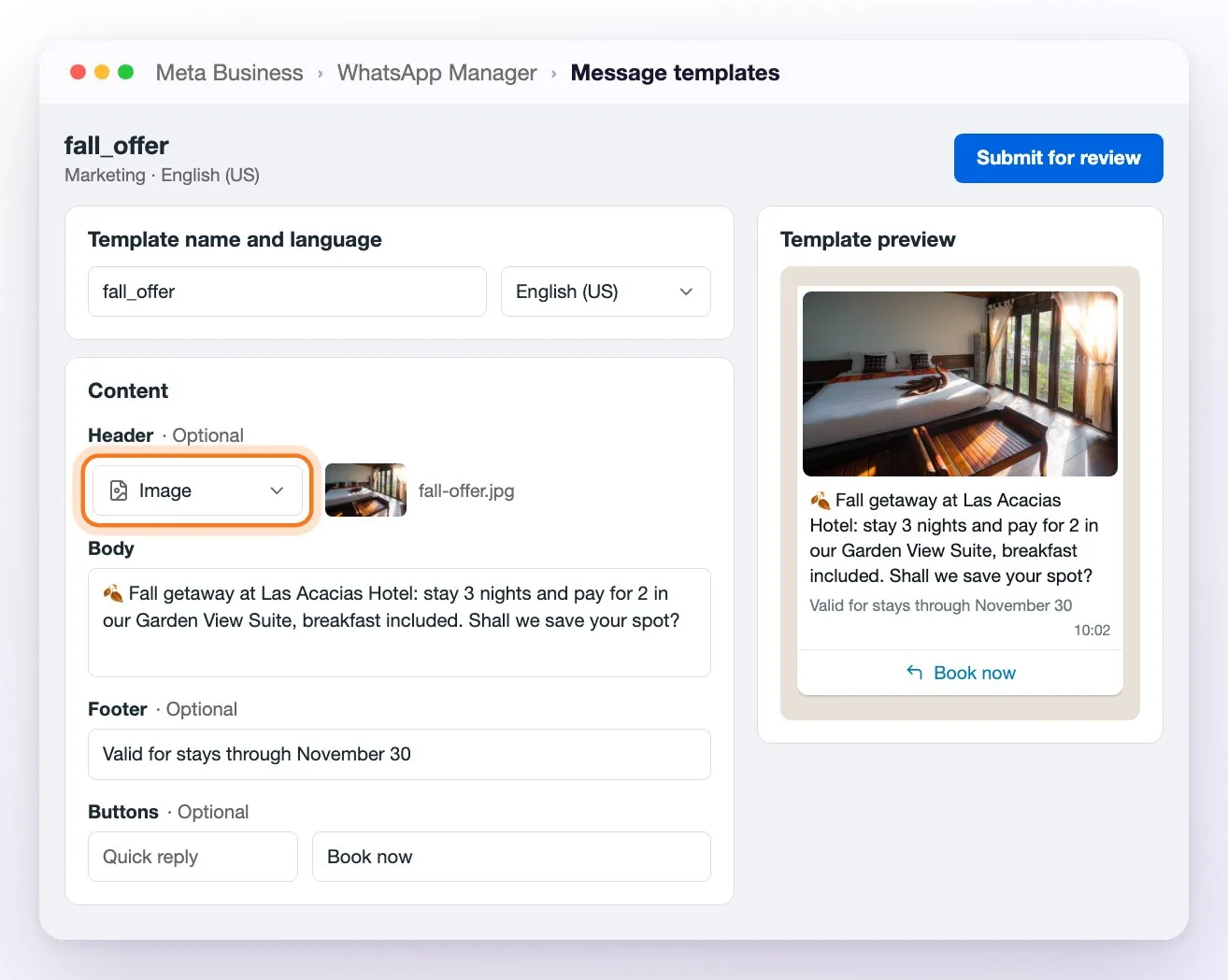
ℹ️ Meta changes the look of this screen from time to time, but the fields are the same: Header, Body, Footer and Buttons.
Three things so the template works well from WeSpeak:
- The image you upload is the image that gets sent. Meta asks for it as a sample, but WeSpeak stores that same image when it syncs and always sends it. Upload the final one.
- Use only the
{{1}}variable. WeSpeak fills it with the contact's name, and it's the only one it fills. If Meta lets you choose the variable type, choose Number. If the template is for campaigns, don't use any variables. - Write it so it gets approved. The tips and the most common rejection reasons are in How to get your template approved by Meta.
Meta usually answers within minutes, though it can take up to 24–48 hours.
Step 2 · Bring it into WeSpeak
- In WeSpeak, go to Templates (side menu, Configuration group).
- Click Sync with Meta.
- The template shows up in the list, with its image in the Files column and its status under WhatsApp Status.
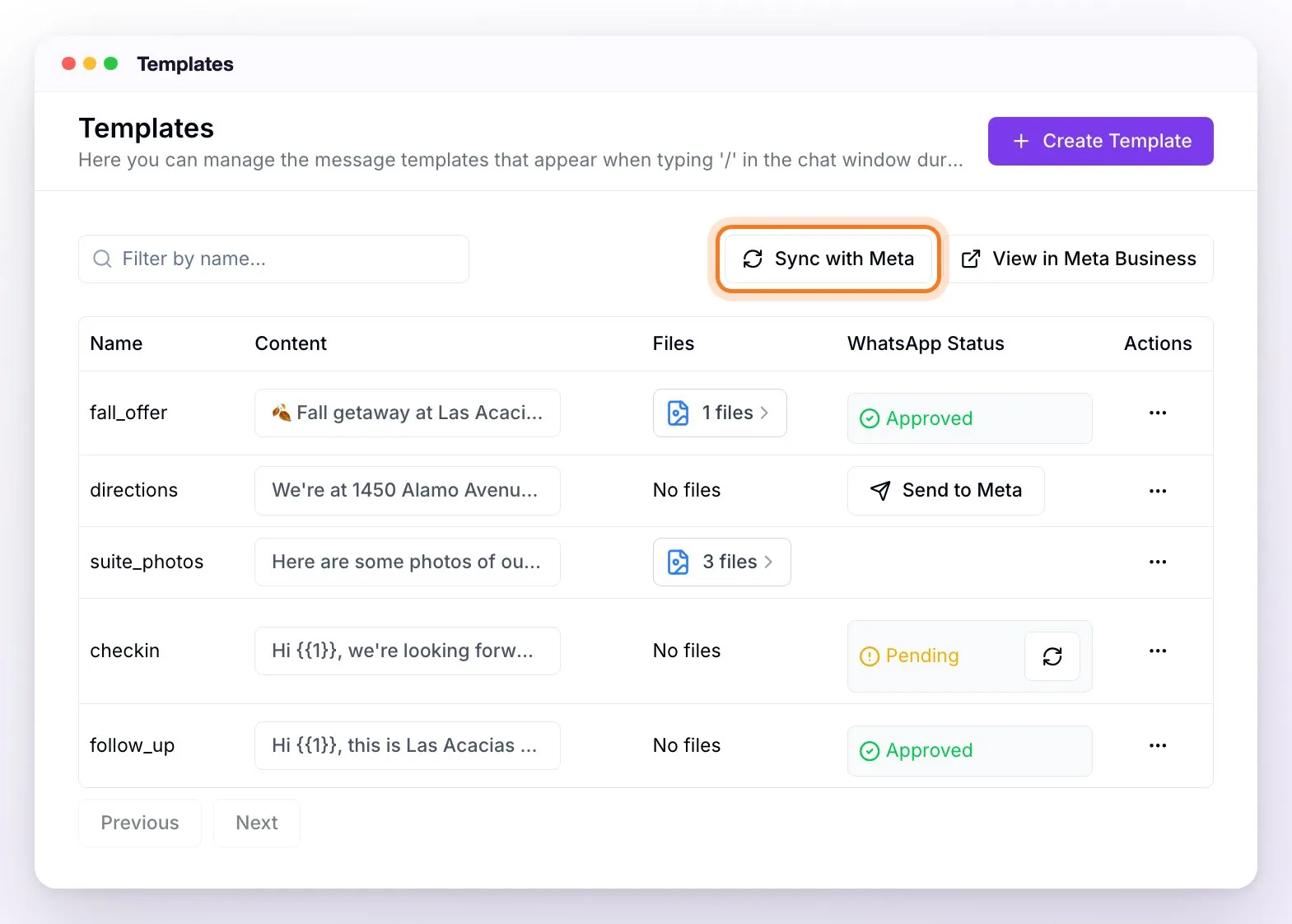
- If it says Pending, Meta is still reviewing it. Click ↻ next to the status, or sync again, until it says Approved.
- Sync with Meta brings in every template from that WhatsApp account that WeSpeak didn't have yet, not just the new one.
- You don't need to upload files to it: the image comes with the template.
Step 3 · Send it
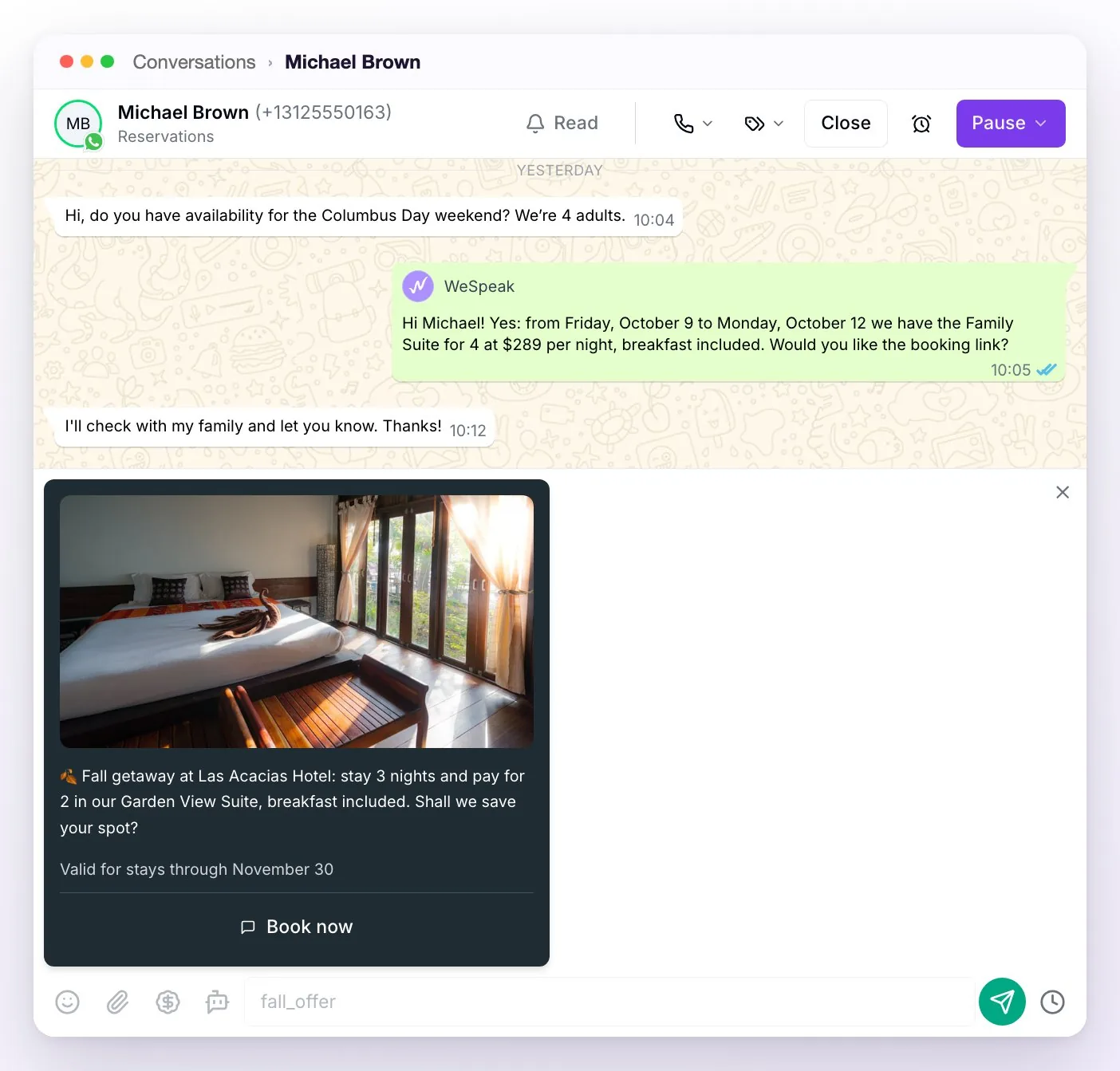
From the chat. Type / in the conversation and pick the template. You see the preview with the image, just as the guest will receive it, and you send it with the green button. After the 24 hours, the list only offers Approved templates.
In a campaign. When you create the campaign, pick the template under Select template. Remember that campaigns only accept templates without variables. The step by step is in Bulk messages (campaigns).
If you have several numbers (multichannel)
Templates don't belong to the number or to the portfolio: they belong to the WhatsApp Business account the number is in. That decides whether your numbers share them.
| How your numbers are set up | What happens with templates |
|---|---|
| In the same WhatsApp Business account | They share them. You create the template once, sync once, and it's available on all of those numbers. |
| In different WhatsApp Business accounts | They don't share them. You have to create the template in each account and sync once per number. |
ℹ️ Being in the same business portfolio isn't enough: a portfolio can hold several WhatsApp Business accounts, and each one keeps its own templates.
With two or more WhatsApp API numbers, the WhatsApp number selector appears in Templates, next to Sync with Meta. Each option carries the name you gave the channel in Channels. The list, Send to Meta and Sync with Meta all work on the chosen number.
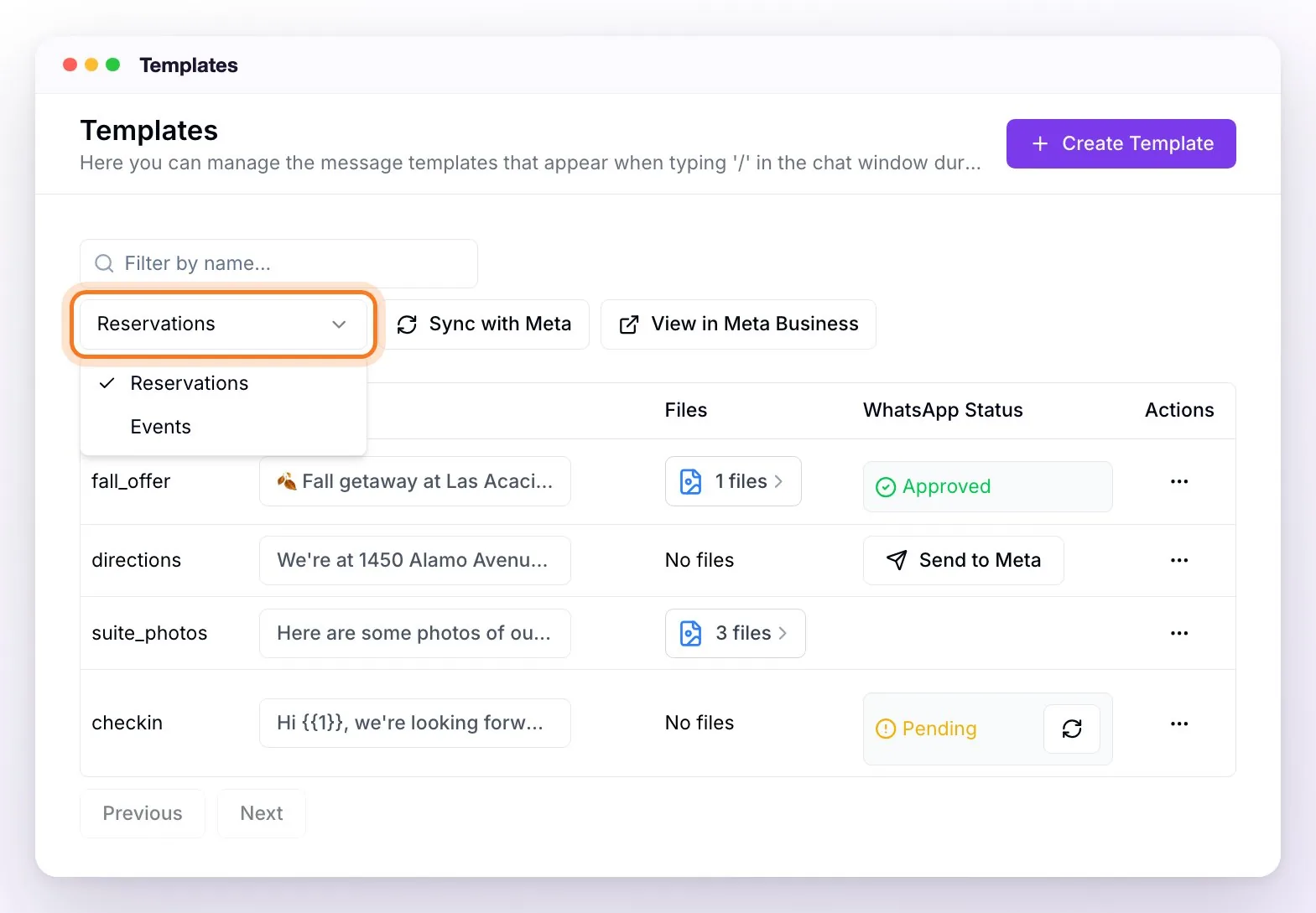
If your numbers are in different accounts, repeat this for each number:
- In Meta, pick that number's WhatsApp Business account at the top and create the template there. It can have the same name.
- In WeSpeak, under Templates, choose that number in WhatsApp number.
- Click Sync with Meta.
Not sure whether your numbers share an account? Sync with one number chosen, then switch to the other one in the selector. If the template is still in the list, they're in the same account; if it's gone, they're in different accounts. You can also check in Meta Business settings, under Accounts → WhatsApp accounts, or ask your WeSpeak advisor.
When sending, each conversation uses its own number's templates: in the chat, / shows only those of the account that conversation's number is in, and in a campaign, those of the sending number you choose.
💡 Each WhatsApp Business account has its own payment method. If you use more than one, check that all of them have one.
Frequently asked questions
Can I create the template with an image directly in WeSpeak?
No. WeSpeak's builder creates text headers. And if you upload files to a template created in WeSpeak, it can no longer be sent to Meta: it stays as a quick reply to use within the 24 hours.
I synced and the template doesn't show up.
Most often it was created in another WhatsApp Business account. If you have several numbers, change the WhatsApp number selector and sync again. If you have just one, check in Meta that the template is in the account of the number connected to WeSpeak.
Can I change a template's image?
Not on the same template. WeSpeak sends the image it imported the first time, even if you edit the template in Meta afterwards. To use another image, create a new template with a different name and sync.
Does it work the same with a video or a PDF?
Yes. Under Header you choose Video or Document instead of Image, and the rest of the process is the same.
The template is approved but the guest doesn't get it.
Nearly always the WhatsApp account is missing a payment method. The causes and how to check them are in How to get your template approved by Meta.
How much does it cost to send?
Meta charges for it, depending on the recipient's country and the template's category. The image doesn't change the price. See WhatsApp costs (Meta).