A template is a pre-built message that your team inserts into the chat by typing /. They serve two distinct purposes — and understanding the difference resolves most questions:
- Quick replies: texts you use often (welcome, directions, policies) and want to insert with a couple of keystrokes while the conversation is active.
- Meta-approved messages: the only ones WhatsApp allows you to send to start a conversation or to write after 24 hours from the customer's last message.
The 24-hour rule (why approved templates exist)
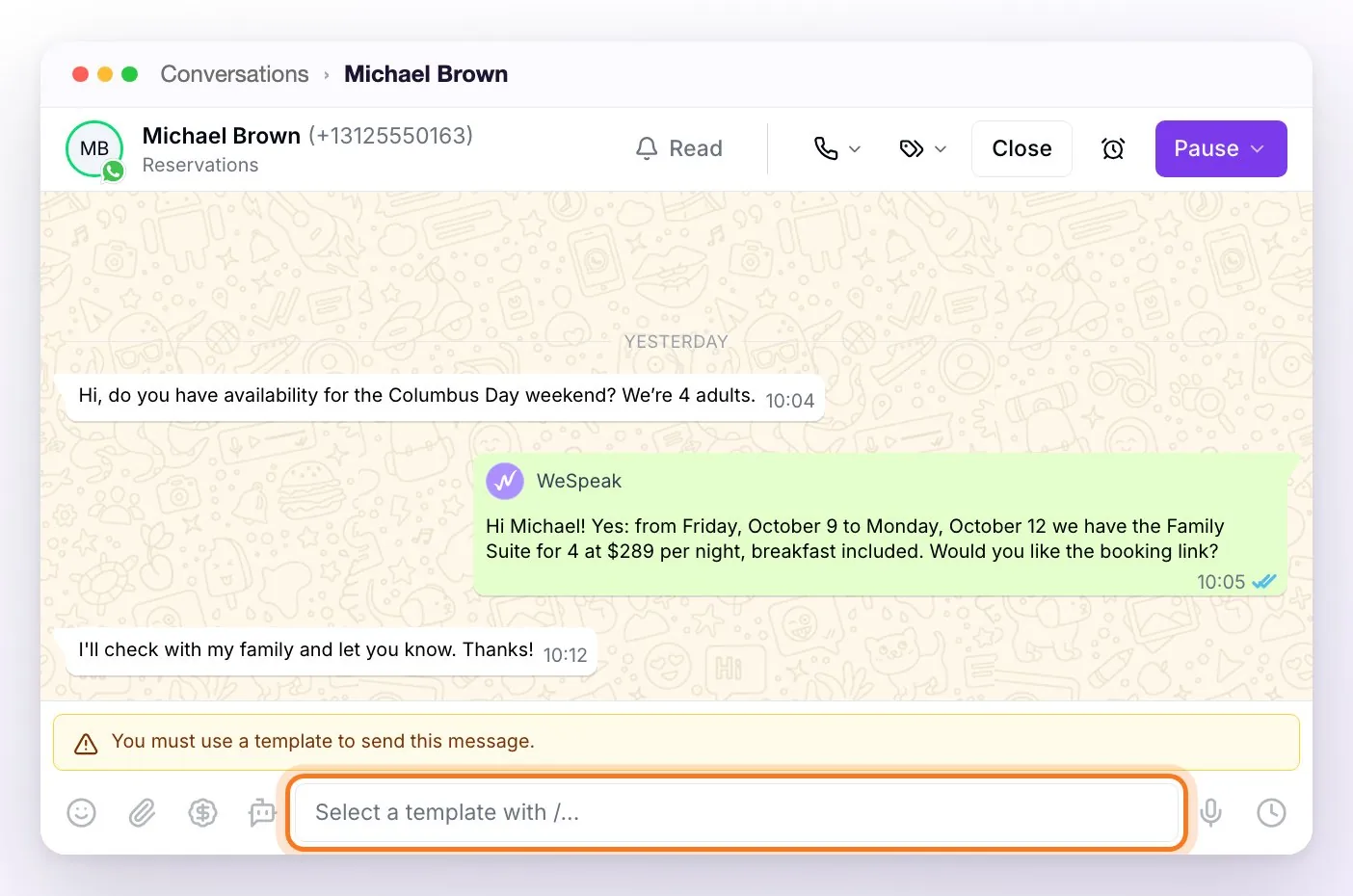
On WhatsApp API, you can write freely during the 24 hours after the customer's last message. Past that window — "I talked to the person yesterday and today it won't let me write to them" — or when you're the one starting the conversation, WhatsApp requires a Meta-approved template. The compose box tells you so: it shows "Select a template with /..." and the notice "You must use a template to send this message.", and emojis, attachments and voice messages stay disabled until you pick one.
💡 Templates you use within the 24-hour window as quick replies don't need approval: they're inserted as editable text and that's it. Only the ones that open a conversation (or reopen an expired one) need approval.
Create and manage your templates
Everything lives in the Templates section of the side menu (Configuration group). Administrators and supervisors of the account can see it; users with the User role can't open the section, but they do use templates in the chat with /.
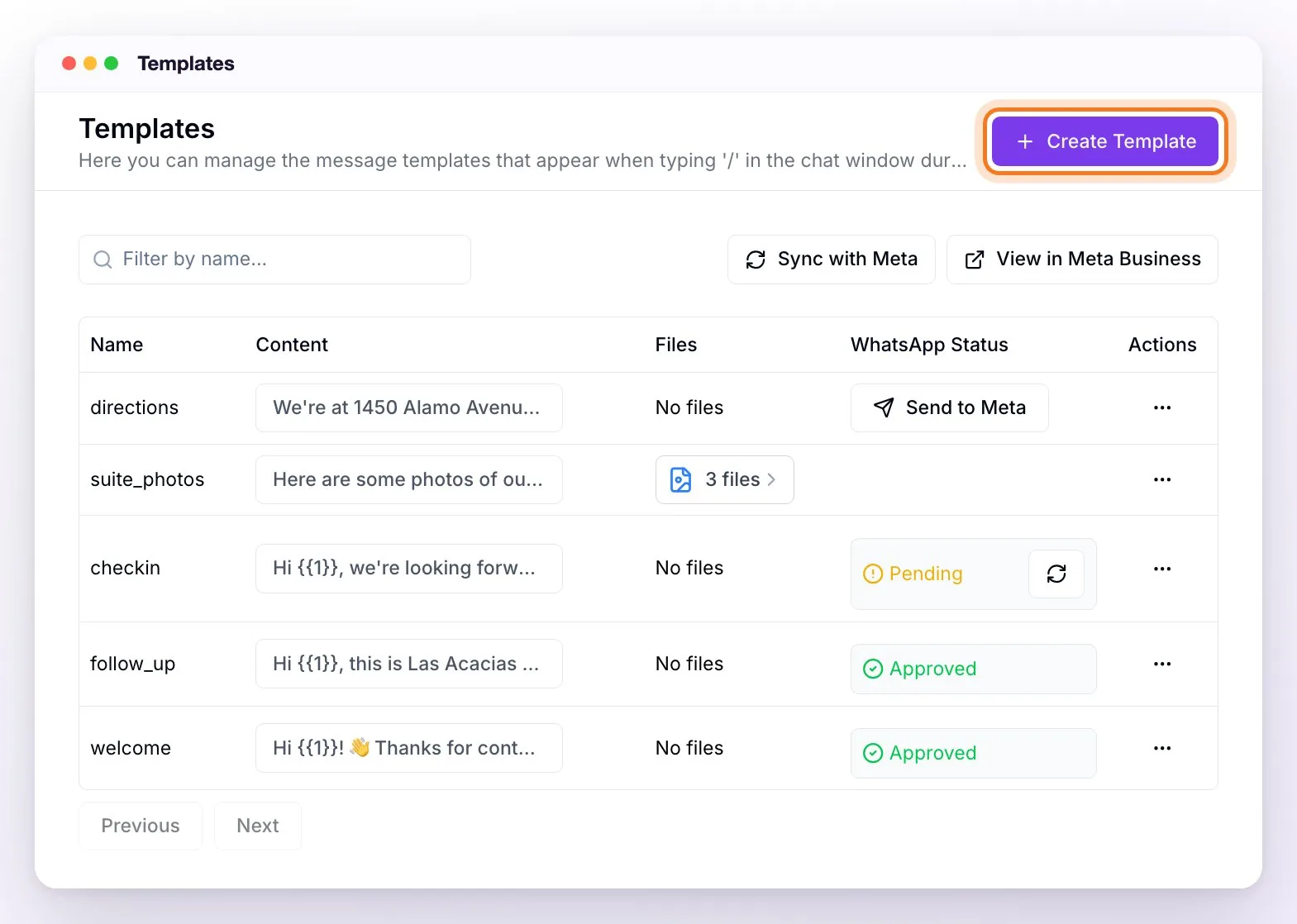
- Create the template with Create Template: the Template Name (lowercase, numbers, and underscores only, e.g.
customer_welcome) and the message Body. If you have WhatsApp API connected, you can also add — optionally — a Header (short title, maximum 60 characters), a Footer (maximum 60 characters), and up to 3 buttons — that's Meta's limit — of type Quick Reply, Web Link (text + URL), or Call (text + phone number in international format, with +). Each button's text can be up to 20 characters. - With the Insert customer name {{1}} button, the message greets each contact by their name automatically.
- If you're going to use it outside the 24-h window or in campaigns, send it for approval: in the list, in that template's WhatsApp Status column, click Send to Meta, choose the Language — Spanish (Spain or Latin America), English, Portuguese, or French — and the Category (Utility, Marketing, or Authentication), and confirm with Send to WhatsApp.
- The status stays in that same column: Pending → Approved or Rejected (with the reason: "Reason: …"). Meta usually responds within minutes, although it can take up to 24–48 hours; until it's approved, the ↻ button next to the status refreshes it without reloading the page.
ℹ️ A template already sent to Meta can't be edited (Edit template is disabled): create a new version and send it for approval. With Sync with Meta you bring into WeSpeak the templates you've created directly in Meta Business (including those with an image, video, or document in the header), and the status of the ones you already sent is updated. View in Meta Business opens Meta's template manager in a new tab, where you look the template up by its name.
🖼️ If you want an approved template to be sent with an image, you have to create it from Meta, not from WeSpeak. In Meta Business you create the template with the image in the header; then bring it into WeSpeak with Sync with Meta and it's ready to be sent with that image. WeSpeak's builder only creates text headers, and a template you upload files to can no longer be sent to Meta (Send to Meta disappears): it stays as a quick reply to use within the 24 hours. You can create the template directly here: business.facebook.com/latest/whatsapp_manager/message_templates — the step by step, with images, is in How to create a template with an image.
Other useful actions, in each template's ⋯ menu:
- Upload files: attach images, videos, audio, or PDFs to the template (up to 3 MB per file). When you use it as a quick reply, the files are sent along with the text, which goes as the caption of the last file.
- Delete: removes the template from WeSpeak and from Meta too, where it can't be recovered. If WeSpeak can't delete it from Meta — for example, because that number is no longer connected — it deletes it only from the panel and lets you know so you can remove it manually from Meta Business Manager.
ℹ️ If you have the Email channel connected, under Template Type you can also create email templates: they don't go through Meta and are used from the email editor.
Use them in the chat
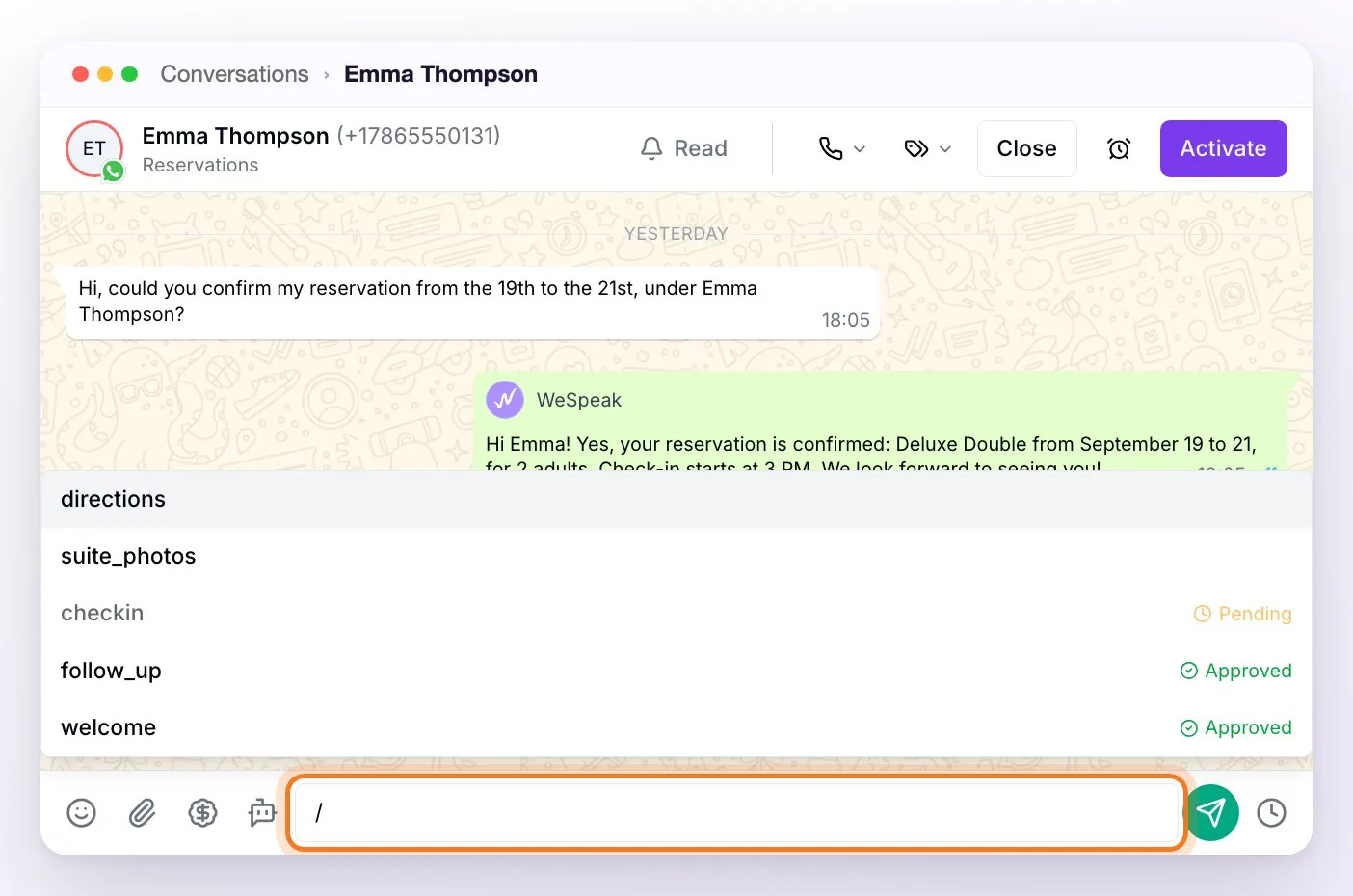
Type / in the compose box of any conversation (except email ones): the template list opens. You can keep typing to filter by name, move with the ↑↓ arrows, pick with Enter, or close the list with Esc.
What happens when you pick one depends on the channel and on the 24-hour window:
- WhatsApp API, within 24 h: the templates you didn't send to Meta are inserted as editable text (with their files, if any): adjust them and send. Approved ones are sent exactly as Meta approved them. Pending or rejected ones show up disabled, with their status.
- WhatsApp API, after 24 h or in a conversation you start: only that number's Approved templates show up.
- WhatsApp QR, Instagram, Facebook, TikTok, and Chat Web: every template is inserted as editable text.
When you pick an approved template you see a preview of it exactly as the guest will receive it, with an ✕ to discard it and choose another. Meanwhile the compose box is locked: the template is the message.
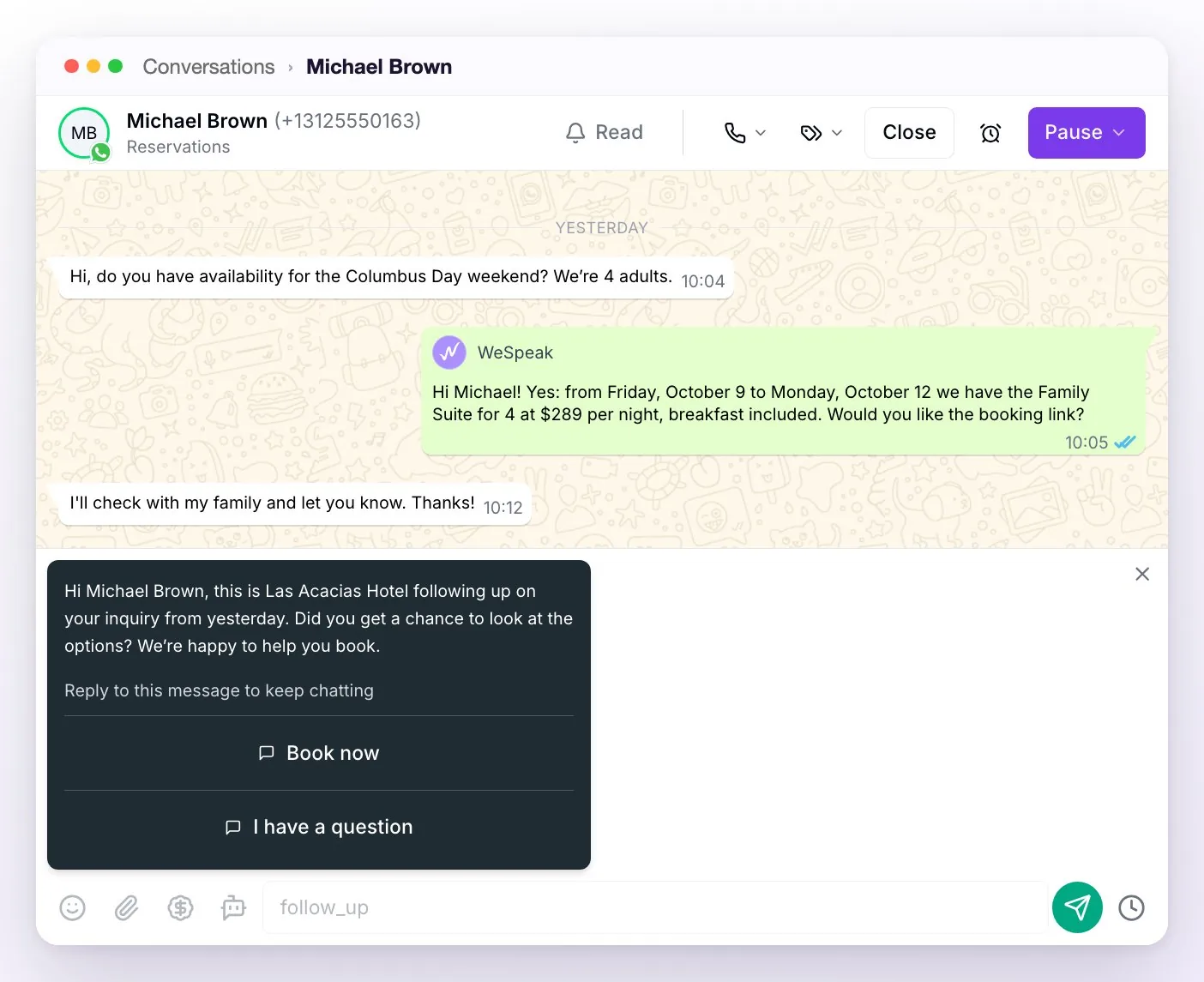
- {{1}} is replaced on its own with the contact's name. It's the only variable WeSpeak fills in: in a template that's inserted as text you can fill in the others by hand before sending, but an approved template is sent as is, so an approved one with more variables can't be sent from the chat. In the ones you'll send approved, use only {{1}}.
- Outside 24 h, each message needs its own template — until the customer replies and the window reopens (the compose box unlocks instantly, without reloading).
ℹ️ If you have several WhatsApp API numbers connected (multichannel), the WhatsApp number selector appears in the Templates section: the list, Send to Meta, and Sync with Meta work on the chosen number. Numbers in the same WhatsApp Business account share approved templates. If your numbers belong to different WhatsApp Business accounts — even within the same portfolio — the approved template is available only on that number's account (on the others it doesn't show up, or it appears as Not available on this number; to use it there, create a new template and send it to Meta with that number selected). In the chat, / shows only the templates of that conversation's number.
💡 Rejected, or approved but not arriving? The full step by step — how to write it so it's approved, which category to pick and what to check when it isn't delivered — is in How to get your template approved by Meta.
Frequently asked questions
My template is approved but it doesn't get delivered.
The most common cause is on Meta's side, not the template: you need to set up the payment method and currency in your Meta Business Manager (template messages are a paid Meta service). Complete that and try again: the step by step with screenshots is in How to add or change the WhatsApp payment method in Meta.
I type / and it says "No templates are available on this WhatsApp number."
That number has no templates to offer you right now: after 24 hours only Approved ones are listed, and only those in that number's WhatsApp Business account. Check in Templates (with that number selected, if you have several) that the template is Approved; if it was approved on another number, create it and send it to Meta from this one too.
My approved template doesn't show up when creating a campaign.
Campaigns only accept templates without variables: if the content has {{1}} (or another variable), it isn't listed. Create a version without variables and send it for approval.
How much do templates cost?
Within the 24-h window, quick replies have no extra cost until September 30, 2026; from October 1, 2026 Meta also charges service messages once the free quota of 1,000 per number per month is used up (see WhatsApp costs (Meta)). Template messages that open a conversation are charged by Meta depending on country and category — official rates: https://business.whatsapp.com/products/platform-pricing. When building a campaign, WeSpeak shows you the approximate cost per message.
Can I make a closing template, not just a welcome one?
Yes — you can create templates for whatever you want (closing, reminder, payment details). Remember: only the ones sent outside the 24-h window need approval.
I need to reopen yesterday's inquiries and it asks me for a template, is that right?
Yes: if more than 24 h have passed since the customer's last message, it's the only way WhatsApp allows. Create the template, send it for approval, and then send it with /.
Is there a free alternative to pick a chat back up after it's expired?
On WhatsApp API no: WeSpeak connects the number as pure API — we don't offer coexistence mode with the phone app — so the only way to pick a chat back up after it's expired is the template. On the QR connection there's no 24-h window, so you can write whenever you want.
I sent a template to another company and they say it didn't arrive.
WhatsApp doesn't deliver templates between two numbers that use the WhatsApp Business API: the recipient sees it as an "unsupported message" or doesn't see it at all. Even so, the recipient's 24-h window opens anyway, so that company can now write to you with free text. If the other company also uses WeSpeak, the template content is recovered and shown normally in their inbox.
Do templates work on Instagram, Facebook, or TikTok?
As text quick replies, yes (with /). But the approved-template system is exclusive to WhatsApp: on Instagram/Facebook the window to reply is 7 days and on TikTok 48 hours from the user's last reply (once expired, TikTok only allows 3 more messages until they reply again) — there's no template that reopens those windows; you have to wait for the user to write again.