The deposit, taxes and currency define how much the guest pays at booking. Without WeSpeak Rates, your reservations page setup applies; with Rates, each rate can have its own payment policy.
ℹ️ This guide is part of WeSpeak Payments, which has the list of what has to be ready before you start.
In this article
- Payment policies (with WeSpeak Rates)
- The deposit
- Taxes
- Currencies and conversion
- Frequently asked questions
Payment policies (with WeSpeak Rates)
If you use WeSpeak Rates, each rate has its payment policy, and that policy can decide which payment methods the guest sees and how much is charged at booking: for example, the "Non-Refundable" rate can charge the full amount, the "Flexible" one a deposit and the "Corporate" one just save the card. Without Rates there are no payment policies: your reservations page setup applies (see Payment methods).
The policies are in Rates → Policies: Cancellation Policies at the top and Payment Policies below. WeSpeak creates three of each as examples (System origin: you can edit them, but not delete them or change their code); the ones you create with Create Policy show as Custom. To edit a policy, click its pencil.
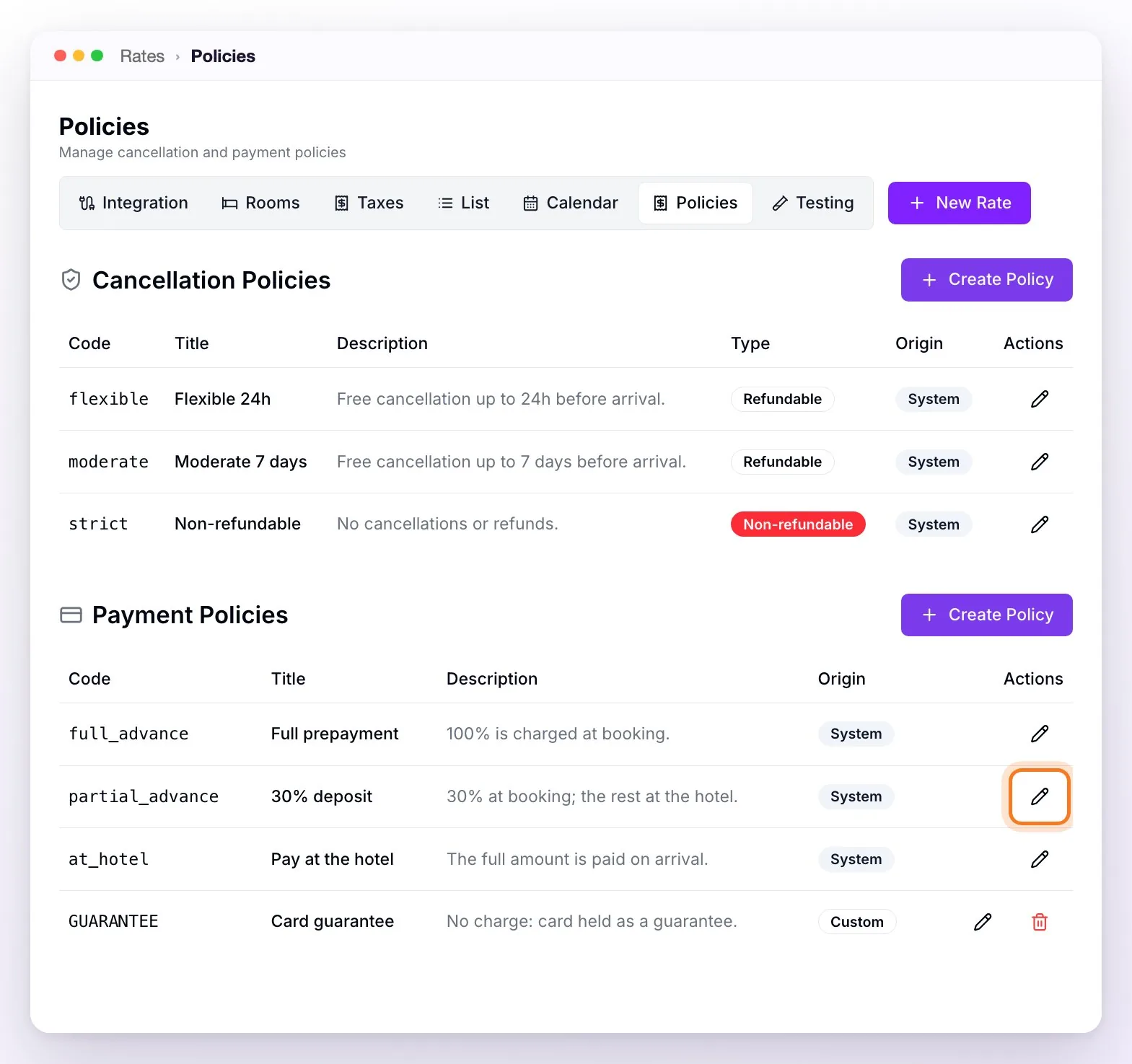
A payment policy has two parts:
Code, Title and Description, which are shared by the whole account. The description is what the assistant explains to the guest and what the guest reads in the Terms and Conditions on the payment page.
Checkout Configuration and Deposit (with WeSpeak Payments active): which payment methods are shown —only the ones you've already connected appear— and how much is charged at booking. This part is per property: if you have several, you edit the one selected at the top, in Rates.
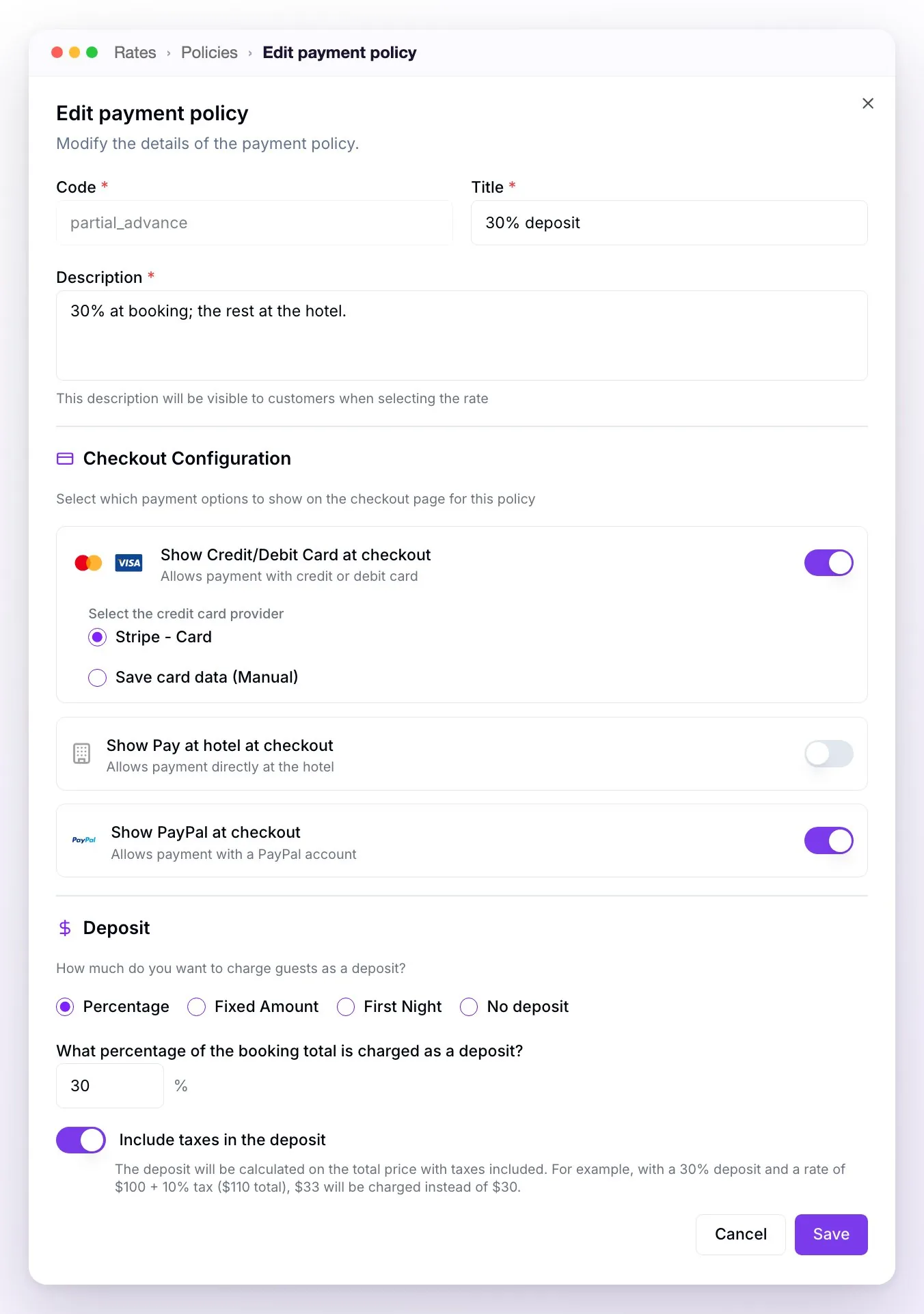
The description never changes the charge: if it says "30% is charged", set up a 30% deposit. The three example payment policies come with just a title and a description: until you set up their checkout, they charge according to the default setup, not according to what their description says.
⚠️ Changes are saved with Save, and when you save a policy in Rates, what you see in its Checkout Configuration becomes its setup for that property. Check that section before saving, even if you only changed the text: if all the methods are left off, the rates with that policy can't be booked.
This is how the three most common policies are built:
| Policy | Payment methods | Deposit | What happens at booking |
|---|---|---|---|
| Full prepayment | Show Credit/Debit Card at checkout with your gateway (or Mercado Pago, PayPal…) | No deposit | The full amount is charged. |
| 30% deposit | The card with your gateway and, if you like, Show Bank Transfer at checkout | Percentage 30, with Include taxes in the deposit | 30% of the total is charged; the rest stays as To Pay on the reservation. |
| Card guarantee | The card with Save card data (Manual) | No deposit | Nothing is charged: the card details are saved and you charge it later. |
Which setup applies to each reservation
- If the rate's payment policy has its own checkout setup for that property, that one applies: its payment methods replace all the ones in the default setup (the ones you leave off aren't offered) and its deposit replaces the default one (if you don't choose a deposit type, the default one is kept).
- If the policy doesn't have its own setup, the property's Default checkout configuration applies (the one in the Payment methods tab).
- A payment method that isn't connected is never shown, even if the policy has it turned on.
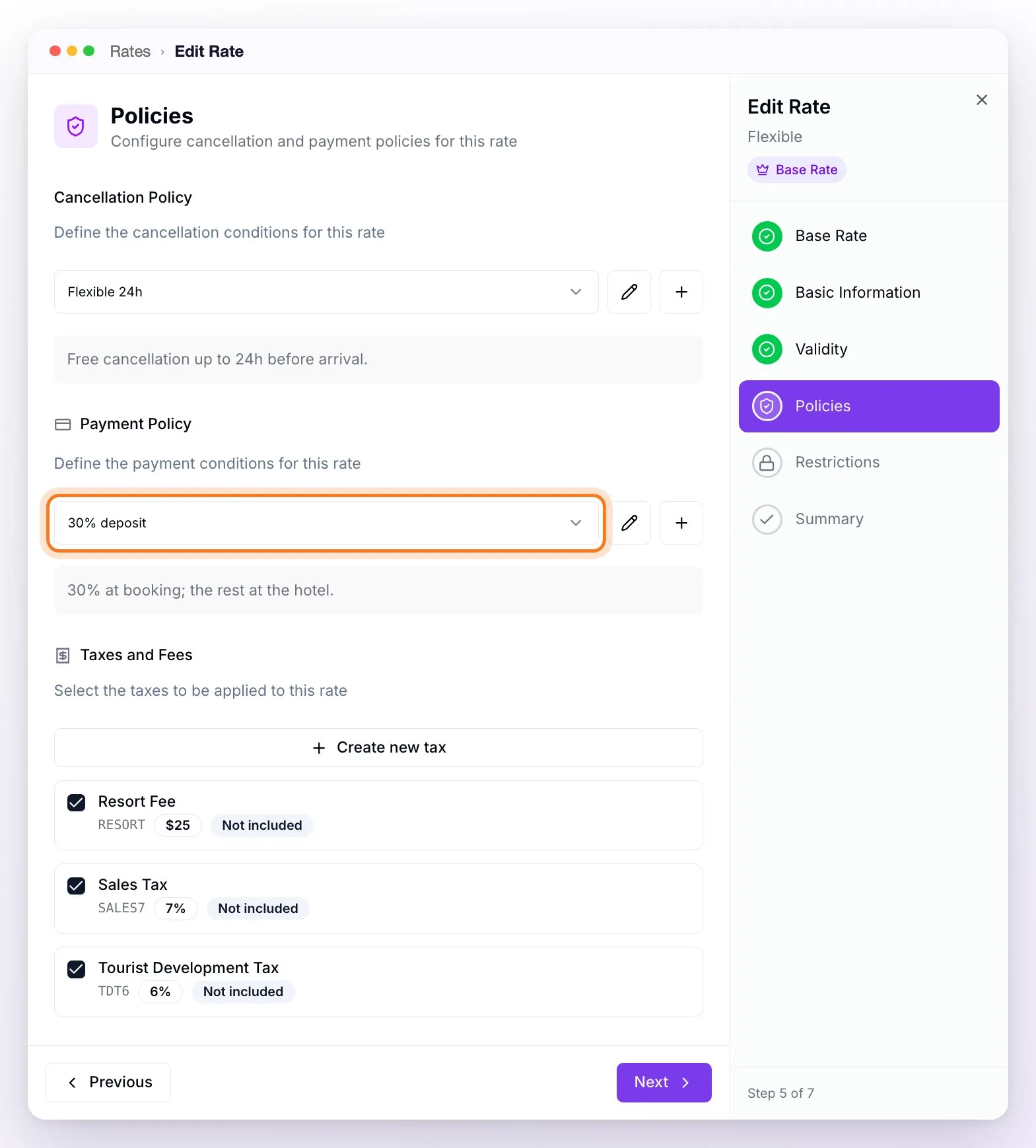
The policy is assigned to each rate in the Policies step of the rate's wizard (when you create it, or from List, by clicking its name): the Cancellation Policy and the Payment Policy are required. With the pencil you edit the selected policy (its checkout too) and with + you create a new one without leaving the wizard. In that same step you choose the rate's Taxes and Fees (see Taxes).
You can also set up each policy's checkout from Knowledge → Price and Availability → Payments configuration, Payment methods tab: in Checkout per Payment Policy, at the very top, you choose the policy in Select a payment policy... and adjust its title, description, payment methods and deposit. There, changes are saved by themselves, and the policies that already have their own setup for that property carry the Customized badge. Below is the Default checkout configuration: the one that applies when a rate's policy doesn't have its own.
ℹ️ If you don't see Checkout Configuration when you edit a policy, your account doesn't have WeSpeak Payments active yet (see Activate WeSpeak Payments).
Cancellation policies
Each cancellation policy has a code, title, description and the Refundable policy switch, which marks it as Refundable or Non-refundable. It's informational: WeSpeak doesn't issue refunds (they're done from your gateway's dashboard). With WeSpeak Rates, the description of the rate's cancellation policy is what the guest reads in the Terms and Conditions on the payment page and in the confirmation email: write it with your real conditions. Without Rates, they read your Cancellation Policy and Property Information text (see Payment methods): don't leave it empty.
The deposit
The deposit defines how much is charged at booking. Each property's deposit is set in the Payment methods tab, in the Deposit block (see Payment methods); with WeSpeak Rates, each payment policy can have its own (see Payment policies).
| Deposit type | What's charged at booking |
|---|---|
| Percentage | That percentage of the total. With Include specific taxes and fees in the deposit, of the total with taxes; without it, of the price without taxes. |
| Fixed amount | That amount, once per reservation: it isn't multiplied by nights or rooms. |
| First night value | The value of an average night: the total of the stay divided by the number of nights (with or without taxes, according to the same switch). |
| Do not charge advance deposit | With the methods that charge online, the reservation total. |
In the payment policy, the same options are called Percentage, Fixed Amount, First Night and No deposit, and the switch, Include taxes in the deposit. For example, with a 30% deposit and a rate of $100 plus a 10% tax not included ($110 in total), with the switch on the guest pays $33; without it, $30.
What's charged depends on the method the guest chooses:
- Card with your gateway, Mercado Pago, PayPal, PayU or Wompi: the deposit is charged, or the total if there's no deposit.
- Card guarantee (Save card data for manual charge): nothing is charged; the card details are saved.
- Bank transfer, payment link and pay at the hotel: nothing is charged online. The guest still sees the Deposit line in the payment page summary: if you want them to transfer only the deposit, say so in your instructions.
Whatever is left stays as To Pay on the reservation: you collect it at the hotel or on your own, and you record it with Add Payment (see Record a payment).
⚠️ Always choose a deposit type and, if it's Percentage or Fixed amount, enter the value: with no type, or with the value empty, the deposit is 0 and the methods that charge online charge the full amount.
A full example: Superior Double on the Flexible rate, 2 adults, from Friday, October 9 to Monday, October 12 (3 nights: USD 259 + 259 + 229 = USD 747), with a 7% Sales Tax, a 6% Tourist Development Tax and a USD 25 Resort Fee, none of them included in the price. Reservation total: USD 869.11.
| 30% deposit | Charged at booking | Left to pay |
|---|---|---|
| With Include specific taxes and fees in the deposit | USD 260.73 (30% of USD 869.11) | USD 608.38 |
| Without the switch | USD 224.10 (30% of USD 747.00, the price without taxes) | USD 645.01 |
With First night value (and the switch on), the same reservation would charge USD 289.70: USD 869.11 divided by 3 nights.
Taxes
Taxes and fees are set up in Knowledge → Price and Availability → Tax Configuration or, if you use WeSpeak Rates, also in Rates → Taxes: both screens show the same list (Configured taxes). Each tax is Included (it's already in the price) or Not included (it's added to the price), as a percentage or a fixed amount per reservation (see Get to Know WeSpeak Rates).
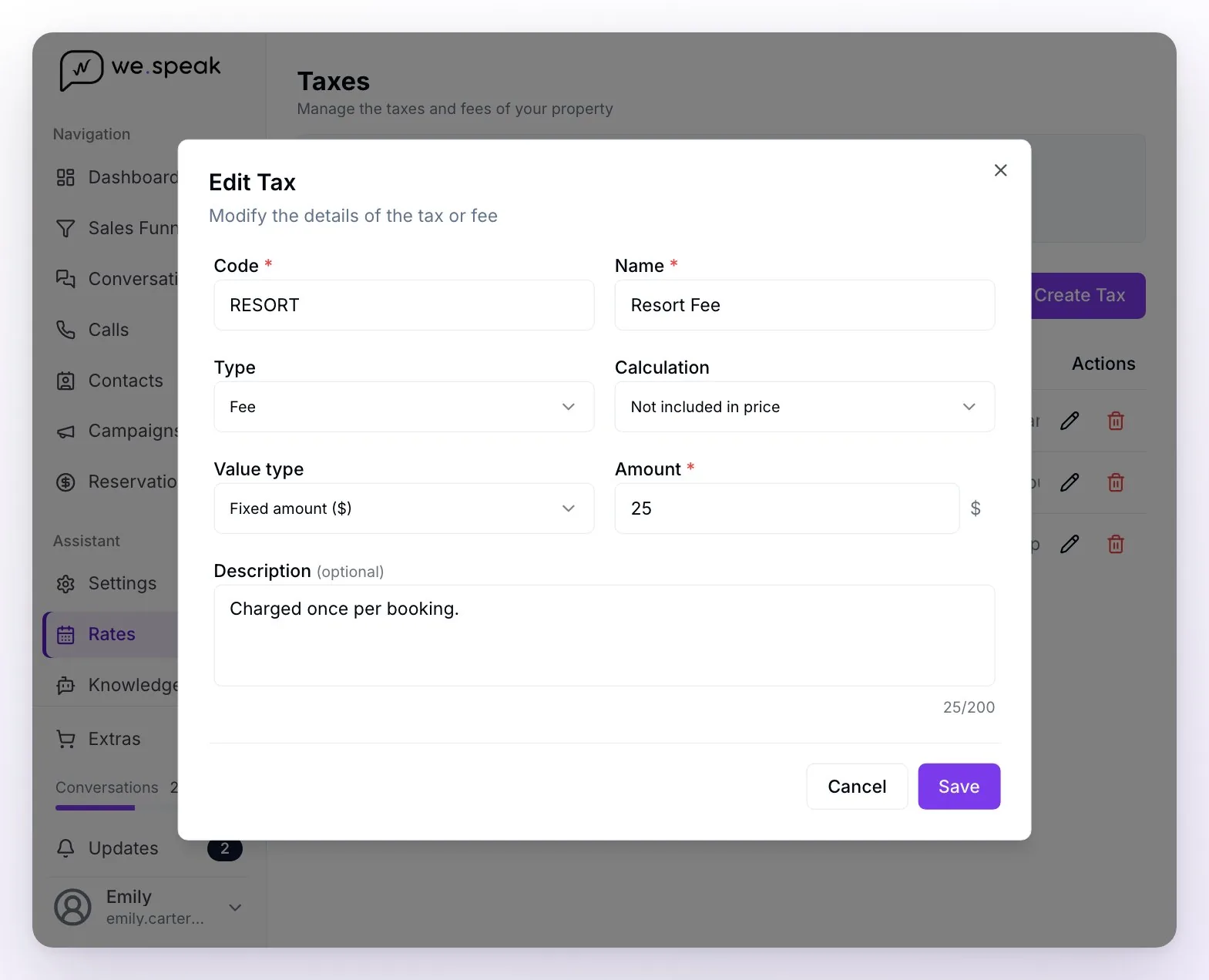
Which taxes apply to a reservation:
- With WeSpeak Rates: only the ones you assigned to the rate in the Policies step, in Taxes and Fees. A rate with no taxes assigned is charged without taxes, even if you have taxes set up.
- Without WeSpeak Rates: all the ones in the list that apply to that property. The price comes from your booking engine or your PMS: set up as Not included only what your engine doesn't add to its price. If its price already includes a tax, set it up as Included (or don't set it up): otherwise, it's charged twice.
On the payment page, the Reservation Summary shows the room price, the Subtotal (the price without the included taxes), Taxes and fees —with a help icon that opens the Taxes and fees breakdown, each one marked as included or not included—, the Total and, if there's a deposit, the Deposit. Included taxes appear in the breakdown but aren't added to the total. With the deposit example: room USD 747.00, Subtotal USD 747.00, Taxes and fees USD 122.11 (Sales Tax USD 52.29 + Tourist Development Tax USD 44.82 + Resort Fee USD 25.00), Total USD 869.11 and Deposit USD 260.73. The confirmation email includes the same breakdown.
For the assistant to mention taxes when quoting, turn on The assistant must clarify tax details when providing prices and availability, in Tax Configuration (if you have several properties, it comes turned off). Each tax's Description also reaches the assistant.
Currencies and conversion
- The guest pays in the currency they were quoted in: the one they see on the payment page. If that currency isn't your rate's, WeSpeak converts the price at the day's exchange rate and records it on the reservation.
- You choose the quote currency in the quoter (Currency, in the chat's $ button). For the assistant to quote in another currency based on the guest's country, ask your advisor: that rule is set up by the WeSpeak team.
- When there was a conversion, the reservation details show it in Currency Conversion Applied ("The reservation was quoted in BRL with an exchange rate of 1 USD = 5.3500 BRL") and with the amounts in both currencies: Amounts in BRL (Guest Payment Currency) and Amounts in USD (Original Booking Engine Currency).
- Payments you record by hand with Add Payment are entered in the guest's payment currency.
- With WeSpeak Rates, the reservation stays in the rate's currency, and that's how it reaches your PMS or Channel Manager. A single reservation can't combine rates in different currencies: generate one payment link per currency.
- Quotes in another currency (in Knowledge → Price and Availability → Advanced settings) only gives the assistant instructions for when a guest asks for the price in another currency (for example, hand off to an advisor). It doesn't change the currency you charge in.
💡 If you quote in a currency different from your gateway account's, first confirm with your provider that it can charge in it: the charge is requested from the gateway in the currency the guest sees.
ℹ️ If your panel still shows the previous version of Knowledge, the Quotes in another currency instructions are in Advanced Price and Availability Configuration → Currency and Exchange Rate Configuration.
Frequently asked questions
Can the guest pay part now and the rest later?
Yes, with a deposit: the one in your reservations page setup or, with WeSpeak Rates, the one in the rate's payment policy (see The deposit). The reservation details show Total, Deposit, Paid and To Pay, and you record what you collect later with Add Payment.
I chose "Do not charge advance deposit" and the guest was charged the full amount.
That's how it works: with no deposit, the methods that charge online (card with your gateway, Mercado Pago, PayPal, PayU, Wompi) charge the full amount. To charge nothing at booking, offer the card guarantee (Save card data for manual charge) or manual methods such as bank transfer or pay at the hotel.
I entered a fixed deposit amount and less was charged than I expected.
The Fixed amount is charged once per reservation: it isn't multiplied by nights or rooms. If you want to charge based on the stay, use Percentage.
My policy's description says 30% is charged, but something else was charged.
The description is only the text the assistant and the guest read; what's charged is defined by the policy's Deposit (or, if the policy doesn't have its own setup, the default setup's). Check both (see Payment policies).
Why is a rate charged without taxes?
With WeSpeak Rates, each rate applies only the taxes you assigned to it in the rate's Policies step (Taxes and Fees). Edit the rate and check them.
What currency does the guest pay in?
The one they were quoted in, the same one they see on the payment page. If it isn't your rate's, the reservation details show Currency Conversion Applied with the exchange rate used (see Currencies and conversion).