Business verification confirms to Meta that there is a real company behind your WhatsApp Business account. It is free, you do it once per business portfolio, and it protects your account from WhatsApp restrictions and your ad account in Meta Ads. This guide takes you from entering your tax information to the final approval — and the same walkthrough is in the video, in four minutes.
ℹ️ What gets verified is the business, not the person: you can sign in with your personal Facebook. And the phone number you use to verify does not have to be the one you connect to WeSpeak.
ℹ️ The screenshots show Meta's interface in Spanish; every option sits in the same place in your language.
In this article
- Before you start
- Part one · Business info (steps 1 to 3)
- Part two · Security Center (steps 4 and 5)
- If the verification option is not shown
- Part three · Verification process (steps 6 to 19)
- Important considerations
- Frequently asked questions
Before you start
Have these three things at hand:
- A Meta account you sign in to with a Facebook profile, your own or the hotel's.
- Full access to the business portfolio you are going to verify.
- The business's legal or tax documents in digital format.
Part one · Business info
Step 1 · Open the business settings
Go to business.facebook.com/latest/settings/business_info. It is important to sign in with a Facebook account.
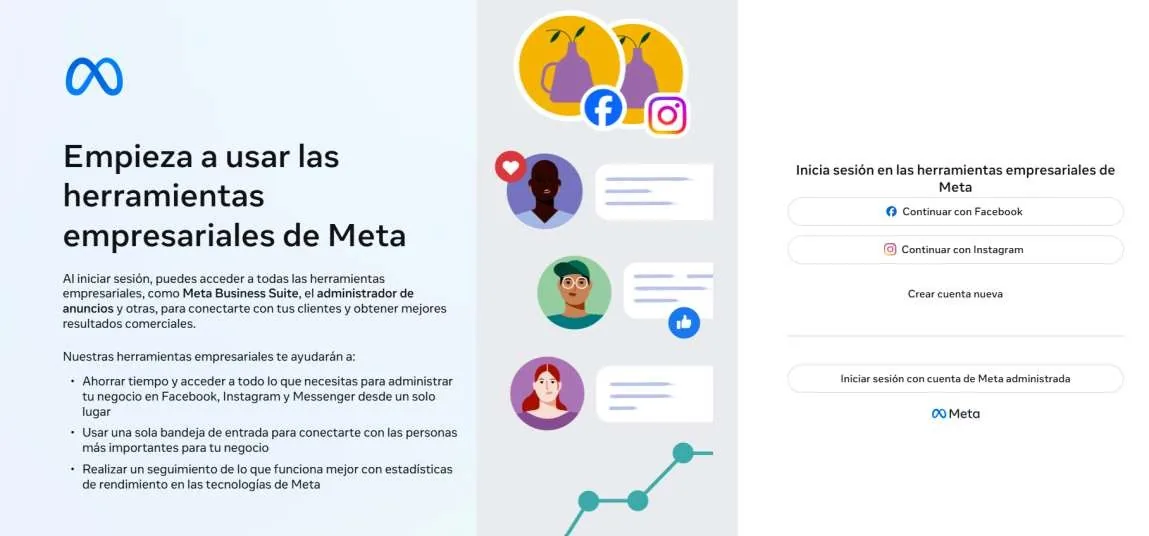
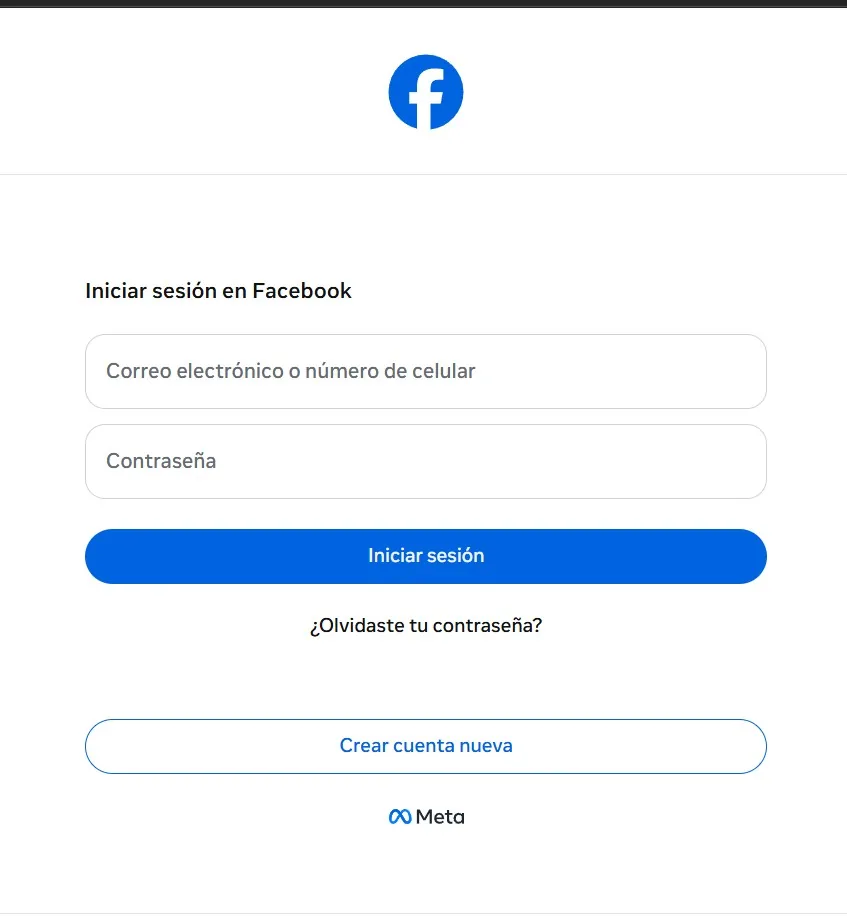
Step 1.1 · Log in to Facebook
Use your Facebook username and password, personal or the hotel's, depending on the business portfolio you are going to work in.
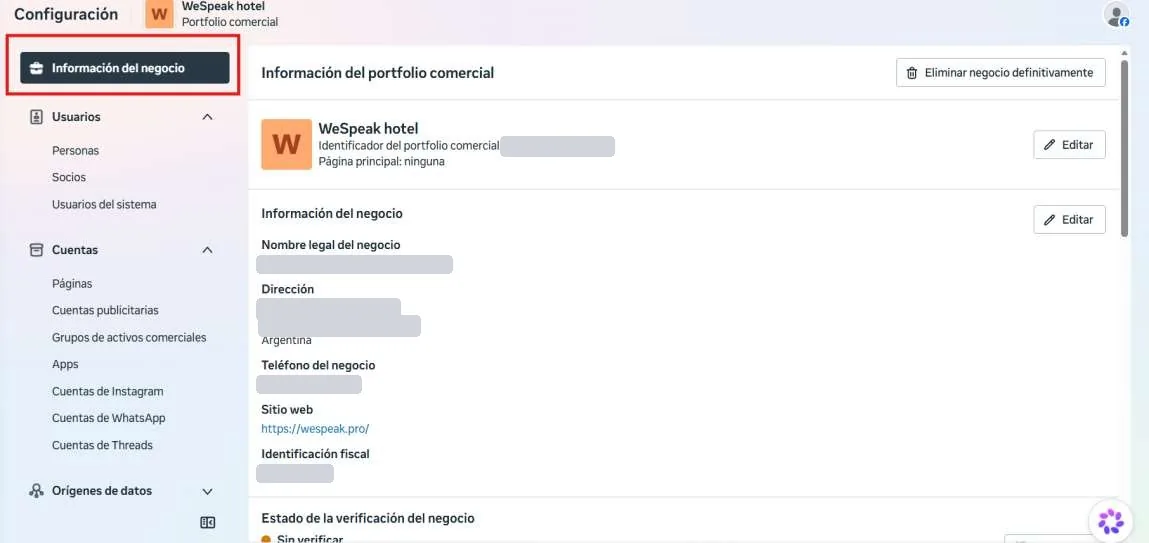
Step 2 · Open Business info
In Meta, find the Business info section and check that the details are complete so you can move on to verification.
Step 3 · Fill in what is missing
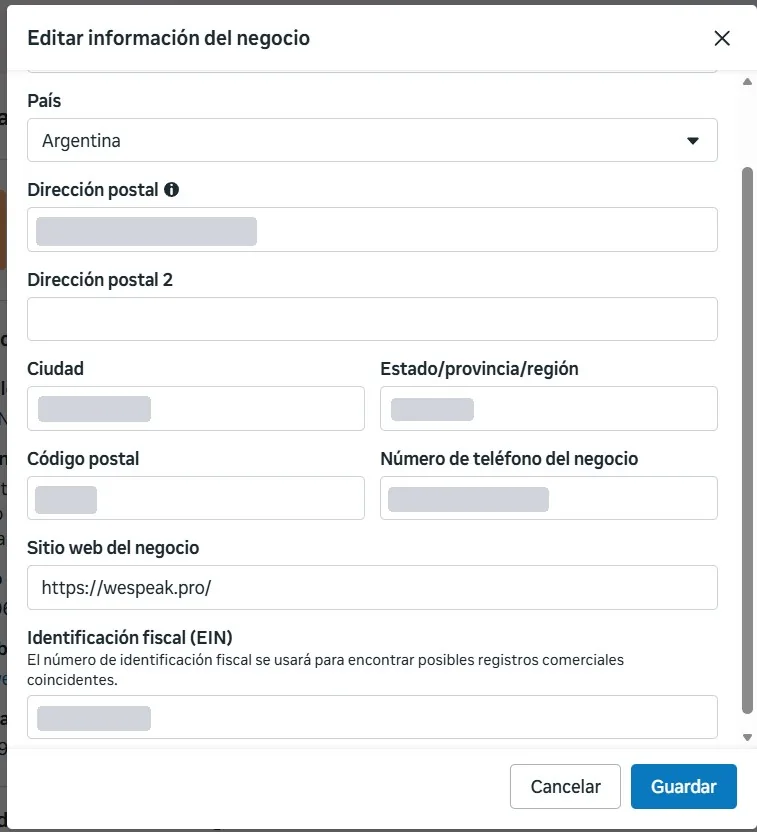
If the information is incomplete, click Edit and complete it.
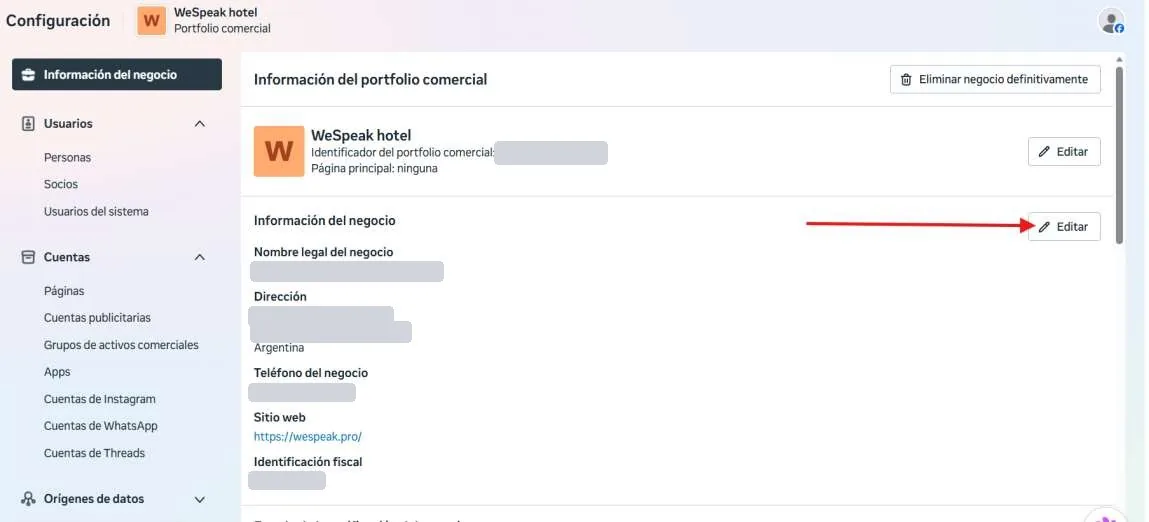
Step 3.1 · Enter the tax information
The information does not have to be the hotel's, but the tax identity it operates under: the legal name, address and phone number that appear on your invoices or tax documents.
💡 The phone number you enter here does not have to be the one you will connect to WeSpeak either.
Part two · Security Center
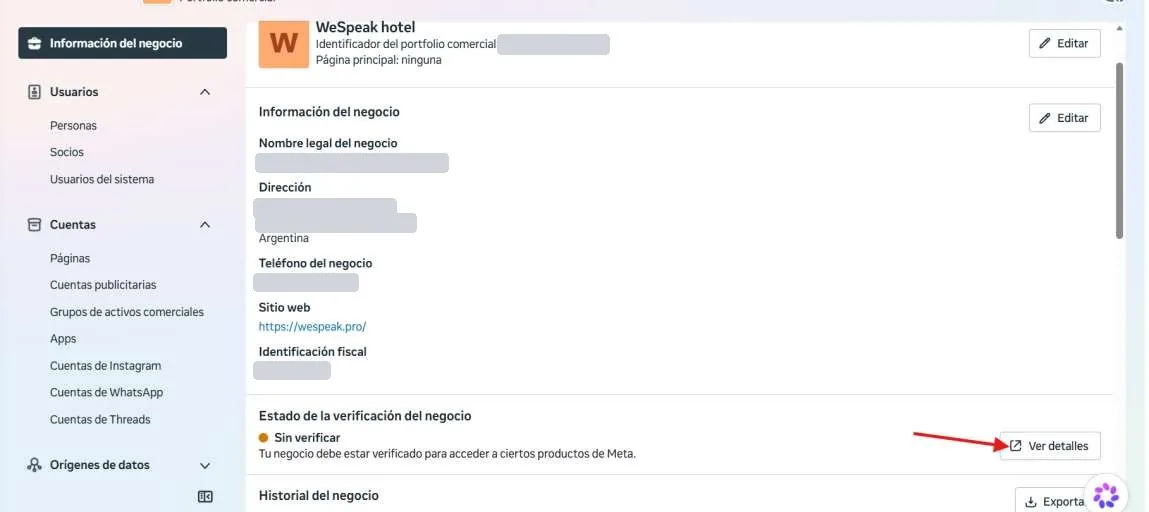
Step 4 · Open the verification status
In the same menu you will find Business verification status. Click View details to enter Meta's Security Center.
Step 5 · Find "Business verification"
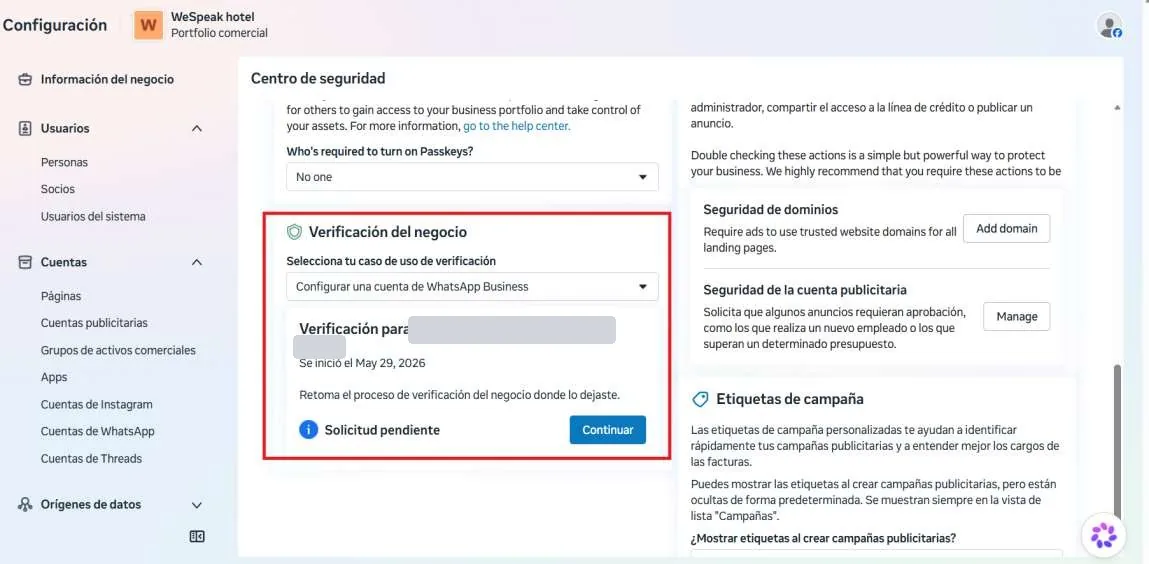
In the Security Center, scroll down until you find the Business verification section.
If the verification option is not shown
If your Meta account is very new, is not used for Meta Ads or has no product that justifies verification, the option may not be shown. If it does appear, skip straight to Step 6.
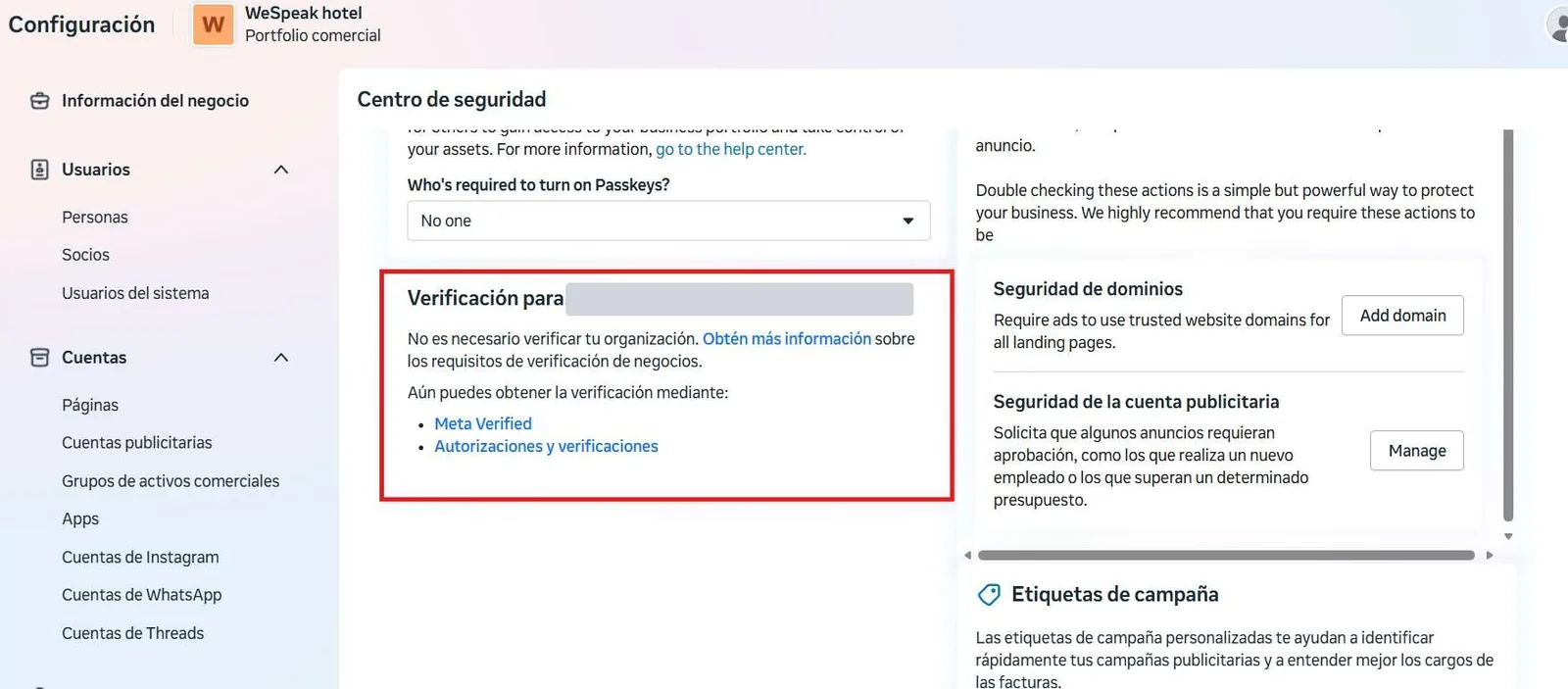
To enable it, create a WhatsApp account in the portfolio:
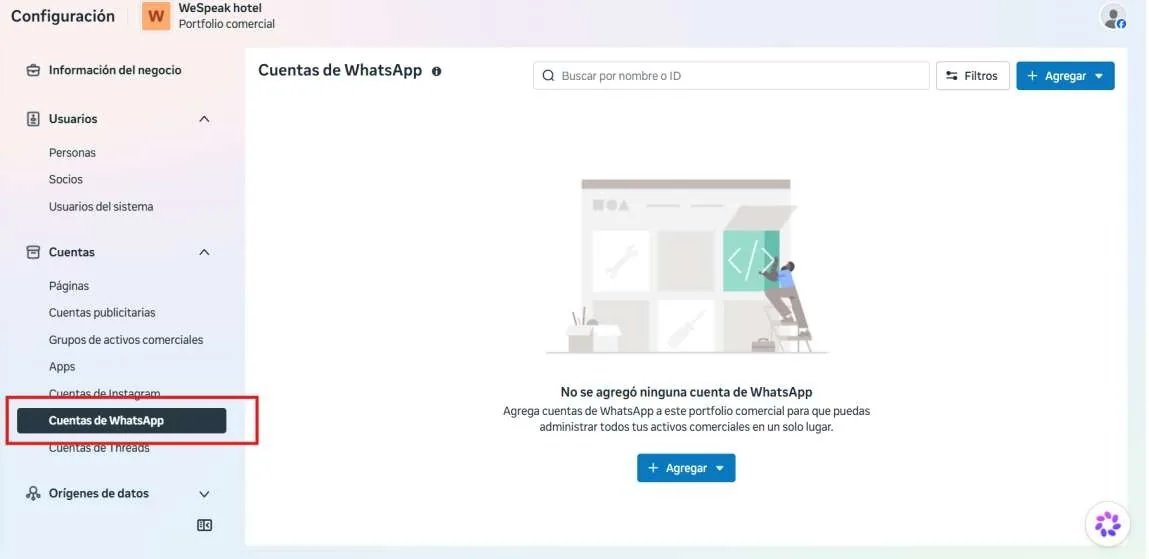
Step 5.2 · Go to WhatsApp accounts
Go to the WhatsApp accounts section: business.facebook.com/latest/settings/whatsapp_account.
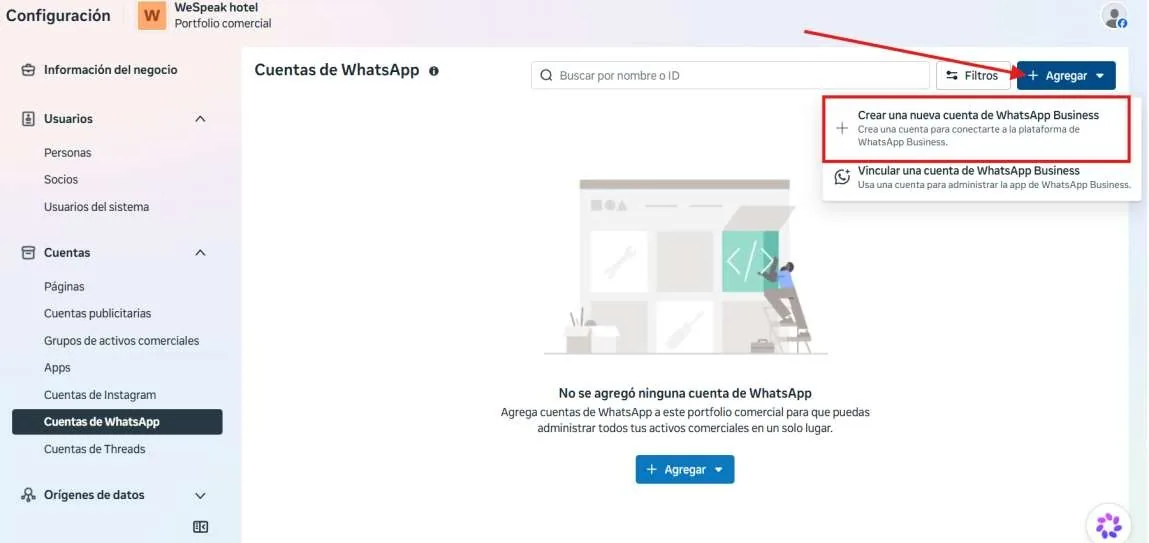
Step 5.3 · Create a new account
Click Add and then Create a new WhatsApp Business account.
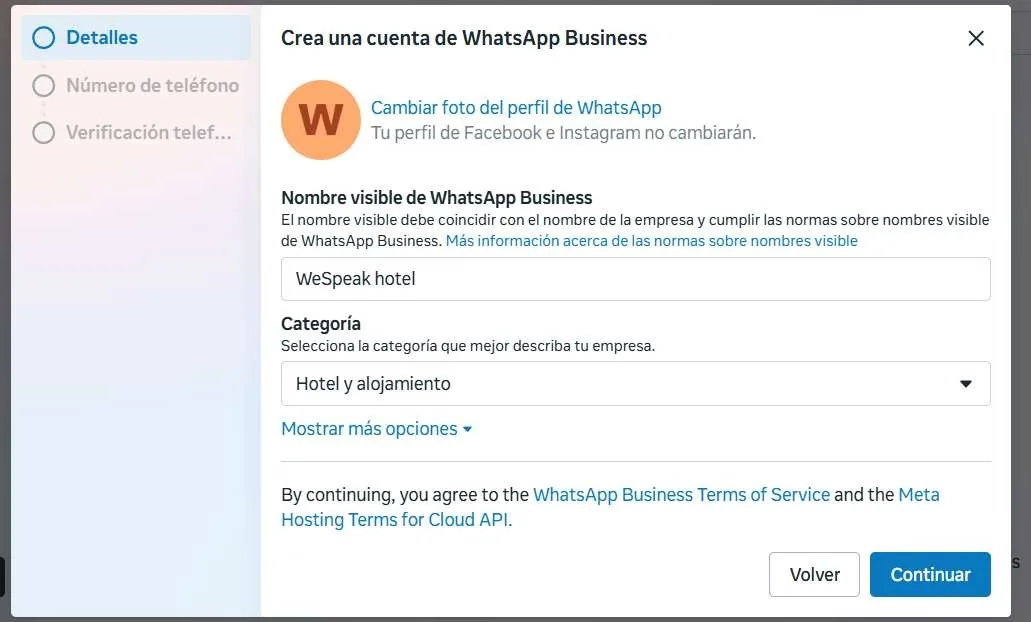
Step 5.4 · Name and category
Give the account a name, select the Hotel and lodging category and click Continue.
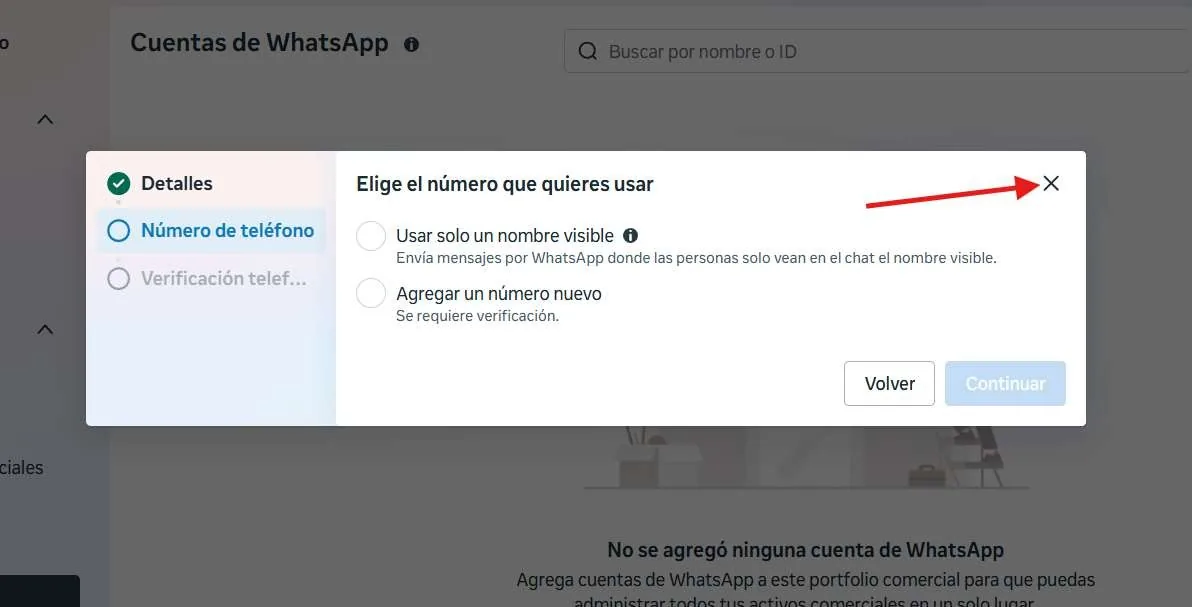
Step 5.5 · Cancel the phone number step
Meta will ask for a phone number, but you are not going to add one: click the X to cancel. Then refresh the tab so the WhatsApp account shows up.
✅ That enables verification. Go back to Step 2.
Part three · Verification process
Step 6 · Prepare the documents
Before you start, have legal or tax documents at hand that show the legal name, address and phone number you entered in the business info:
- Articles of incorporation
- Operating licenses and certificates
- Bank statements
- ID of the person responsible for the business
ℹ️ Accepted documents vary by country. In some cases Meta only asks for the ID of the person responsible.
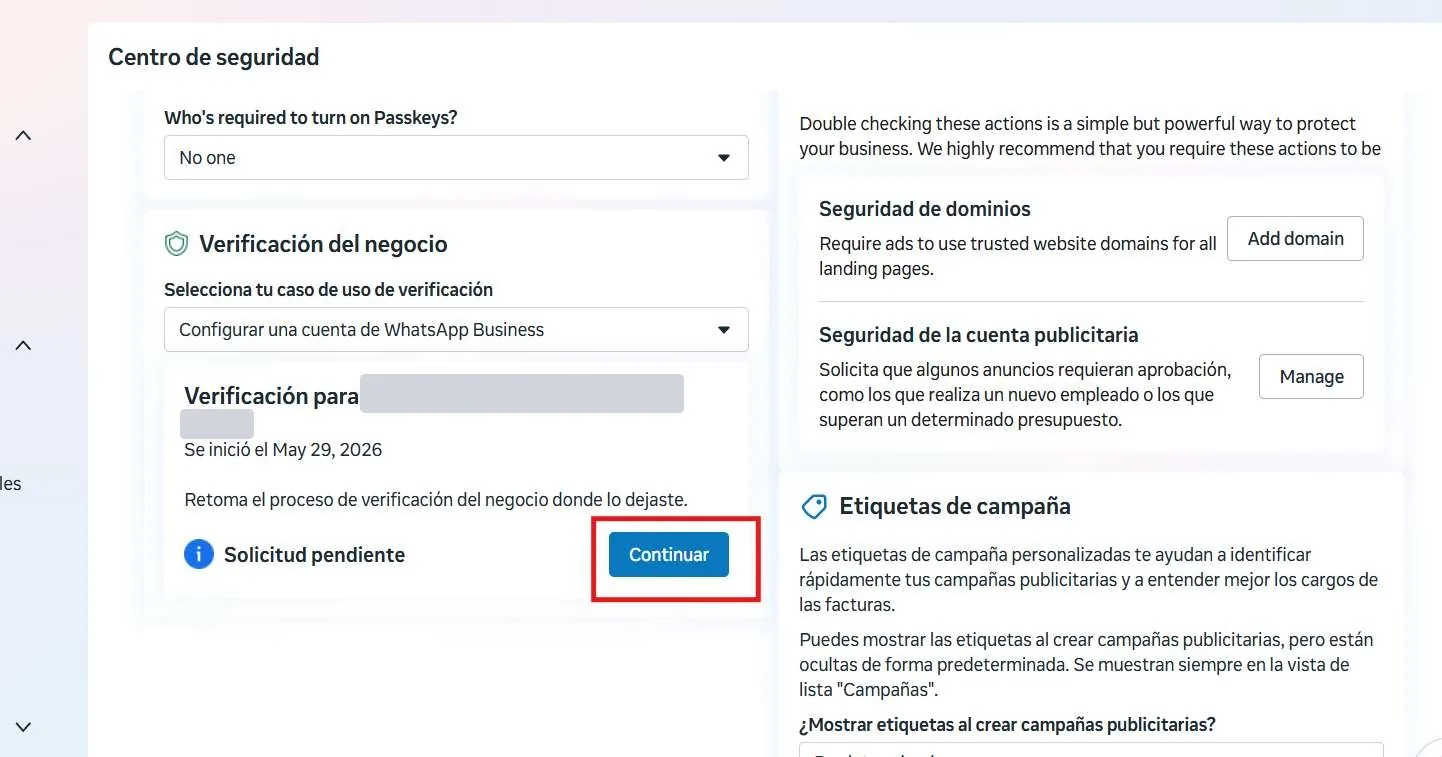
Step 7 · Start verification
Click Start verification, or Continue if you already have a process in progress.
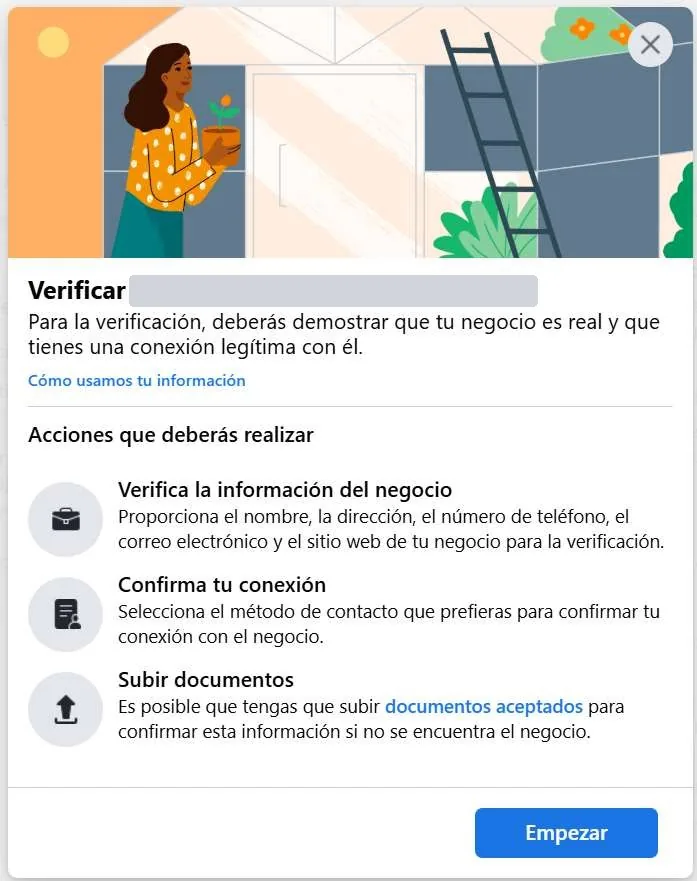
Step 8 · Begin the form
Click Get started. In the next steps you will confirm that the information is correct, matches what you entered in "Business info" and is the same as in your legal and tax documents.
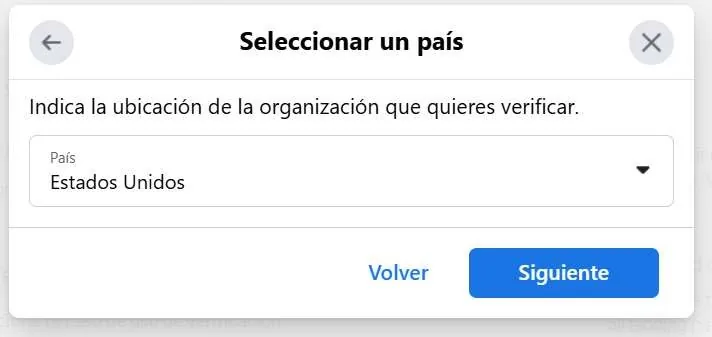
Step 9 · Select the country
Indicate where the organization you want to verify is located.
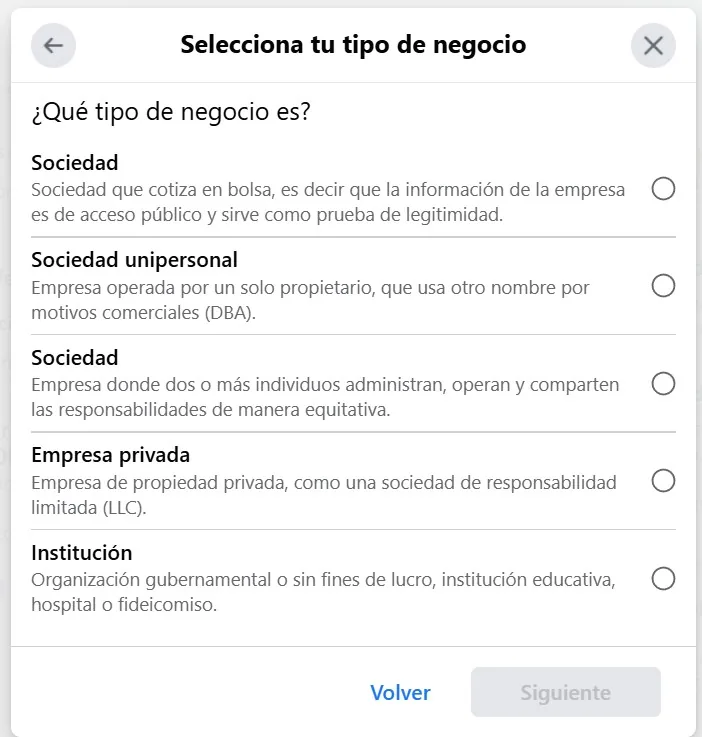
Step 10 · Choose the organization type
Select the business type that applies, according to the legal form the hotel operates under.
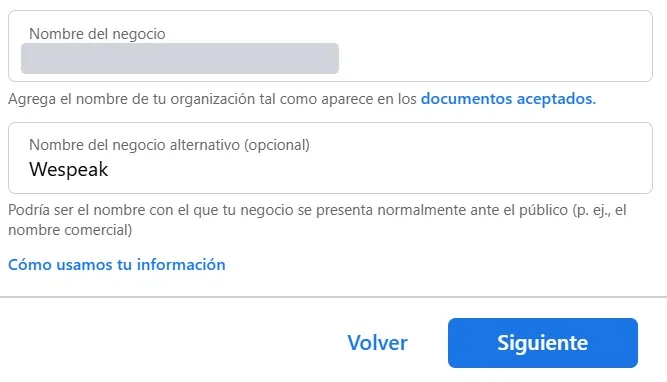
Step 11 · Legal name and trade name
The legal name is the one on your invoices. The trade name is the name of your hotel.
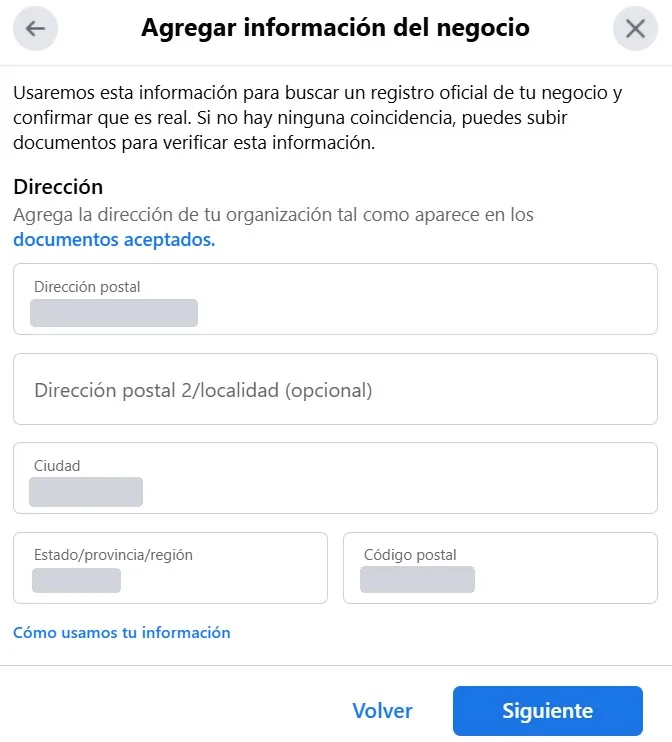
Step 12 · Check the address
Make sure the address is correct, exactly as it appears in your documents.
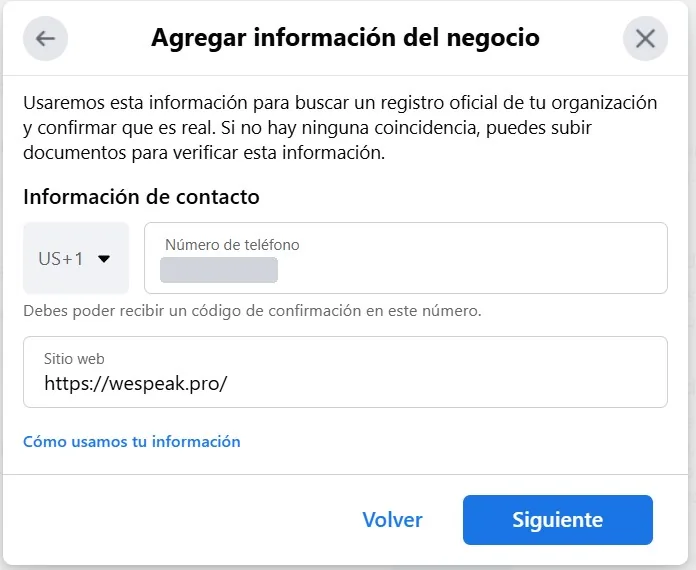
Step 13 · Phone and website
Check that the phone number and website are correct. The number is not necessarily the one you will connect to WeSpeak, but one you can back up with documents or that is associated with the business.
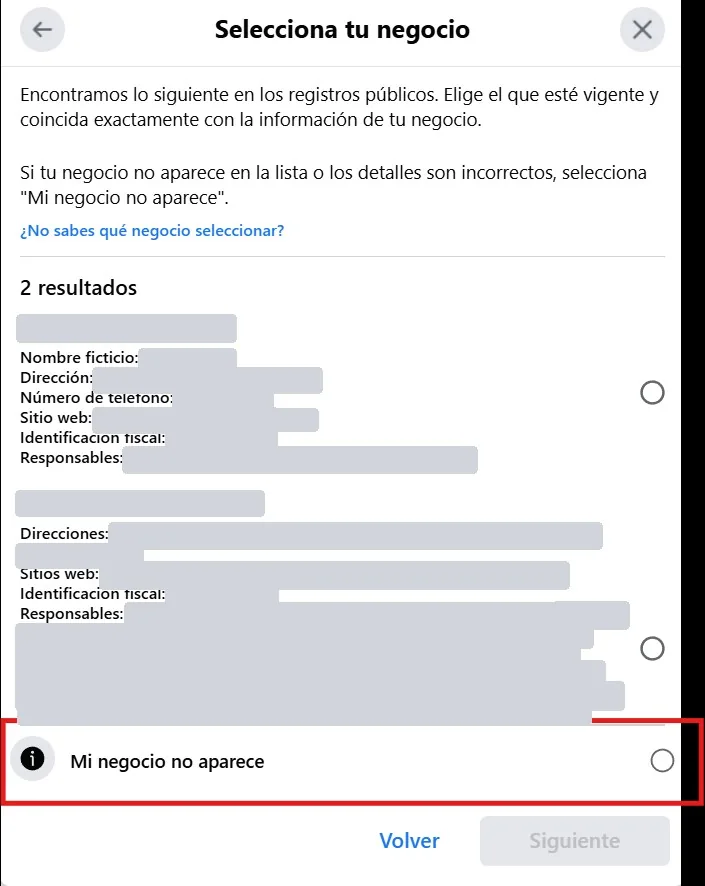
Step 14 · Select your business
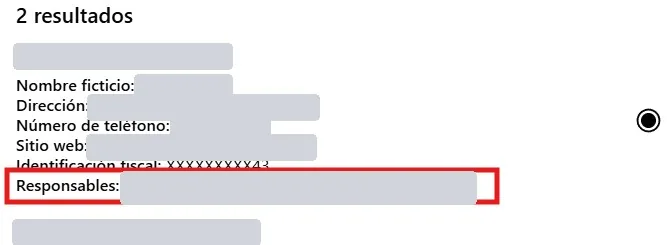
Meta searches its database for the information available about your business. The simplest path is always to pick the option that most closely matches the details you entered.
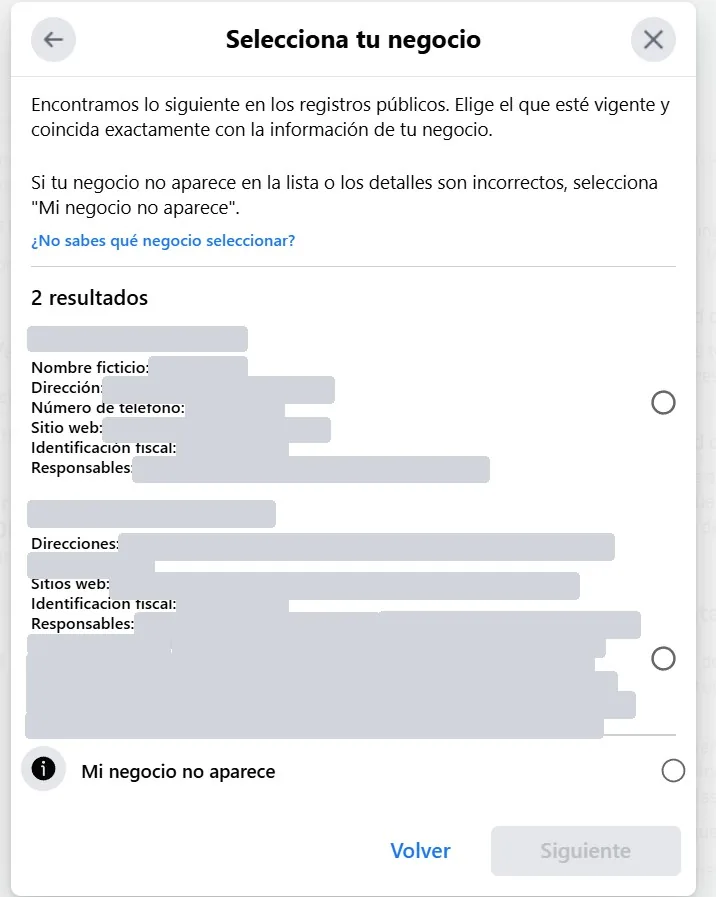
⚠️ Look at the initials of the responsible people. Later on, Meta will ask for a photo of the ID card, passport or driver's license of one of those people to validate the business.
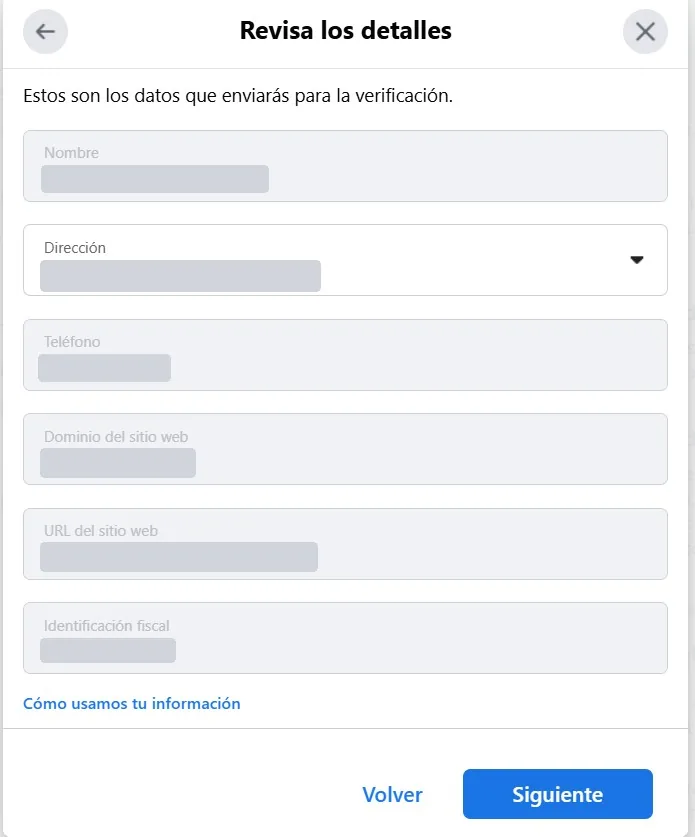
Step 15 · Review the details
Confirm that the details you are about to send for verification are correct and click Next.
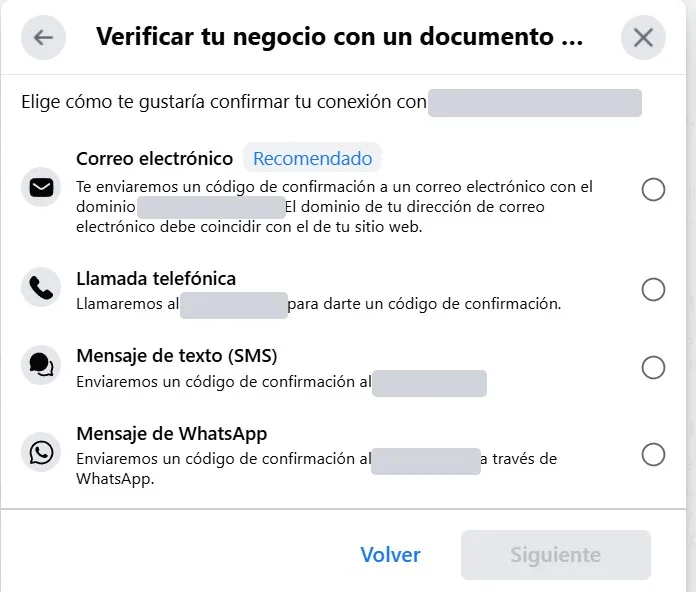
Step 16 · Choose the verification method
The simplest are SMS, phone call or WhatsApp. If available, you can also use an email address on your website's domain, for example hotelexample@yourhoteldomain.com.
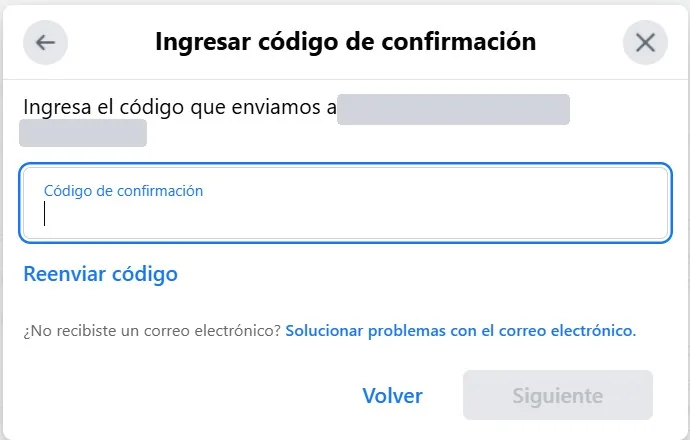
Step 17 · Enter the confirmation code
Send the verification code and enter it in the Meta panel.
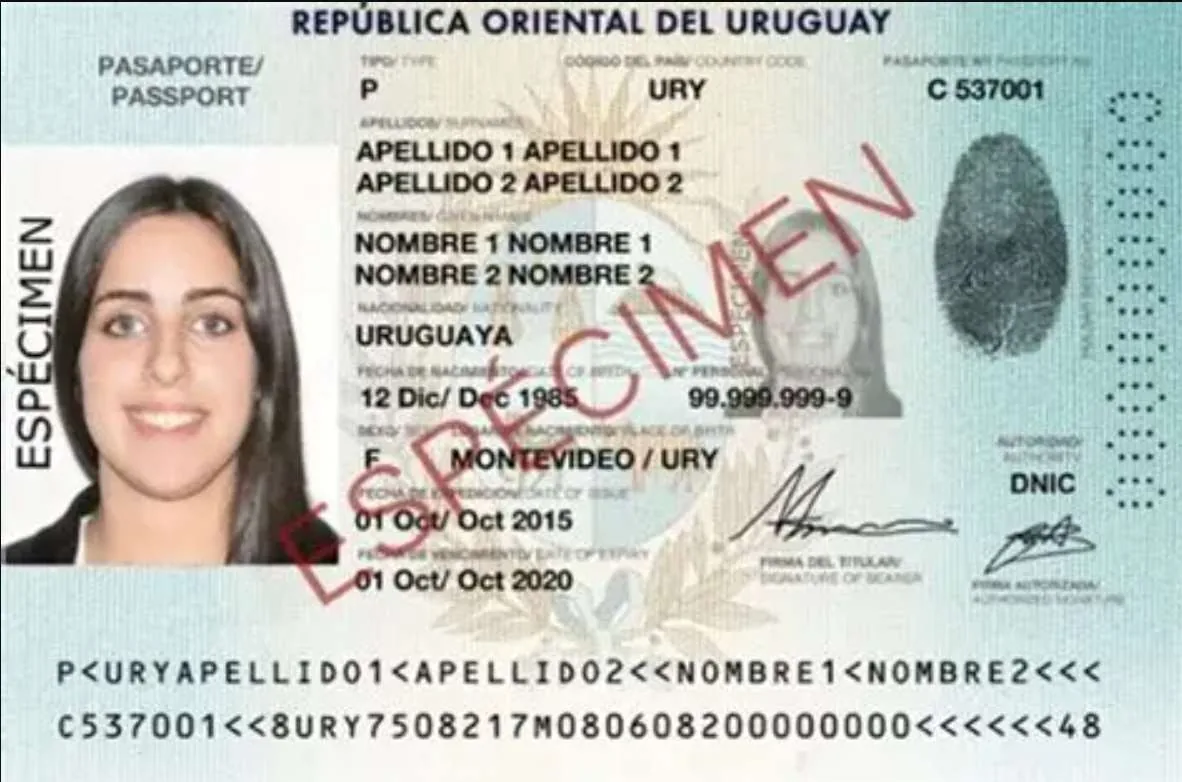
Step 18 · Upload the ID document
ID card, driver's license or passport of one of the responsible people (see Step 14):
- Front side only
- Recommended resolution: 2500 × 1500 px
- JPG format
Step 19 · Wait for Meta's reply
Once the image is uploaded, wait for the time frame Meta indicates. The reply on whether the verification was approved or rejected arrives by email.
Important considerations
- Make sure you are working in the right business portfolio before starting the process.
- The details you enter must match the documents exactly, including the legal form (S.A., S.R.L., LTDA., LLC…).
- Documents must be valid, legible and complete, with no cropping or glare over the data.
- Do not start several processes in parallel in the same portfolio: wait for the reply before trying again.
- If verification is rejected, you can retry after fixing the reason Meta states in the email.
Frequently asked questions
What if my business is not listed?
Use the My business isn't listed option. It requires uploading documents that prove you are the owner: articles of incorporation, bank statements or operating licenses that validate the legal name, address and phone number.
How long can the process take?
The standard is 24 to 48 hours. Depending on the quality of the documents it may go to manual review and take up to 14 days.
What is verification for?
It backs your account with Meta and shows that it operates a legitimate business. It protects your account from WhatsApp restrictions and your ad account in Meta Ads.
Can I use my personal Facebook?
Yes. What gets verified is the business, not the person. The profile is only the way into the business portfolio.
Does it cost anything?
No. Business verification is free within Meta.
Is the verified number tied up?
No. The phone used for verification can be different from the one you later connect to WeSpeak.
What if it is rejected?
Check the reason in Meta's email, correct the information or replace the document with a more legible one and submit it again.
If you get stuck on any step, write to soporte@wespeak.pro or to our support WhatsApp (+54 9 3446 64-5873) with a screenshot of the screen you are on.