WeSpeak Payments lets you charge for the reservation through the chat: the assistant (or your team) sends the guest a payment link, the guest pays on your reservations page with the method they prefer, and the reservation is confirmed and loaded into your system, without going through your booking engine.
This is the overview. Setup and day-to-day use are covered in five more guides:
- Set up your reservations page: the payment methods you offer, the deposit, the cancellation policy, the hotel data and the notifications.
- Connect your payment methods: Stripe, Mercado Pago, PayPal, PayU, Wompi, the card guarantee and the manual methods.
- Payment policies, deposits and taxes: how much is charged at booking, with and without WeSpeak Rates.
- The payment link and what the guest sees: how the assistant or your team generates it and how the guest pays.
- The Reservations section: following up each reservation, recording payments, the statuses and the sync with your PMS.
In this article
- Before you start: what has to be ready
- How it works
- With or without WeSpeak Rates
- Compatible integrations
- Activate WeSpeak Payments
- Last step: the assistant's booking mode
- Test before you open
- Frequently asked questions
Before you start: what has to be ready
WeSpeak Payments charges and confirms real reservations from the very first link. Before the assistant starts sending them, go through this list in order (if you have several properties, items 4 to 10 are done in each one):
- WeSpeak Payments activated, from Extras (Activate WeSpeak Payments): without the activation you don't get Reservations, the Payments configuration or the WeSpeak Payments booking mode.
- Reservations balance: the activation includes 50, and then you add packs (Reservation packs and balance); with the balance at zero, the assistant stops right when it was about to send the link.
- An integration that loads the reservation into your system: Channel Manager, PMS via API, WeSpeak Engine or your own API (Compatible integrations); otherwise, reservations stay in Reservations and your team loads them into the PMS by hand.
- Your details on the reservations page: contact, check-in and check-out times and address (Hotel data); if they're missing, the payment page doesn't show your details.
- At least one payment method connected and enabled (Connect your payment methods); without one, the guest opens the link and can't book.
- Charge with Stripe, Mercado Pago or PayU selected, if you want to charge cards at booking (Payment methods); the account starts out saving the card as a guarantee without charging it, and connecting a gateway doesn't change that.
- Your gateway's production credentials, with no errors, plus the events URL if you use Wompi (Connect a gateway); WeSpeak doesn't check them: if they're wrong, payments fail.
- The payment instructions for bank transfer, payment link and pay at the hotel, if you offer them (Bank transfer, payment link and pay at the hotel); without them, the guest books without receiving the details to pay you.
- The deposit: a type selected and, if it's a percentage or a fixed amount, its value (The deposit); with no deposit, the methods that charge online charge the full amount.
- Your cancellation policy instead of the generic text the activation leaves (Payment methods; with WeSpeak Rates, Cancellation policies); otherwise, the guest accepts a policy that isn't yours.
- With WeSpeak Rates, each rate with its payment policy (Payment policies); a policy with its own setup and all its methods turned off leaves its rates unbookable.
- Taxes set up correctly (Taxes): with WeSpeak Rates, assigned to each rate (otherwise the rate is charged without taxes); without Rates, only the ones your engine doesn't add to its price (otherwise they're charged twice).
- An email with the Reservations notice, in Settings → Notifications (Sync with your PMS); that's where the confirmation of each reservation and the notice of the ones your PMS didn't accept arrive, and without it you get neither.
- Someone to record the payments WeSpeak doesn't collect: bank transfers, payments at the hotel and card guarantees (Record a payment); if nobody records them, those reservations stay in Waiting for payment or with Paid at 0.
- A complete test reservation, with the $ quoter and your own phone (Test before you open); otherwise, you find the problems with a real guest.
- Last of all, the booking mode set to WeSpeak Payments (Last step); until then, the assistant keeps sending your engine's link or taking the reservation by chat.
ℹ️ With the activation, our team goes through this list with you (see What happens after you pay). Setting up Payments and following up on reservations is for the Administrator and Supervisor roles; buying in Extras and viewing the details of guarantee cards, only for the Administrator (see Permissions and Roles).
How it works
- The guest asks on WhatsApp (or on another connected channel) and the assistant quotes with your prices and your availability.
- When they want to book, the assistant asks for their details and sends them a payment link. Your team can also generate it from the chat, with the $ quoter (see How a payment link is generated).
- The guest opens your reservations page, reviews the summary, chooses how to pay among the methods you enabled and confirms (see What the guest sees).
- The reservation is confirmed when the gateway approves the payment (or, with a card guarantee, when the card is registered). With bank transfer, external payment link or pay at the hotel, it's confirmed as soon as the guest books on the page, and you record the payment afterwards. Then it's loaded into your PMS or Channel Manager if your integration allows it, it appears in Reservations and one reservation is deducted from your balance.
With or without WeSpeak Rates
WeSpeak Payments works with or without WeSpeak Rates. What changes is where the prices come from and how much you can customize the charge for each rate:
| What changes | Without WeSpeak Rates | With WeSpeak Rates |
|---|---|---|
| Price (what the assistant and the $ quoter quote) | The one your booking engine, PMS or Channel Manager returns. | The one from your rates, in Rates. |
| Availability | Your integration's. | With a Channel Manager or WeSpeak Engine, the one synced in WeSpeak Rates; with a PMS via API, your PMS's. |
| Payment methods and deposit | A single setup per property: the one in the Payment methods tab. | The ones from the rate's payment policy, if it has its own setup for that property; otherwise, the ones in the Payment methods tab. |
| Taxes | All the taxes set up that apply to the property. | Only the ones assigned to the rate: a rate with no taxes assigned is charged without taxes. |
| Cancellation policy the guest reads | Your Cancellation Policy and Property Information text. | The description of the rate's cancellation policy. |
| Where the reservation is created | In your integration, if it can load it. | In your Channel Manager or PMS; with WeSpeak Engine, in WeSpeak Rates. |
The details are in Payment policies, The deposit and Taxes.
Compatible integrations
Whether the reservation is created in your system by itself depends on how your account is connected (the details of each connection type are in Get to Know WeSpeak Rates):
| Your integration | Examples | What happens when a reservation is confirmed |
|---|---|---|
| Channel Manager | Channex, RoomCloud, Opera Cloud | WeSpeak loads it into your Channel Manager. |
| PMS via API | Cloudbeds, Mini Hotel, Lodgy | WeSpeak loads it directly into your PMS. |
| WeSpeak Engine (WeSpeak Rates as your inventory, no PMS) | WeSpeak's native engine | The inventory is deducted in WeSpeak Rates: there's no other system to load. |
| Custom API | Your custom system | It's sent to the Reservation creation URL you entered in Settings → Custom integration. If you didn't enter one, it stays in Reservations unsynchronized. |
| Booking engine we read prices and availability from, or GDS | Your booking page | It doesn't reach your system by itself: it's recorded in Reservations and your team loads it into the PMS by hand. Then you register its number with Sync with PMS (see Sync with your PMS). |
The same brand can be connected in more than one way —for example, Cloudbeds through its booking engine or through the PMS API—: what counts is how your account is connected. Before you buy, the WeSpeak Payments activation panel in Extras tells you:
- Your integration is compatible (in green): your properties can receive the reservation.
- Recommended for direct integrations (in amber): your current integration can't load the reservation into your PMS; the notice names the integration detected. You can still activate Payments, but before paying you have to check the box confirming you consulted support (with Contact support on WhatsApp we look at it together). If you have several properties, it shows green only if all of them have a compatible integration.
ℹ️ If you use your own API, the Reservation creation URL is in Settings → Custom integration. If the field appears locked, ask your Account Manager to enable it. What your endpoints must follow: Custom integration (your own API).
Activate WeSpeak Payments
WeSpeak Payments is activated with the WeSpeak Payments activation, in Extras (Payments category). It's a one-time payment that includes the setup done by our team —payment methods, tests against your PMS and adapting the assistant— and 50 reservations to try the real flow. You see the price on the catalog card and in the confirmation, before paying; since it's implementation work, it doesn't get the Annual Plan discount. Only an Administrator user can buy it.
In Extras, open WeSpeak Payments activation.
Check the integration notice: Your integration is compatible or Recommended for direct integrations (see Compatible integrations). In the second case, check the notice's box; until you do, the button says Confirm the integration notice.
Click View T&C, read the WeSpeak Payments terms and conditions and check I accept the terms and conditions (the box is enabled after you open them).
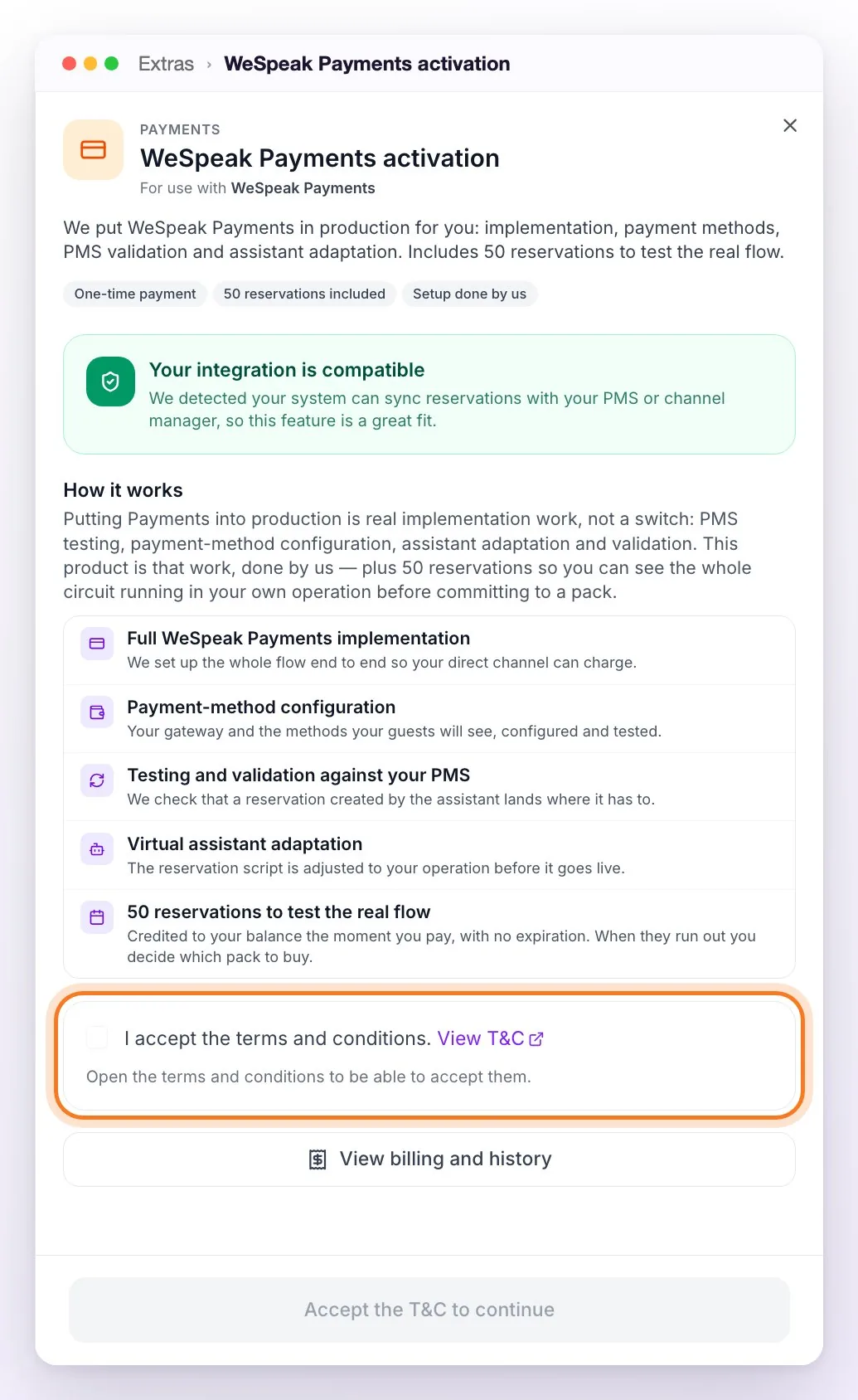
Click Continue to payment and confirm with Confirm purchase: it's charged to the card saved on your subscription. If that charge can't be made, we ask you for payment details.
What happens after you pay
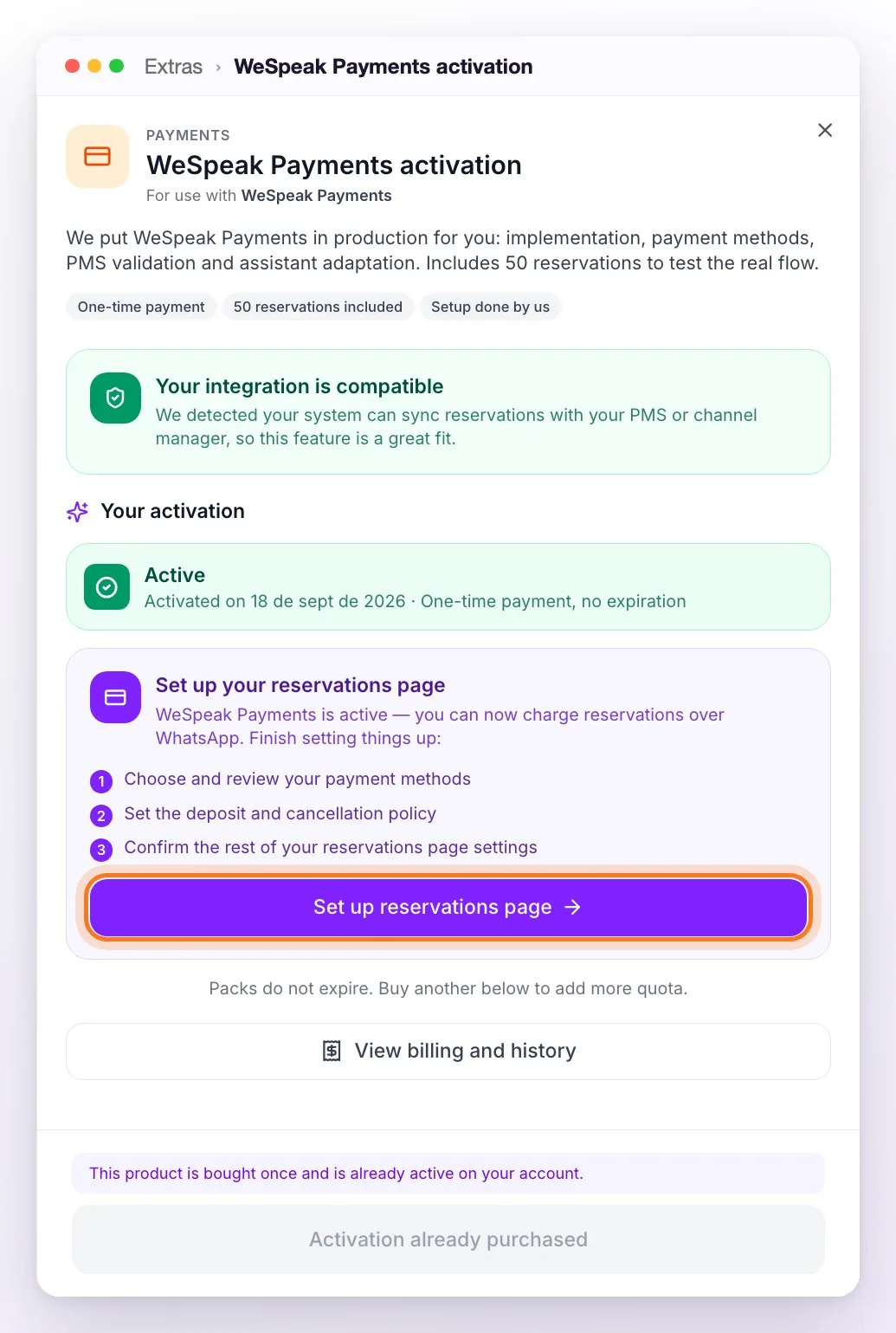
- The panel switches to Your activation and offers you Set up reservations page, which takes you to your reservations page setup, in Knowledge → Price and Availability.
- 50 reservations are credited to your balance, with no expiration. You see them in Extras → Reservations pack as Courtesy pack active, with their Available balance.
- Your Account Manager writes to you to coordinate the setup and ask for what's needed: which gateway you charge with (and its credentials), which payment methods you want to offer, whether you charge a deposit or the full amount, and your cancellation policy. Our team sets it up and validates it with a complete test reservation —link, charge and loading into your PMS— before letting you know it's ready.
- Each property starts with an initial setup: the card guarantee as the only payment method, no deposit and a generic cancellation policy. Review it before you start (see Payment methods).
- The assistant keeps working as it does today until you change the booking mode to WeSpeak Payments (see Last step). Meanwhile, Extras → Reservations pack reminds you with the notice Activate the WeSpeak Payments reservation process.
Reservation packs and balance
Each reservation that ends up confirmed deducts one from your balance, whether the assistant or your team generated it, and whether or not it's loaded into your PMS:
- With a gateway or a card guarantee, when the payment is approved or the card is registered.
- With bank transfer, external payment link or pay at the hotel, as soon as the guest confirms the reservation on the payment page, even if they haven't paid you yet.
- A reservation you confirm yourself from Reservations also counts, for example when you register its number with Sync with PMS.
Links the guest doesn't complete don't deduct anything. A confirmed reservation doesn't go back to the balance if it's later cancelled or refunded, or if the guest doesn't show up. Your balance is in Extras → Reservations pack (Available balance) and in the usage counter in the sidebar (Reservations).
When the 50 included reservations run out, you add balance with a Reservations pack, also in Extras:
- Packs don't expire and add up to whatever balance you have left.
- They're always bought with Auto-repurchase: when 10% of the pack is left, another one of the same pack is bought, so the assistant doesn't stop. It can't be turned off separately: it's part of WeSpeak Payments.
- The 50 reservations from the activation don't have auto-repurchase: buy your first pack before they run out.
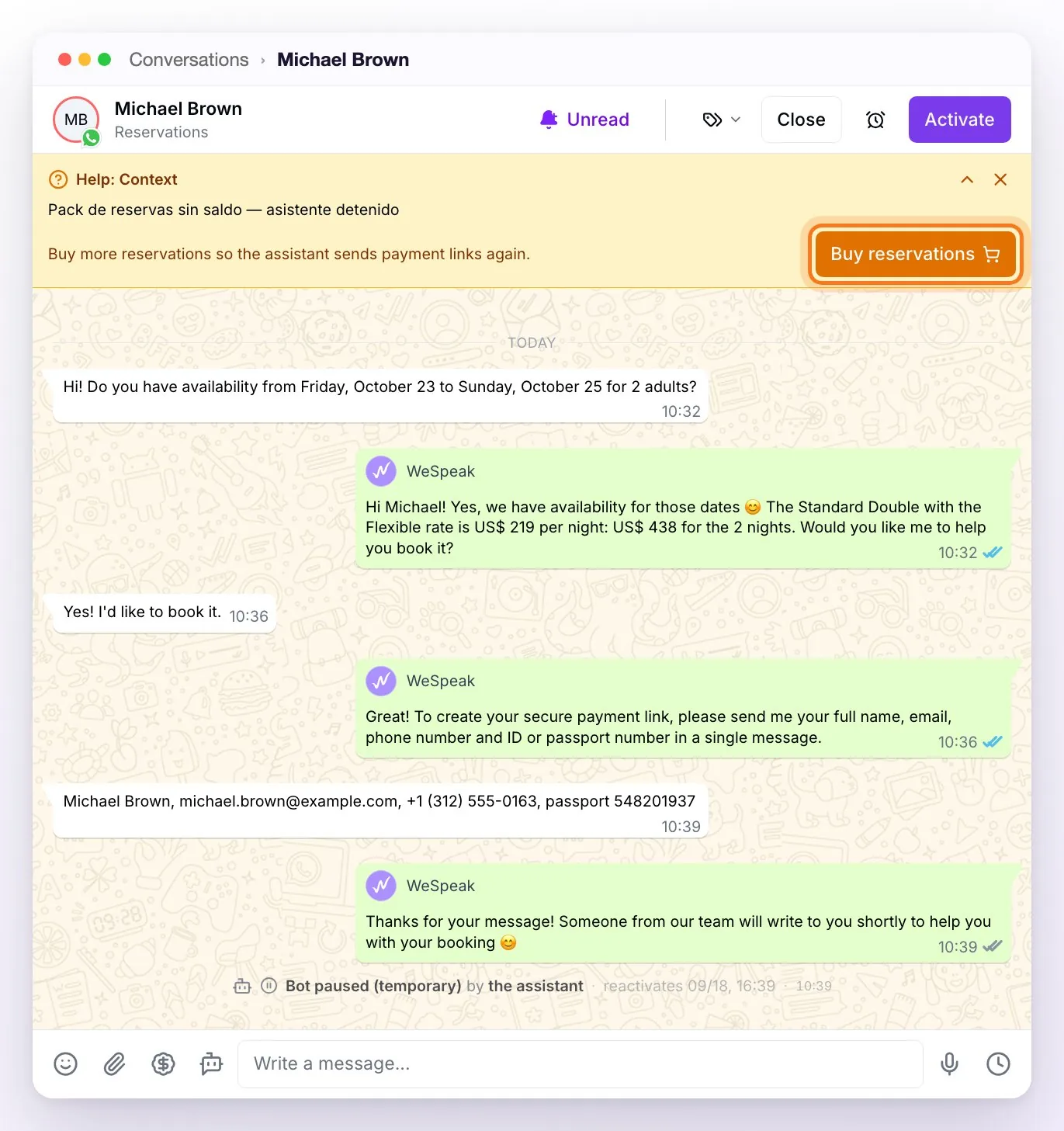
- If the balance reaches zero, the assistant stops when it was about to send the link: the guest gets your pause message and in Conversations you see the Help: Context notice with the Buy reservations button. While there's no balance, the Reservations section, the Payments configuration and the quoter's payment link are also disabled.
To cancel WeSpeak Payments, in Extras → Reservations pack click Cancel subscription and confirm with Cancel WeSpeak Payments: auto-repurchase is turned off and the assistant goes back to Engine link + chat mode. The balance you have left isn't lost: you keep using it until it runs out. To come back, use Reactivate WeSpeak Payments and choose WeSpeak Payments again as the booking mode.
How packs are billed: Types of consumption in WeSpeak and How can I buy services?.
Last step: the assistant's booking mode
Once everything in Before you start is ready, change the booking mode: it's what makes the assistant start sending payment links to your guests.
Go to Knowledge → Price and Availability. The first section is Booking process.
In Booking mode, choose WeSpeak Payments. It saves by itself.
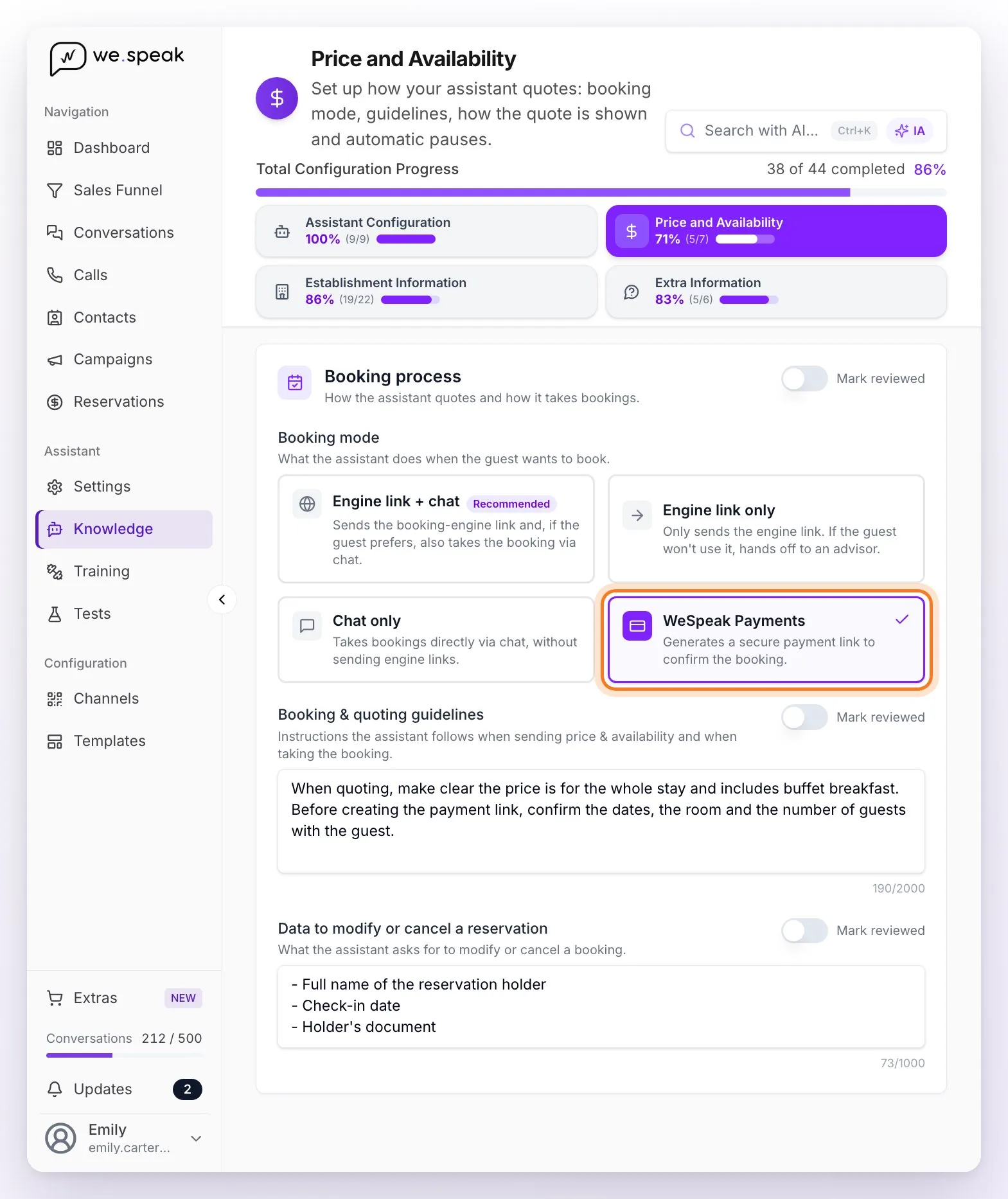
Review the Booking & quoting guidelines: if they ask to send the engine's link or take the reservation by chat, remove that.
What changes with WeSpeak Payments:
- When the guest wants to book, the assistant asks for their details and sends them the payment link (see The assistant sends it). It no longer offers to take the reservation by chat: that's why Create-booking setup disappears.
- It applies to all your properties: the booking mode is shared by the whole account. What's set up per property is the reservations page and the payment methods, so have them ready in all of them before you choose it.
- To go back, choose another mode (for example, Engine link + chat).
ℹ️ If WeSpeak Payments doesn't appear among the options, the account doesn't have WeSpeak Payments active yet: it appears with the activation. If it appears but you can't choose any option, the section is marked as Reviewed: turn off Mark reviewed (top right of the section), change the mode and mark it again.
ℹ️ If your panel still shows the previous version of Knowledge, the mode is in Knowledge → Price and Availability → Reservation Process, in Reservation process configuration: choose the WeSpeak Payments option.
Test before you open
There's no test mode: the links are real, and so is the reservation that gets confirmed —it reaches your PMS, triggers the confirmations and deducts one reservation from your balance—. That's why it's best to test with your own phone and undo the test afterwards:
- Before you change the booking mode, message your WhatsApp from your personal phone and, from that conversation in Conversations, generate a payment link with the $ quoter (see Your team generates it from the chat).
- Open the link on your phone and complete the reservation as a guest. Check your property details, the deposit, the cancellation policy and the payment methods that appear. To test a charge, pay with your card; to charge nothing, choose a manual method such as pay at the hotel, if you have it turned on.
- In Reservations, open the reservation details and check:
- that the Payment Method and the Payment Status are the expected ones (Completed with a gateway or the card guarantee; Waiting for payment with a manual method) and that Total, Deposit, Paid and To Pay match what you saw on the page;
- that PMS / CHANNEL RESERVATION ID shows Synchronized, with your PMS or Channel Manager number, and that the reservation is there with the same dates, room and rate;
- that you received the confirmations you turned on.
- Undo the test: cancel the reservation in your PMS or Channel Manager and, if you paid, issue the refund from your gateway's dashboard. If you also need it to show as cancelled in WeSpeak, ask support.
- Change the booking mode to WeSpeak Payments and test the assistant in Tests: ask for availability, say you want to book and send your details. It should reply with the payment link; there's no need to pay again, because a link that isn't completed doesn't deduct reservations.
If the test reservation ends up Unsynchronized, Failed or Requires retry, or you get the "⚠️ Reservation not registered in…" email, check your integration before you open (see Sync with your PMS).
Frequently asked questions
How do I activate WeSpeak Payments?
From Extras, with the WeSpeak Payments activation: it's a one-time payment that includes the setup and 50 reservations to get started (see Activate WeSpeak Payments). After you pay, your Account Manager writes to you to coordinate the setup. If you'd rather talk it over first, in Dashboard → Payments the Activate WeSpeak Payments button lets you write to us on WhatsApp.
I activated Payments but the assistant keeps sending guests to the booking engine.
Activating Payments doesn't change what the assistant does: the Booking mode decides that, and it has to be set to WeSpeak Payments (see Last step). If that option doesn't appear, the activation isn't complete yet; if it appears but you can't choose it, turn off Mark reviewed in that section. Also check that the Booking & quoting guidelines don't tell it to send the engine's link.
Can I activate the payment link for just one hotel in my group?
No: the booking mode is shared by all the properties in the account. What's individual is each one's reservations page and payment methods, so have them ready in all of them before you choose WeSpeak Payments: the assistant sends the link for any of your properties.
I don't see the Reservations section, the Payments configuration or the Generate payment link switch.
WeSpeak Payments isn't active on your account or your reservations balance ran out (see Reservation packs and balance). If you don't see Knowledge or Reservations in the menu, your user has the User role: ask an Administrator to do the setup (see Permissions and Roles).
When is the reservation counted?
When it's Confirmed. Generating the link creates the reservation as Pending, and that doesn't deduct from your balance. With a gateway or a card guarantee, it's confirmed when the payment is approved or the card is registered; if the guest doesn't pay, it isn't counted. With bank transfer, external payment link or pay at the hotel, it's confirmed the moment the guest confirms it on the payment page, even if they haven't paid you yet: afterwards you record the payment with Add Payment or Mark as paid. If it's cancelled later, it doesn't go back to the balance (see Reservation packs and balance).
What happens if I run out of reservations?
The assistant stops when it was about to send a payment link: the guest gets your pause message and in Conversations you see the Help: Context notice with Buy reservations. While you have no balance, Reservations, the Payments configuration and the quoter's payment link are also disabled. With a purchased pack it shouldn't happen: auto-repurchase tops up the balance when 10% is left. The 50 reservations from the activation don't have auto-repurchase: buy a pack before you use them up.
How do I cancel WeSpeak Payments?
In Extras → Reservations pack, with Cancel subscription → Cancel WeSpeak Payments. Auto-repurchase is turned off and the assistant goes back to Engine link + chat; the reservations you have left keep being used until they run out.
Can I test without charging anyone?
Yes, with your own phone: generate a link with the $ quoter and complete it as a guest, choosing a manual method such as pay at the hotel. Keep in mind the test reservation is real: it reaches your PMS and deducts one reservation from your balance (see Test before you open).