Calls gives your business phone lines inside WeSpeak: your team answers and makes calls from the browser — with nothing to install, no phone system and no physical phones — and every call is recorded, logged and linked to the contact, in the same panel where your chats already live. When you hang up, AI transcribes and summarises the call, and an AI voice assistant can answer on your team's behalf when nobody is available.
In this article
- How it connects
- How you pay: number + Call credit
- The phone in your browser (softphone)
- Incoming calls: who answers
- Availability: schedules and presence
- Outgoing calls
- Transfers
- Recordings and history
- WeSpeak Voice Insights: AI transcription, summary and follow-up
- AI voice assistant (beta)
- Calls inside Conversations
- Call flows
- Troubleshooting
- Current limits
- Frequently asked questions (including terms and conditions)
How it connects
Get an active number from the Extras section of your panel (see Buy numbers). The number is the door in: once it's active, the whole module is enabled: the Calls section in the menu and the phone in the browser. For now it is not possible to bring the number your business already uses. The number you buy works for calls and also as your WhatsApp Business (API) number.
The number is connected to Calls automatically when it becomes active, and assigned to every user that existed in your account at that moment. If you ever disconnect it, connect it again from the number's detail (Extras → Your numbers → Manage in Channels), in the Channel connections → WeSpeak Voice → Connect block.
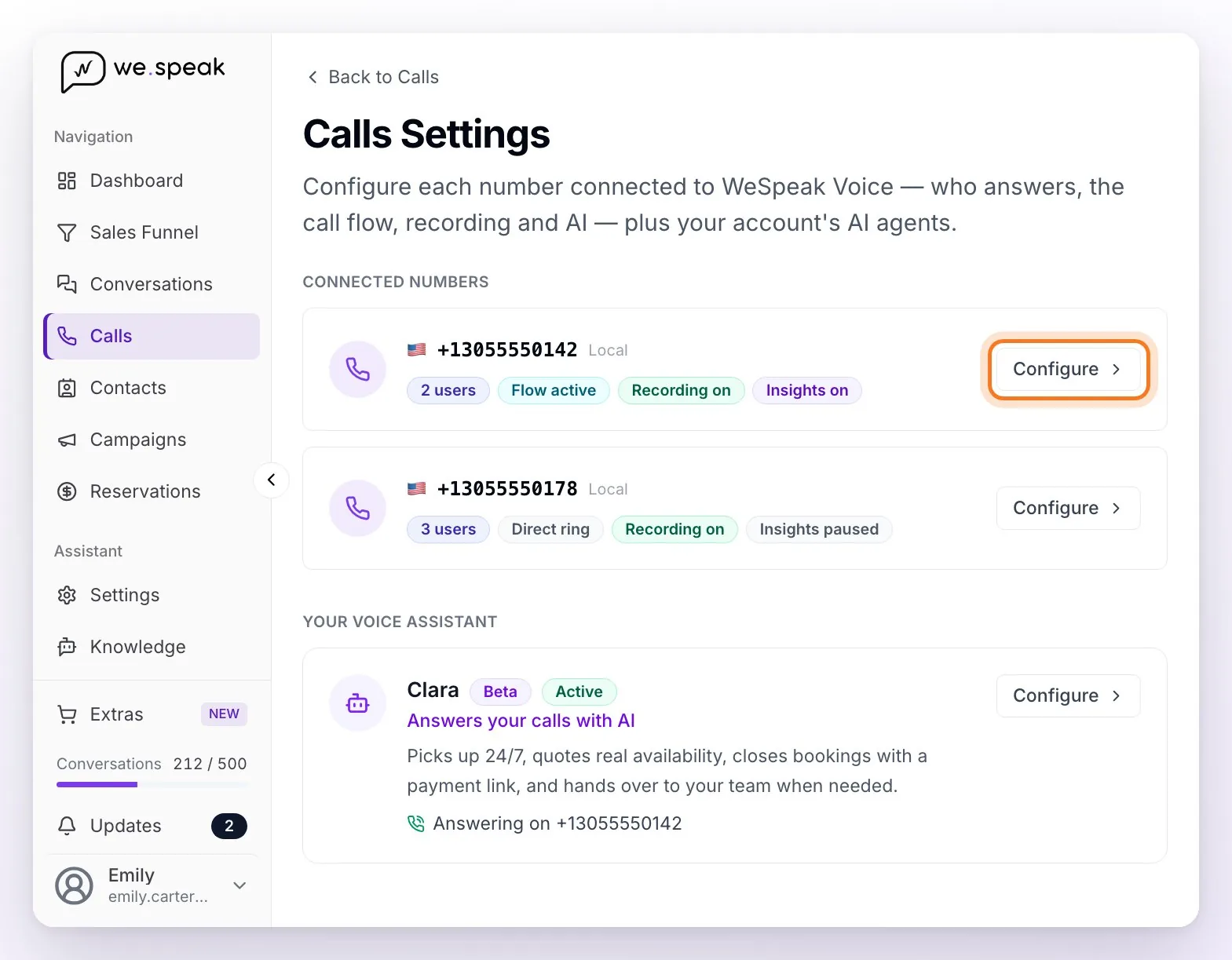
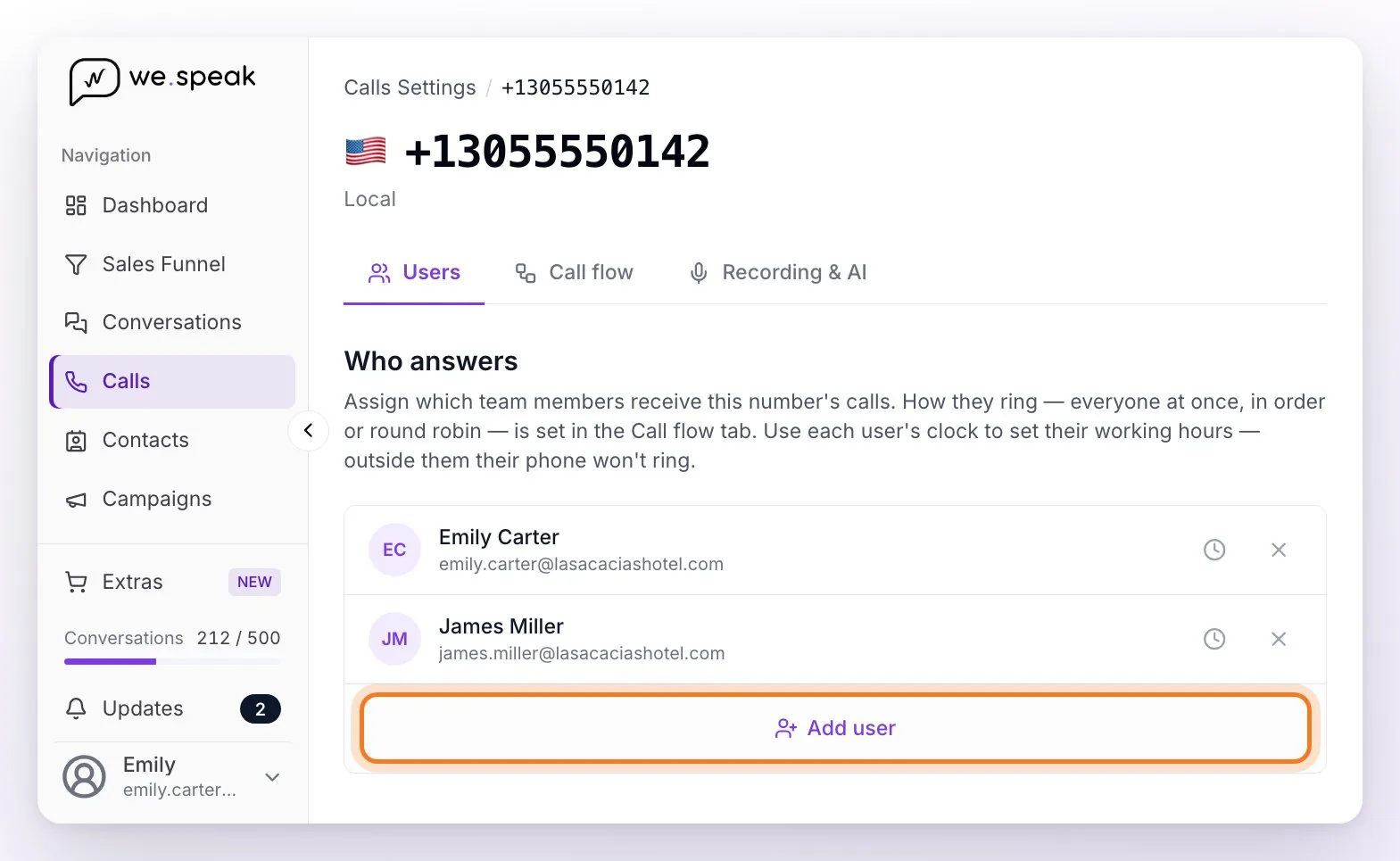
Assign users: in Calls → Settings, open the number (Configure button) and on its Users tab add the team members who receive its calls with Add user. Anyone you add to your team after activating the number isn't assigned automatically: add them here.
Test it: call the number from a cellphone — it should ring in the browser of the assigned users. A newly activated number includes 5 inbound test calls as long as your account has never loaded credit (your team answers them, not the AI assistant); to keep operating, top up Call credit (next section).
⚠️ Important: to receive calls, the user needs the panel open in the browser and the microphone permission granted.
ℹ️ If you don't see the Extras section or the Calls module in your panel, ask your WeSpeak advisor.
How you pay: number + Call credit
WeSpeak Voice has no module fee and no minute packs. You pay for two things:
- The number: a one-time setup fee plus a subscription billed together with your WeSpeak plan, on the same cycle. You see the exact price in Extras before confirming the purchase (Buy numbers).
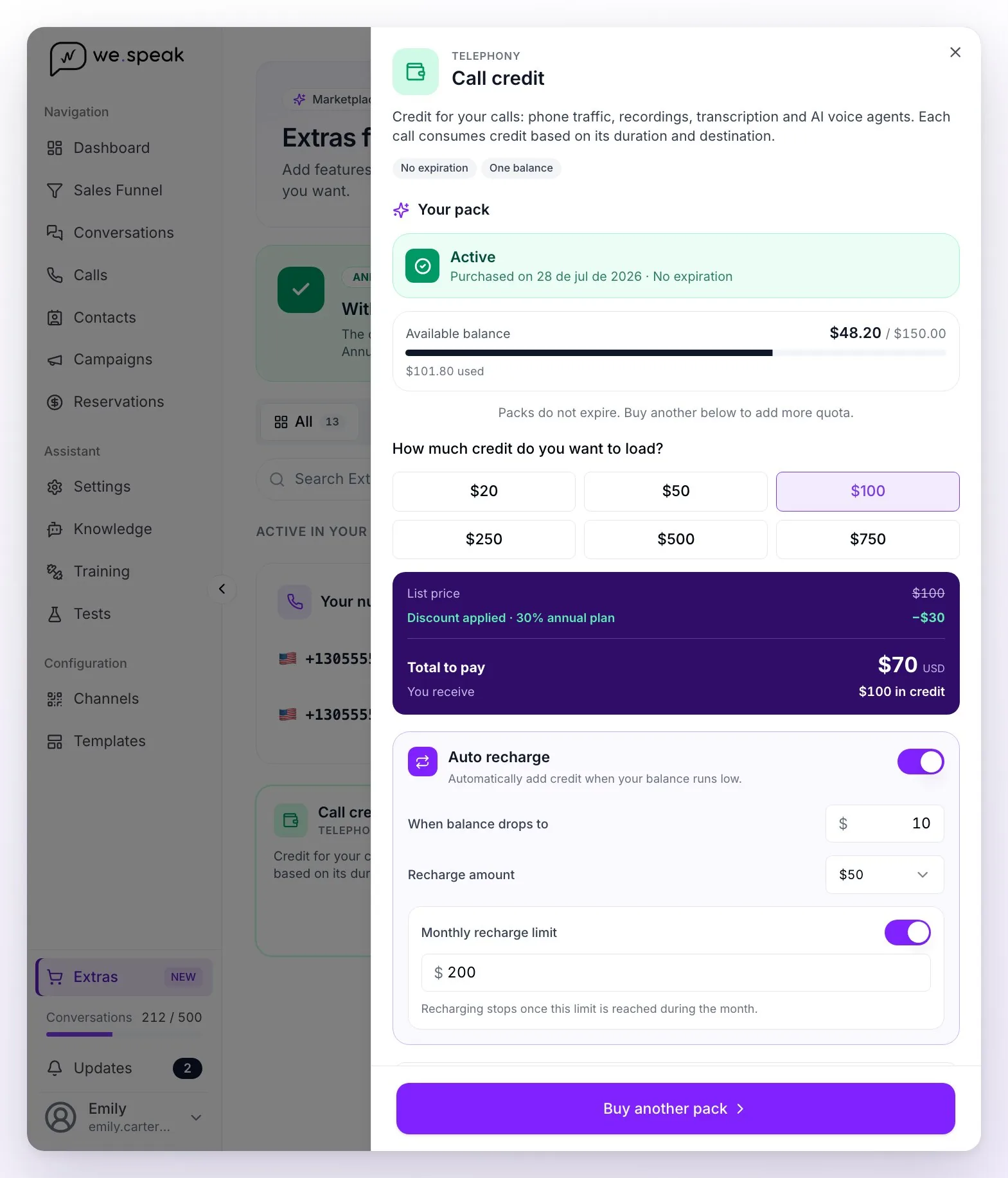
- Usage, with Call credit: a prepaid balance in USD that you top up from the Call credit card in Extras, choosing the amount from the available presets (from US$ 20 to US$ 750). It never expires and it accumulates. Everything you use is debited from it: phone traffic (based on duration, destination and direction of the call), recording, Voice Insights transcription and the AI voice assistant's time. The balance is shown in the Calls header.
Details worth knowing:
- Started minutes (60/60): every call bills in one-minute steps, rounding up (12 seconds = 1 minute; 1:08 = 2 minutes). Calls that don't connect (missed, rejected or unanswered) don't consume credit. Per-country rates are the ones in the WeSpeak Voice calculator, in USD; each call is charged at the rate in force when it happens.
- Annual-plan discount: if your WeSpeak plan is annual, you top up credit with a 30 % discount (you pay 70 % and receive 100 % of the credit).
- Auto top-up (optional): from the same card you define a threshold (when the balance drops below X), the amount to top up and an optional monthly cap. It charges your saved card, with the discount in force, without you having to do anything.
- Low-balance alert: if you don't have auto top-up on, when the credit is at US$ 10 or less we send you an email and an alert in the platform.
- No credit, no calls: with the balance at zero, inbound calls are cut off before ringing (they're logged in the history as rejected for lack of credit, with access to top up), outbound calls can't be started and the AI assistant doesn't answer. A call already in progress is never cut off.
- What each call cost: you see it in the Charge card of the call's detail — it appears a few seconds after hanging up (until then it says "Calculating…") and may adjust a few minutes later, when the transcription is added — and in the Cost (USD) column of the history CSV.
- Terms and conditions: on your first credit top-up you accept the Voice annex of the terms and conditions, which governs the whole telephony service (see the frequently asked questions at the end of this article).
- Who can buy: only your account's admin profiles (the Administrator role). The Supervisor and User roles see Extras in read-only mode.
💡 To estimate your monthly spend before you start, use the WeSpeak Voice cost calculator: pick the country and the volume of inbound and outbound minutes, with or without the AI assistant, and it shows the estimated cost broken down by number subscription and minutes. The full breakdown of consumption types is in Types of consumption in WeSpeak.
The phone in your browser (softphone)
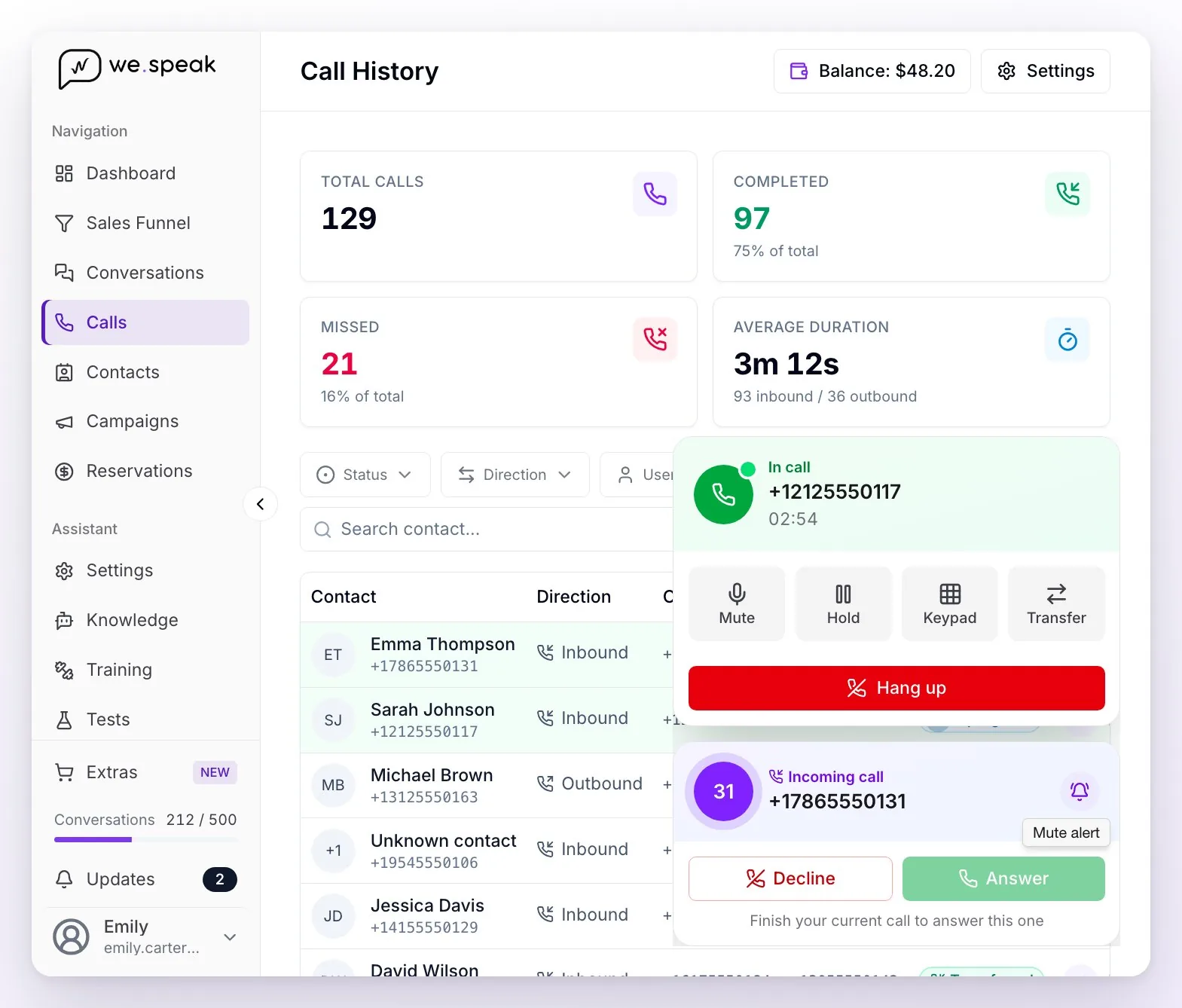
When a call comes in or goes out, the phone shows up as a card at the bottom right, on any page of the panel; to dial a number, the Calls section has the New call button. During a call you can:
| Button | What it does |
|---|---|
| 🔇 Mute | Turns off your microphone. |
| ⏸️ On hold | Pauses the call. |
| 🔢 Keypad | For phone menus ("press 1…"). |
| ↪️ Transfer | Passes the call to another team member or to an external number. |
| 📞 Hang up / Reject | Ends or rejects the call. |
The dialer (New call) comes with your line's + and country code already typed: complete the rest of the number in international format, without a leading 0 or 15 (Argentine mobiles take the 9: +54 9 11…). The country changes with the little flag or is detected on its own as you type the code, and under the number a chip tells you whether it's Mobile 📱, Landline ☎️ or an Invalid number (it doesn't show for US and Canadian numbers, which can't be told apart). If your business has several numbers, you choose which one to call from with the Call from selector before dialing.
While you're on a call, new calls don't ring for you: they go to available teammates or to the flow's fallback, because one person can't handle two calls at the same time. If two calls were ringing for you at once and you answered one, the other stays on screen with the Answer button disabled and the notice "Finish your current call to answer this one": you can reject it, mute its alert or let a teammate take it.
Incoming calls: who answers
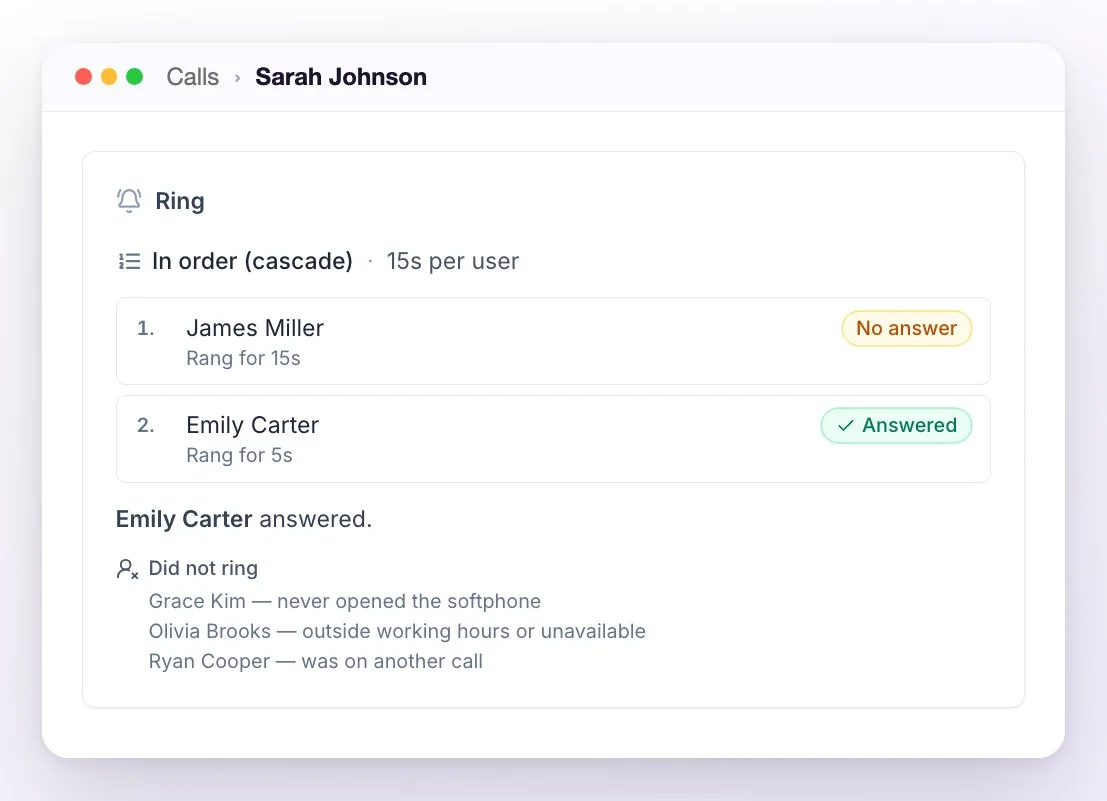
When someone calls one of your business numbers, the call rings in the browser of the users assigned to that number who are available (within their hours, present, and not on another call). How it rings is per number, in the A team member action of its call flow:
- Everyone at once (the default) — every available user rings at the same time and the first to pick up answers; it stops ringing for the rest on its own.
- In order (cascade) — rings one user at a time, in the order you define and for the seconds you give each one. If they don't answer, it moves to the next.
- Round robin — same as in order, but each new call starts with the next user in the list, so calls spread evenly across the team.
The name of whoever answers is recorded in the history, and each call's detail carries the Ring block: who it rang, in what order, for how long, who answered and who was skipped and why. If nobody answers, the call is logged as missed — visible in the history and as an unread conversation in Conversations, so you can call back with one click.
💡 Tip: the same number can have several calls at once, handled by different people — the number doesn't get "busy". What can't happen is one person answering two calls at the same time.
Useful details about the distribution:
- When someone answers, on everyone else's screens the call disappears on its own (it stops ringing instantly). If two people answer at the exact same time, the first one stays connected and the other's call drops immediately — the history always records a single user: the one who stayed on the line.
- Rejecting an incoming call means "not me": if other users are still ringing, there's a next one in the list or a fallback in the flow, the call carries on to them and the caller isn't cut off. Only when there's nobody left to pass it to does rejecting end the call.
- If you have WeSpeak open in several tabs, the call rings only in the last connected tab (it's the phone standard: one line per user). Practical tip: work your calls from a single tab; if you close the one that was ringing, another open tab picks the line back up on its own within a few seconds.
Availability: schedules and presence
Who gets the ring doesn't depend only on the assignment — it also depends on each person's availability:
| Setting | Where it's configured | What it does |
|---|---|---|
| Working hours and time zone | In Team, per user | Outside their hours, the user doesn't get the ring. |
| Presence (available / unavailable) | Each user, from their own profile | When "unavailable", the user doesn't get the ring even if within their hours. |
If none of the assigned users are available when a call comes in, it doesn't even ring: it goes straight to the plan B of the call flow (for example, forward to another number, send a WhatsApp or have the AI assistant answer). This is how the classic setup works: "during the day the team answers; outside hours, forward, send a WhatsApp or let the AI answer".
Outgoing calls
Two ways to call:
- From the dialer: in Calls, the New call button opens the keypad to dial any number.
- From a chat or a call: the phone button (Call) in a conversation's header (on channels with a phone: Calls, WhatsApp) or in a call's detail. Call from… opens so you pick the line, and then you confirm Call with the contact's number. From a WhatsApp chat, WeSpeak dials the number in the form each country uses (for example, the 9 of Argentine mobiles) and, if the carrier rejects it as non-existent before anyone answers, retries once with the other form; from the dialer it dials exactly what you type.
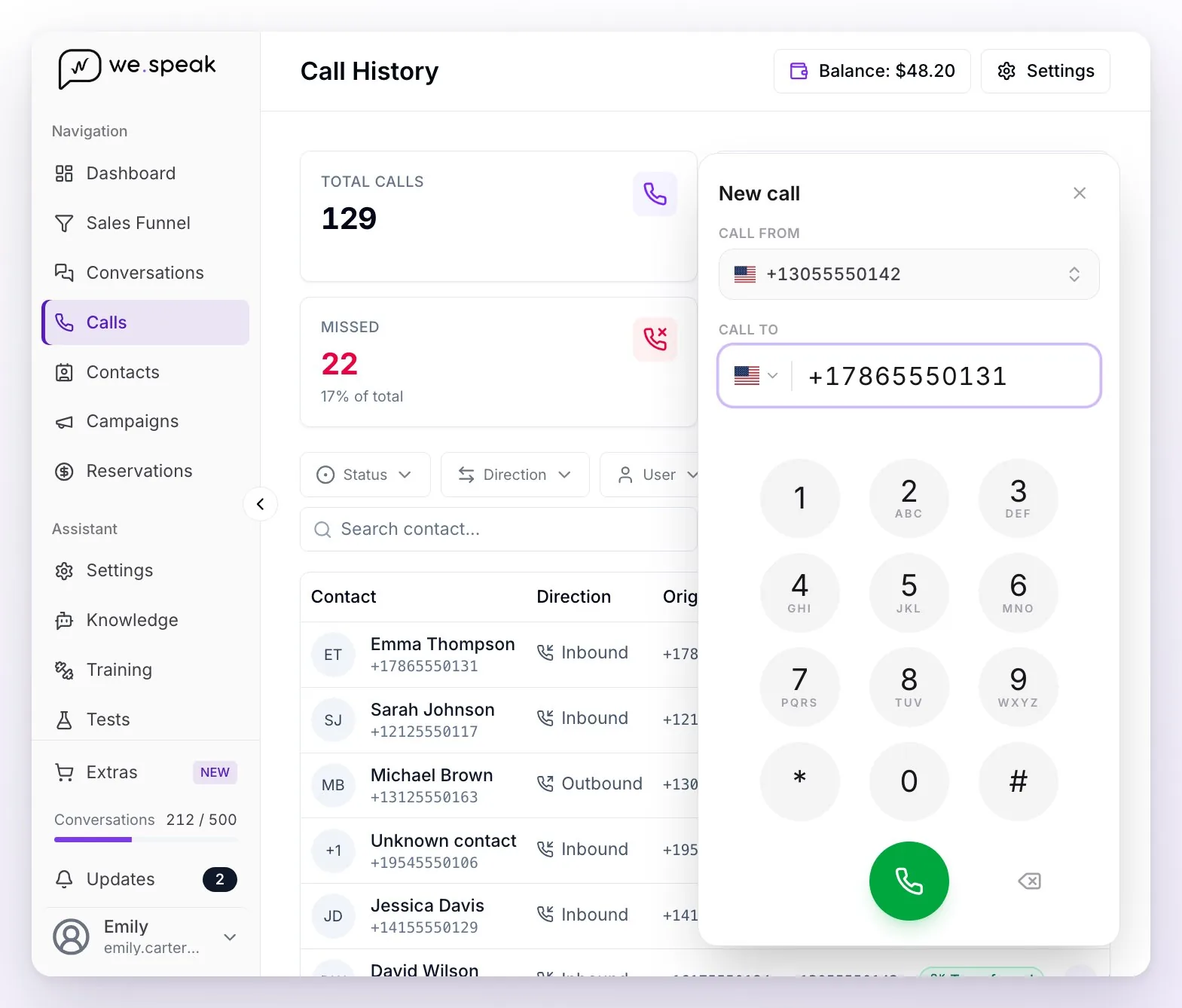
Outgoing calls go through the same circuit as incoming ones: they're recorded, with a log of who originated them, the actual duration and a timeline of events.
Transfers
During an answered incoming call you can transfer the call to another team member or to an external number (for example, another department's direct line or a cell phone). Step by step:
- With the call in progress, press the ↪️ Transfer button on the softphone.
- Choose the destination: on the Number tab you type it in the same flag field as the dialer, in international format; on User you pick among the people assigned to the number the call came in on who have the softphone connected.
- Press Transfer: the call goes to the destination and you're free to take another one.
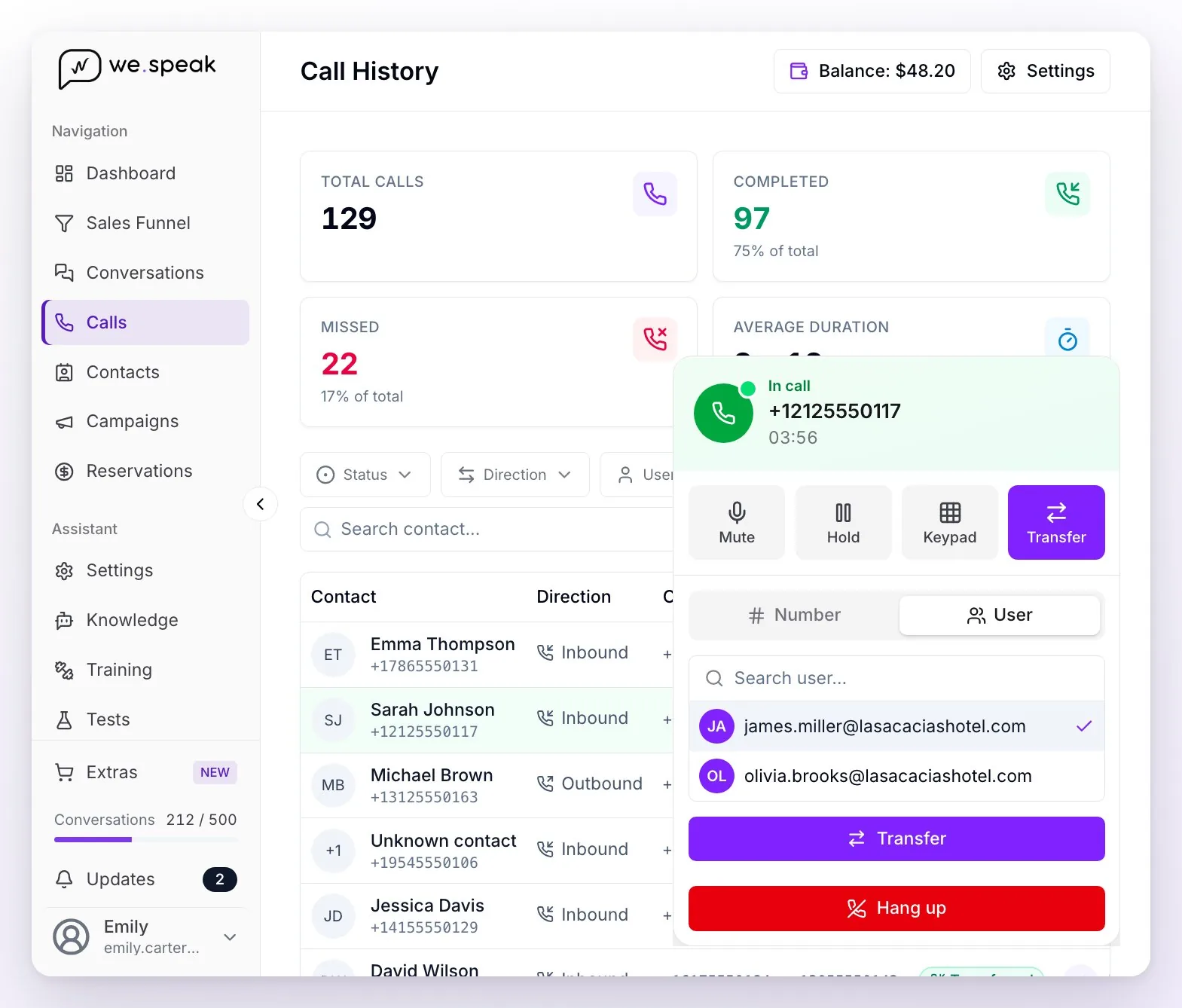
Only incoming calls can be transferred, and the transfer available today is the direct one: the contact is passed to the destination without a prior consult — if you want to give the person receiving it a heads-up, do it through another channel before transferring. The call is marked as "Transferred" in the history, and the recording also covers the part after the transfer.
💡 If what you want is for all of a number's calls to be forwarded to another number automatically (without answering them), don't use the manual transfer: set it up with the "Redirect to another number" action in the call flows.
Recordings and history
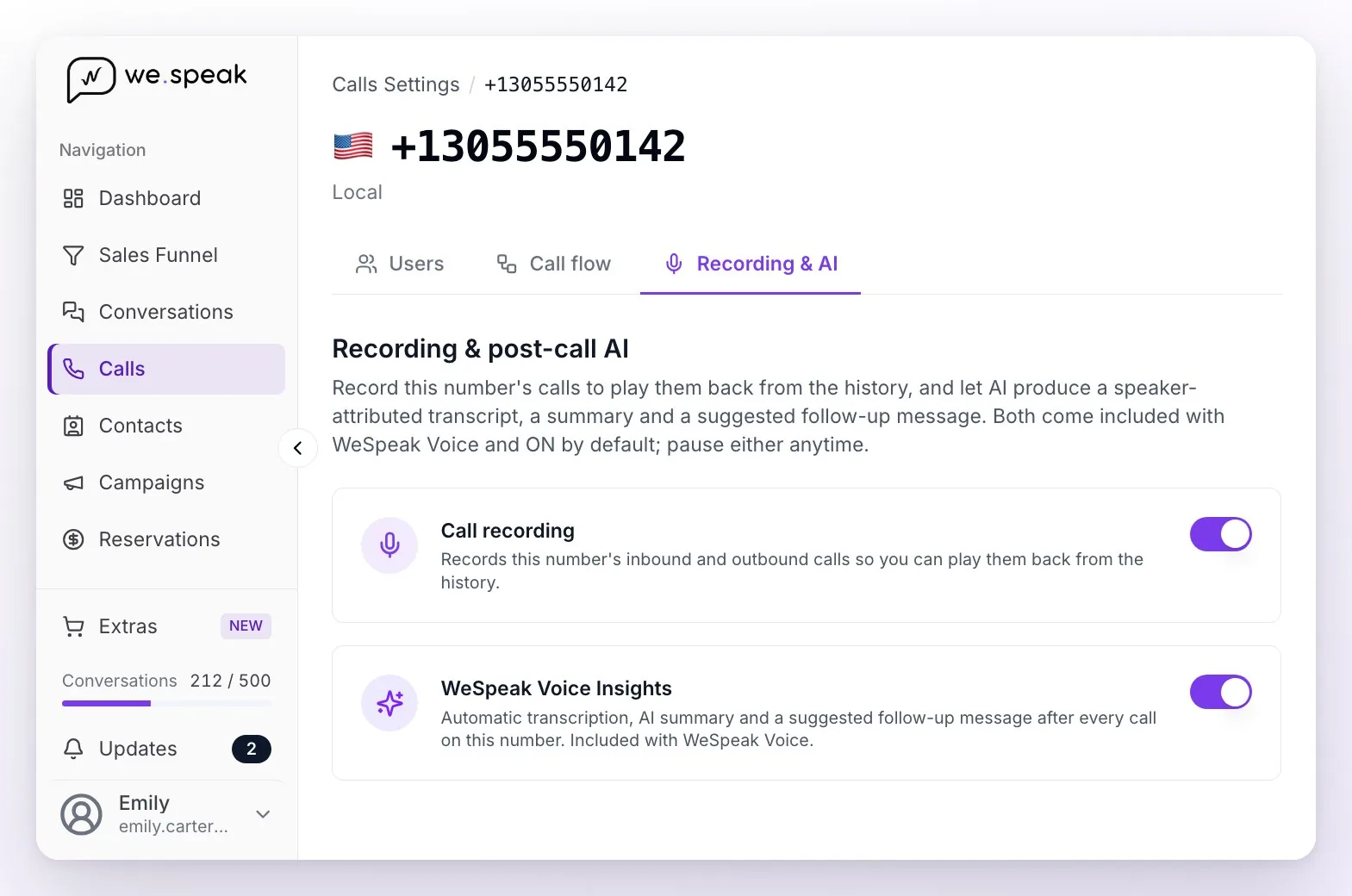
By default, all calls are recorded automatically, incoming and outgoing — but recording is optional: you turn it on or off per number in Calls → Settings → your number → Recording & AI. A call is recorded when a member of your team or the AI assistant answers it; the parts where only a menu's auto-attendant speaks don't produce a recording of their own. Turning recording off for a number doesn't delete earlier recordings, but it also pauses Voice Insights for that number (no audio, no transcription).
In the Calls section of the menu you have the full history, which updates in real time:
- Summary cards: total calls (with an incoming/outgoing breakdown), completed and missed (with their percentage) and average duration — the cards respect the active filters.
- Filters: by status, direction (incoming/outgoing), user (with the "only mine" shortcut), date range (by default, the last 7 days) and search. Filters live in the URL: a filtered view can be shared by link.
- Detail of each call: origin and destination, duration, who answered, a note if there was a transfer, the Ring block, the full timeline (started → ringing → answered → hung up), the recording player, the Charge card with that call's cost and, below it, the WeSpeak Voice Insights block. It also has the Call and Message buttons.
- Export: you can download the history as CSV with the active filters — every matching call, up to 10,000 rows (if it's truncated, the panel lets you know). The file includes the Cost (USD) column and three AI columns: AI summary, Transcription and Suggested follow-up message.
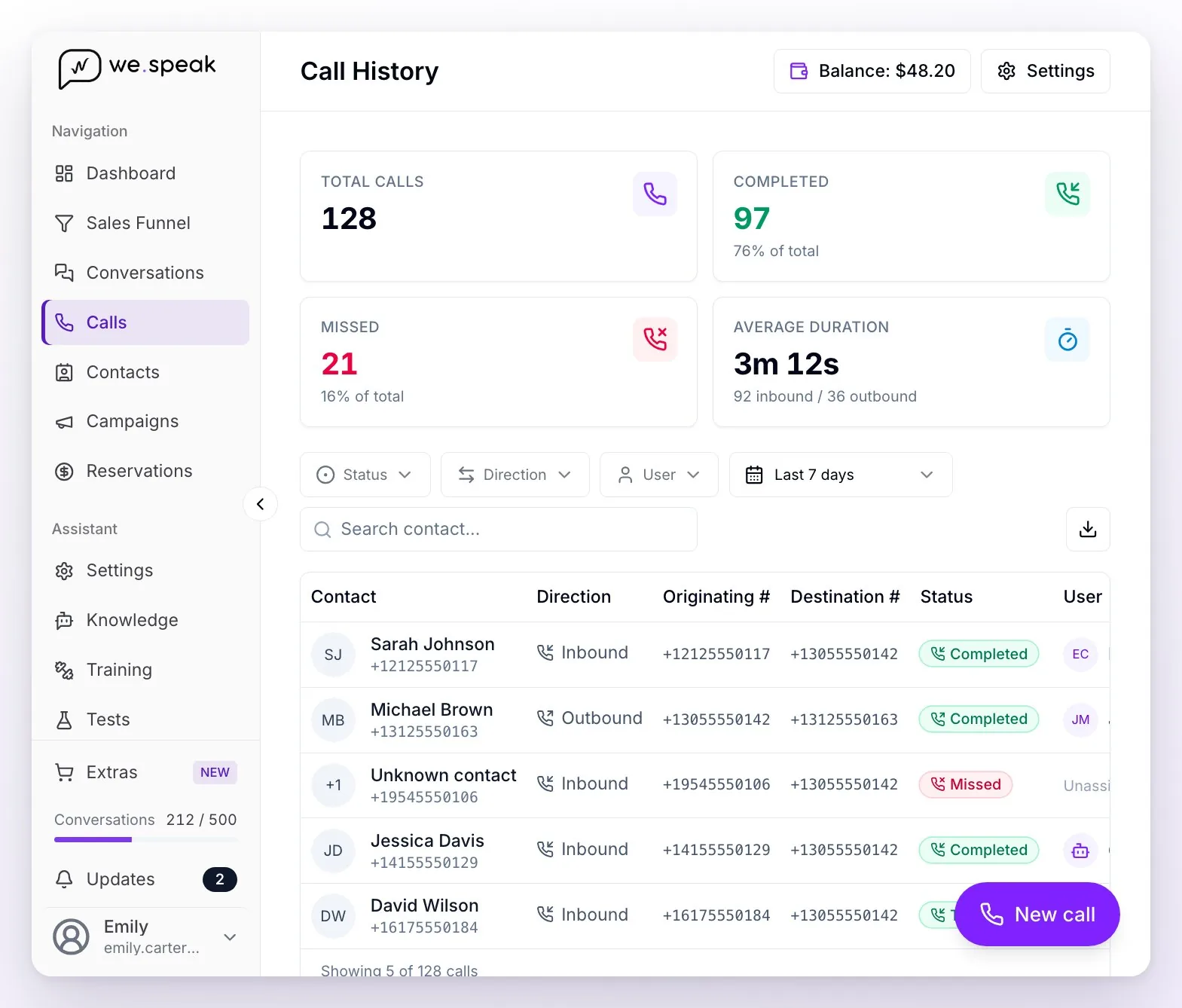
Each row shows the contact with its resolved name (if the phone matches a known contact) or the number in international format.
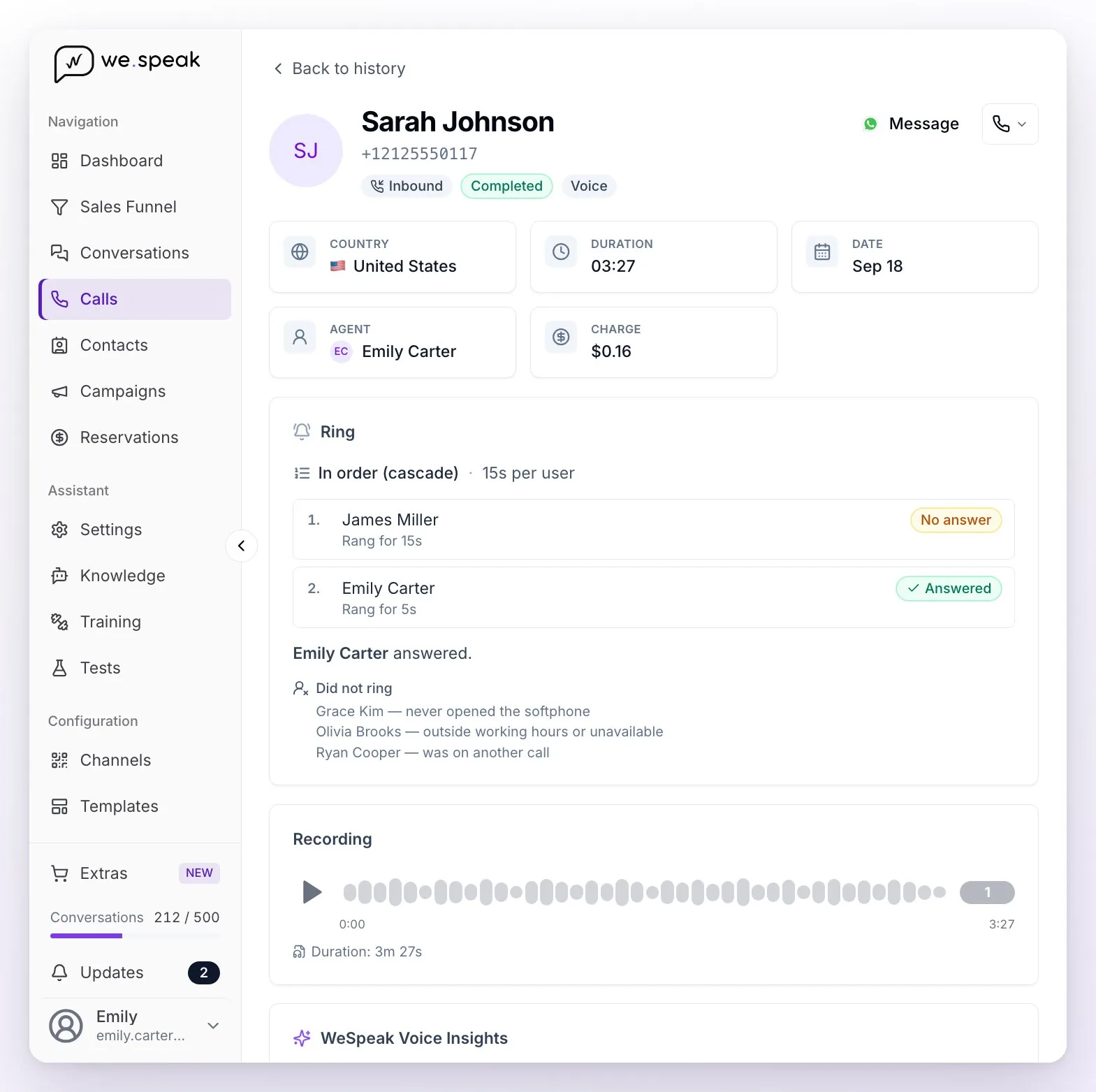
ℹ️ About the recordings: they're recorded end to end, including the part after a transfer, and each business only accesses its own recordings. They play by streaming with temporary links: if a recording doesn't load, reload the page and the link is regenerated.
⚖️ Telling callers the call is recorded is your business's responsibility. Call-recording laws vary by country (some require every party's consent). WeSpeak doesn't play an automatic notice: if you need to give one, put it in your phone menu message or in the AI assistant's greeting, or turn recording off for that number. More detail in the frequently asked questions about the terms and conditions.
WeSpeak Voice Insights: AI transcription, summary and follow-up
When a recorded call ends, WeSpeak Voice Insights processes it automatically and within a few minutes gives you three things:
- Transcription with speakers — everything that was said, turn by turn, showing who spoke: the name of whoever answered (or of the AI assistant) and Contact.
- Summary — why they called, the concrete details mentioned (dates, rooms, prices, names), what was agreed and what's still pending.
- Suggested follow-up message — a short, friendly WhatsApp, ready to send, that confirms what was agreed and proposes the next step. Copy it with the Copy message button and paste it into the contact's chat.
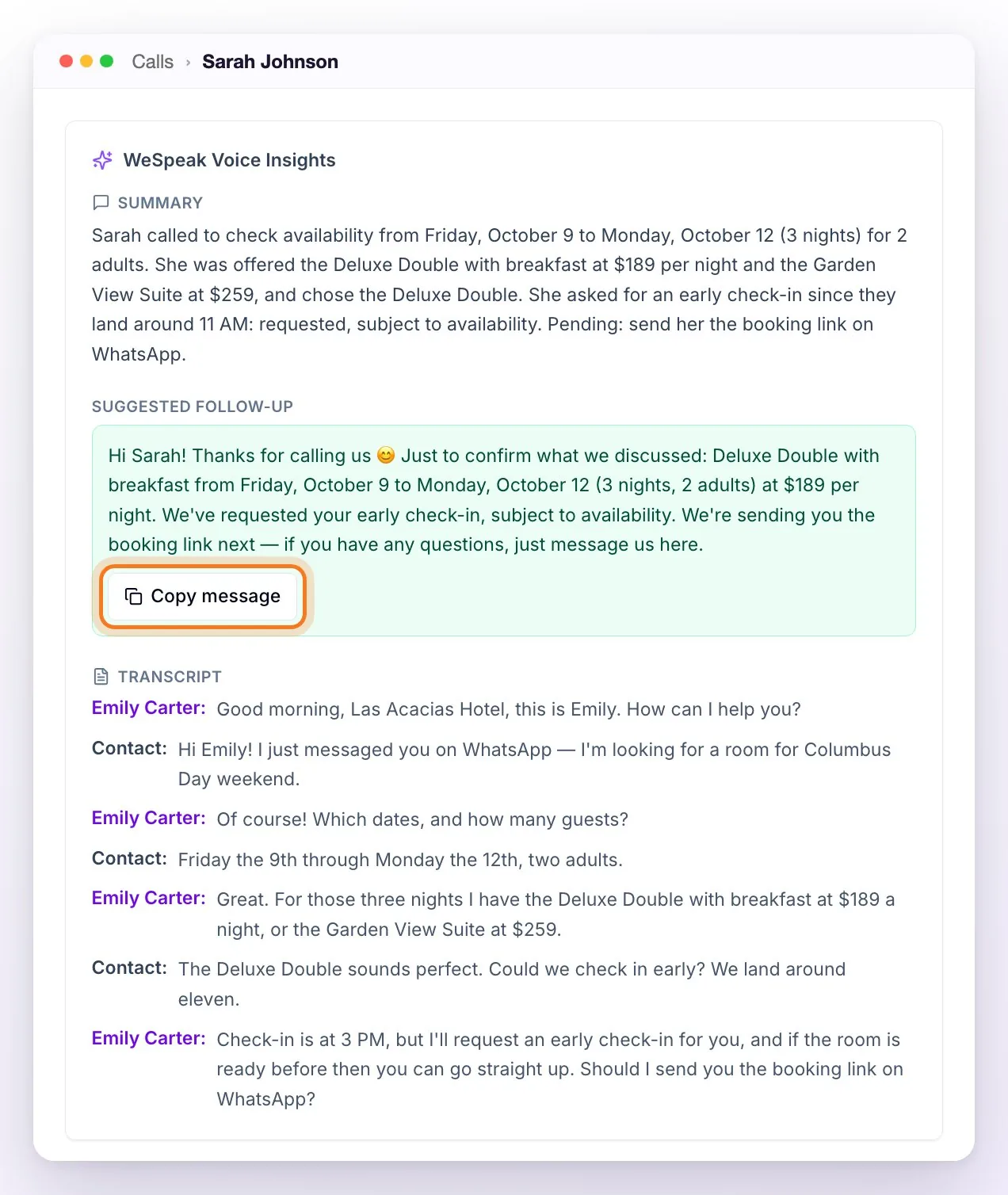
How it works:
- Language: it detects the language of the call on its own (Spanish, English, Portuguese…) and writes the summary and the follow-up in the language your guest spoke, so you can send it as is.
- When it appears: a few minutes after hanging up, depending on how long the call was. While it's processing you see "Transcribing the call…"; the screen updates on its own, no refresh needed.
- Where you see it: in the call's detail (below the player), in Conversations inside each call's card — the collapsed AI summary block, also on the calls that appear inside the contact's WhatsApp chat — and in the history CSV.
- Per-number control: it comes on by default. You pause it in Calls → Settings → your number → Recording & AI; that number's new calls stop being transcribed and the ones already transcribed aren't deleted. It requires recording to be on. The User role can't change it (Administrator and Supervisor can).
- New calls only: the history from before you had Voice active isn't transcribed.
💡 These features have a cost. Processing the call with AI consumes credit on top of the cost of the call itself, and it's billed the same way as telephony: per minute of call (60/60 rule), so a long call pays more recording and more transcription than a short one. If you only need to talk and won't use the transcription or the summary, turning Insights off makes each call cheaper. You can see what each call cost in its detail, the per-minute price of each extra in the cost calculator ("See rates and how it adds up" section) and the full breakdown in Types of consumption in WeSpeak.
ℹ️ If something fails: if a call couldn't be transcribed, the detail says so and the recording stays available. Occasionally a transcription comes out without speakers identified ("No speakers" chip): the text, the summary and the follow-up are still valid. Remember it's an automated result: it can miss or mistranscribe a detail — review it before using it for a business decision; the recording is always there to check.
AI voice assistant (beta)
The voice assistant is an AI agent that answers your business's calls by talking, just like the assistant does on your chat channels. It's in beta (you'll see it labelled that way in the panel) and it already handles real calls:
- Answers 24/7, without depending on anyone having the browser open.
- Quotes with real availability: it checks your rates and availability and puts together the quote for the stay, including room combinations for groups.
- Closes bookings: it creates the reservation and sends the payment link to the guest over WhatsApp — or by email — (requires WeSpeak Payments to be active; see below what WhatsApp delivery needs).
- Hands off to your team when the guest asks for it or the case requires it.
How it's configured. There is one per account and it answers on the numbers you point at it. It lives in Calls → Settings, Your voice assistant section (Configure button): you define its name, its voice, its language, the greeting it answers with, the transfer destinations (which numbers it can transfer the call to — up to five —, each with a description of when to use it) and, under What it can do, the tools it uses. Setting up at least one destination is mandatory: without one, the assistant would have no way to pass the call to a person. And for it to close bookings you have to turn on Create reservation, which comes off. Only admin profiles can configure it.
How it connects to a number. Through the number's call flow, with the "Let an AI agent answer" action: as direct answering, as an option in the phone menu ("press 1 to talk to our assistant") or as the fallback when your team isn't available — the classic case is the team answering during working hours and the assistant covering nights and weekends. An assistant that's active but not used by any flow doesn't answer anything.
How it sends the payment link. When it closes a booking, the assistant sends the link by WhatsApp to the number that called (or by email, if you pick that as the first option) and, if one channel fails, it tries the other; if neither works, it emails you so you can send it by hand. WhatsApp delivery needs a WhatsApp connection: with a QR connection nothing else is required; with WhatsApp API, Meta must have approved the wespeak_reservation_link template. Until it has, inside Create reservation you'll see the notice that the link goes out by email and the Send template to Meta button, which submits it in Spanish, Portuguese and English; one approved language is enough (if the guest's isn't approved, the link goes out in another approved one). While it's pending (usually under an hour, up to 24) or if it was rejected, the link goes out by email; if Meta rejects the template, write to us and we'll sort it out with you. If you have both connections (QR and API), you choose which one to use under WhatsApp connection.
Try it before connecting it. From its settings, with Test by call, you talk to it through the browser's microphone, exactly as a guest would hear it (with Test by chat you test it in writing). The test produces the same as a real call (recording, transcription and summary), shows up in the history as "Assistant test" and only consumes the actual cost of those minutes (you need a credit balance to make it). Two limits of the test: it doesn't transfer to your destinations, and the booking link is only sent if you dictate a number with its country code.
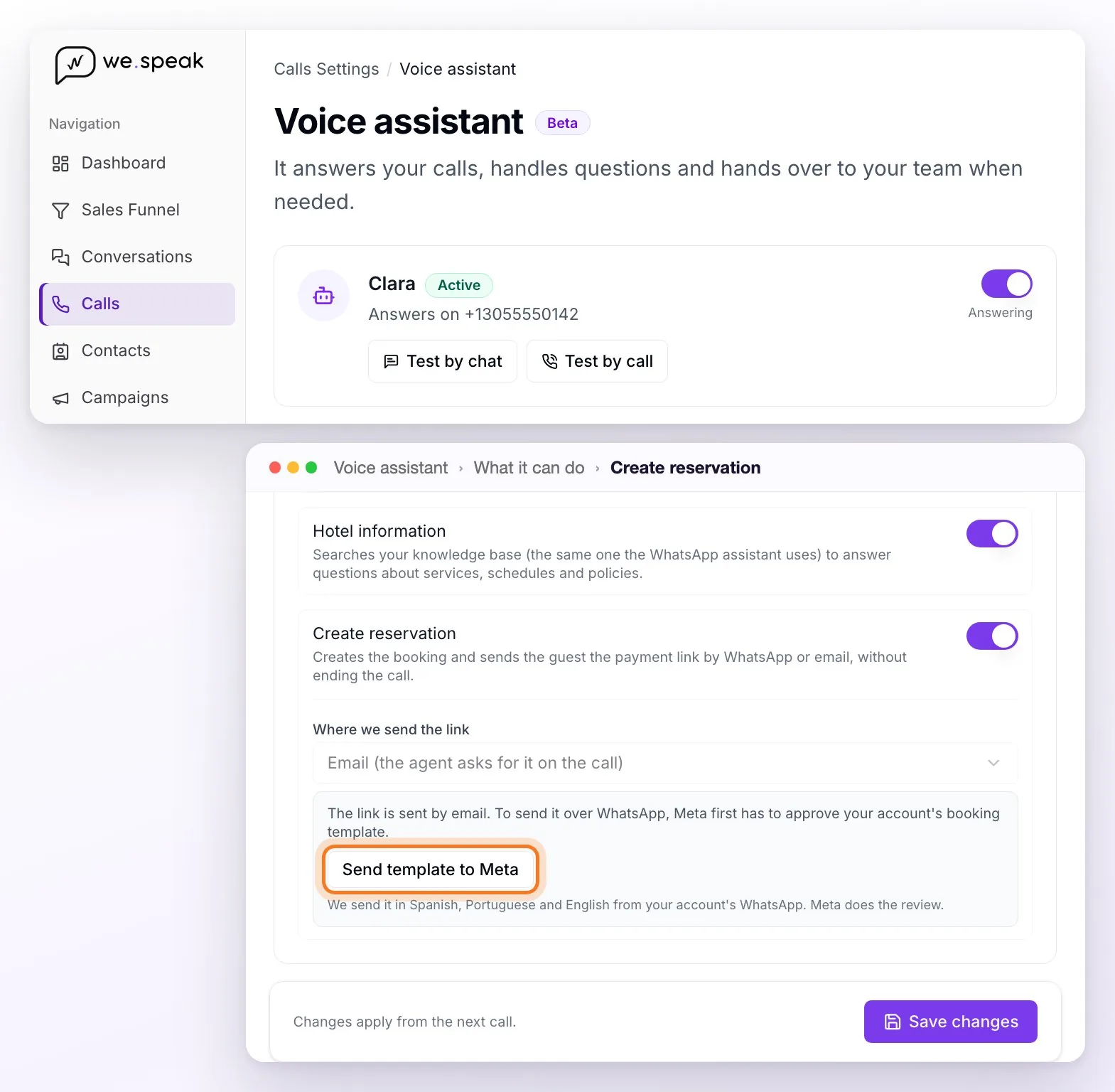
💰 Calls answered by the assistant are paid with your Call credit, like the rest of the traffic, plus the AI processing. With no credit available, the assistant doesn't answer.
⚖️ What stays on your side. The assistant's greeting must say it's a virtual assistant — the default greeting already does; if you customise it, keep that introduction, because in several countries the law requires disclosing that the caller is talking to an AI. Always keep a person to hand off to. Keep the information it uses (rates, services, policies) up to date: its answers come from there. And don't use it for emergencies or for medical, legal or financial advice. More detail in the frequently asked questions about the terms and conditions.
Calls inside Conversations
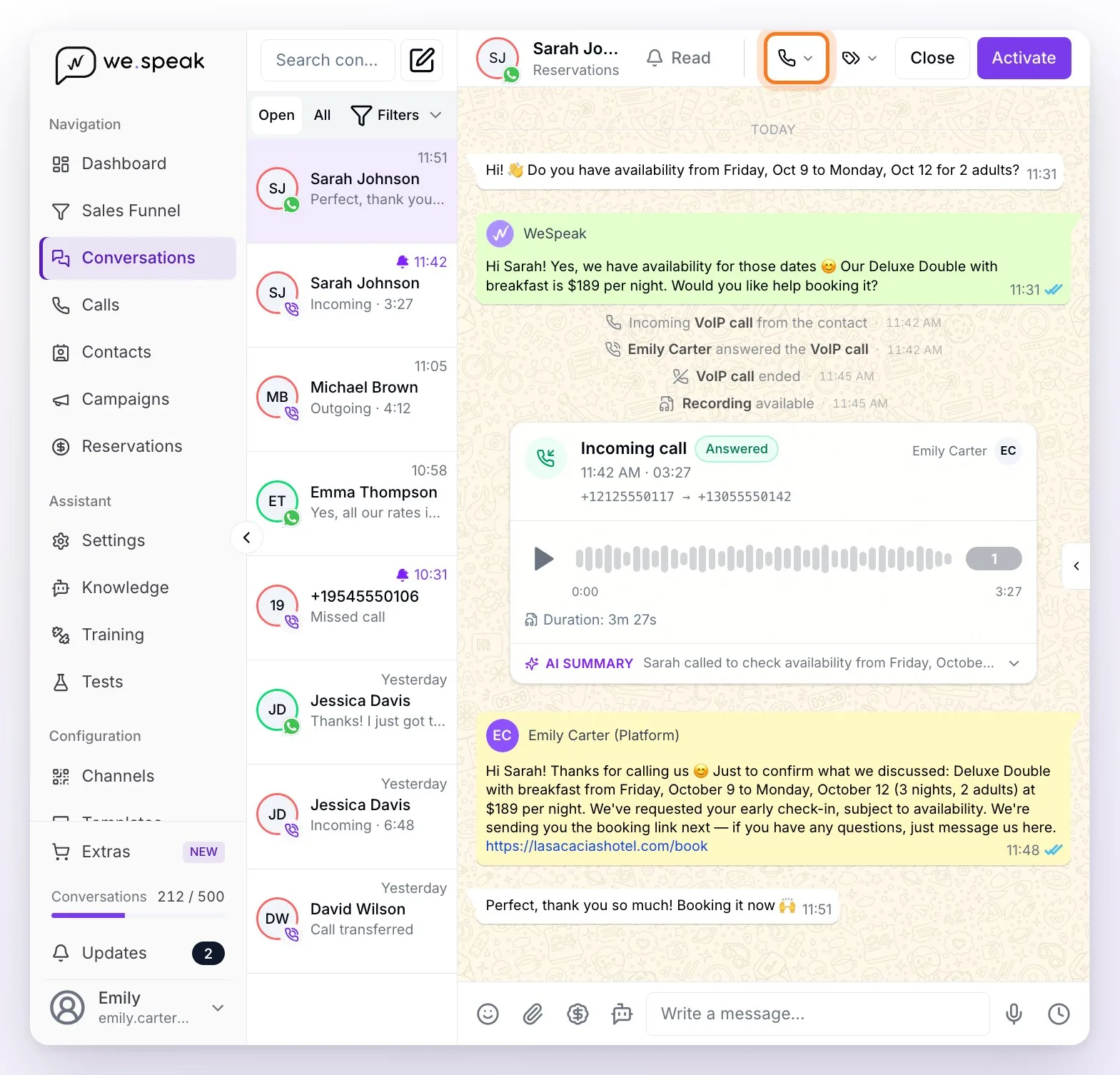
Calls are just another channel in your inbox, with their phone icon and their option in the channel filter. Every new incoming call leaves the conversation unread, and each row's "last message" is a summary of the last call:
- Incoming · 2:14 / Outgoing · 0:45 — completed call, with its duration.
- Missed call — unanswered incoming.
- Outgoing, no answer — you called and nobody answered.
- Call transferred — ended transferred.
- Incoming call… / Call in progress… — call in progress (updates live).
When you open the conversation you see the call history between that contact and that business number of yours, each one with its timeline and its recording. Below each recording is the AI summary block (collapsed): expand it to see the summary, the suggested follow-up with its copy button and View transcript. In the conversation header are the Call (the phone icon) and Message buttons; Message opens their WhatsApp chat (or Start chat, if they don't have one yet).
And if that contact already has a WhatsApp conversation with your business, their calls show up inside that chat too, interleaved by date among the messages — with their duration, who answered, the recording and their AI summary block — so you see in one place everything that happened with that guest: they wrote, called, wrote again. The match is made by phone number, with nothing to configure. The Calls-channel conversation is still created and shows only the calls.
ℹ️ Note: call conversations are a record: the chat assistant doesn't reply to them, they don't move the funnel and they don't enter campaigns or automatic closings.
Two behaviors to know:
- One conversation per business number: if the same contact calls two different numbers (for example, Reservations and Front Desk), you'll see two separate conversations — just like on the rest of the channels.
- Only calls made after the channel was activated generate a conversation in Conversations; the full history (including earlier calls) is always in the Calls section.
Call flows (what happens when a call comes in)
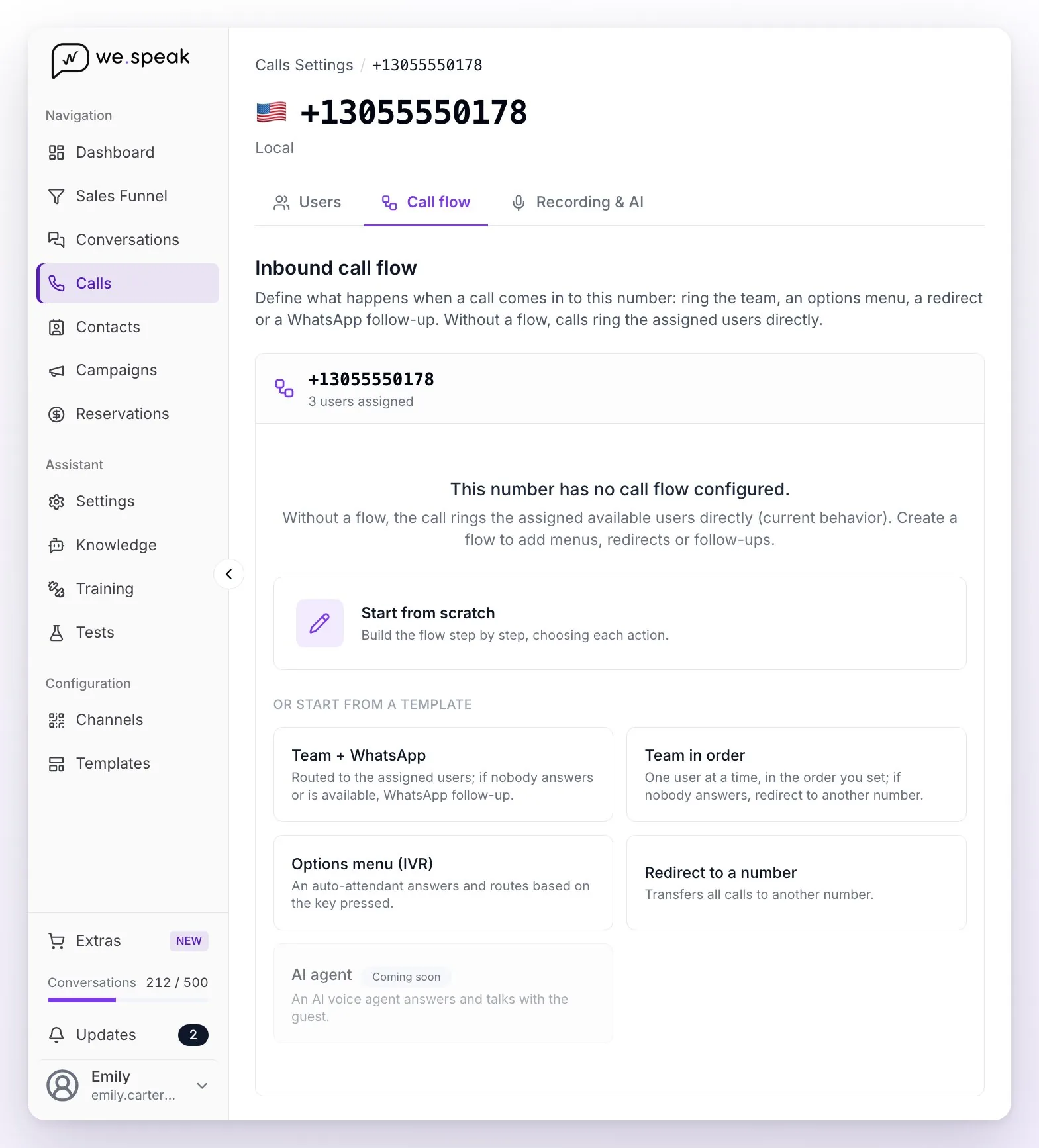
By default, a call rings straight to the available assigned users. With Call flows you decide, for each number, what happens when a call comes in — adding menus, forwarding, automatic follow-ups or the AI assistant.
It's configured in Calls → Settings → your number → Call flow tab. Each number has its own. You build the flow from scratch or from a template:
- Team + WhatsApp — rings your team; if they don't answer, it sends a WhatsApp follow-up.
- Team in order — rings one user at a time, in the order you define; if nobody answers, it redirects to another number.
- Options menu (IVR) — an auto-attendant answers and forwards based on the key pressed.
- Redirect to a number — transfers all calls to another number.
- AI agent — shown as Coming soon: for now the assistant joins the flow through the Let an AI agent answer action.
The actions you can chain:
| Action | What it does |
|---|---|
| A team member | Rings the available assigned users for the number of seconds you define (between 5 and 120) — everyone at once, in order (cascade) or round robin — with a fallback action "if nobody is available or answers". |
| Options menu (IVR) | An auto-attendant says a message ("For reservations, press 1…") and forwards based on the key. You define the voice language and what happens if they press an invalid option or don't respond. |
| Redirect to another number | Transfers the call to another number (in international format). It's a final step: the flow ends there. |
| Send WhatsApp follow-up | Sends a WhatsApp with an approved template (for example, when nobody answered). Requires an active WhatsApp API connection. |
| Hang up | Ends the call, with an optional message the auto-attendant reads before hanging up. |
| Let an AI agent answer | Your AI voice assistant answers the call, quotes, books and can hand off to a person. It's in beta and requires the assistant to be configured and active. You can give it a plan B in case it can't answer. |
Each number has its Active toggle and you can Save or Delete its flow. A number without a flow keeps working as always (rings the assigned users). The full detail is in Call flows.
💡 Typical example: "Ring Front Desk for 25 seconds → if they don't answer, redirect to my cellphone." Or: "during the day the team answers; outside hours, the AI assistant answers". A redirect is always the last step of the flow.
Troubleshooting
| What happens | Most common cause and what to do |
|---|---|
| Incoming calls don't ring for me | The user isn't assigned to the number, the panel is closed or the microphone is blocked. Check Calls → Settings → your number → Users, keep the tab open and verify the microphone permission. Also check their working hours and their presence. |
| Incoming calls drop on their own and show as rejected in the history | The account is out of Call credit (the call's detail shows the reason) or the number used up its test calls. Top up credit from Extras or turn on auto top-up. |
| It rings for my teammate and not for me / I ring second | The number rings in order or round robin. Check the Ring order in the call flow; the Ring block in the call's detail shows who it rang and in what order. |
| I rejected the call and the caller kept hearing the ringing tone | That's expected: rejecting means "not me" — the call carries on to the other users, the next one in the list or the flow's fallback. It's only cut off when there's nobody left to pass it to. |
| I call a cellphone and it doesn't ring / gives an error | It's almost always the number format. From the Call button in a WhatsApp chat, WeSpeak dials the form each country uses (Argentina with the 9, Mexico without the 1, Brazil with the ninth digit) and, if the carrier replies that the number doesn't exist before anyone answers, retries once with the other form. From the keypad, from the Calls channel and from a call's detail it dials exactly what you type or what's shown: Argentine mobiles in international format are missing the 9 (+549…) — it's the No. 1 cause of "it doesn't ring". |
| The recording won't load | The temporary playback link expired: reload the page and it's regenerated. If it keeps failing, contact support with the date and time of the call. |
| The call shows no transcription or summary | It just ended (it takes a few minutes), the number has Voice Insights paused or recording off, or the call predates having Voice active. Check Recording & AI in the number's settings. |
| The AI assistant doesn't answer calls | The assistant is inactive or not configured, no call flow includes it as an action (or that flow is off), or the account has no credit. Check the Your voice assistant card, the number's flow and the balance. |
| The detail says "Charge: Calculating…" or the cost changed afterwards | That's normal: the cost arrives seconds after hanging up and the transcription is added a few minutes later. If a call never receives a cost, it shows "—". |
| The contact called and the chat assistant didn't reply / the funnel didn't advance | That's the expected behavior: the calls channel is a voice record; the chat assistant operates on the messaging channels. |
| I see two conversations from the same contact in the calls channel | They called two different numbers of your business: there's one conversation per number, on purpose. |
| In Conversations I don't see the old calls | Only calls made after the channel was activated generate a conversation; the full history is in Calls. |
Current limits
- Calls ring only in the browser: there's no mobile app or forwarding to a physical phone. If nobody has the panel open, the call is missed (or covered by the call flow's fallback).
- The transfer is direct (without consulting the destination first).
- The AI voice assistant is in beta: there's one per account, it only answers where a call flow includes it, it needs credit to operate, and its conversational behaviour is tuned by WeSpeak (from the panel you configure its identity, greeting and destinations). Always leave it a transfer destination as an escape route.
- There's no voicemail: an unanswered call is logged as missed. (You can cover it with a WhatsApp follow-up or with the AI assistant inside the call flow.)
- One person cannot handle two calls at the same time: while they're on a call, new ones don't ring for them (they go to a teammate or to the flow's fallback).
- Voice Insights doesn't transcribe earlier history, needs recording on, doesn't translate (it stays in the language spoken), doesn't let you edit or regenerate the summary, and the suggested follow-up is copied — one-click sending from the call is on its way.
- There's no automatic recording notice or consent management: if you need one, it goes in the menu message or in the assistant's greeting.
- There's no retention setting or bulk download of recordings: they stay available in each call's detail while your account is active.
- Numbers can't be blocked yet (suppliers, bots, spam): there's no blocklist for incoming calls.
- The ringtone can't be customized for now.
- Porting the number your business already uses is not available yet.
- WhatsApp calls (the call button in the chat) don't come through this channel yet.
Frequently asked questions
Do I need to install anything or buy phones to answer?
No: calls are answered and made from the browser, inside the panel. When a call comes in, it rings on the computer (in the WeSpeak tab) and you talk through the microphone and speakers it already has. Headphones are optional: they aren't required, though they improve the audio if you work in a noisy place. The ringtone is WeSpeak's and can't be changed for now; what you can mute is the call-waiting alert when you're already on another call. You only need the page open and the microphone permission granted.
How do I get WeSpeak Voice? How much does it cost?
All you need is a number in WeSpeak: buying it from Extras enables the whole Calls module. Usage is paid with Call credit, a prepaid balance in USD that you top up from the same section: it never expires, it accumulates, and every call is debited from it based on its duration and destination — recording, transcription and the AI assistant too. With an annual plan you top up with a 30 % discount, and you can leave auto top-up configured so you never run out. To estimate your monthly spend there's the WeSpeak Voice calculator.
Can I use the number my business already has?
Not for now. Number portability is not available yet: to use Calls you need to get a number from WeSpeak — see the step by step in Buy numbers. If you are interested in porting the number you already use, mention it to your WeSpeak advisor: it is something we are evaluating for later on.
Can I have more than one number?
Yes — you can have as many as you need (for example, one for Reservations and another for Front Desk), each with its own assigned users and its own call flow. See the step-by-step in Buy numbers.
Does Voice handle WhatsApp calls?
No — WeSpeak Voice only handles regular phone-line calls (the ones that come in and go out through your virtual numbers). WhatsApp calls (the call button in the chat) don't come through this channel yet.
Can I use the same number for WhatsApp and for answering calls?
Yes. A number purchased in WeSpeak works for answering and making calls and, at the same time, as your WhatsApp Business (API) number: you register it with Meta like any other number when you connect WhatsApp API — when Meta asks you to verify it, choose verification by phone call: that call comes in through WeSpeak (the number doesn't receive SMS). WhatsApp messaging and calls coexist without issue: each is its own channel in the inbox. It's the option we recommend: a single number contracted in WeSpeak for WhatsApp and telephony, with no SIM card or physical phone.
Can I forward calls from my current number to a WeSpeak number?
It's possible, but we don't recommend it, for two reasons. First, it breaks your records and statistics: on a forwarded call, WeSpeak receives the number you forward from (your regular line) as the origin — not the number of the customer who originally called — so every call looks like it comes from the same number and you can't identify who called or link it to their contact. Second, you pay a double call cost: while the conversation lasts there are two active calls at once (the original one to your line and the forwarded leg to WeSpeak), so your carrier bills its leg and the received leg also consumes your WeSpeak credit. Our recommendation is to switch for good to the number you purchased in WeSpeak: replace your original number with the new one across your different channels (website, Google listing, social media, printed materials) so calls come in directly.
If a guest writes on WhatsApp and then calls by phone, do I see it together or separately?
Both. The call is logged in its own conversation in the Calls channel (which shows only calls) and, if the number they called from matches a contact who already has a WhatsApp chat with your business, it also shows up inside that chat, interleaved by date with the messages, with its recording and its detail. There's nothing to configure: the match is made by phone number. From the WhatsApp chat you can call them back with the Call button, and from the calls conversation open their WhatsApp with Message.
If the call rings for several people and one answers, what do the others see?
The call disappears from their screens instantly. If two answer at the exact same time, the first one stays connected and the other's drops immediately; the history records a single user.
I have WeSpeak open in several tabs, why does it ring in only one?
Each user has a single "internal line" and the most recently connected tab is the active one. Work your calls from a single tab; if you close it, another open tab picks the line back up within a few seconds.
What happens if nobody on my team answers?
The call is logged as missed: you see it in the history and as an unread conversation in Conversations, so you can call back with one click. There's no voicemail, but with a call flow you define what happens in that case so you don't lose the customer: forward to another number (for example, an on-duty cellphone), hang up with a voice message ("We're closed right now, message us on WhatsApp…"), send an automatic WhatsApp follow-up or have the AI assistant answer. Review the flow options to pick the combination that best covers your hours.
What happens if three or five calls come in at the same time?
They're handled in parallel: the number doesn't get "busy", and each call rings the assigned users who are free, according to how that number's flow defines it (everyone at once, in order or round robin). As long as there are people available, each one can take a different call — and the rest of the team can keep making outgoing calls at the same time. There's no waiting line: if nobody is free at that moment, the call isn't queued; it follows the "if nobody is available or answers" branch of the flow (forward, WhatsApp follow-up, message and hang up, or the AI assistant), or is logged as missed if the number has no flow.
What happens if a number has no users assigned?
Incoming calls are received by no one. Assign at least one user in Calls → Settings → your number → Users so the number rings someone.
How is a call's duration counted?
By started minutes: every call bills in one-minute steps, so a 12-second call counts as 1 minute and a 1:08 call as 2 minutes. It's the telephony standard (60/60 billing) and the same measure our provider charges us — it applies to incoming and outgoing calls alike. Calls that don't connect (missed, rejected or unanswered) don't consume credit. The history always shows each call's real duration; what gets debited from your credit is the rounded-up minute. More about credit in Types of consumption in WeSpeak.
Do recording and AI analysis cost the same on a 2-minute call as on a 40-minute one?
No: recording, transcription with summary and follow-up and the AI voice agent are billed per minute of call, with the same 60/60 rule as telephony (every started minute counts in full). A 40-minute call consumes, on each of those items, 20 times more than a 2-minute one. That's why it's worth enabling recording and AI only on the numbers where you really use them. The rule is detailed in the WeSpeak Voice terms and conditions.
How much does a call cost?
It depends on the country, the call type (inbound or outbound) and whether your team or the AI agent answers it. You can estimate your monthly cost — local number plus minutes — in the WeSpeak Voice cost calculator, with final prices in USD. If you'd rather see what the product does first, it's all in WeSpeak Voice.
Where do I see the cost of each extra: recording, transcription, AI summary?
In the same calculator: at the end of the page, under "See rates and how it adds up", you get the breakdown by item for the country you picked — telephony · inbound call, telephony · outbound call ("from" price, depending on the destination), call recording, transcription, AI summary and suggested follow-up message, AI voice agent (only on the calls the agent answers) and the monthly fee of the local number. All are final prices in USD per minute of call, except the number, which is monthly; they're the same values the platform uses to debit your credit.
Where do I see what each call cost?
In the call's detail, in the Charge card: it's what that call debited from your credit (traffic, recording, transcription and, if it answered, the AI assistant). It appears a few seconds after hanging up — until then it says "Calculating…" — and may adjust a few minutes later when the transcription is added. In the history CSV you have the Cost (USD) column to analyse spending in your spreadsheet.
Can I buy call credit without having a number?
No. Call credit is topped up from Extras and requires having at least one active number: without a number there's no line to consume the credit, so the purchase isn't enabled. First buy and activate the number (Buy numbers), then load credit.
Does call credit expire?
No: it's a balance with no expiration that carries over — it lasts until it's used up, with no deadline, and top-ups add to the balance you already have. More in Types of consumption in WeSpeak.
What happens if I run out of credit?
Calls stop connecting: inbound calls are cut off directly (they don't go to a voicemail) and are logged in the history as rejected for lack of credit, with access to top up; outbound calls can't be started and the AI assistant doesn't answer. A call already in progress is never cut off. To avoid getting there, leave auto top-up configured in Extras.
Do you warn me when the balance is low?
Yes. When the credit is at US$ 10 or less we send you an email and an alert in the platform (once each time the balance enters the low zone). If you have auto top-up on, the warning isn't needed: the top-up fires on its own when the threshold you set is reached.
Does AI transcribe and summarise my calls? How much does it cost?
Yes: it's called WeSpeak Voice Insights and it comes on by default for every number. A few minutes after a call ends you see the transcription (with who said what), a summary and a suggested follow-up message ready to send over WhatsApp. It's not a separate module and there's nothing to sign up for, but it has a cost: the transcription is charged per minute and added to that call's debit. If you won't use it, turn Insights off for that number and each call gets cheaper.
In which language do the summary and the suggested message come out?
In the language your guest spoke. The system detects the call's language on its own (Spanish, English, Portuguese…) and writes the summary and the follow-up in that same language, so you can copy it and send it as is.
Can I send the follow-up message directly from the call?
For now you copy it with a button and paste it into the contact's chat (from the same call you have the Message button, which takes you to their conversation). One-click sending is on its way.
Are my old calls transcribed too?
No. New calls are transcribed from the moment you have WeSpeak Voice active. Earlier history keeps its recording, but without transcription or summary.
Can the AI assistant answer calls the way it does on WhatsApp?
Yes — the feature is available in beta. You configure your voice assistant (name, voice, language, greeting and transfer destinations) from Calls settings and connect it to your numbers through the call flow: it can answer directly, be an option in the phone menu or automatically cover outside your team's hours. It answers 24/7, quotes with your real availability, can close the booking by sending the payment link and hands the call off to your team when needed.
Do I need WeSpeak Payments for the reservation to be created and closed during the call?
For the AI agent, yes: for the agent to create and confirm a reservation on the same call you need WeSpeak Payments active, with its booking process configured — it's what charges and records the reservation. For the link to go out by WhatsApp you also need a WhatsApp connection (QR, or WhatsApp API with the reservation-link template approved by Meta); otherwise the assistant sends it by email. Without Payments, the agent handles questions and quotes, but doesn't close the reservation. Keep in mind the voice agent is in beta. If your team answers the call, the reservation is handled as always, outside the call: in your PMS or booking engine, or by sending a payment link over WhatsApp (the chat's $ button) if you have Payments.
Can I try the assistant before it answers real guests?
Yes: from its settings you make it a test call from the browser (you talk to it through the microphone, without using the phone). The test is labelled "Test" in your history, produces a recording and a summary like a real call, and only consumes the actual cost of those minutes.
Can I block numbers (suppliers, bots, spam)?
Not yet: there's no blocklist for incoming calls. For now, the way not to take a call is to reject it from the softphone (or let it follow the number's flow). If this affects you, mention it to your WeSpeak advisor.
How do I cancel the service? What happens to the number and the credit?
In Voice there's no separate plan to cancel: the only subscription is the number (its fee renews with your plan) and usage is prepaid credit, with no minimum term — the only recurring thing you can switch off is auto top-up. There are two different situations, and the Voice terms and conditions treat them separately:
- You cancel a number (from Extras, on the Your numbers card → Manage → Cancel subscription): its billing stops immediately and the number is released on the spot — with no port-out window and no refund of what you already paid. It's irreversible: nobody in WeSpeak will be able to recover it. If you want to keep it, port it to another provider first; and before cancelling, download the history (CSV) and review any recordings you want to keep.
- You cancel your WeSpeak subscription (cancellation request): the number stops being billed and stays active for 30 more calendar days from the cut-off date so you can port it to another provider. We notify you by email and in the platform, with reminders as the deadline approaches, and your Account Manager walks you through the process (porting is started by the operator receiving the number). Once the window ends, the number is released automatically and can't be recovered. The terms guarantee a minimum of 10 business days and ask you to tell us in writing, within that period, whether you want to port it or release it.
The call credit isn't refunded: if you stay on WeSpeak, it remains in your account to use with your next number; if you cancel the whole account, check with your Account Manager before the cut-off date. The terms also provide that, once the cancellation is complete, call data (recordings and transcriptions) is deleted with no copies handed over: export what you need beforehand.
If I stay on the platform for just one month, what happens to the number?
Voice has no minimum term: you get the number and load credit whenever you want. If you leave after a month, the rules above apply depending on what you cancel (just the number, or the whole subscription); what you paid for the number setup, the current period and the credit isn't refunded. Your WeSpeak plan's minimum term is a separate matter, defined by your contract.
About the Voice terms and conditions
The telephony service is governed by the Voice annex of the terms and conditions (also in Spanish and Portuguese), which complements WeSpeak's general terms. These are the most frequent questions about what it says.
When do I accept the Voice terms and conditions?
In your panel, on your first Call credit top-up: you have to open the terms page and tick the box, and who accepted them and when is recorded. They apply anyway from the moment you activate or use the telephony service, and if there are differences between languages the English version prevails.
Is it legal to record calls? Do I have to give notice?
It depends on the country (and sometimes the state or province) where your team and the callers are: in some places it's enough for one party to know; in others you have to give notice and obtain everyone's consent. Under the terms, determining which rule applies, giving notice and, where required, obtaining consent is your business's responsibility — WeSpeak gives you the tools but doesn't check every call. If you need to give notice, write it into your phone menu message (call flow) or into the AI assistant's greeting; and if you'd rather not record a line, turn recording off for that number. When in doubt, check with your legal advisor.
Do I have to disclose that an artificial intelligence is answering?
In several countries the law requires telling the person, at the start of the call, that they're talking to an automated system (and that the call may be recorded). The terms leave that obligation on your side and give you the tool: the assistant's greeting is configurable and the default one already introduces itself as "the hotel's virtual assistant". If you customise it, keep that introduction.
Can I call emergency services (911, 112…) from WeSpeak Voice?
Don't rely on Voice for that. Internet-based emergency calls have limitations (they depend on power and connectivity, the location may be detected incorrectly, and in some countries or number types they're simply not available). The terms recommend always keeping an alternative — a cellphone or a traditional landline — to reach emergency services. The AI assistant doesn't handle or transfer emergency calls either.
Can I use Voice for outbound calling campaigns or telemarketing?
Voice is meant for answering and making your operation's calls. The terms prohibit using it for telemarketing or automated calls that break the applicable laws ("do not call" lists, spam), for spoofing caller ID or for surveilling or recording anyone without authorisation, and WeSpeak can suspend the service over such use. If you have high-volume use in mind, talk to your advisor first.
How long are recordings and transcriptions kept? Can I get a copy if I leave?
While your account is active they stay available in each call's detail (there's currently no retention setting in the panel). The terms recommend exporting periodically whatever you want to keep, and establish that once the account cancellation is complete, WeSpeak deletes recordings, transcriptions and extracted data without providing copies. If you leave, export what you need before the cut-off date (the history CSV includes transcriptions, summaries and follow-ups).
Who is responsible for call data and where is it processed?
Recordings, transcriptions and metadata are personal data: your business is the controller and WeSpeak the processor, which in turn relies on its telephony provider as a sub-processor. Data may be processed and stored in the United States and in other countries where the infrastructure operates. If your jurisdiction requires additional safeguards for those transfers (for example, standard contractual clauses), you can request them in writing and they're agreed separately. AI results are used to maintain and improve the service, not to train models in a way that exposes your data to other customers.
Are the transcription, the summary and the assistant's answers reliable?
They're an automated result: they can miss or mistranscribe a detail (a date, an amount, a name). Review them before using them for business decisions — the original recording is always there to check. The same goes for what the AI assistant says on a call: WeSpeak configures it to stick to your business's information and avoid making things up, but it can't guarantee total accuracy; that's why keeping your data (rates, services, policies) up to date matters.
What availability guarantee does the service have?
We commit to a minimum target of 99.5 % monthly availability for the Voice layer WeSpeak operates (not the underlying phone network, which belongs to our provider), with maintenance announced at least 24 hours ahead and preferably at night. If we fall short in a given month, the terms provide credits on that period's Voice charges, to be requested within 60 days of the event. Support is available on business days from 09:00 to 18:00 (Argentina time).
What do my users need to handle calls well?
A stable (low-latency) internet connection, an up-to-date browser with the microphone permission granted and a device with a microphone and speakers or a headset, in a place without much noise — and the WeSpeak panel open. Calls that drop or sound bad because of the user's connection or equipment aren't a service failure: always check that first.
Can WeSpeak suspend the calling service?
Only in specific cases: if the telephony provider, a regulator or the law requires it, or if we detect a fraud, security or compliance risk in the account's use (for example, use contrary to the terms). If a number shows as Suspended, contact support.