The chats screen —the Conversations section of the side menu— is where your team handles every business conversation: messages from WhatsApp, Instagram, Facebook, and the other connected channels come in there, the assistant answers them and, when needed, a person takes over.
In this article
- The screen at a glance
- The conversation list
- Filters and search
- Quick actions on a conversation
- Inside the conversation
- The compose box
- The contact panel
- Report an assistant response
- When the assistant stops
The screen at a glance
The screen has three panels:
- Left — the inbox: the list of conversations from all your channels, from most recent to oldest. At the top are the search box and the filters; by default you see the Open ones.
- Center — the conversation: the message history of the contact you chose, with its header of buttons at the top and the box to write at the bottom.
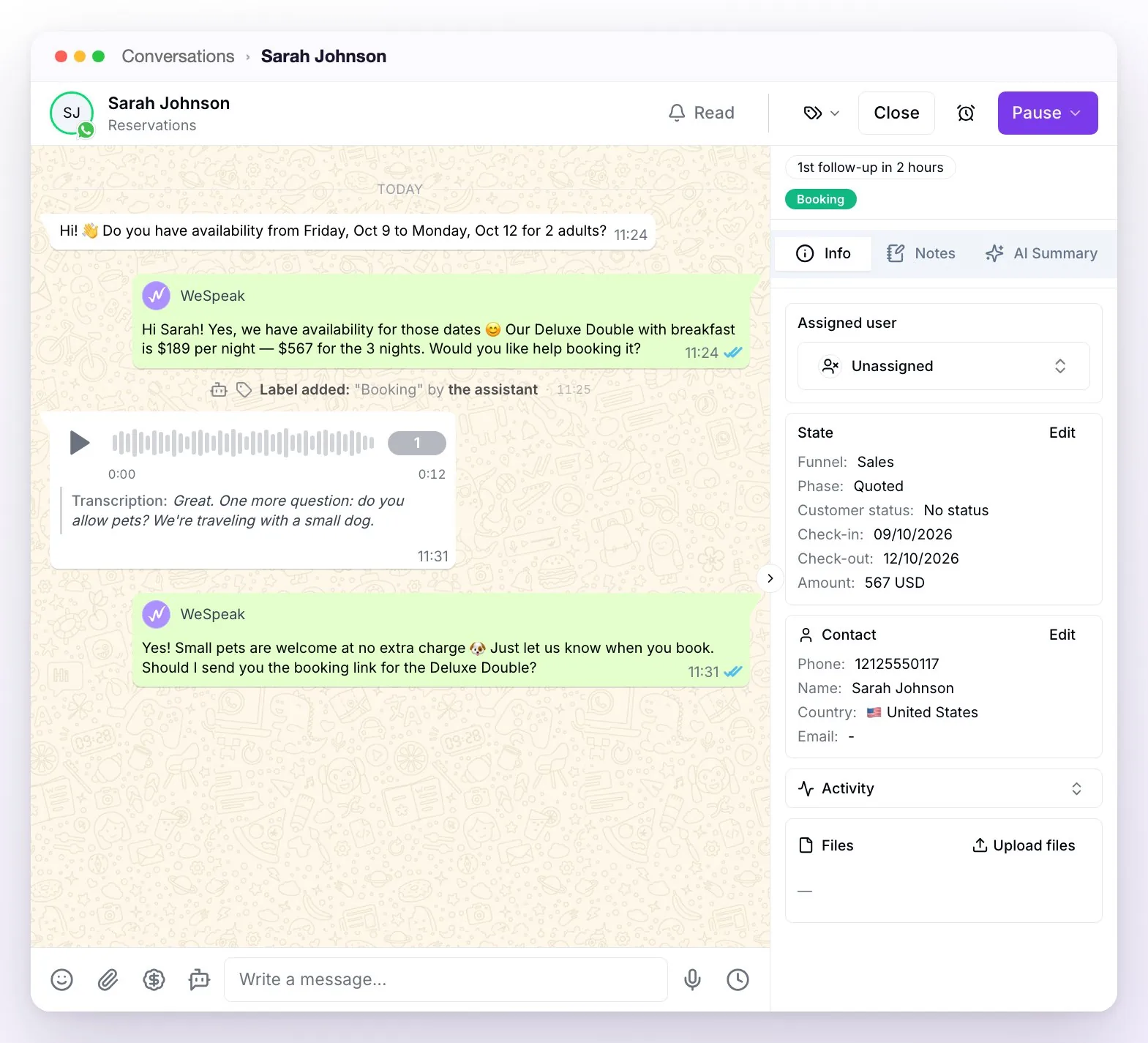
- Right — the contact: their details, the funnel stage, the AI summary, and internal notes. It opens and closes with the small tab on the right edge (or by clicking the contact's name, at the top).
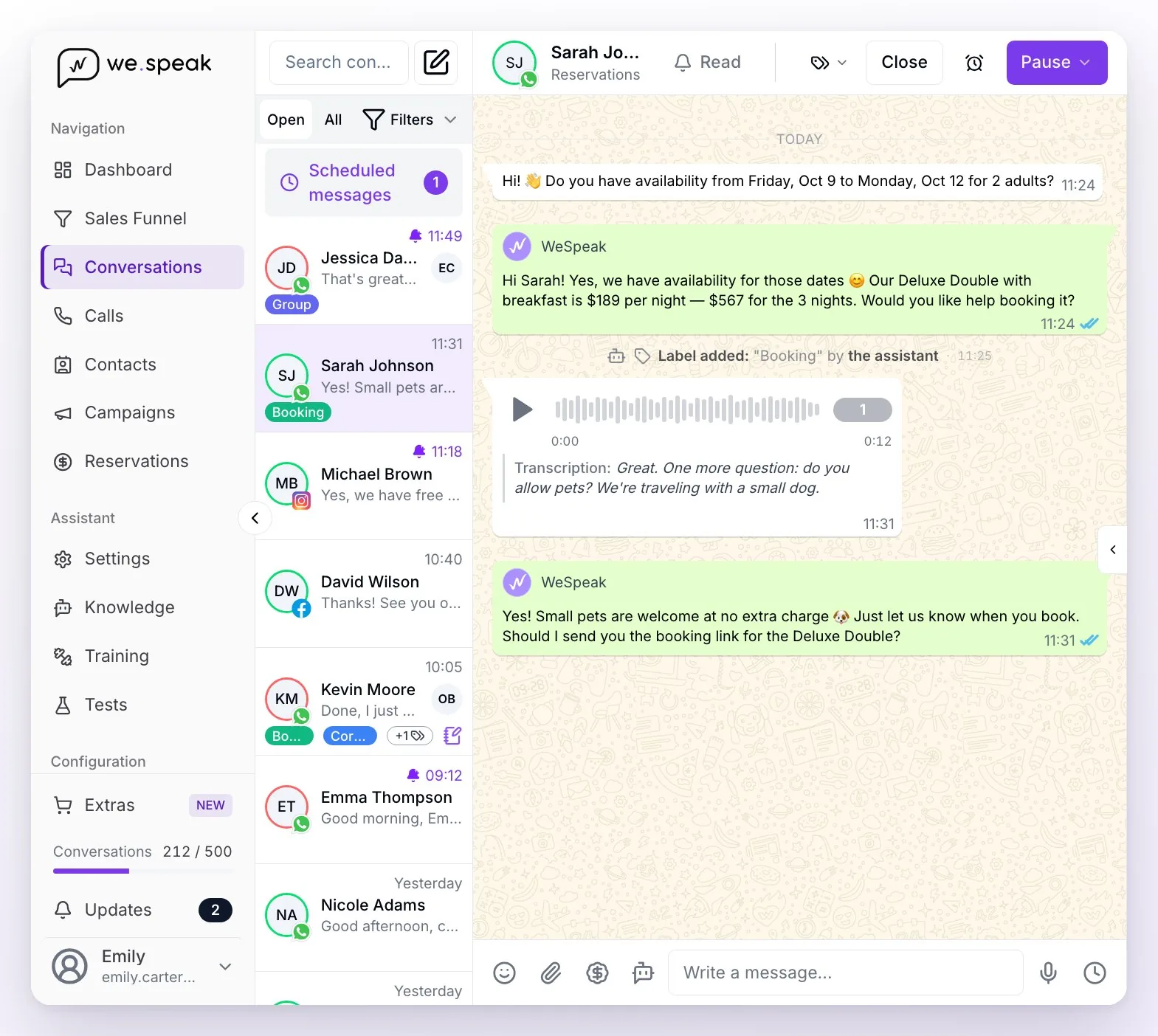
💡 Tip: each conversation shows its channel icon. And below the contact's name, in the chat header, you see which of your channels they're writing through: the name you gave it in Channels (or, if it has none, the number, the account, or the email). It helps when you have several numbers or pages connected.
The conversation list
Each row shows the contact, the last message, and the time (today's, Yesterday, or the date). Unread ones are marked with a violet bell and the time in violet. The list loads 50 conversations at a time: at the end, Load previous conversations shows the next ones.
| Element | What it does |
|---|---|
| 🔍 Search | Searches by the contact's name or phone and also by message content: with 5 characters or more it finds the conversations where that text was mentioned (messages from the last 6 weeks). It searches within the filters you have applied. |
| ✏️ Add contact | The pencil next to the search box: creates a WhatsApp contact with its conversation, so you can message them first (see the FAQ). |
| Open / All / Filters | Open (the default) or All, which adds the closed ones. Filters opens the rest of the filters; a violet number over the funnel icon shows how many you have applied. |
| Scheduled messages | Appears above the list when there are scheduled messages, with how many: it opens the list of all of them so you can review or cancel them. |
| Channel icon | Indicates where the contact writes from (WhatsApp, Instagram, Facebook, etc.). |
| Photo border | Green: the assistant replies in that conversation. Red: it's paused. Gray: the assistant can't reply right now (outside business hours, paused for the whole channel or the whole account, or no conversations available). |
| 🔔 Violet bell | The conversation has unread messages. You see the total pending in Filters → Read → Unread. |
| Photo or initials on the right | The team member the conversation is assigned to. |
| Labels | Up to two in view; the rest, in the +N bubble. |
| 📓 Violet notebook | The conversation has internal notes. |
| ⏰ Clock | The conversation is snoozed. Snoozed conversations leave the inbox: you see them with the Snoozed filter. |
Filters and search
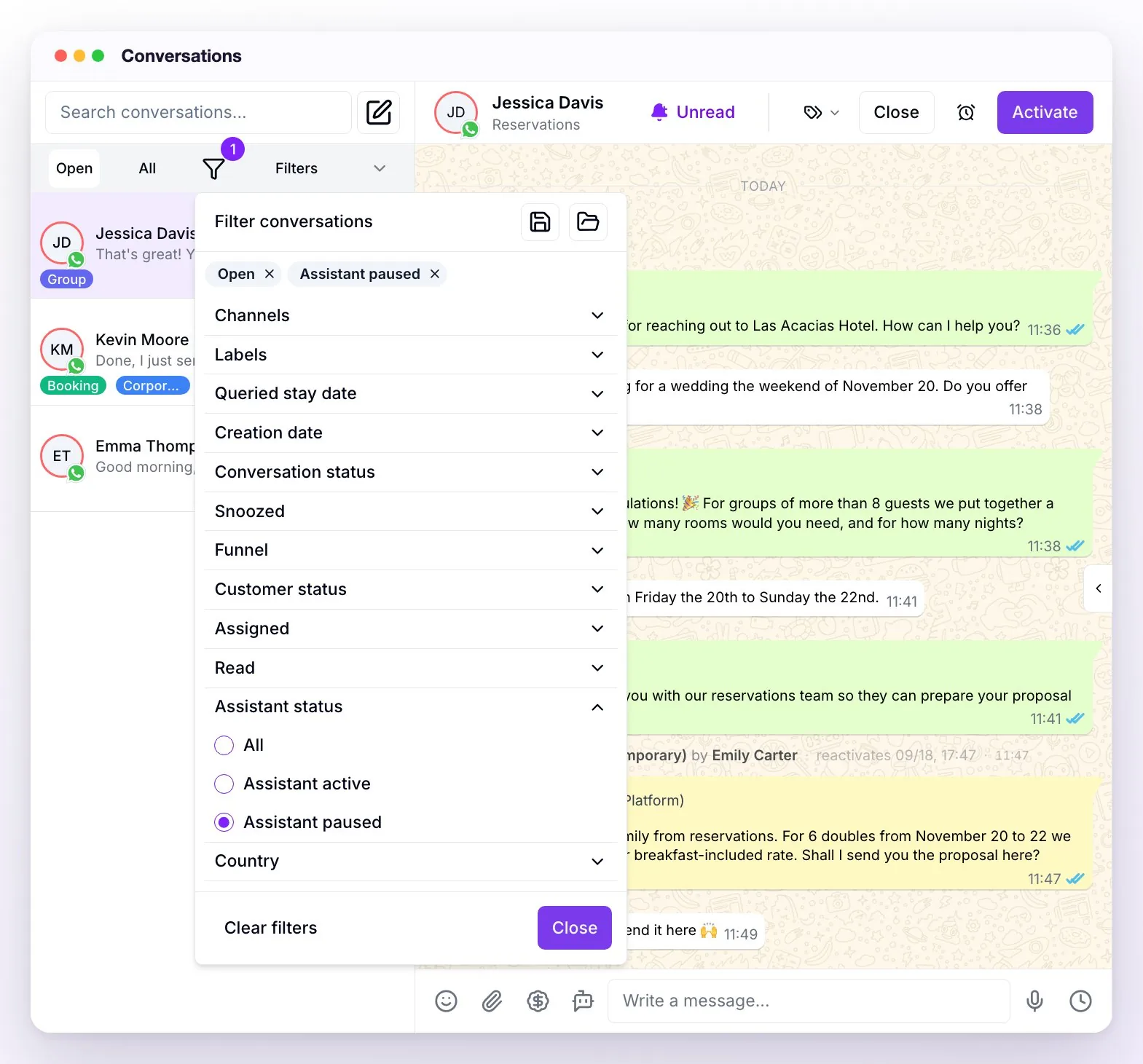
Filters opens the Filter conversations panel. Each criterion expands when you tap it and you can combine as many as you need; at the top you see the active ones (each one is removed with its ✕) and at the bottom, Clear filters.
| Filter | What it's for |
|---|---|
| Channels | All channels or a specific one: each connected number, page, or account appears separately. |
| Labels | The conversations with the labels you check. From right there, with the labels button, you create, edit, or delete them. |
| Queried stay date | The stay dates the guest asked about. |
| Creation date | When the conversation started. |
| Conversation status | Open, Closed, or All. |
| Snoozed | With Show snoozed only you see the conversations with an active reminder. It appears if your account has Multi-conversation. |
| Funnel | A funnel and, within it, a phase. It appears if you have funnels set up. |
| Customer status | No status and won, No status, Lost (and within the lost ones, the lost reason), Archived, Won, or All. Archived conversations only show with Archived. |
| Assigned | Assigned to me, Unassigned, Assigned to me or none, All, or a specific team member. |
| Read | All or only the Unread ones (with the total pending next to it). |
| Assistant status | Assistant active or Assistant paused: useful for finding the chats your team is handling. |
| Country | Contacts from a specific country. |
If you have the conversion pixel on your booking engine, Engine bookings also appears: only the conversations with a detected booking.
💡 Save your combinations: with the two icons at the top of the panel, Save applied filters stores the combination you always use and Load saved filters brings it back in one click. One combination is saved, in the browser you're using.
Quick actions (right-click)
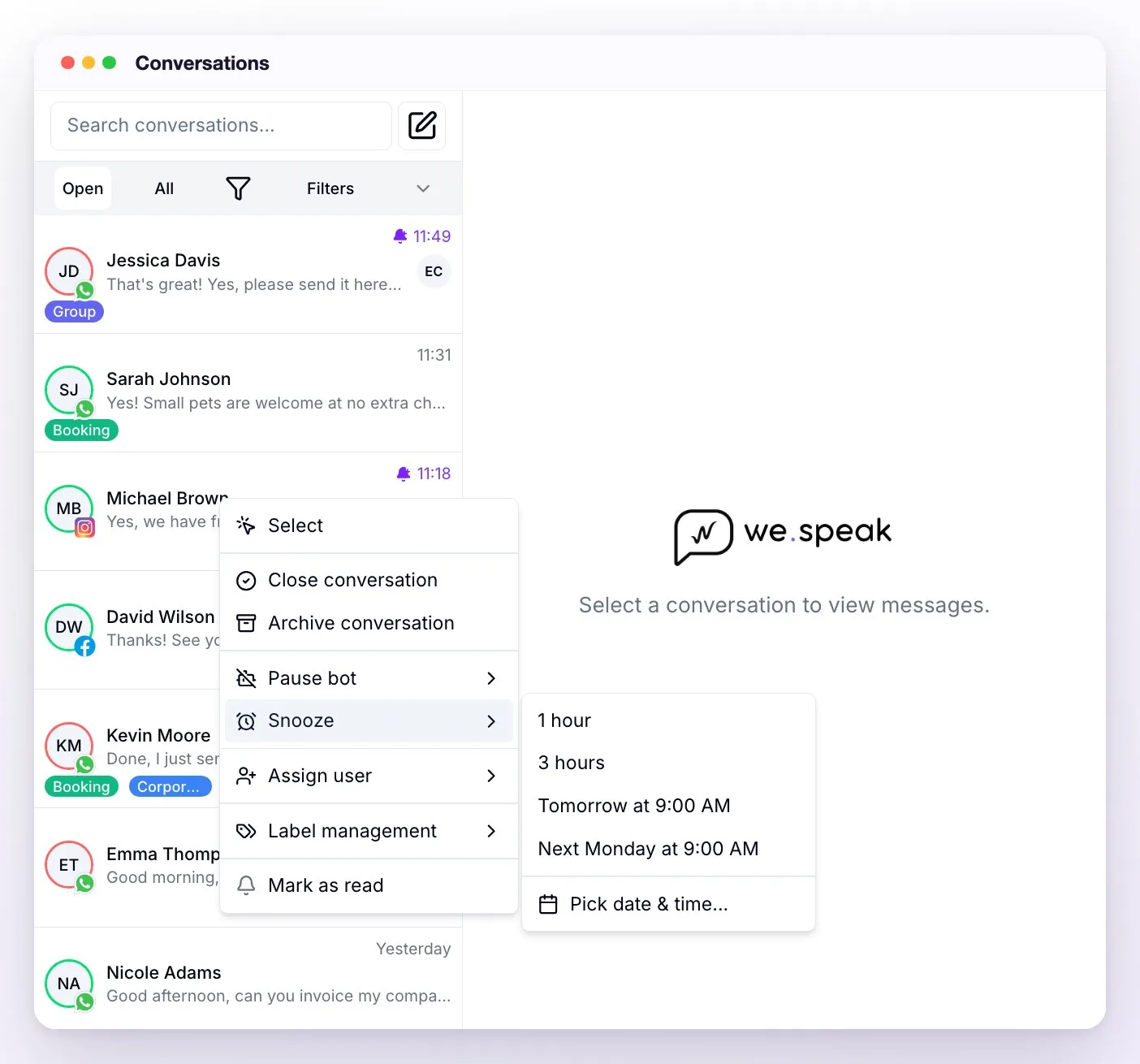
With a right-click on any row you open the actions menu, without entering the conversation:
| Action | What it does |
|---|---|
| Select | Turns on multi-select to act on several at once (see the note below). |
| Close conversation / Open conversation | Changes the conversation's status. |
| Archive conversation / Unarchive conversation | Archiving closes it, removes it from the inbox, and pauses the assistant with no time limit in that conversation. Unarchiving reopens it and turns the assistant back on. |
| Pause bot / Reactivate bot | Pauses the assistant only in that conversation: Pause temporarily or Pause without time limit. It doesn't appear in email conversations, where the assistant doesn't reply. |
| Snooze / Unsnooze | Hides it until the time you choose —1 hour, 3 hours, Tomorrow at 9:00 AM, Next Monday at 9:00 AM, or Pick date & time...— and it comes back on its own (or sooner, if the contact writes). It's available on open conversations in accounts with Multi-conversation. |
| Assign user / Remove assignment | Assigns it to someone on the team or removes the assignment. |
| Label management | Adds or removes labels with one click. |
| Mark as read / Mark as unread | Changes the read status. |
ℹ️ Multi-select: with the mode on, you check several conversations (or every one in the list with the checkbox at the top, Select all) and apply an action to them from Bulk actions: close or open, archive or unarchive, mark as read or unread, assign or remove a user, and Add label. When it's done, a notice confirms how many were updated and whether any failed. You exit the mode with the ✕ next to the counter (Cancel selection) or with the Esc key; if you change the filters, the selection is cleared.
ℹ️ Closing with a form: if your account has Mandatory form when closing chat turned on (in Settings → Platform Configuration), when you tap Close in the conversation header the Complete state before closing dialog appears: you choose the funnel, the phase, and the Result: No status or Lost (if it's Lost, also the Lost reason); if the phase you chose is marked as won, the result is set to Won. You confirm with Close conversation.
Inside the conversation
The history reads like a normal chat, with a few extras:
- Colors: in white, what the contact writes; in green, the assistant's replies (WeSpeak) and what was answered from the phone or the channel's app (Device); in yellow, what your team writes from the panel, with the name of whoever sent it (Platform).
- Status ticks on your messages: a clock while it's going out, one gray tick (sent), two gray ticks (delivered), and two blue ticks (read), depending on what each channel reports. If a message couldn't be delivered, you see it in red: hovering over it shows why and, if the channel lost its connection, the Reconnect channel link.
- Audio with transcription: voice notes show their Transcription; if they don't have one yet, Generate transcription requests it.
- Photos in a gallery when the contact sends 4 or more in a row.
- Menu on each message: with a right-click on the message, or with the little arrow that appears in its corner, you get Reply (quote the message, on the channels that allow it), Copy (or Copy image), Add note, Delete when the channel allows it and, on the assistant's replies, Report problem. Notes attached to a message show below it.
- Activity: the conversation's changes —labels, funnel stage, assignments, assistant pauses— appear as gray lines between the messages, with who made them and when.
- Translation: if the contact writes in another language (and the feature is active in your account), a notice offers you Translate messages; each translated message keeps the Show original link.
- If your account has Calls, the calls with that contact appear interspersed in the history, with their recording.
Email conversations look different: the center shows the list of email threads, with their own editor (see Email).
If the conversation is closed, instead of the compose box you see "This conversation is closed.": to write to them, open it with Open. If its channel is disconnected or disabled, you can't write either, and the notice in the same place explains it.
In the header, from left to right: the contact (the color of their photo's border is the assistant's status and, hovering over it, you see it explained; a click opens the contact panel), Read / Unread (the bell: one click toggles it), the 📞 Call button if your account has Calls, the labels, Close (or Open), snooze (⏰, with Multi-conversation), and Pause / Activate for the assistant. The assignment is in the contact panel, under Assigned user.
The compose box
Everything you can do when replying:
| Button | What it does |
|---|---|
| 😊 Emojis | Opens the emoji picker, with search. |
| 📎 Attach files | Sends photos, videos, or documents (you can also paste them or drag them into the box). If you attach several, one message goes out per file and the text goes with the last one. |
| $ Quote | Builds a quote with real availability and prices and sends it as messages (text and a photo of the room) or, if your account collects payments with WeSpeak Payments, as a payment link. |
| 🤖 Writing assistance | Turns on Assistant mode: you write an instruction ("tell them there's no availability, offer the suite"), tap the violet button, and the AI drafts a reply that replaces your text so you can review it and send it. It isn't available when a template is required. |
| / (slash) | Opens your templates. On WhatsApp API, the ones approved by Meta are sent as they are (you see how they'll look and send them) and the ones you created only in WeSpeak are inserted as text to edit; on the other channels, they're inserted as editable text. Once 24 h have passed since the contact's last message, on WhatsApp API you can only send approved templates. |
| 🎤 Record audio | Records and sends a voice note. It's there while the box is empty: when you type, the send button takes its place. |
| 🕐 Schedule | Schedules the message (text, template, quote, or a file) to go out on its own: you choose the day and time, in 15-minute steps. The latest date depends on the channel (see the note). Above the box you see when the next one goes out and, by tapping that notice, you cancel it. |
| 🌐 Auto-translate | If the conversation is in another language (and translation is active in your account), it appears above the box: with the switch on, you write in your language and the contact receives it in theirs. |
Enter sends and Shift + Enter adds a new line. What you leave written is saved per conversation as long as you keep the tab open.
⚠️ Important: some options depend on the channel. TikTok doesn't support voice notes and limits how many messages you can send until the contact writes again; on Instagram and Facebook nothing can be sent once 7 days have passed since the contact's last message; on WhatsApp API, after 24 h only approved templates go out; on Chat Web you can only send text and images, and only while the visitor has the chat open on your website. In each case, a notice above the box explains it.
ℹ️ How far ahead can I schedule a message: the limit is each channel's window. On WhatsApp API, within 24 h of the contact's last message, or up to a year if the scheduled message is an approved template. On Instagram/Facebook, up to 7 days from the last message; on TikTok, 48 h. On WhatsApp via QR, up to a year. On Chat Web, messages can't be scheduled.
The contact panel (right)
At the top, when relevant, the panel shows the countdown for the assistant to reply again (Reactivation in…), the status of the automatic follow-ups, the ad the contact came from, and their labels. Below there are three tabs:
| Tab | What it shows |
|---|---|
| Info | Assigned user (to assign the conversation), Conversations (if the contact has more than one, with Multi-conversation), State (funnel, phase, customer status, check-in, check-out, and amount), Contact (phone, name, country, and email), Activity (the change history), and Files. State and Contact are corrected with their Edit button. If your account has automatic AI follow-ups, you also see AI follow-up, with the next attempt and the ones already sent. |
| Notes | Internal team notes; the contact never sees them. You can tag team members in a note, and the ones you attached to a message also show below that message. |
| AI Summary ✨ | An AI-made summary: the conversation's timeline, what they're asking about, their objections, and a Suggested message ready to Copy or Use in chat (it puts it in the compose box, replacing what you had written); the suggestion doesn't appear if the contact is already Won or Lost. It updates with Regenerate. It doesn't appear in email or call conversations. |
Report an assistant response (the "thumbs-down")
If the assistant answered something incorrect, report it from the message itself: open that reply's menu (right-click on the message, or the little arrow that appears in its corner when you hover) and choose 👎 Report problem.
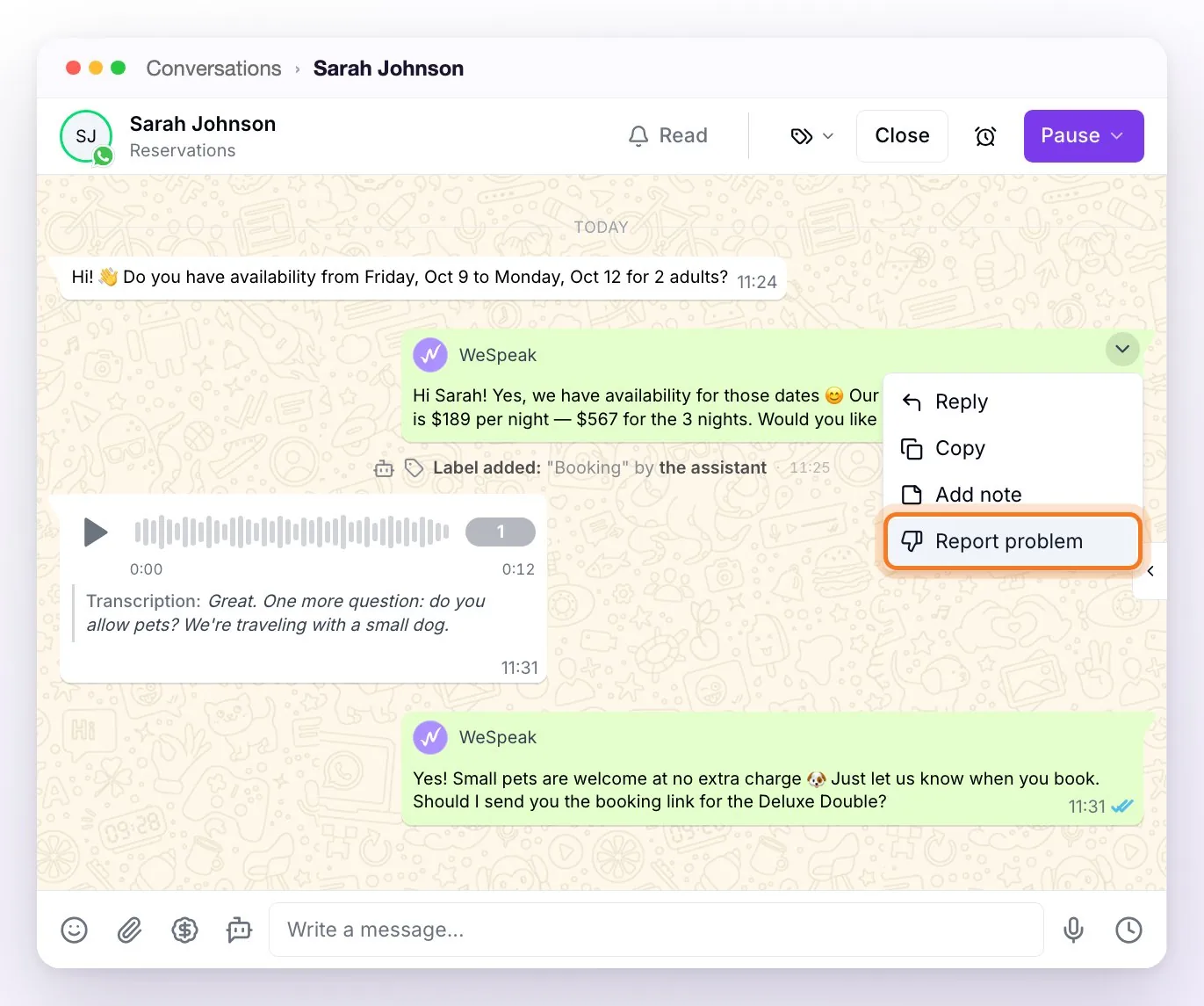
The Would you like to improve this message? window opens:
- Choose the Category (Error or Improvement) and the Type (Price and availability, General response, or Assistant should not intervene).
- Choose the Priority level, from 1 to 3 depending on the impact.
- Describe what went wrong and what it should have answered (minimum 50 characters: the more context, the better it gets fixed).
- Create incident: the WeSpeak support team reviews it.
If your account has the WeSpeak Assistant (the panel's assistant), that assistant opens instead of the window, with the message already loaded: it asks you what went wrong, checks why it answered that way and, depending on the case, explains it to you, offers to correct the knowledge, or logs the incident for the WeSpeak team.
You follow up in Incidents (in your user menu, at the bottom of the side menu): each report goes through statuses like Received, Pending, and Resolved (or Waiting for your response if they ask you for more details), and when it's resolved you can Rate the resolution.
ℹ️ The option appears only on the assistant's replies. If the problem was in a manual quote or in something you saw outside the chat, report it from the assistant reply closest to the case and explain it in the description.
When the assistant stops
The assistant stops on its own when it can't continue without a person: a question it doesn't know how to answer, a request to modify or cancel a booking, no availability, or a booking engine failure, among other cases. When that happens:
- it tells the guest that the team will help them (with the Pause message you set up or one of its own);
- it stays paused in that conversation (red border and Activate button) and the conversation is marked as unread; if in Settings you have a time in Reactivate conversation after, it replies again on its own once that time has passed;
- your team gets the alert according to your notifications;
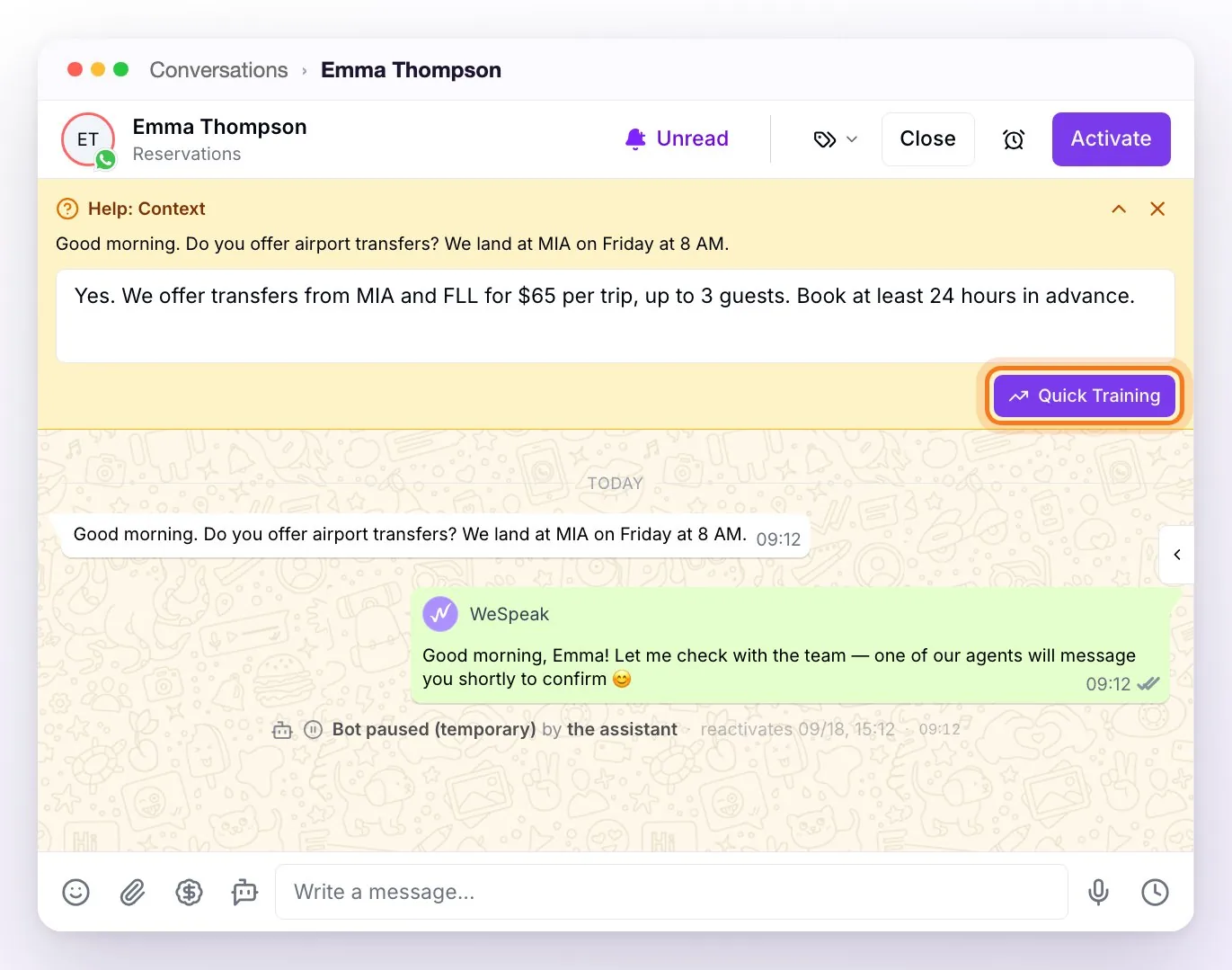
- above the chat the Help: Context notice appears, with the question it couldn't answer or the reason for the pause.
If it's a question the assistant can learn (for example, about the hotel's services or facilities), the notice includes a box to write the correct answer: fill it in and tap Quick Training. It's added to its knowledge, so next time it answers on its own. With the ✕ you dismiss the notice.
Frequently asked questions
Do I lose anything if someone on the team replies instead of the assistant?
No. The assistant and the team coexist in the same conversation: when someone on the team writes from the panel, the assistant pauses on its own in that chat and comes back when it's due, or when you reactivate it with Activate (see How to use live chats).
I snoozed a conversation and it disappeared — where is it?
In Filters → Snoozed (check Show snoozed only). It comes back to the inbox on its own when the time is up, or sooner if the contact writes to you.
Why won't it let me send a message on WhatsApp?
If more than 24 h have passed since the contact's last message, WhatsApp only allows sending approved templates: the box warns you with "You must use a template to send this message.". Choose one by typing /.
How do I message someone who never wrote to me?
With Add contact (the pencil next to the search box): you enter name and phone (and, if you want, email, dates, and estimated amount), choose with Enable bot for this contact whether the assistant replies to them and, if you have several numbers, which one to write from in Send from. It checks that the number has WhatsApp and the conversation is created. It works with WhatsApp; on WhatsApp API, the first message has to be an approved template (type /).
Can I block a contact who sends inappropriate content?
Blocking as such doesn't exist. The closest thing is Archive conversation (right-click on the conversation): it closes it, removes it from the inbox, stops the automatic follow-ups, and pauses the assistant with no time limit in it. If the contact writes again, their messages keep coming into that archived conversation, with no reply from the assistant (you find it with Filters → Customer status → Archived). If your account has Multi-conversation, on the other hand, a new message opens a new conversation with the assistant active.
How do I write in bold?
With WhatsApp formatting: surround the text with asterisks —*like this*— and the contact sees it in bold (_italics_ and ~strikethrough~ work too). There's no formatting bar, but in WhatsApp chats you have shortcuts: Ctrl + B (bold), Ctrl + I (italics), Ctrl + Shift + X (strikethrough), and Ctrl + Shift + M (monospace); on Mac, with Cmd.
Can I delete a message I already sent?
On WhatsApp API, no: deleting sent messages isn't available for now (from the panel you can only hide received messages, and the contact still sees them on their phone). On the QR connection you can delete your messages for everyone during the first 60 hours.
Can I pause or activate the assistant in many conversations at once?
Bulk actions cover opening and closing, archiving, marking as read, assigning, and labeling, but not the assistant: pausing or activating it is per conversation. If what you need is to turn it off for a whole channel, use Pause assistant in the Channels section; for the whole account, the assistant's Status in Settings.
The assistant labeled a conversation wrong (automatic labels).
The assistant only applies on its own the labels that have Enable auto-assignment by artificial intelligence, and only while it's active in the conversation. Edit the label to adjust its description (it's what the AI uses to decide) or turn off its auto-assignment; labels can always be corrected by hand.
Can notes remind me on a date?
Notes don't send reminders. To have the chat "come back" to you on a date, use Snooze (with Multi-conversation): the conversation reappears on its own that day.
I searched for a text and the conversation doesn't show up.
Check that the search has at least 5 characters and that it's the exact text (case doesn't matter). Content search covers messages from the last 6 weeks; for older conversations, search by the contact's name or phone. And check the filters: the search respects the ones you have applied, so with Open (the default) closed conversations don't show —switch to All— and archived or snoozed ones only show with their filters.
Can I see a contact's previous conversations?
Yes: if your account uses Multi-conversation, in the right panel (Info tab) there's the Conversations section with all the ones you've had with that person, the current one highlighted and the closed ones to open with one click.
A chat freezes every time I open it.
Try an incognito window or another computer (this rules out a cache problem). If it keeps happening, report it to your account manager with the contact's number.
What language does the assistant reply in?
It detects the guest's language and replies in that language automatically (Spanish, English, Portuguese, and more). Your team can read and write in their own language with the built-in translation.