Live chats
The Conversations section is your team's support hub. There you see every business conversation in real time —WhatsApp, Instagram, Facebook, and the other connected channels, each with its channel icon— with or without the AI assistant stepping in. If you don't know it yet, start with Get to know the Chats screen.
Take over a conversation
When a guest writes, the assistant replies automatically. If you want to step in, open the conversation and use the Pause button in the header. You have two options:
- Pause temporarily: the assistant comes back on its own after the time you have in Settings → Reactivate conversation after (the contact panel shows the countdown, Reactivation in…). If you chose Never there, it doesn't come back on its own.
- Pause without time limit: the assistant stays off in that chat until someone reactivates it.
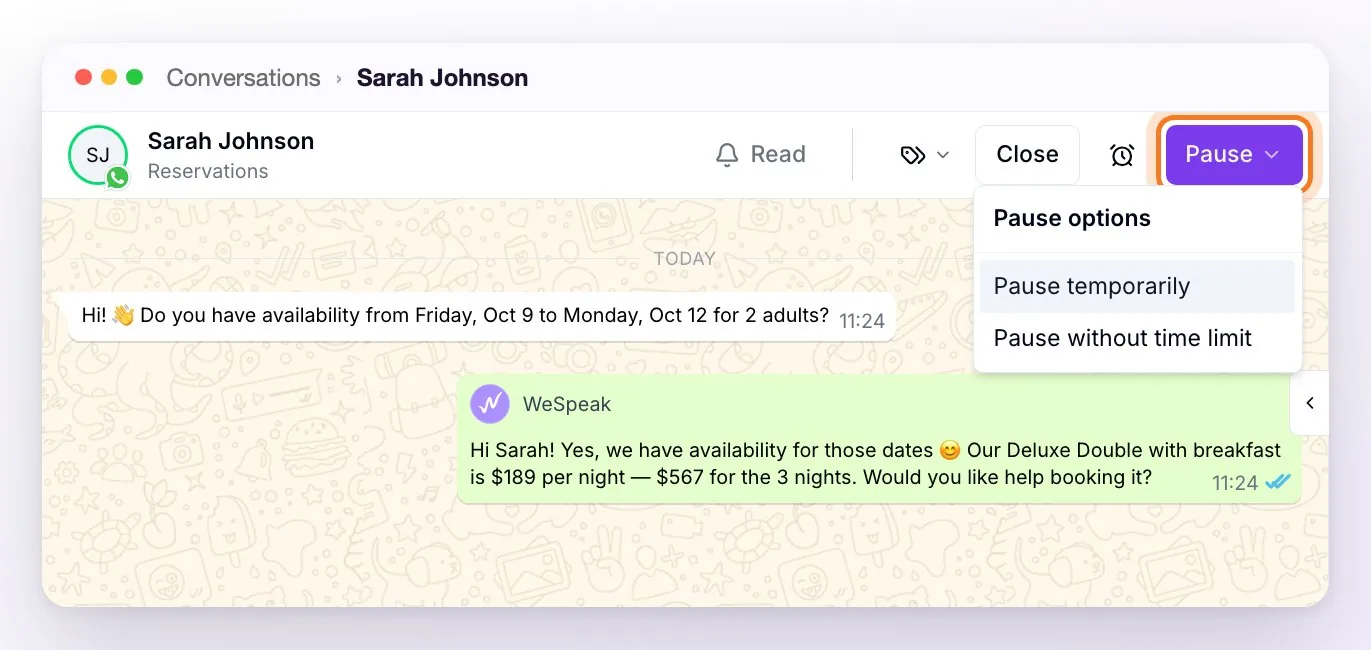
You don't need to pause it before writing: as soon as someone on the team replies from the panel (or from the phone connected via QR), the assistant pauses on its own, temporarily, in that conversation. The time starts counting again from each new message from your team, so the assistant doesn't come back while you're still handling it; if the conversation was already paused without time limit, it stays that way. And if you have Auto-assignment of users turned on, the conversation is assigned to whoever replied (if no one was assigned).
While you're handling it, in the conversation you see:
- in the history, the Bot paused (temporary) line, with who paused it and when it reactivates;
- your messages in yellow, with your name and (Platform);
- the contact's photo border in red and, in the header, Activate instead of Pause;
- in the contact panel, the Reactivation in… countdown and the Assigned user.
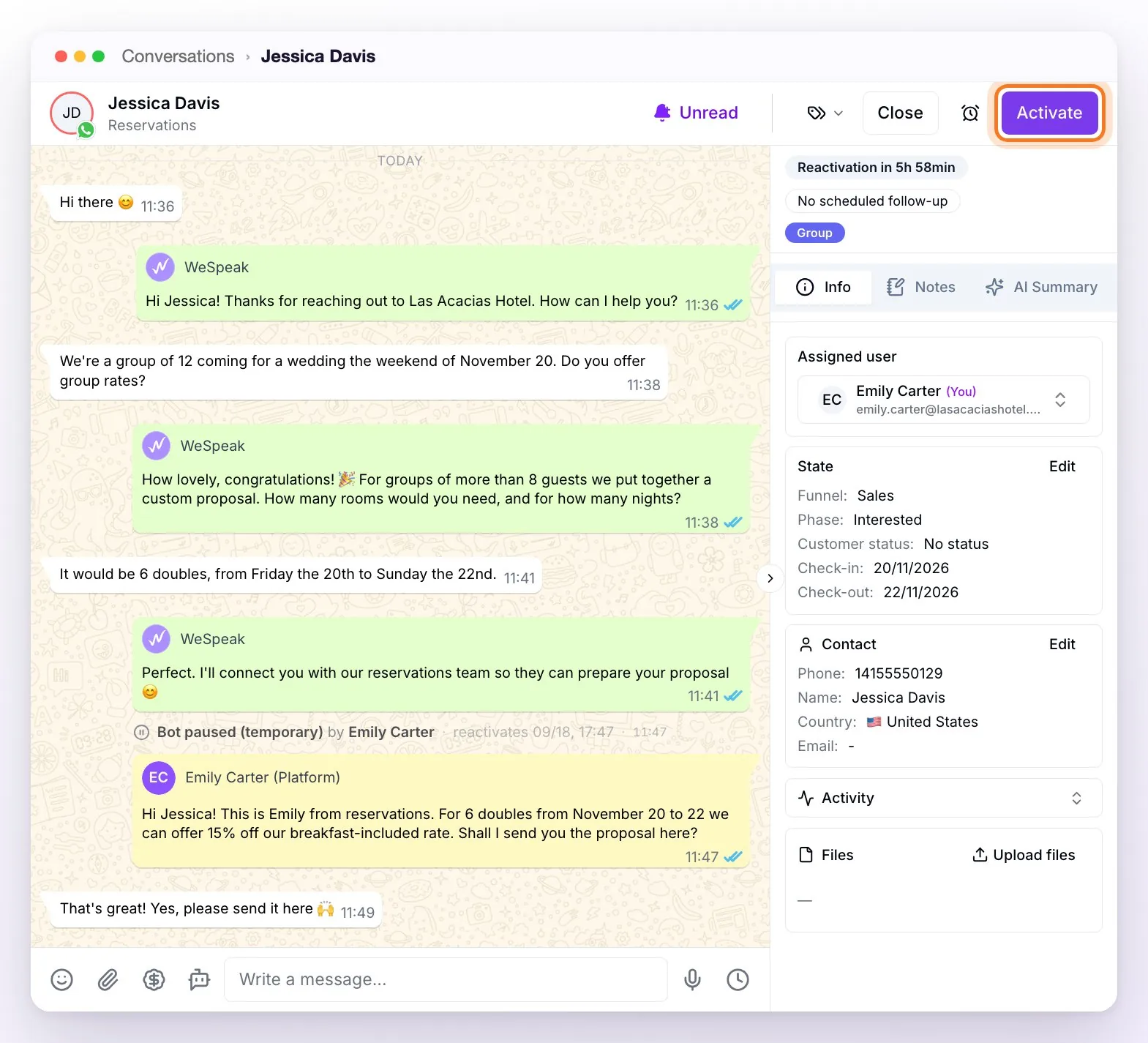
To hand the conversation back to the assistant early, use Activate.
ℹ️ The pause is per conversation: the assistant keeps serving every other contact normally. You can also pause or reactivate it without opening the chat, by right-clicking the conversation in the list (Pause bot / Reactivate bot). If Activate shows as disabled, the assistant is turned off for the whole account or paused on that channel: hovering over the button tells you which, and you reactivate it from Settings or from Channels.
Resolve and organize
- Close: marks the conversation as handled and removes it from the Open ones. While it's closed you can't write to the contact: to pick it back up, use Open. If the contact writes again, it reopens on its own (or a new one is created, if you have Multi-conversation).
- Snooze (the clock in the header, in accounts with Multi-conversation): hides it temporarily and it reappears on its own when the time is up, or sooner if the guest writes again.
- Labels: classify conversations (for example, "booking", "inquiry", "complaint") to filter them faster.
ℹ️ Closing with funnel status: if you turn on Mandatory form when closing chat in Settings → Platform Configuration, closing a conversation with Close opens Complete state before closing: you choose the funnel, the phase, and the Result: No status or Lost (with its Lost reason); if the phase is marked as won, it's set to Won. You confirm with Close conversation. That way the conversation is recorded in your funnel metrics.
Snooze: the options
From the clock in the chat header or by right-clicking in the list (Snooze), you choose when the conversation should come back:
- 1 hour or 3 hours: to pick it back up during the day.
- Tomorrow at 9:00 AM: for the next day.
- Next Monday at 9:00 AM: for the following week.
- Pick date & time...: a moment of your choice, from the calendar.
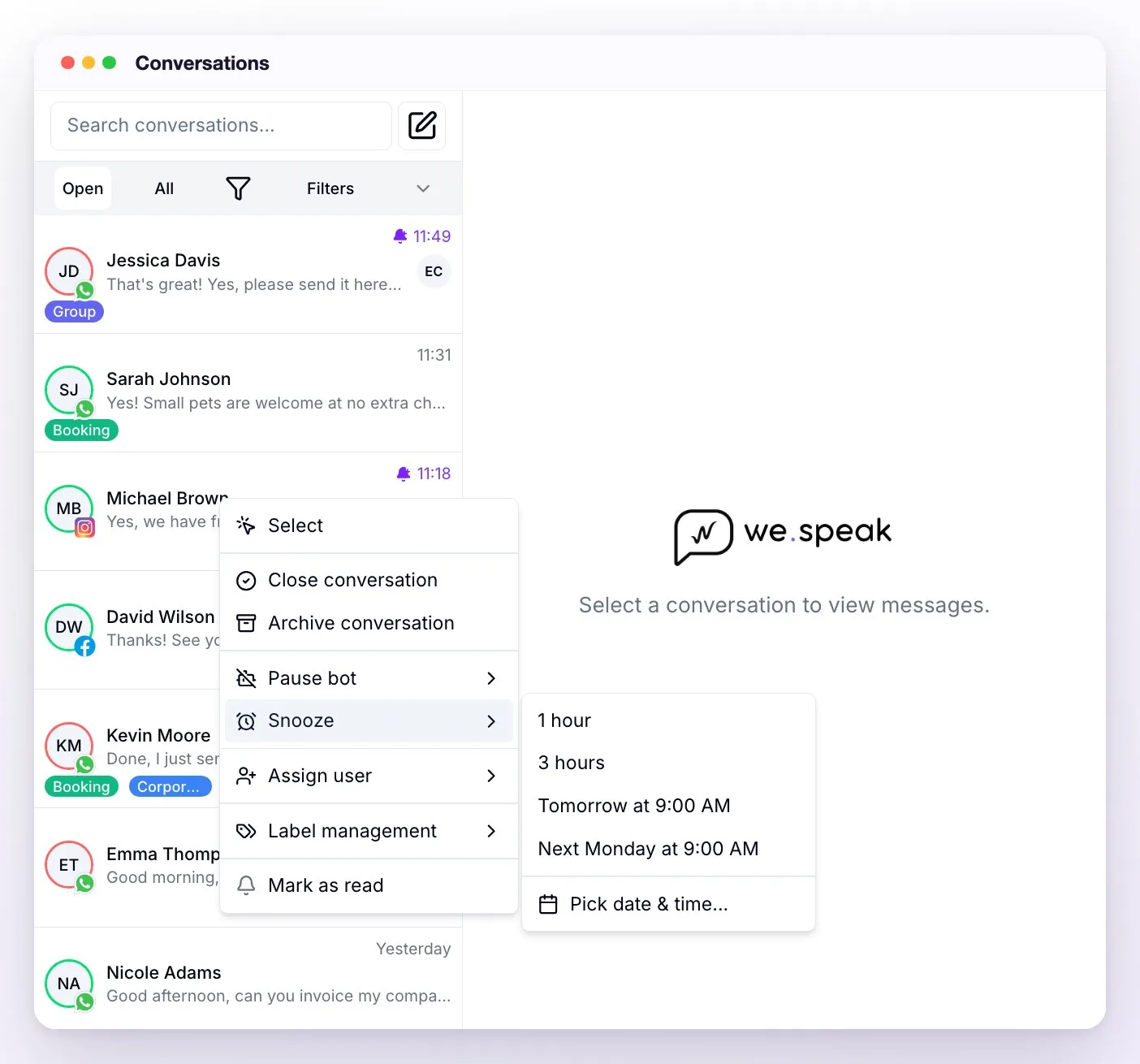
Snoozed conversations show up with the Snoozed filter (check Show snoozed only). To bring one back early, use Unsnooze by right-clicking the conversation, or tap the clock in the header. If the guest writes before the time is up, the conversation "wakes up" on its own so you don't miss their reply.
⚠️ Snoozing only changes where the conversation shows (it leaves the whole team's inbox until the time is up): it doesn't pause the assistant or stop any scheduled automatic follow-ups. Still, while the snooze lasts, the automatic closing for inactivity leaves it alone (see Funnels).
Labels: creating and automating them
You can manage labels without opening any conversation: in the filters panel, under the Labels section, the manage-labels button lets you create, edit, or delete labels (name, color, and description). With Enable auto-assignment by artificial intelligence, the assistant applies the label on its own when it detects the case: the description you write is what the AI uses to decide (that's why it becomes mandatory), and it works while the assistant is active in the conversation. With Enable custom instructions for the assistant, you also give it directions it follows in the conversations that have that label (for example, "keep replies short and offer two options at most").
Search conversations and messages
The inbox search finds conversations by contact name or phone number and also by message content: type a text of at least 5 characters and the conversations where it was mentioned in the last 6 weeks appear almost instantly. The search respects the filters you have applied: if you can't find a closed conversation, switch from Open to All.
Work in bulk
To act on many conversations at once:
Right-click a conversation and choose Select.
Check the ones you want, or use Select all / Deselect all.
Open Bulk actions and apply the action: close or open, archive or unarchive, mark as read or unread, Assign user or Remove assignment, or Add label.
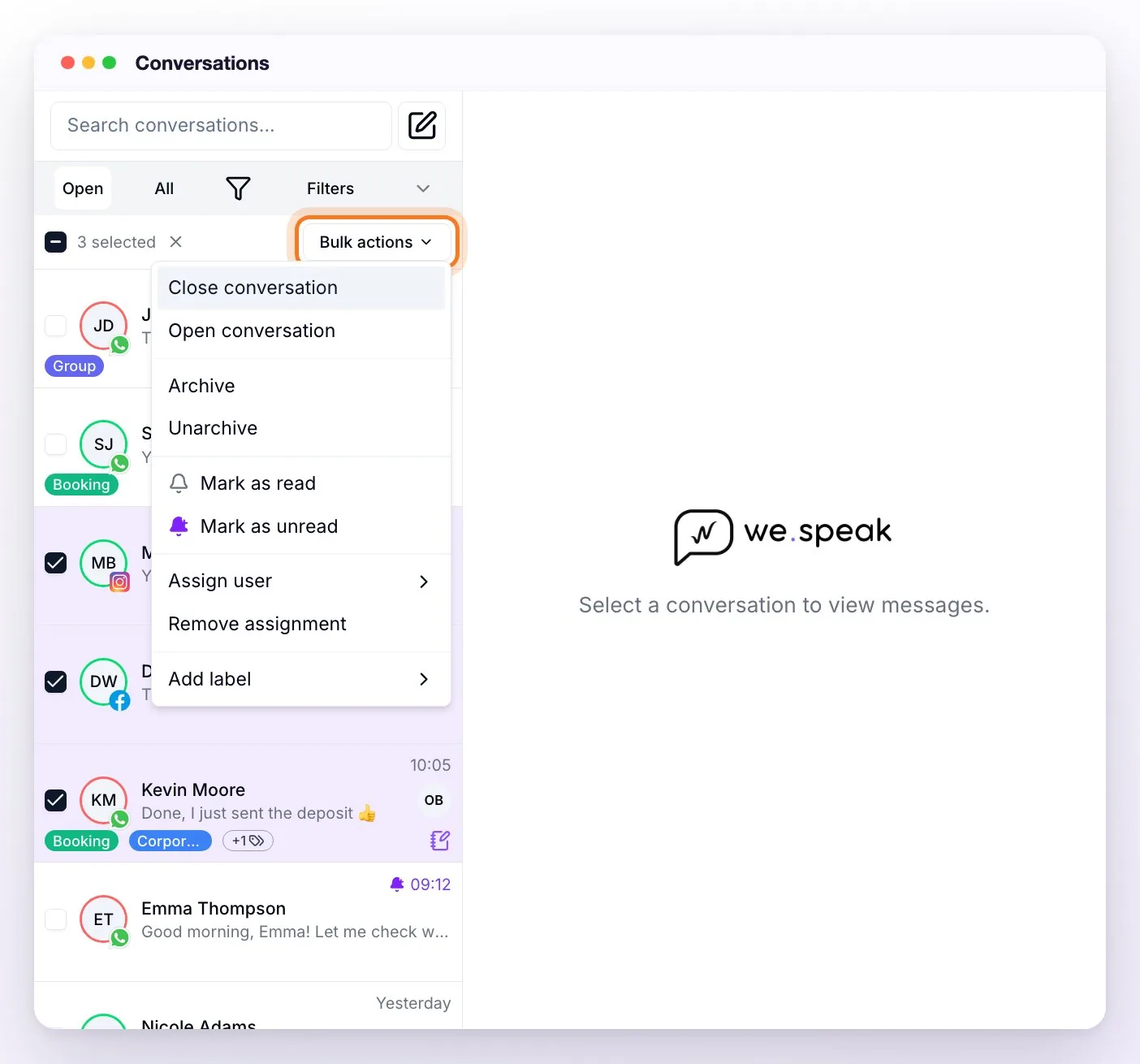
Exit the mode with Cancel selection (the ✕ next to the counter) or with the Esc key.
When you're done, a notice confirms how many conversations were updated and whether any failed. People with the User role don't see Assign user in the bulk actions (they do see Remove assignment).
Work as a team
The whole team works on the same inbox and replies sync live, so several people can handle conversations at once without stepping on each other: you instantly see what someone else replies and who each conversation is assigned to. Two options in Settings → Platform Configuration help distribute the work:
- Auto-assignment of users: the conversation is automatically assigned to the first person who replies, if no one was assigned.
- Restrict contacts to users: people with the User role see only the conversations assigned to them and the ones with no one assigned. The Administrator and Supervisor roles still see all of them.
Note: if your team speaks a different language than the guest, you can turn on automatic translation to read and write in your own language (see WeSpeak Translate).
Best practices
- Let the assistant handle the repetitive work and save human attention for the cases that add value.
- Use labels from day one: you'll be glad to have an organized history later.
- Close conversations when each case is done: it keeps the inbox clean and your funnel metrics up to date.