If your hotel uses WeSpeak Rates, the best way to have a promotion is to create it as a rate: WeSpeak calculates its price, the assistant quotes it with that price and the guest books it directly in the chat, without going through an advisor. The tool for that is the derived rate: a rate that takes the price of one of your base rates and applies a discount to it.
ℹ️ Rates works with a Channel Manager, a PMS via API or WeSpeak Engine. If prices come from your booking engine (or from a GDS or a custom API), your integration isn't compatible with Rates and rates can't be created: your promotions are loaded in Knowledge, as explained in Promotions.
In this article
- Why a derived rate
- How to create a promotion, step by step
- Recipes for the most common promotions
- Testing it before publishing it
- Pausing it, ending it or selling only the promotion
- What changes depending on your connection
- Frequently asked questions
Why a derived rate
- The price is calculated automatically: each night, on the base rate's price, with the discount you set (Percentage or Fixed Amount). If the base rate's price changes, the promotion is recalculated on its own.
- It has its own conditions: when it can be booked, for which stay dates, minimum nights, lead time, arrival days, countries and, if you want, a promo code. The assistant only offers it to guests who meet them.
- It has its own payment and cancellation policies: for example, a Non-Refundable promo that charges 100% at booking (with WeSpeak Payments).
- There are ready-made presets for the most common promotions: Early Booking, Last Minute and Long Stay.
💡 Good practice: few base rates (1 or 2), set up as your most flexible, highest-priced rate, and every promotion as a derived rate of them.
How to create a promotion, step by step
You need at least one base rate already created (or, with a PMS via API, an external rate).
In Rates, tap New Rate and choose Derived Rate. You can also go to List → ⋯ → Create derived rate on the base rate: the creation wizard opens with that base already selected.
If you want, start from a preset: Early Booking, Last Minute or Long Stay. It fills in the name, code, description, discount and restriction; you can change all of it afterward.
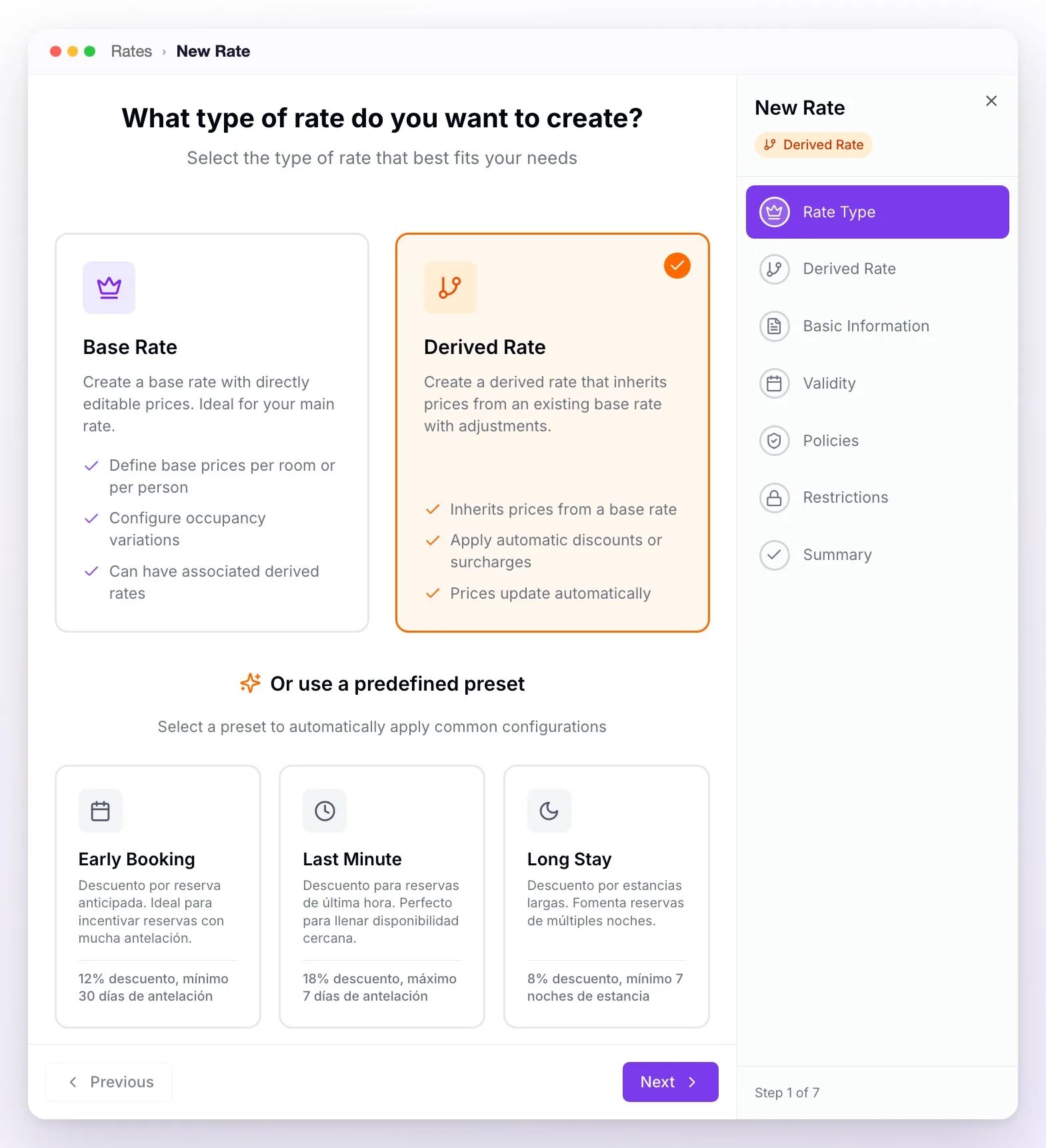
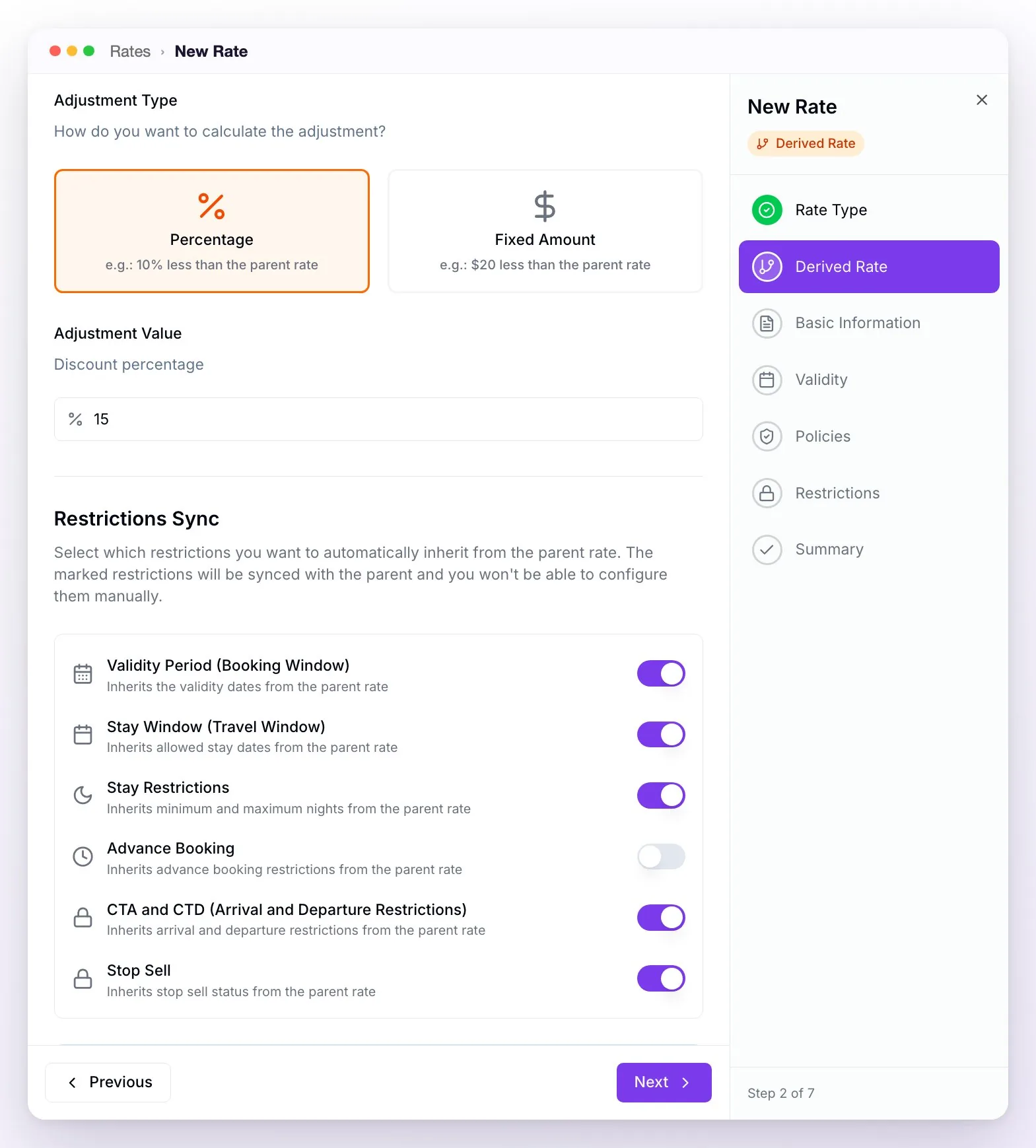
In the Derived Rate step:
- Choose the base rate.
- Adjustment Direction: Cheaper (for a promotion).
- Adjustment Type: Percentage or Fixed Amount (per night), and the Adjustment Value.
- The rooms: it can only use its base rate's rooms. They all come checked and you can remove some.
- Restrictions Sync: choose which conditions it takes from the base. Whatever you turn on is always read from the base; the rest you define in the promotion. Stop Sell comes turned on: if you close sales on the base, the promotion closes too.
In Basic Information, give it a name, a code and a description. The assistant receives the name and description, so describe the promotion clearly (for example: "15% off when booking 30 days in advance").
In Validity, set the two windows: the Validity Period (when the promotion can be booked) and, if needed, the Stay Window (when the guest can stay).
In Policies, choose the promotion's cancellation and payment policies, and its taxes.
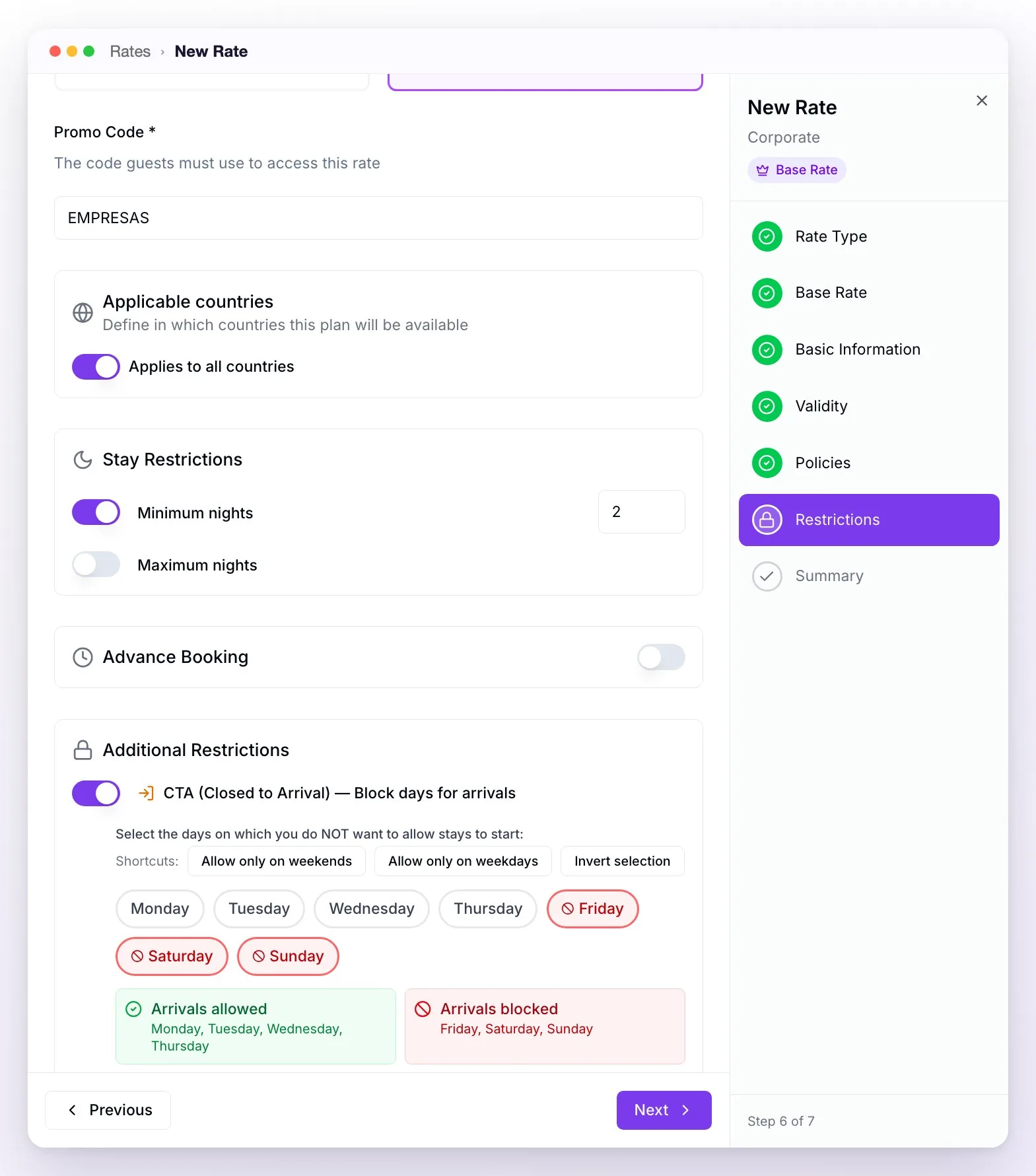
In Restrictions, add the promotion's conditions (see the recipes below).
In Summary, review and tap Create Rate. The promotion is created in Active status: from that moment the assistant can offer it. If you'd rather test it first, switch it to Draft in the List.
Recipes for the most common promotions
| Promotion | How to build it |
|---|---|
| Early Booking | Early Booking preset: 12% off and a minimum Advance Booking of 30 days. |
| Last Minute | Last Minute preset: 18% off and a maximum Advance Booking of 7 days. |
| Long Stay | Long Stay preset: 8% off and a minimum of 7 nights in Stay Restrictions. |
| Presale or seasonal promo | In Validity: the Validity Period up to the last day it's sold, and the Stay Window with the dates the guest can stay (for example, sold until October for stays in January). |
| Exclusive promo with a code | In Restrictions, Access Type → Promo Code (for example, SUMMER). The rate only shows up when the guest gives that code to the assistant. |
| Promo by market | In Applicable countries, Only these countries (for example, Brazil). On WhatsApp, the country comes from the guest's phone number. |
| Only for weekday or weekend arrivals | The CTA in the Restrictions step blocks check-in on the days you check; you have the Allow only on weekends and Allow only on weekdays shortcuts. |
| Promo that's only sold on certain days | The Valid days of the week in the Validity Period: they're the days on which it can be booked (the day of the inquiry counts, not the days of the stay). |
| Package | As a derived rate, as long as it's charged per night: Rates doesn't handle one-time extras (spa, transfers, separate dinners). |
Conditions can be combined: a presale can also carry a minimum number of nights and a Non-Refundable policy.
In the Restrictions step, for example, a rate with a promo code, a minimum number of nights and weekday-only arrivals:
Testing it before publishing it
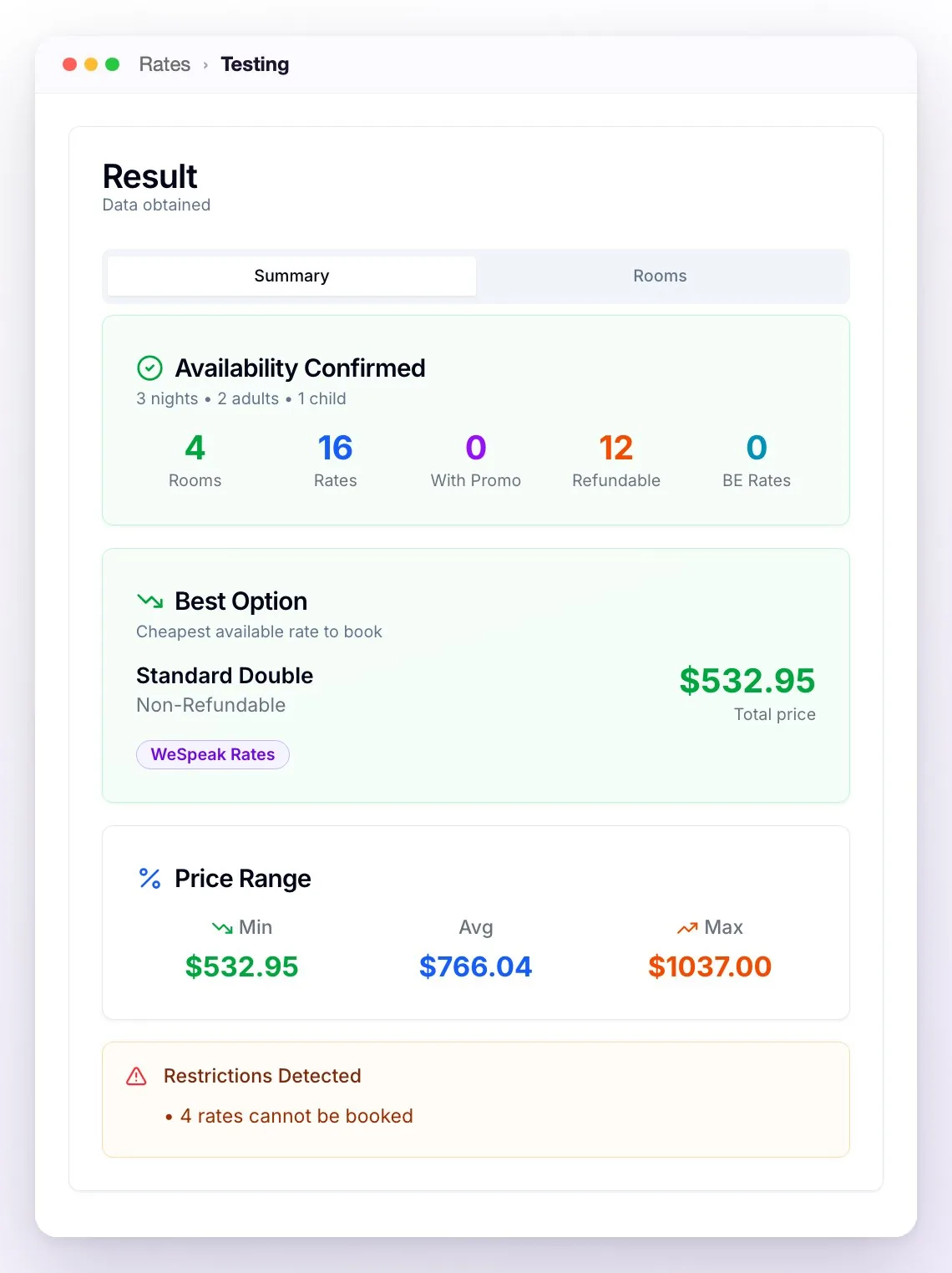
In Rates → Testing you check availability and prices with the same rates engine the assistant uses:
- Fill in the currency, the dates and the guests, and tap Query Availability and Prices.
- Turn on Include rates in draft status to test a promotion that's still in Draft.
- If the promotion uses a code, type it in Promo Code (optional); if it's by market, simulate the country in User Country (for geographic filter).
The result shows the promotion's price and, if it can't be booked, the reason. A promotion that's filtered out by its Validity Period, its Stay Window, the code or the country doesn't show up.
Pausing it, ending it or selling only the promotion
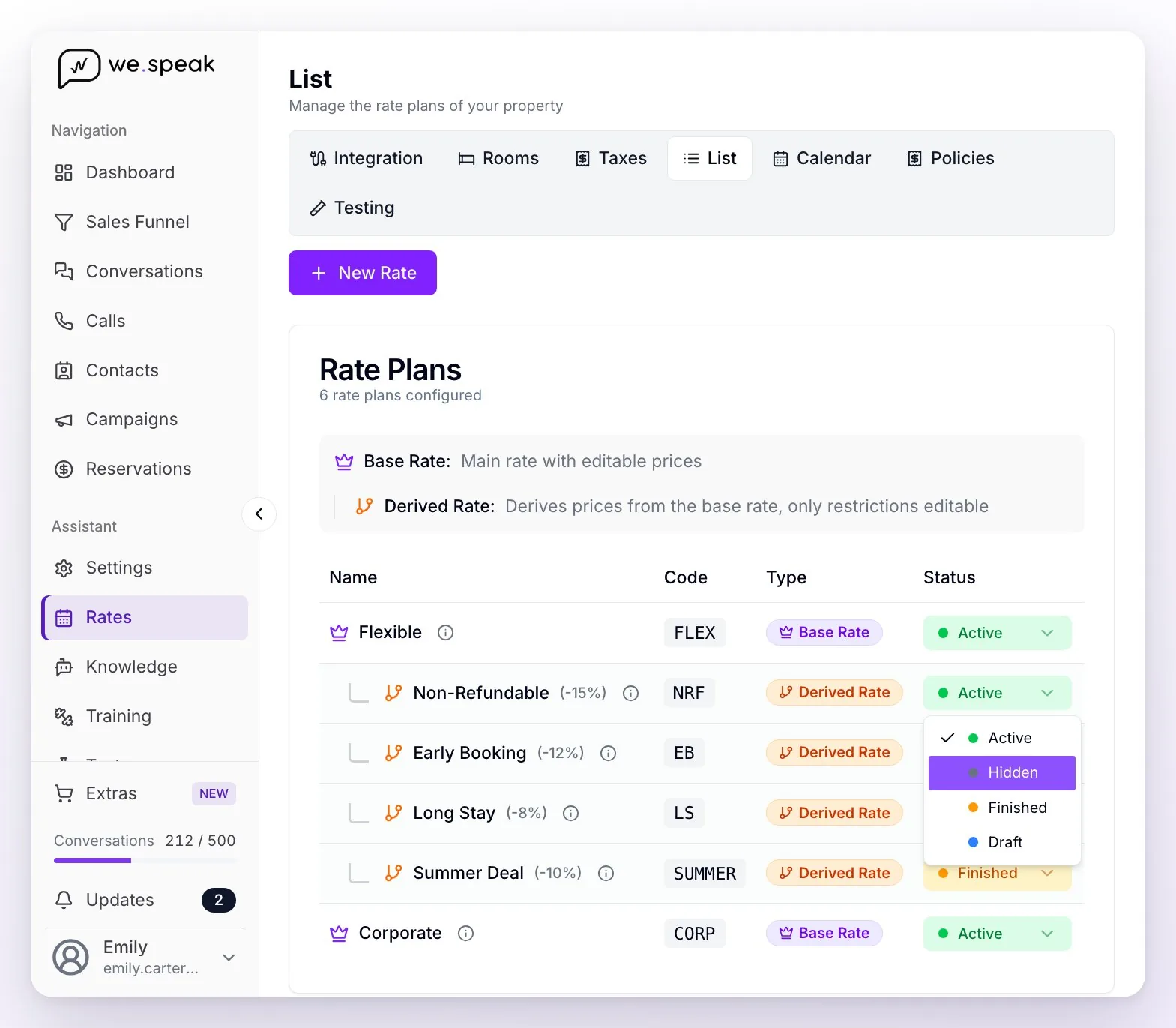
- Pausing it: in List, switch it to Hidden. It still exists, but the assistant doesn't offer it.
- Ending it: switch it to Finished. If you set a Validity Period with an end date, the assistant stops offering it on its own when it ends.
- Changing the discount: click its name in List, edit it and save with Update Rate. The rate type can't be changed.
- Selling only the promotion (and not the base rate): switch the base to Hidden. The promotion keeps taking its price from it. With a Channel Manager, don't switch the base to Draft or Finished: with those statuses, some Channel Managers stop receiving it for mapping.
- Deleting it: from ⋯ → Delete. It can't be undone, and if you delete a base rate, all its derived rates are deleted too.
What changes depending on your connection
| Connection | How the promotion works |
|---|---|
| Channel Manager | The base rate's price comes from your Channel Manager and WeSpeak calculates the promotion's. The promotion doesn't need to exist in your Channel Manager: you map only your base rates, and the booking arrives with the mapped base rate's code and the promotion's final price. More in WeSpeak Rates for Channel Managers. |
| PMS via API | The promotion is created on a base rate or an external rate (the one that takes its price from your PMS), and the booking enters your PMS with the promotion's price. Some PMSs don't accept a price different from the one they have loaded: they record the booking with their own price, and the amount WeSpeak charged stays in the booking's note. Your advisor can tell you whether that's the case with yours. More in WeSpeak Rates with PMS. |
| WeSpeak Engine | Everything lives in WeSpeak: the base, the promotion, the prices and the inventory. More in WeSpeak Rates without a PMS or a Channel Manager. |
Frequently asked questions
Does the promotion show up on my website or on the OTAs?
No: a derived rate exists only in WeSpeak. The assistant offers it in the chat and it isn't published on your booking engine, your Channel Manager or the OTAs, so it's a good way to have a promo exclusive to guests who book through WhatsApp.
Why isn't the assistant offering my promotion?
Check in order: that it's in Active status (not Draft, Hidden or Finished); that today is within its Validity Period and the queried dates fall within its Stay Window; that it isn't blocked by a restriction (minimum nights, lead time, CTA/CTD, Stop Sell, country); that it doesn't require a promo code, and that the room is included in the promotion. Rates → Testing shows you the reason.
Can I make a promotion with a fixed price instead of a discount?
Yes: create a Base Rate with its own price and conditions. The difference is that its price doesn't follow another rate: you load and adjust it yourself in the Calendar (with a Channel Manager, a base rate's prices always come from your Channel Manager).
My integration isn't compatible with Rates. How do I load my promotions?
In Knowledge → Promotions: the assistant presents them with the price your booking engine returns or, if your engine doesn't have the rate, hands the booking to an advisor. It's all in Promotions. If you want to switch to an integration that's compatible with Rates, check with your advisor.